You can view your listing on the left column at different levels, including Property, Unit Type, and Unit.
There are three types of Property:
Single Unit: A Property with one Unit Type and one Unit
Multi-Unit: A Property with one Unit Type and more than one Unit
Complex: A Property with more than one Unit Type and more than one Unit
Each level has its own tab and related information, such as Details, Pricing & Availability, Policies, Instructions, Website, and Operations.
Under the Details tab, you can view four cards:
General Info: Includes Internal Name, Listing Type, Total Number of Floors, Total Parking Spots, and Listing Entrance Code, all of which are inline-editable.
Location: Displays the Full Address and Address on Website.
Internal Note (optional): You can add notes here.
Attachment (optional): Allows you to upload relevant files or documents. These files will not be visible to guests.
Under Pricing & Availability, you can view Pricing in the Currency card.
Under the Policies tab, you can view and edit House Rules, Check-in & Check-out Times, and Security Deposit Timeline in separate cards.
In the House Rules card, you can turn on the toggles of Min Age of Lead Guest and Additional Rules. Then, you can click the pen to edit the Check-in & Check-out Times Windows, which include the Earliest and the Latest Free Check-in & Check-out Times. Time-Related Timelines are also editable.
*Please note that if you turn on the toggle of Charge Per Hour, it will be charged hourly. If you turn on the toggle of Prevent Early Check-in, it won’t be charged anymore. For the Security Deposit Timeline, you can edit the Pre-authorise and Release times.
Using the Instructions tab, you can provide some questions and answers on the Reservation FAQs card. Note that Before Booking FAQs are displayed publicly on your website.
While Zeevou plans to display other FAQs in the Guest Portal, they are currently either synced to GuestGuru for auto-answering guest messages or visible only to staff. If you haven't already, you can automate guest replies by integrating with GuestGuru.
Under the Instructions tab, you can:
Manage Frequently Asked Questions (FAQs):
Add, edit, or remove FAQs categorized based on the Booking timeline.
FAQ Categories:
Before Booking
Add public property-specific FAQs to assist and guide all potential Guests on your website.
After Booking
Provide answers to questions guests might have right after they book.
After Check-in Ready
Answer common questions guests might have before arrival if their Booking status is ready to check-in.
After Check-in
Help your guests by addressing inquiries they often have during their stay.
After Check-out
Assist in addressing frequently asked questions that guests commonly have after check-out.
Sync FAQs with GuestGuru to automate responses.
Organize and reorder FAQs by dragging and dropping for better visibility.
Provide Key Listing Instructions:
Share Wi-Fi credentials and other critical property details.
Add any custom instructions guests might need before or during their stay.
Under the Marketing tab, you can customise and complete the listing pages for your Direct Booking Websites. Use the available cards to enhance your property listings:
Headline & Description
On this card, you should add a Marketing Headline (Title & Headline field in Connection type A), use Your Property (Description field in Connection type A), and provide a Description (Space field in Connection type A) with key details about the property and guest experience.
Gallery
From there, you can upload new photos by clicking Add to Gallery or Upload Images, remove a photo using the bin icon, reorder photos with drag and drop, set a cover image by selecting the star icon (the first image becomes the cover), and edit the photo name or caption via the gear/settings icon.
Note that with smaller image previews, you can easily drag and drop images and quickly reorder them with better visibility and control. The cover image has the same size as the other photos but we are still having the tag to show it’s cover.
Amenities
Select available amenities in All Unit Types by clicking Add Amenity.
Marketing Address
The Address, Neighborhood Description, and Getting Around will be added in this card. The pin location on the Website map does NOT show the exact location.
Virtual Tour
With a Virtual Tour, visitors to your website can explore your listing's rooms and spaces. Enabling Show on Website lets potential guests experience your property virtually before booking, without the need for a physical visit.
Before Booking FAQs
You can add public property-specific FAQs to assist and guide all potential Guests on your website.
Reviews & Testimonials
You can build trust, boost your listing's visibility, and help attract more bookings by clicking on Add a Review on this card.
Under the Operations tab, you can view Staff, Cleaning, Staff Access Codes, and Task List cards:
a. On the Staff card, you can view Staff Name, Role, and Contact Info. You can click on the three dots to Edit or Remove from Property. On the top right, you can click on Add Staff to assign more staff to the Property.
b. In the Cleaning card, you can turn on the toggle of Midstay Housekeeping to set a default number of nights. You can edit this number by clicking on the pen in front of Frequency.
c. When you turn on the toggle of Staff Access Codes, any Key Safe Code you enter will be automatically added to your staff’s tasks for accessing the Property.
d. In the Task List card, you can view the details of each task using the search boxes and edit the actions.
Note: If Operations Management module is not enabled, you can review the available settings, but some actions are locked. At both the listing and unit levels, actions such as Add Staff, Cleaning settings and toggles, Set Access Code, and Create in the Create Task drawer are locked. When you select Create Housekeeping Task, a banner prompts you to purchase the Operations Management module. Actions in the three-dot menu, such as Add a Note, Assign a Task, and Change Time Frame, are also locked. To unlock these features, select the option to purchase Operations Management and follow the upgrade steps.
Under the Details tab, you have two cards to view and edit. The first one is the General Info card, including Website Display Name, Unit Type, Unit Average Size, and Maximum Capacity.
The second one is Rooms & Spaces. You can click on Add Rooms & Spaces to have more Rooms & Spaces or the three dots to Add Bed, Rename, or Remove the added one(s).
Under Pricing & Availability, you can view and edit Dynamic Pricing, Rate Plans (Nightly, Weekly, or Monthly) and iCal Links in separate cards. When you turn on the toggle of Dynamic Pricing, you can set the Min & Max Price.
You can click on the pen of each Nightly/Weekly/ Monthly Rate Plan’s View/Edit Details to view and edit in line.
The details include Weekday and Weekend Price, Guests Capacity, Min & Max Length of Stay, and Charges & Fees ( Payment Terms, security Dedposit, Tax and Fees). The Calendar will be imported to all units of this Unit Type if you click on Import Calendar.
You can add Guest access, Interaction with Guests, Notes on the Instructions card of Instructions tab to provide guests with essential information about access, communication, and important details before booking.
Under the Operations tab, there is only a Cleaning card in which you can view and edit Avg. Housekeeping Time.
When you change a Rate Plan Rate, Zeevou displays an Update Existing Data pop-up asking whether you want the change to apply to existing dates.
Override Existing Data – Applies the new rate to existing dates, including dates with manually entered or dynamically generated rates.
Do Not Override Existing Data – Applies the new rate only to dates that don't already have manual or dynamic data, and to dates that are more than two years in the future.
Note: Choose Override Existing Data only if you want to replace your existing pricing. Otherwise, select Do Not Override Existing Data to preserve any manually set or dynamically generated rates.
Under the Details tab, you can only view and edit Unit Name and Unit Size in the General Info card.
Under Pricing & Availability, you can only view and edit the iCal Links card. You can also import the calendar to the unit level, the same as the unit type level.
Under the Instructions tab, you can view and set Check-in & Check-out Methods, Instructions and House Manual in separate cards.
Note: If you have already created a guidebook for your guests, you can insert its URL into Zeevou and send it with your automated message to the guests. You can set a URL in this field and use it in API Calls. To do so, go to Listings -> Instructions tab -> Instructions card. Click on Insert URL.
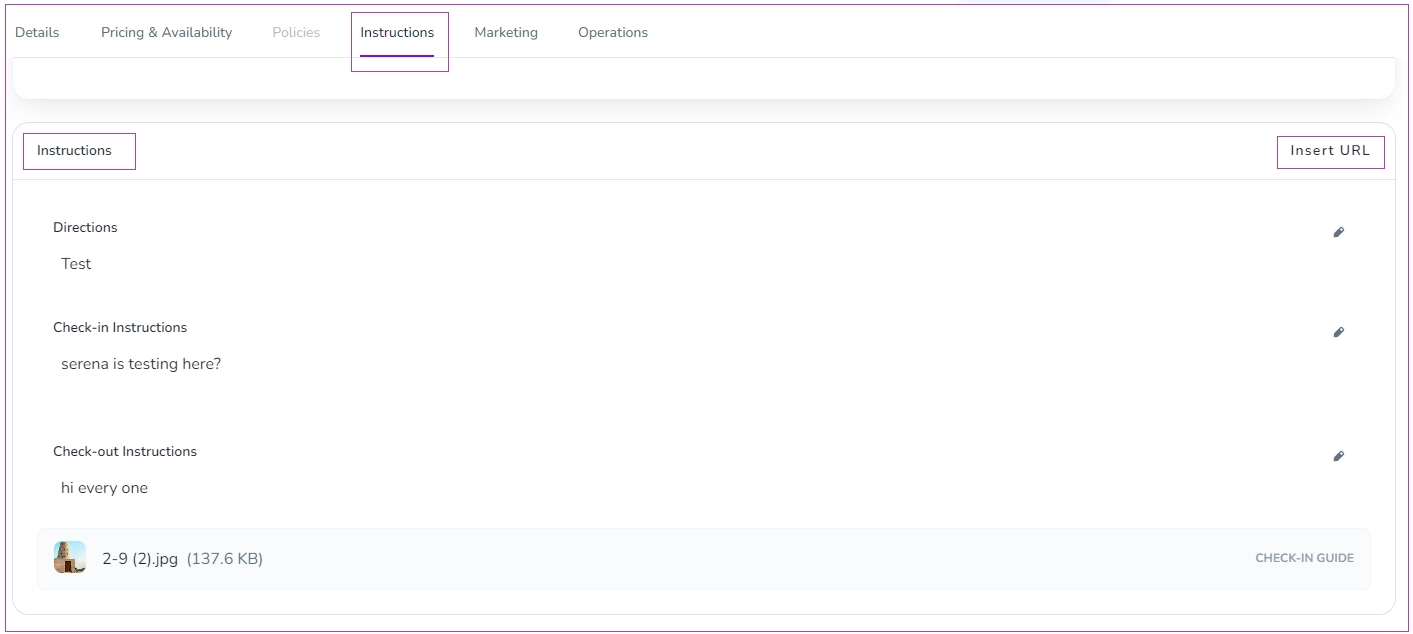
A window will open in which you can insert your desired URL and finally click Save.

You can also use the guidebook URL as a variable in your automated messages.
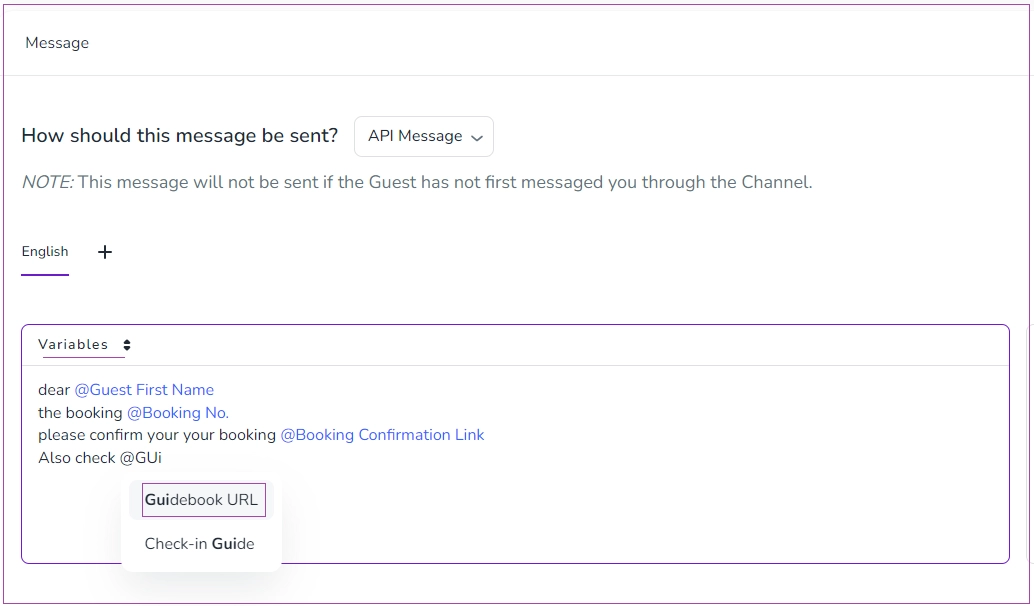
Watch this tutorial video on how to set Instructions for your unit:
The Marketing tab is explained here.
Under the Operations tab, there is only the Task List card in which you can view tasks and edit by clicking on three dots for Actions.
Managing Your Property’s Website Visibility
You can also control which website(s) should display your property. To do so, click on Details under the property image. Then a window pops out in which you can view the websites on which the property is already listed. And if you click on the arrow in front of each, you will be directed to the website.
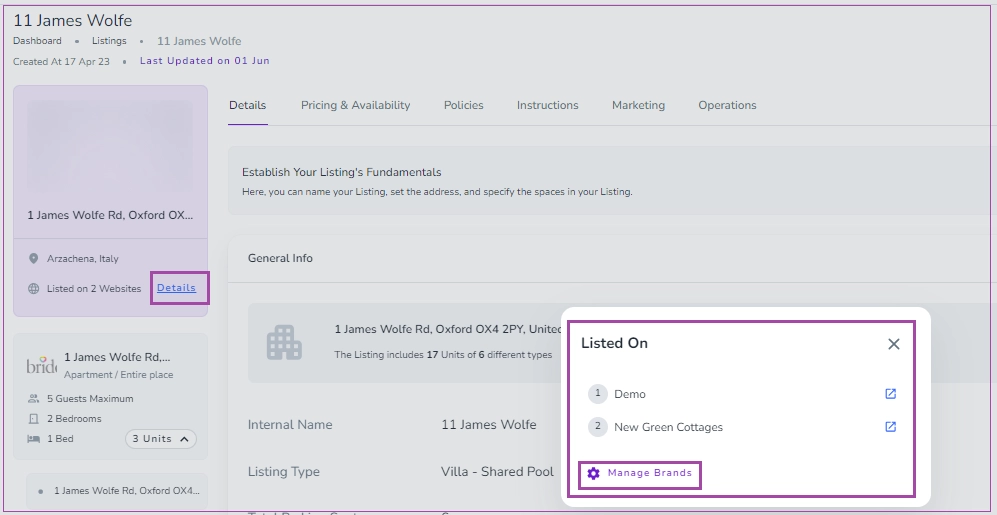
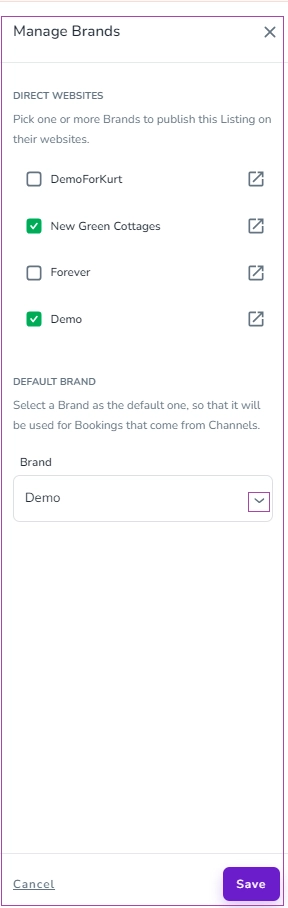
If you click Manage Brands, a drawer opens in which you can pick one or more Brands to publish this Listing on your websites. You can also select a Brand as the default one, so that it will be used for Bookings that come from Channels. Finally, click Save.
Overview
There is a panel of Overview, including the number of Countries and Cities in which you have properties. The Overview also shows the number of your active Properties, Unit Types, and Units.
On the Listings Landing Page, you can click on the Listings arrow to select Listings or Archived Listings. When you click on the Listings, you can view :
Manage Channels
Add a Listing
More
To select Set Listing Defaults, Bulk Import Listings, or Upsell List.

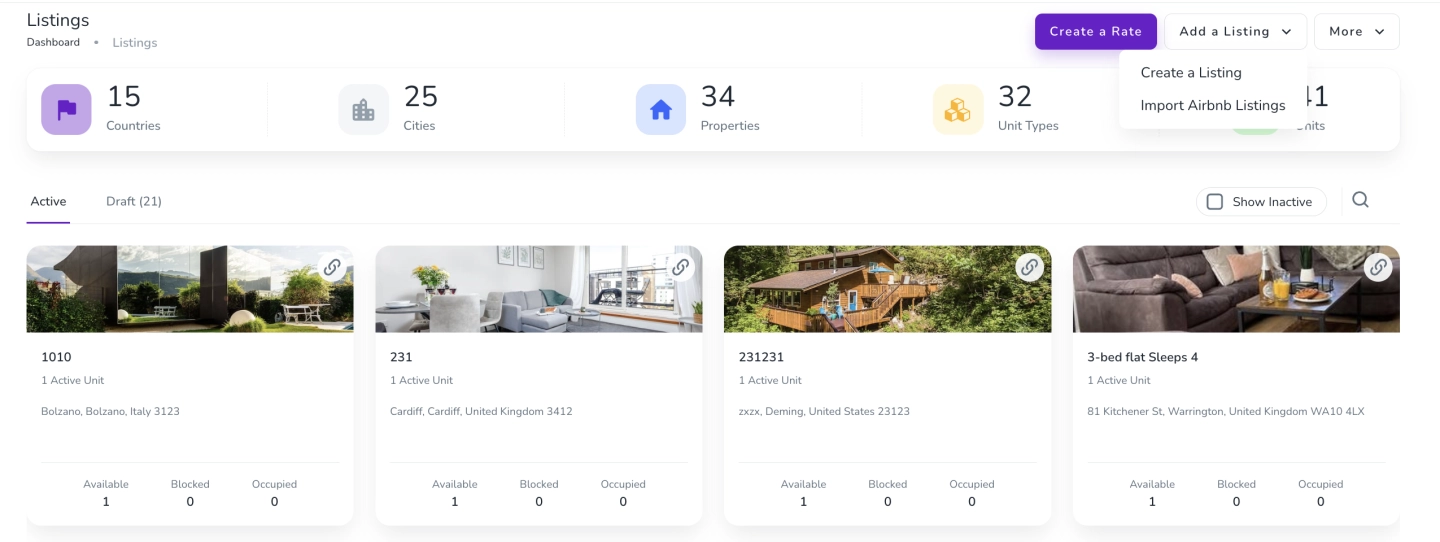
Active & Draft
Each property is shown in the form of a card with all the information, including the internal name, the number of active units, its address, and the status of units daily. If you click a card, you will be redirected to its property page.
The Draft tab shows you all the inactive units with their address and required licences. You can click on each Draft card to Activate, Complete or Delete the Listing. To see the Drafts tab, you have to scroll to the right; please note that you need to do this while on a desktop.
Search & Filter
On the right side of the Active tab, click the Search & Filter icon to find your desired listing.
Note 1: You can go to the Listings page on your Zeevou direct booking website by clicking the chain icon.
Note 2: The Active are the properties which are imported and created completely, but the Drafts are the ones which are just imported and are not completely created.
Note 3: The Owner Portal will only display the property if the property is Active or Published.
The Details tab allows you to configure your property's room types, assign room-level amenities, manage sleeping arrangements, and set up ensuite bathrooms. This helps you accurately represent your property's layout and features.
Open the Details tab.
Navigate to the Rooms & Spaces card.
Here, you'll find all configured room types along with their associated amenities and sleeping arrangements.
Each room type displays Amenities and Sleeps cards for quick access.
Click Show Details on a room type.
The Amenities, Sleeps, or both sections will expand, depending on the room configuration.
To manage amenities for a room:
Click the More actions (three dots) icon next to the room type.
Select Add Amenity.
In the Manage Amenities pop-up:
Select or deselect amenities.
Use the search bar to quickly find a specific amenity.
Click Save to apply your changes.
To remove an existing amenity, hover over the amenity and click the Trash icon.
For room types that support beds:
Open the More actions menu.
Select Add Beds.
Add or update the bed configuration as required.
The Sleeps section is updated accordingly.
From the More actions menu, you can also:
Rename a room type.
Remove a room type from the property.
Note that theToilet and Shower amenities cannot be removed unless another bathroom already contains both amenities.
To manage bathroom amenities:
Click the More actions icon for the bathroom.
Select Add Amenity.
The Manage Amenities pop-up opens, allowing you to assign bathroom-specific amenities.
Save your changes.
You can associate a bathroom with a bedroom as an ensuite.
Add a Bathroom room type if one does not already exist.
Set the bathroom as an Ensuite.
Select the bedroom to which it should be assigned.
Save your changes.
If needed, you can later unassign the ensuite bathroom. A confirmation snackbar allows you to undo the action immediately after unassigning.
