Once your listing is set up, you can publish it to one or more Brand websites. You can publish listings individually or publish multiple listings at once.
Before publishing, make sure your listing is ready for guests by checking the following:
The listing has been created and activated.
All required listing information is complete.
Your listing content and images are ready to be displayed to guests.
Your pricing and availability are configured if you want guests to book the listing.
The listing is assigned to the correct Brand website.
If you still need to complete your listing setup, see List Your Properties.
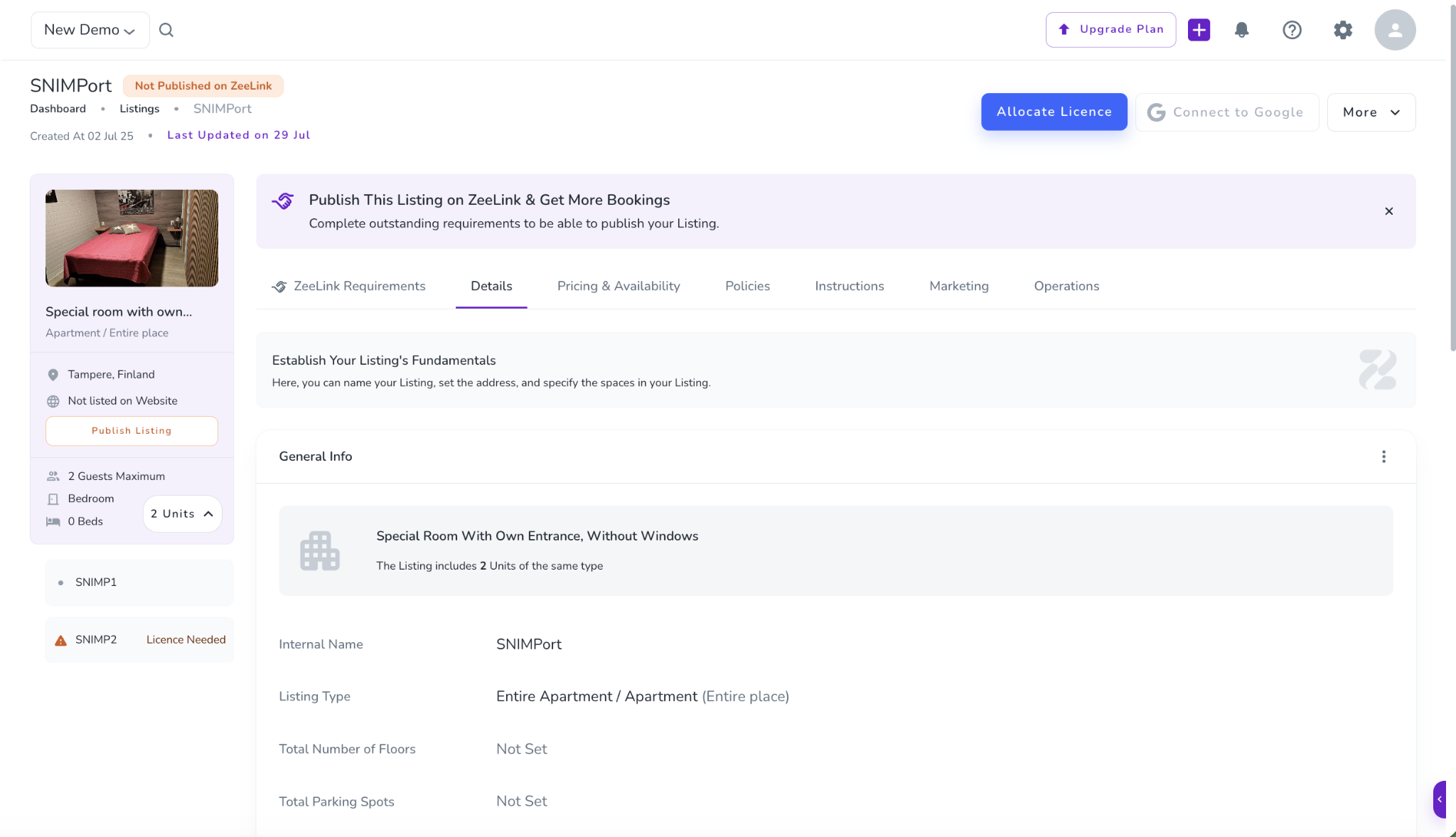
Go to Listings Dashboard and open the listing you want to publish.
Click Publish Listing.
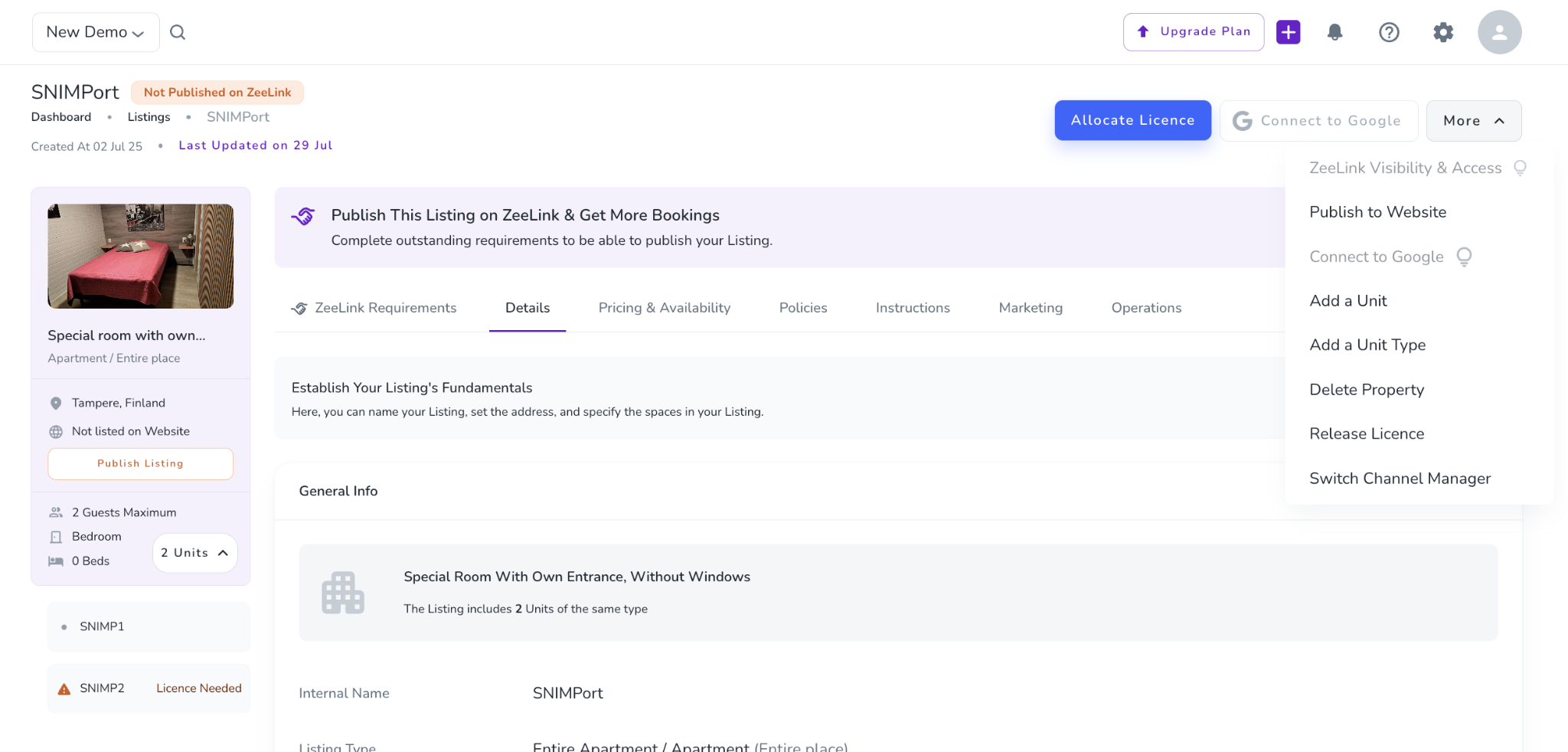
Alternatively, click the More arrow and select Publish to Website.
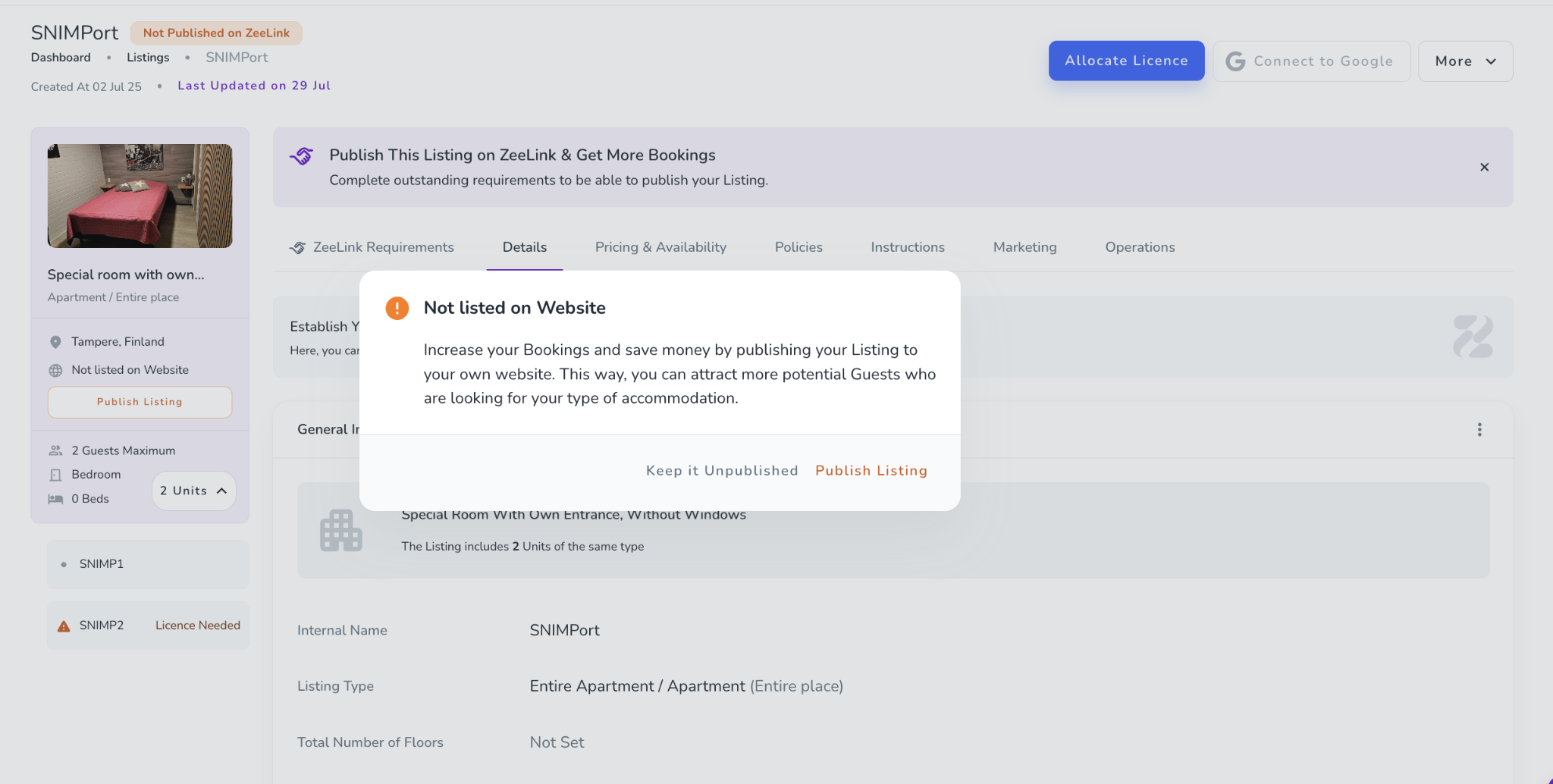
A pop-up appears informing you that the listing does not yet exist on the website.
Click Publish Listing.
Review the listing details and make sure all required information is complete.
Save your changes.
The listing will then be published on your website and available for guests to view and book.
If you manage multiple brands, you can choose which brand website(s) to publish the listing to.
Go to Listings Dashboard and open the listing you want to publish.
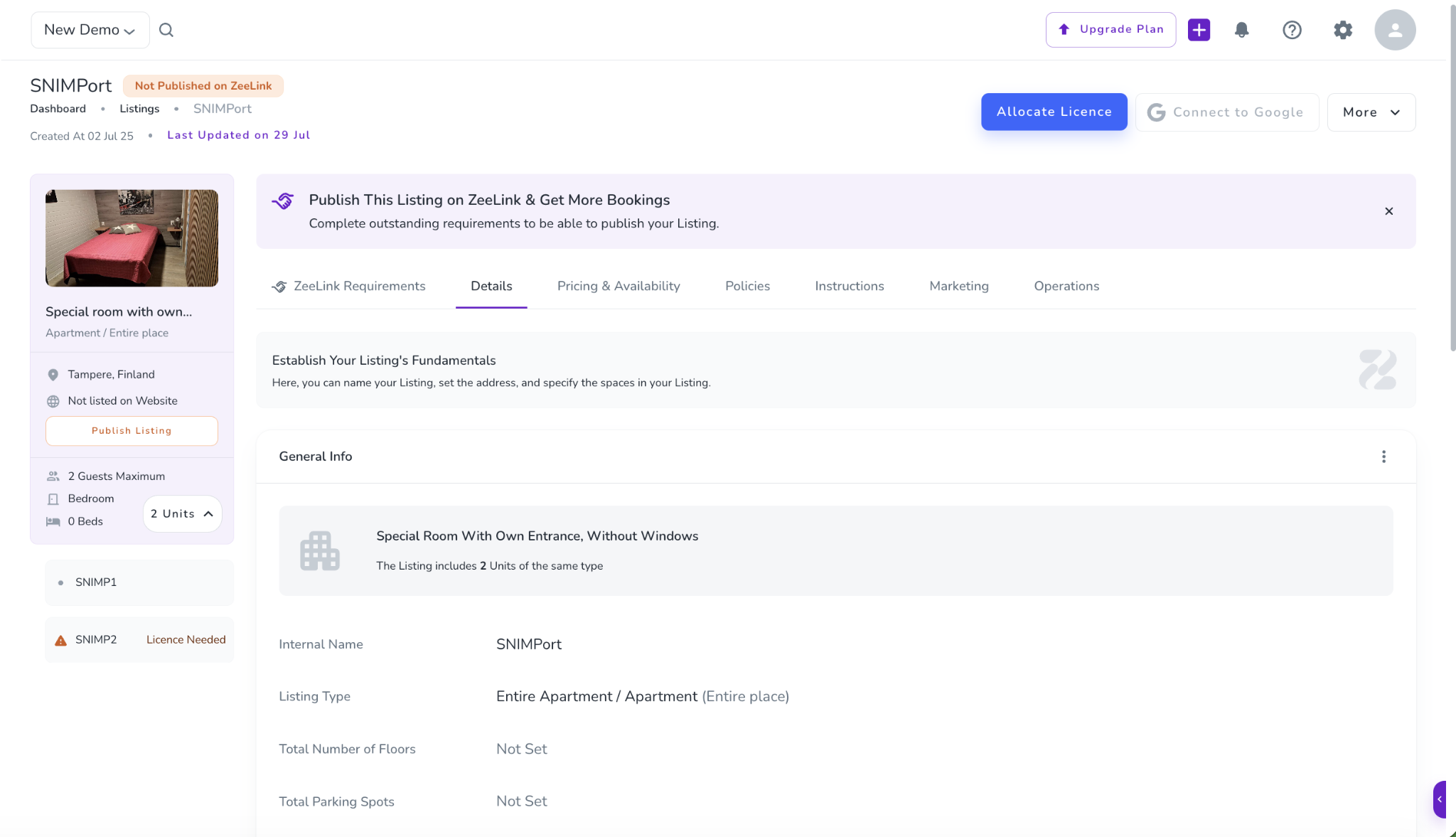
Click Publish Listing.
A pop-up appears informing you that the listing does not yet exist on the website.
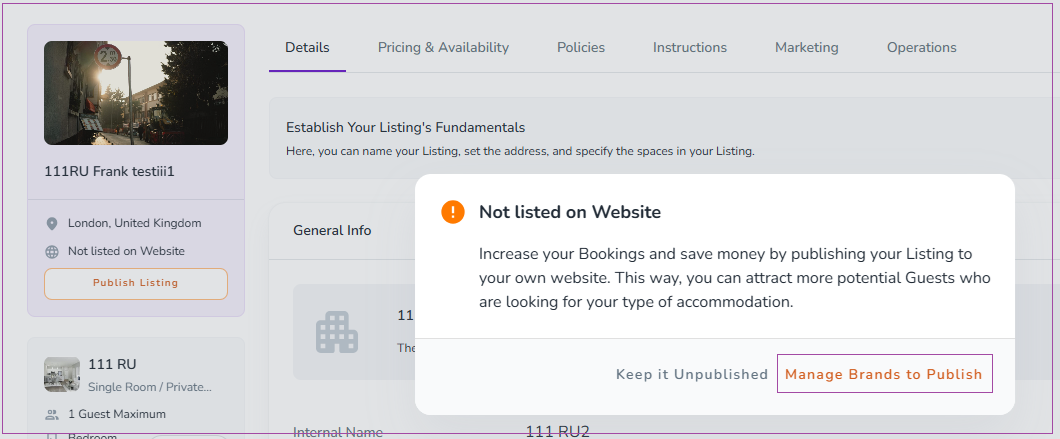
Click Manage Brands to Publish.
Alternatively, click the More arrow and select Manage Brands.
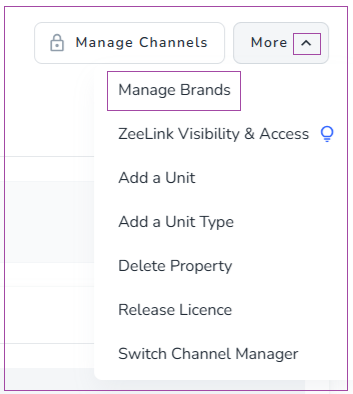
A drawer opens in which you can select the brand you want to publish the listing to and make sure all required information is complete.
Save your changes.
The listing will then be published on your website and available for guests to view and book.
You can publish multiple listings at once from the Brand Listings page.
Go to Websites in the main menu.
Click Website Settings.
Navigate to Listings under the Pages tab.
On the Unpublished Listings card, click Publish.
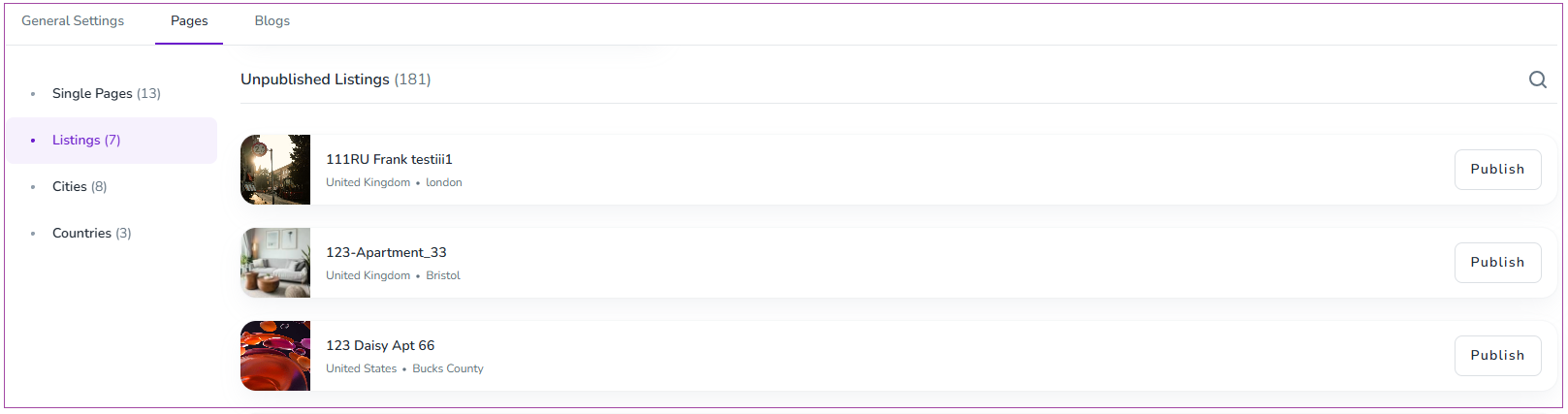
The selected listings will be published on your website.
Once your listing has been published, open your website and preview it from the guest's perspective. Make sure the information visible to guests is accurate.
Once your direct booking website is live, you can connect and activate your distribution channels to make your listings available across your preferred booking platforms.
