Before adding Listings, review the following guides if they apply to your portfolio:
Important: After creating or importing a listing, open each unit type and complete its room, bathroom, and sleeping arrangements as required. Make sure the number of sleepers provided by the beds supports the unit type's maximum guest capacity before mapping the property to channels.
Choose the option that best matches your situation.
1. Import from Airbnb
If your property is already listed on Airbnb, you can import the information from the Airbnb listing into Zeevou.
Import a Listing from Airbnb →
2. Create Listings Manually
If y you prefer to enter the information yourself, use the Listing Creation Wizard.
3. Bulk Import Listings via Spreadsheet
If you have a large portfolio, you can use the Bulk Listing Import option to create multiple properties from a spreadsheet.
This process only scrapes data from your Airbnb listing. Importing a listing:
Does not affect or change any data in your Airbnb account.
Does not create an Airbnb integration with Zeevou or map its calendar.
Only imports the information available from the Airbnb listing such as photos, descriptions, and amenities.
After importing your listing into Zeevou, you can map it to Airbnb and any other channels you want to integrate through Zeevou.
From the Listings dashboard, click Add a Listing in the top-right corner.
Select Import Airbnb Listings.
Open the Airbnb listing you want to import.
Click View mode on your listing.
Click Share to display the public listing URL.
Copy the public Airbnb URL. For example:
(https://www.airbnb.co.uk/rooms/1318754333696514746)
Return to Zeevou and paste the URL into the open window.
Select As a New Listing.
Click Import.
The Listing Import Wizard opens, where you can add information that cannot be pulled from Airbnb.
Step 1: Location
Enter your listing’s Address, City, and Postcode.
Confirm the pin location by ticking the checkbox.
Click Next.
Step 2: Listing Info
Fill in your listing’s basic information:
Listing Type — Optional.
Unit Type Category — Select the category that best describes the accommodation.
Internal Name — Enter an internal name for the listing, within the character limit.
Check-in & Check-out Method — Select the applicable method.
Number of Units — Enter the number of units represented by this Airbnb listing.
Unit Names — Enter the name of each unit.
Click Next.
Step 3: Marketing Info
Edit or add the Marketing Headline.
Edit or add the Description (optional).
Click Next.
Step 4: Listing Images
Click Upload Images to insert new images.
Edit or remove existing images and captions by hovering over each image and clicking the gear or bin icon.
Click Next.
Step 5: Listing Amenities
Click Add Amenities.
Click the search icon.
Search for and select the amenities available in all units of the listing.
Hover over the amenity and click the bin icon to remove it.
Click Next.
Step 6: Pricing
Fill out pricing details for your base price. You will be able to override these manually later or integrate a dynamic pricing tool.
Complete the following fields:
Currency
Weekday Price
Weekend Price
Maximum Capacity per Unit
Number of Guests Included in Price
Additional Fee for Extra Guests (this shows up if the number of guests included in the price is lower than the maximum capacity)
Security Deposit — Optional.
Cleaning Fee — Optional.
Click Next.
Step 7: Manage Brands
Select one or more Brands to publish the listing on their websites.
Select a Default Brand to be used for bookings that come from channels.
Click Finalise Activation to activate the listing.
Or click Save Draft to continue later.
To edit the draft listings, scroll to the right to find the Draft tab on the Listings page.
Click Drafts.
Select the listing.
Click Complete.
Use this option when multiple Airbnb listings represent different accommodation types within the same physical property.
For example, if one physical property contains:
Five one-bedroom apartments listed on Airbnb
Three two-bedroom apartments listed on Airbnb
To import another Airbnb listing as a Unit Type:
From the Listings dashboard, click Add a Listing in the top-right corner.
Select Import Airbnb Listings.
Copy the Airbnb URL/ID of the listing you want to import.
Paste the URL/ID into the open window.
Select As a New Unit Type under an Existing Listing.
From the dropdown menu, select the property where you want to add the Unit Type (active properties only).
Click Import.
The imported Airbnb listing will be added as an additional Unit Type within the selected Zeevou listing. Repeat these steps for each additional Unit Type you want to import.
Once you have finished adding your Listings, continue to Design the Booking Journey.
After importing your listing, add the bedroom and bed information for each Unit Type.
Go to Listings.
Select the relevant property.
Open the Details Card. If the property has multiple Unit Types, open the Details Card for the relevant Unit Type.
At the bottom of the page, click Add Rooms and Spaces.
Enter the bedroom count.
Enter the bed count.
Click Save.
Important: Add enough bedrooms and beds to match the guest capacity of the Unit Type. Bedrooms and beds must be added before you map the property to channels. Repeat this for each Unit Type where required.
For more detailed room, bed, and bathroom configuration, see Navigating Listings.
Use this option if you prefer to enter the information yourself.
If your property contains several accommodation types, create the first Unit Type during the creation process and add additional Unit Types afterwards.
Log in to app.zeevou.com.
Navigate to Listings on the main menu.
At the top right, click the dropdown arrow next to Add a Listing.
Select Create a Listing.
The Listing Creation Wizard opens.
Step 1: Enter Location Details
Fill in your listing address: Address, City, Postcode, and Country.
Confirm the pin location on the map.
Click Next.
Step 2: Add Listing Information
Enter the basic information for your listing:
Listing Type (optional)
Unit Type
Internal Name
Check-in & Check-out Method
Number of Units
Unit Names
Click Next.
Step 3: Add Marketing Information
Add the information that will be displayed on your direct booking website.
Listing Headline
Description (optional)
Click Next.
Step 4: Upload Listing Images
Upload images for your listing.
Adjust the settings for each image as needed.
Click Next.
Step 5: List Amenities
Add the amenities available in all units of this listing.
Click Next.
Step 6: Set Pricing
Complete the following fields:
Currency
Weekday Price
Weekend Price
Maximum Capacity per Unit
Number of Guests Included in Price
You can also enable the following optional settings if they apply to your listing:
Minimum Stay
Maximum Stay
Security Deposit
Cleaning Fee
Click Next.
Important: Make sure the Maximum Capacity per Unit reflects the maximum number of guests that can stay in the Unit.
Step 7: Manage Brands
Pick one or more Brands to publish the listing on their websites.
Select a Default Brand to be used for bookings that come from channels.
Click Next.
Click Finalise Activation to activate the listing.
To save the listing without activating it, click Save draft and activate later.
To edit the draft listings, scroll to the right to find the Draft tab on the Listings page.
Click Drafts.
Select the listing.
Click Complete.
If your property contains more than one type of accommodation, you can add additional unit types to your listing:
For example, a property might contain:
Five one-bedroom apartments → one Unit Type with five Units
Three two-bedroom apartments → a second Unit Type with three Units
To Add a Unit Type:
Go to Listings.
Open the relevant listing.
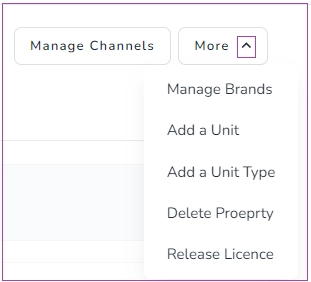
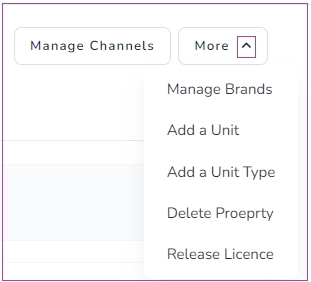
Click More.
Select Add a Unit Type.
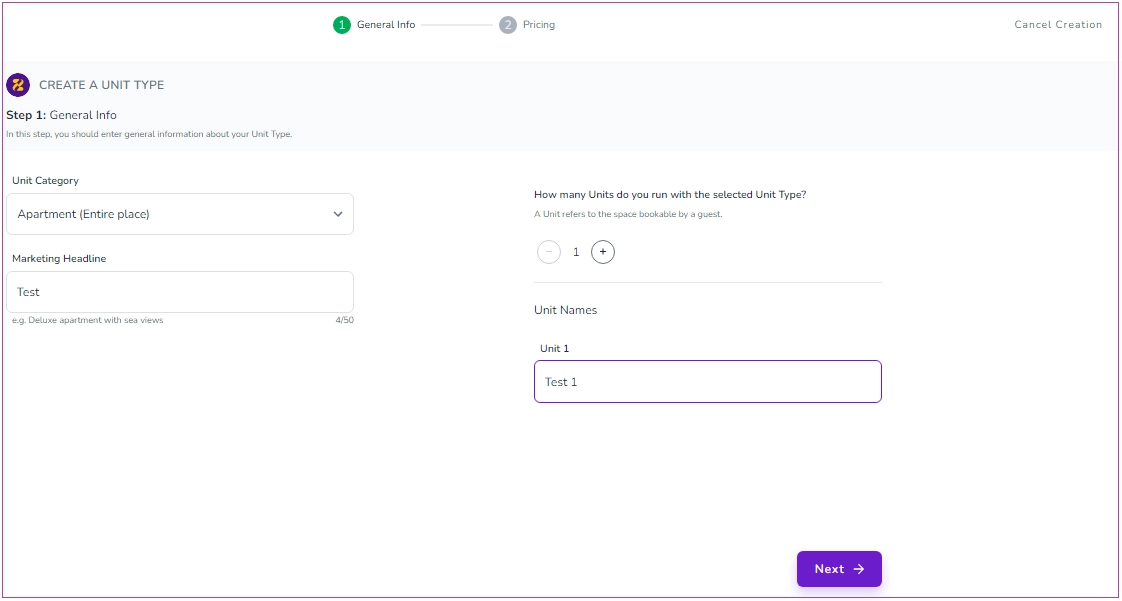
You will be directed to a two-step wizard.
Step 1: General Info
Enter the Unit Type information:
Unit Category
Marketing Headline
Unit Name
Click Next.
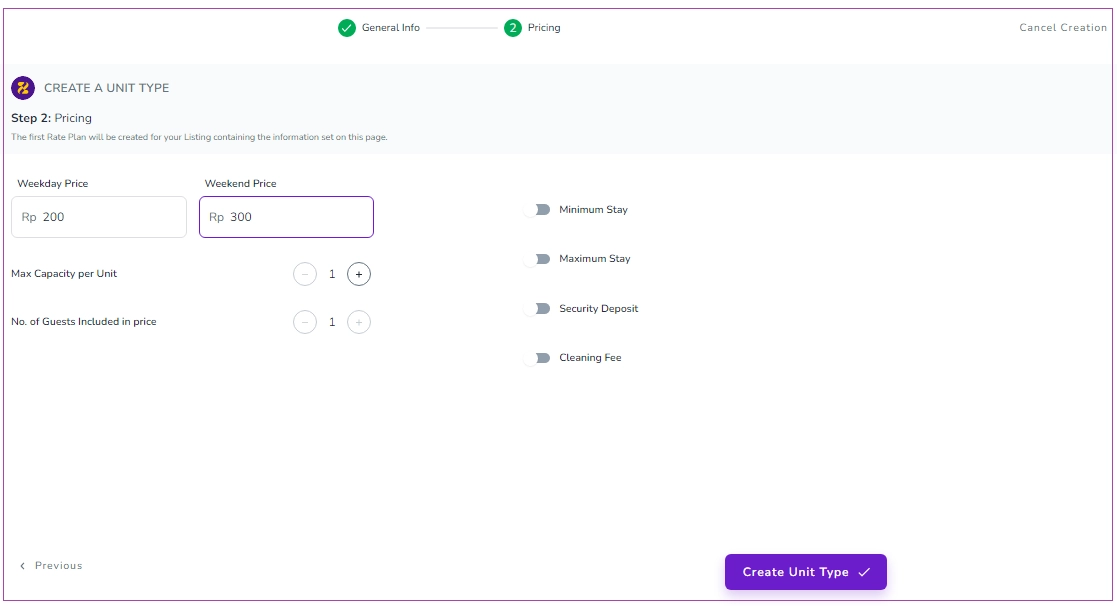
Step 2: Pricing
Enter the prices for:
Weekday
Weekend
You can enable the available optional pricing settings if they apply to this Unit Type.
Click Create a Unit Type.
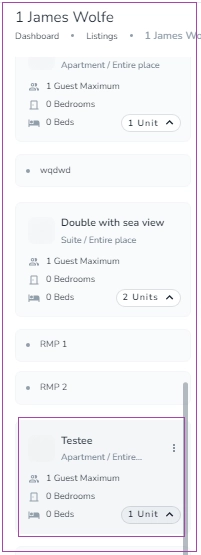
The new unit type will be added to the listing on the Listings page.
If you need to add another individual unit to an existing unit type, follow the steps below.
For a Single-Unit Property
Go to Listings.
Find the relevant listing.
Click More.
Select Add a Unit.
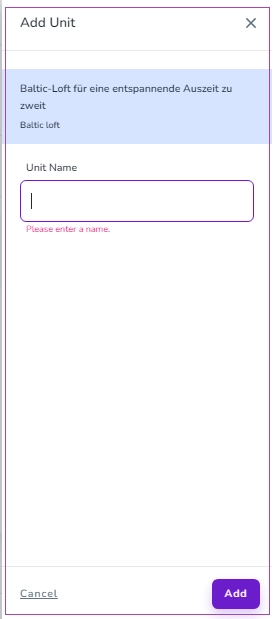
Enter the Unit Name in the drawer that opens.
Click Add.
For a Property with multiple Unit Types
Go to Listings.
Find the relevant listing.
Find the Unit Type to which you want to add the Unit.
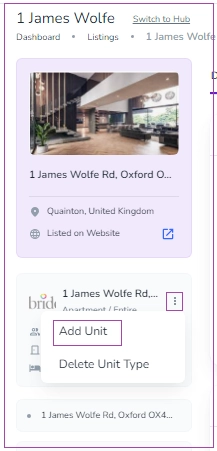
Click the three-dot menu for that Unit Type.
Select Add a Unit.
Enter the Unit Name in the drawer.
Click Add.
After creating the property, complete the room and sleeping arrangements for each unit type.
Go to Listings.
Select the relevant property.
Open the Details Card. If the property has multiple Unit Types, open the Details Card for the relevant Unit Type.
At the bottom of the page, click Add Rooms and Spaces.
Enter the bedroom count.
Enter the bed count.
Click Save.
Important: Add enough bedrooms and beds to match the guest capacity of the unit type. Bedrooms and beds must be added before you map the property to channels. Repeat this for each unit type where required.
Once you have finished adding your Listings, continue to Design the Booking Journey.
Use Bulk Listing Import when you need to create a larger number of properties at once.
Bulk Listing Import creates properties from the information provided in the spreadsheet.
Step 1: Download the Bulk Listing Import Template
Download a copy of the Bulk Listing Import Template.
Use this template to enter the information for each property you want to import.
Step 2: Complete the template
Use the dropdown options provided in the template to fill all the required fields for each property.
Important: Only Wi-Fi Name and Wi-Fi Password can be left empty.
Step 3: Save the file as CSV
In the spreadsheet, click File → Save As.
Select CSV as the file format.
Save the file.
Important: Make sure that name fields contain only alphabetic characters and numbers and do not contain special characters or symbols.
Step 4: Open Bulk Import Listings
Go to Listings.
Select Properties.
Select Bulk Import Listings.
Click Import File.
Step 5: Upload the file
A pop-up window will open.
Click Choose.
Find and select the completed CSV file.
Click Submit.
Step 6: Wait for validation
After you imported the file, Zeevou validates the information in the spreadsheet.
Zeevou sends the validation result to the email address associated with your account.
If there are errors:
If Zeevou finds any errors in the uploaded data, you will be informed by email.
Review the errors in the email.
Open the spreadsheet.
Correct the relevant information according to the validation rules below.
Save the file again in CSV format.
Upload the corrected file again.
Every property in the spreadsheet must meet the following requirements:
Name
Name cannot be empty.
Name must be unique.
Name must not contain special characters.
Internal Name
Internal Name cannot be empty.
Internal Name must be unique.
Internal Name must not contain special characters.
City
City cannot be empty.
City must not contain special characters.
Country
Country cannot be empty.
The selected Country must exist in Zeevou.
Default Currency
Default Currency cannot be empty.
The selected currency must exist in Zeevou.
Door Number
Door Number cannot be empty.
Door Number must not contain special characters.
Unit Type Information
Unit Category cannot be empty.
The selected Unit Category must exist in Zeevou.
Unit Type Marketing Name
Unit Type Marketing Name cannot be empty.
Unit Type Marketing Name must be unique.
Unit Type Marketing Name must not contain special characters.
Maximum Capacity
Maximum Capacity cannot be empty.
Maximum Capacity must be numeric.
Maximum Capacity cannot be lower than 1.
Check-in Information
At least one Check-in Type is required.
The selected Check-in Type must exist in Zeevou.
Brand Information
Brand Name cannot be empty.
The selected Brand must exist in Zeevou.
Security Deposit
Security Deposit cannot be empty.
Security Deposit must be numeric.
Security Deposit cannot be lower than 0.
Bedrooms
Bedrooms cannot be empty.
The number of bedrooms must be numeric.
The number of bedrooms cannot be lower than 0.
Bathrooms
Bathrooms cannot be empty.
The number of bathrooms must be numeric.
The number of bathrooms cannot be lower than 0.
Minimum Stay
Minimum Stay cannot be empty.
Minimum Stay must be numeric.
The minimum stay cannot be lower than 1 night.
Maximum Stay
Maximum Stay cannot be empty.
Maximum Stay must be numeric.
The maximum stay cannot be lower than 1 night.
Minimum Guests
Minimum Guests cannot be empty.
Minimum Guests must be numeric.
The number of minimum guests cannot be lower than 1.
Minimum Guests cannot be greater than Maximum Capacity.
Default Rate
Default Rate cannot be empty.
Default Rate must be numeric.
Default Rate cannot be lower than 1.
Relationships Between Values
Minimum Guests cannot be greater than Maximum Capacity.
Minimum Stay cannot be greater than Maximum Stay.
Once the spreadsheet has passed validation, Zeevou creates the properties from the information in the file. There are several important things to check after the import:
1. Activate the imported Unit
The unit of a Property created through Bulk Listing Import is inactive by default.
You must manually activate the Unit before using it for bookings.
2. Review the imported rate plan
The unit type created through Bulk Listing Import has a Nightly rate plan.
By default, the rate plan applies only to Website Booking Engine and Manual bookings
You can later change the rate plan settings so that it also applies to your channels.
3. Add Bedrooms and Beds
For each imported Property:
Go to Listings.
Select the relevant Property.
Open the Details Card. (If the property has multiple Unit Types, open the Details Card for the relevant Unit Type.)
At the bottom of the page, click Add Rooms and Spaces.
Enter the bedroom and bed count.
Click Save.
Important: The number of bedrooms and beds must support the guest capacity of the unit type before you map the property to channels. Repeat this for each relevant Unit Type.
Once you have finished adding your Listings, continue to Design the Booking Journey.
