ZeeLink allows eligible listings from verified hosts to be shared across the Zeevou network, helping you reach more potential guests and generate bookings through participating hosts and reseller websites.
Your listing can be automatically shared with ZeeLink once it meets the required eligibility criteria. You remain in control of your listing's network visibility and can hide a listing from ZeeLink at any time.
For a full overview of ZeeLink and how it can help you grow your bookings and inventory, visit https://zeevou.com/network.
ZeeLink is a host-to-host distribution network that allows eligible listings to be promoted through participating hosts and resellers.
A reseller is a host or business that publishes other hosts' listings on its website and generates bookings on their behalf.
By making your listing available through ZeeLink, you can increase its visibility across the network while keeping the listing, availability, pricing, and booking fulfilment connected to your Zeevou account.
To ensure that only complete and bookable listings are shared, your listing must meet certain requirements before it can be automatically distributed through ZeeLink.
A listing is automatically shared with ZeeLink once all applicable requirements have been completed.
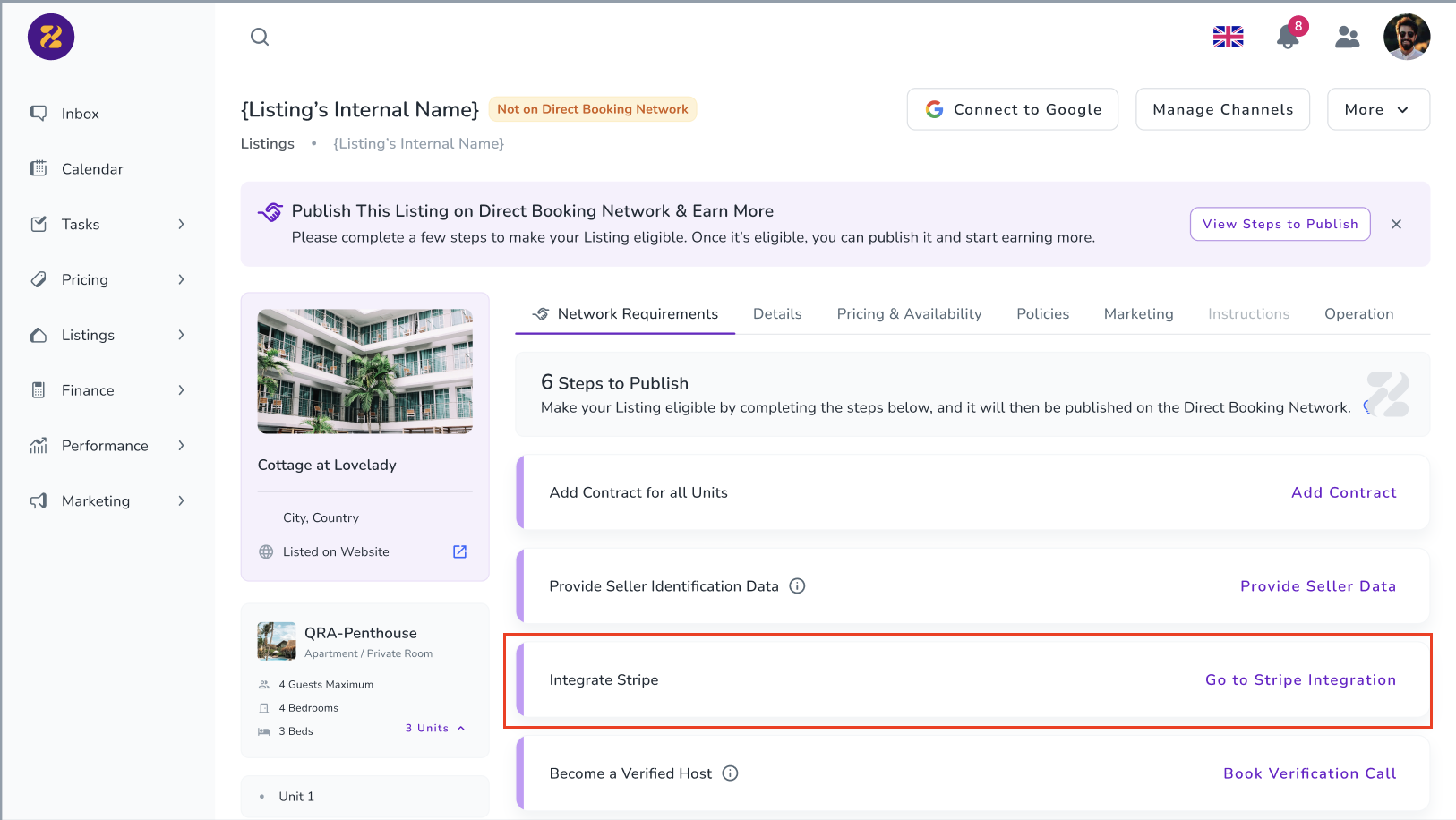
The organisation must connect a Stripe account to Zeevou.
If no account is connected, this requirement will appear in the ZeeLink Network Requirements tab.
Clicking it redirects the host to the Stripe integration page. Once connected, the requirement is automatically removed.
Seller Identification Data is required for legal and tax reporting purposes, including requirements such as EU DAC7.
The organisation's seller identification information must be provided before eligible listings can be shared.
Clicking Provide Seller Data opens a pop-up showing seller missing identification data.
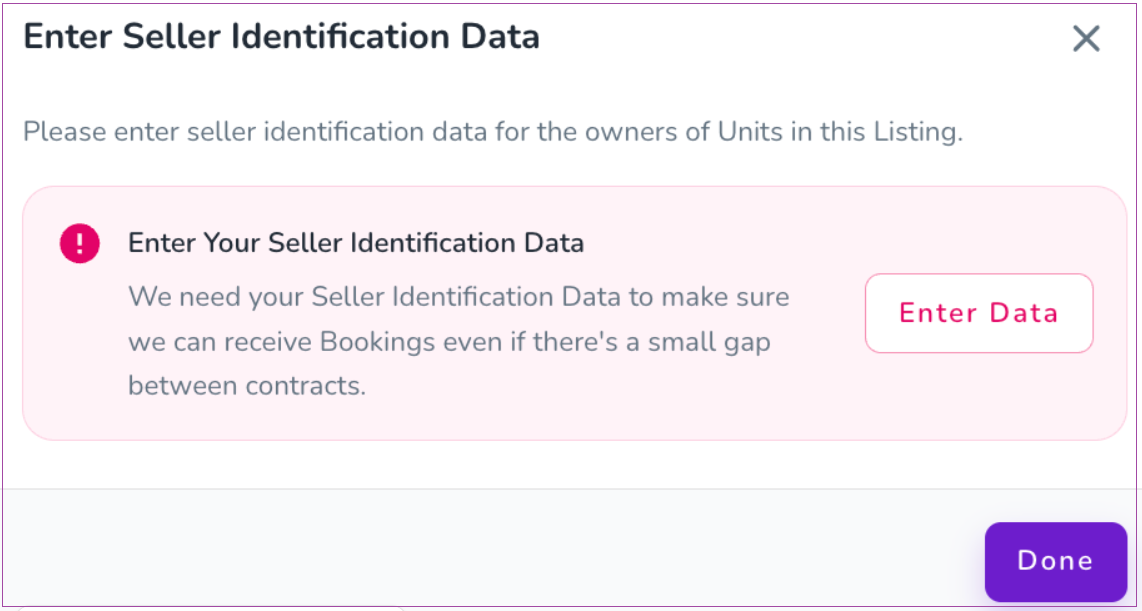
You may need to specify whether the seller is an individual or a legal entity and provide information such as:
Name or business name
Registered address
Tax Identification Number (TIN)
Country of tax residence
Note that:
VAT numbers are optional.
If a seller does not have a TIN or business registration number, they must select a reason.
Once entered, the requirement is automatically completed for all related listings linked to that seller.
Host Verification allows you to verify your identity before publishing listings and connecting them to supported channels.
To start verification:
Go to Manage Channels.
Select Verify Identity.
Confirm the action in the pop-up window.
Follow the on-screen instructions to complete verification.
Once your identity has been verified, you can publish your listings and connect them to supported channels.
Note: This feature is only available when Bank Transfer is enabled under Settings > Finance at the brand level.
Your listing must have at least one rate plan applied to your Direct Booking website.
If no rate plan is applied, this requirement will appear in the ZeeLink Network Requirements tab.
Click the requirement to open the relevant rate-plan selection and apply a rate plan to Direct Booking.
Once a rate plan has been applied, the requirement will be completed automatically.
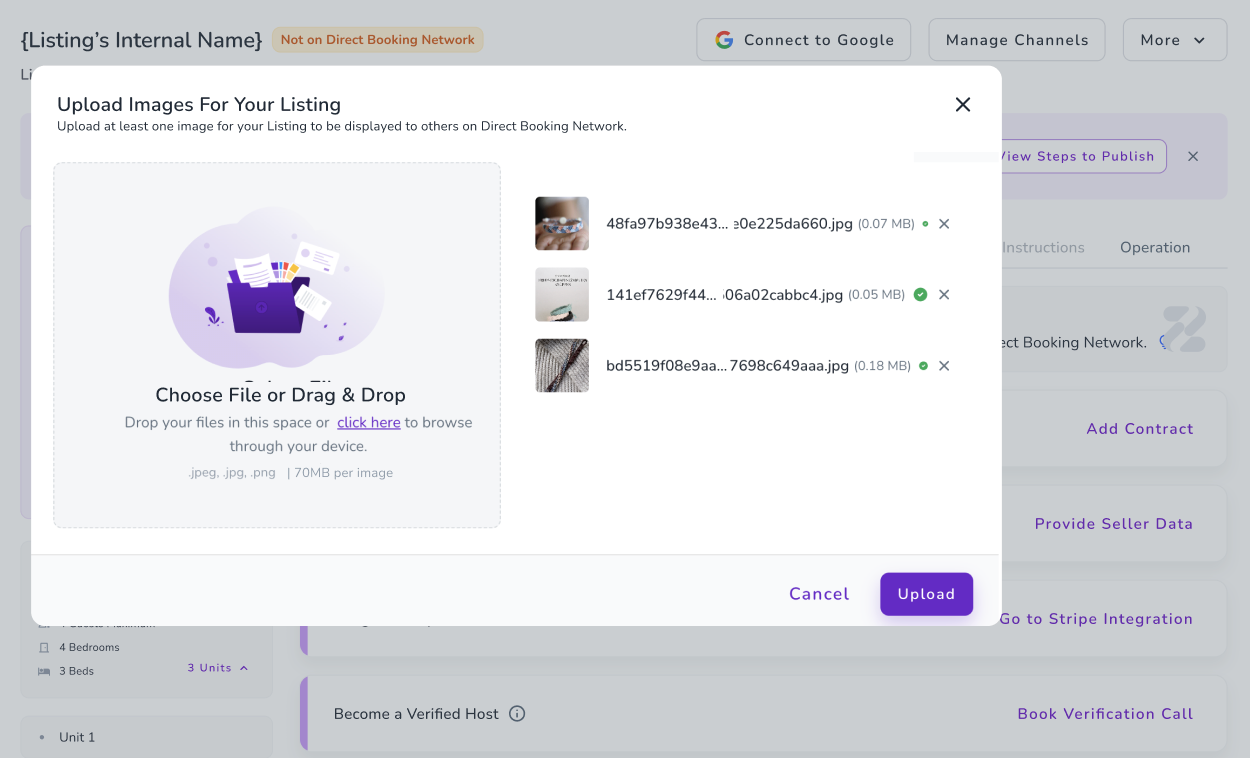
Your listing must contain at least one image before it can be shared through ZeeLink.
If your listing does not contain an image, Add Images will appear in the ZeeLink Network Requirements tab.
Click the requirement to open the image upload window and add an image.
The uploaded images are saved at the property level.
Once your listing has been successfully shared with ZeeLink, you will see an On ZeeLink label in:
The Listing Dashboard
The individual Listing Page
If the label is not displayed, open the listing and check the ZeeLink Network Requirements tab for any outstanding requirements.
Once you have published a listing on the Direct Booking Network, you can share the link to the listing/your Zeevou website on this WhatsApp Group Chat to inform other hosts and agents that they can advertis the listing on their websites.
You can manually hide a listing from the network at any time.
Go to the Listing Page.
Click More (action dropdown).
Select Network Visibility & Access.
In the drawer that opens, choose Hidden.
Once hidden, the listing will no longer appear on the ZeeLink.
If a listing does not have any rate plan applied to the direct booking website, its Network Visibility & Access will be automatically set to Hidden.
In this case:
The “Public” option will be disabled
You will not be able to make the listing visible on the network
A message will appear in the Visibility & Access drawer explaining:
Why the Public option is unavailable
What action is required (for example, applying a rate plan to the direct booking website)
Once the required action is completed, the Public option will become available again.
You can browse and publish listings from Verified Hosts across the ZeeLink to expand your inventory, drive more bookings, and earn commissions.
Guests can easily book both direct and network listings through a seamless booking flow on a reseller's website. Here’s how it works:
When a guest searches for a location or date, the reseller’s own listings appear first, followed by ZeeLink listings marked with the “Partner Host” badge. Guests can open any network listing and proceed with the booking as usual. (A reseller is someone who publishes other hosts’ listings on their website and generates bookings on their behalf.)
The price shown for a network listing is the same as the Partner Host’s rate plan price. When the guest clicks Reserve, a standard booking pop-up opens to collect guest details. The required information is based on the reseller’s brand settings, and the guest agrees to the reseller’s Terms & Conditions and Privacy Policy.
After clicking Pay, the guest is redirected to the payment page. At this point, a booking request is created for the reseller, and a guest profile is generated. The payment is processed using the Partner Host’s payment gateway, meaning the guest pays directly to the listing’s host.
Once payment is successful, the booking request status changes to Converted, and the booking is created for the listing’s host, with the booking channel recorded as the reseller’s website. The guest receives a confirmation email with reseller branding, including the host’s check-in link and contact details, and the reseller is notified of the successful booking.
This flow ensures a smooth booking experience for guests while clearly connecting resellers and Partner Hosts within the ZeeLink.
By listing on the Network, your properties will also get distributed through Zeevou Direct.
Zeevou Direct is a completely commission-free booking platform. As Zeevou Direct is free, our Partner Hosts are not charged any commissions or listing fees so that guests can get a better deal and smoother experience without being hampered by a middle-man. Booking through Zeevou Direct is the same as booking directly with a hospitality provider.
Zeevou Direct distributes to Google Hotels and Google Vacation Rentals (part of Google Travel), which mean your direct rates and live availability will be shown on guests searching on Google Search and Google Maps, alongside those of major OTAs like Booking.com and Expedia.
On the Direct Booking Professional plan, you can also get your listings to show up under your “Official Website” on these interfaces.
Once you’ve successfully distributed your listing through ZeeLink, you can continue with the next step and connect your eligible listings to Google Travel to increase your property’s visibility and reach more potential guests.
