The “Check-in Ready” feature helps streamline the check-in process, ensuring that all necessary steps are completed before a guest arrives. The flexibility to define these conditions ensures that each host can tailor the check-in process to their specific needs.
Common conditions include:
Guest Info is completed.
Terms & Conditions are signed.
The guest is verified.
Payment and Deposit are paid successfully.
Go to the Bookings Dashboard.
Click the More arrow.
Select Settings.
In the pop-up, choose your brand.
Click Proceed.
Under the Bookings tab, on the Check-in Ready card, and then click Manage Conditions.
In the open drawer, choose the conditions you wish to be completed for a booking to become ready for check-in (e.g., Guest Info, Terms & Conditions, Guest Verification, Security Deposit, and Payment)
Click Save.
Under Each Booking: Under the Overview tab, Check-in Ready conditions are shown. Status turns green when all conditions are met.
In the Arrivals List: Go to the Bookings Dashboard and then Arrivals to see the Check-in Ready status.
In the Booking Calendar: The colors of the bookings clarify the Check-in Ready status: green (ready), yellow (almost ready), and red (not ready). Hover over a booking to see which items are incomplete.
You can also add Check-in Ready as a condition in your Automated Messages using these steps:
Click the gear icon.
Go to Automated Messages.
Click New Automated Message or open an existing message.
Go to the Condition card and click Add a Condition.
Select Check-in Ready and click Add.
Watch this tutorial video on how to configure the Online Check-In Process steps:
Log in to your Zeevou account.
Click the gear icon in the top right corner.
Select Online Check-In Process.
General: Turn on the toggle of your desired items to be shown to the guests during confirmation (e.g., Booking Purpose, Bedding Preference, Arrival/Departure Time).
Note that When this toggle is turned on, guests will see a Bedding Preference section in the General Info step of the online check-in flow. In this section, guests can select which beds they want prepared based on the beds available in the Unit Type.
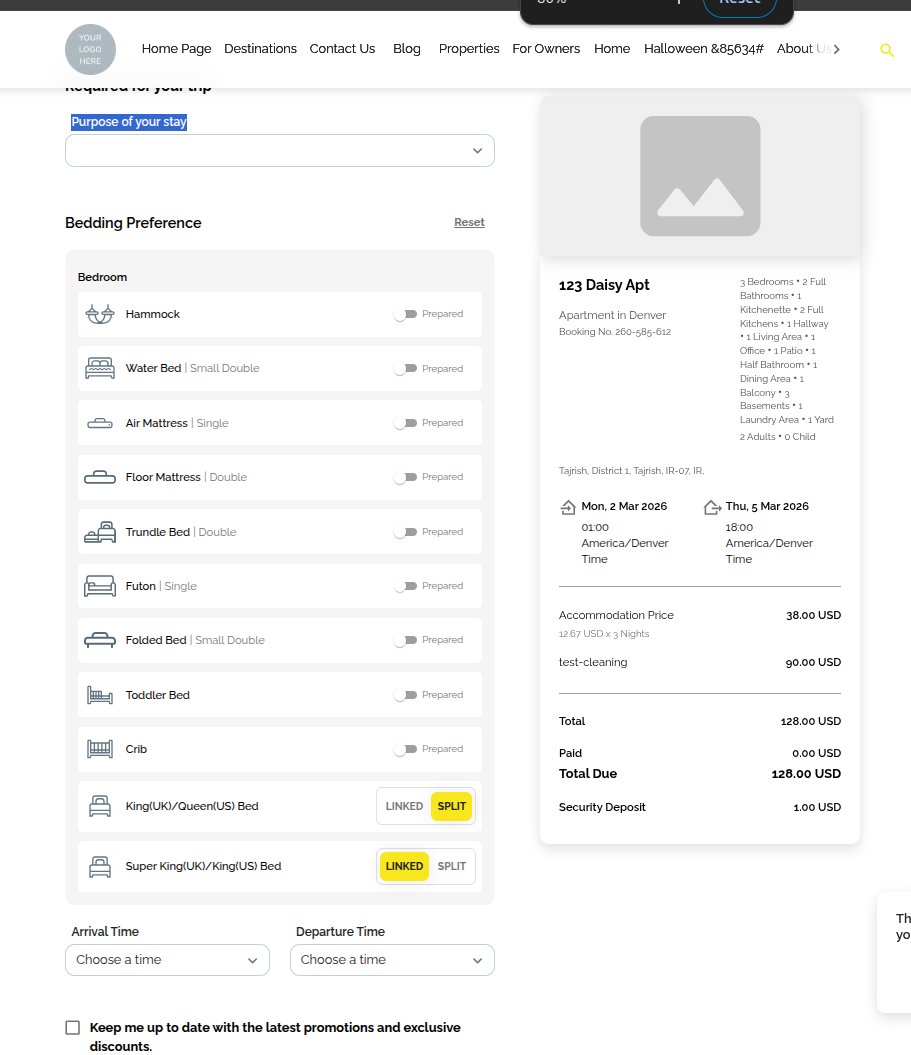
Person Booking: Enable your desired items regarding the guest's personal info and add custom questions.
Click + Ask a Custom Question to add.
Select or create new questions.
Make questions Optional or Mandatory.
Marketing Consent: Enable and customise text for GDPR compliance.
Toggle Enable/Disable.
Click Edit to change Opt-in Prompt text.
Select marketing platforms for consent.
Privacy Policy: Include your privacy policy for guests.
Note: You can fill this in the same way as you did for the Person Booking section. If the Lead Guest and Person Booking are one person, the system will sum up the fields related to both. Otherwise, related fields will be shown for each.
Enable sections for Lead Guest Info and Additional Guests (ADULTS and CHILDREN).
Note that the Guest Info will appear as incomplete if additional guest information is marked as Mandatory in the online check-in process.
Add custom questions as needed.
Note: Disabled sections are hidden from guests.
Enable the Terms and Conditions toggle.
Specify which bookings should this Terms & Conditions should apply to.
Click Revise this Terms & Conditions to edit it.
Upsells: Upsell lists will be based on each Listing’s settings.
Payment Note: Edit the Payment Note shown to guests.
Security Deposit Note: Edit Security Deposit Note for guests.
Please note that this step will be shown only if the booking has a Security Deposit amount other than 0.
Edit the Success Page text shown after booking completion.
Profile View: Click on Lead Guest or Person Booking Name to view/edit their profile and custom question responses.
Custom Questions: Add hints, edit, or remove questions anytime.
Marketing Consent: Inform guests of promotions and discounts.
To get the online check-in link, open the booking. You will see 3–5 cards showing the steps the guest needs to complete before check-in. If any step is incomplete, a link icon will appear on the corresponding card. Click the icon to copy the link.
Alternatively, you can go to the Manage Booking button in the top-right corner, select Copy Links from the dropdown, and choose the relevant link.
You can go through specific settings in Booking.com to prevent removing the links sent to the guest by the channel. This setting allows you to specify which email addresses you use to communicate with your guests, and which can be shared with your guests via the Booking.com messaging platform. Any messages sent from unregistered email addresses will not reach your guests.
Here’s the link that guides you on how to specify email addresses that can reach your guests: https://partner.booking.com/en-us/help/legal-security/security/all-about-our-messaging-security-settings
Note that you can find your Zeevou domain by going to Marketing -> General Settings -> Site Management tab -> Domain Settings card.
Discover the easy steps guests go through when booking via Airbnb and completing the online check-in process. Watch this demo video to understand the process. Save time and gain confidence in your Airbnb experience. Follow our guide and answer the questions provided. Ensure a smooth process by filling in the required fields. Find out more about General Info, Guest Info, Payment, and Security Deposit.
Start your hassle-free booking journey now!
