Watch this tutorial video on how to manage all your communications with Unified Inbox in the web App:
Zeevou's Unified Inbox allows you to manage all your communications in one place. This includes emails, SMS, WhatsApp, and channel communications.
The Inbox section only displays messages where the guest has actively sent a message. However, all conversations — including those that only contain outgoing messages — are available under All Conversations.
Note: The Unified Inbox is part of Zeevou’s Message Automation module. If the module is not enabled, available basic features remain accessible, but premium features will display a lock icon. Clicking a locked feature opens an upgrade pop-up instead of applying the action.
Locked features include:
Message Types: SMS, WhatsApp, and API channels (standard Email remains available).
Advanced Email Options: From, CC, and BCC fields.
Inbox Management & Tools: Folders, Saved Responses, Email Forwarding, Message Templates, and Attachments (where applicable).
Conversation Actions: Mark as Read/Unread, Archive, Move to Trash, and Move to Folder.
When the Message Automation module is enabled, all these features become fully accessible without displaying any upgrade dialogs.
Log into your Zeevou account.
Navigate to Inbox on the main menu.
Use the search bar to find a guest by name.
Default Folder: The Inbox folder shows the number of unread messages.
If there is even one incoming message in a conversation, it will remain visible in the list. When a new incoming message arrives, the conversation will move higher in the list. If no new messages arrive, it will stay in its current position.
Access Other Folders: Click the arrow next to Inbox to select other folders from the drop-down menu.
Create New Folder: Click + Create New Folder to make a new one.
Set Default Folder: Hover over a folder and click the star icon to set it as the default.
All Conversations Folder: Contains all conversations.
Inbox Folder: Includes conversations with at least one incoming message.
Create New Conversation:
Click the plus icon in front of Inbox.
Booking-Related: Insert the Guest’s name and Booking Number, then click Create.
Independent: Type a name, email, or mobile number, then click Create.
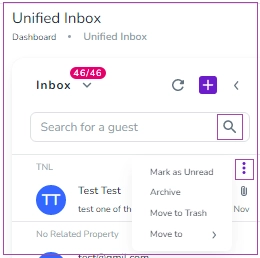
Click the three dots on a conversation to:
Mark as Read/Unread
Archive
Move to Trash
Move to Other Folders
Inside a conversation, you can also Archive or Move to Trash using the three dots.
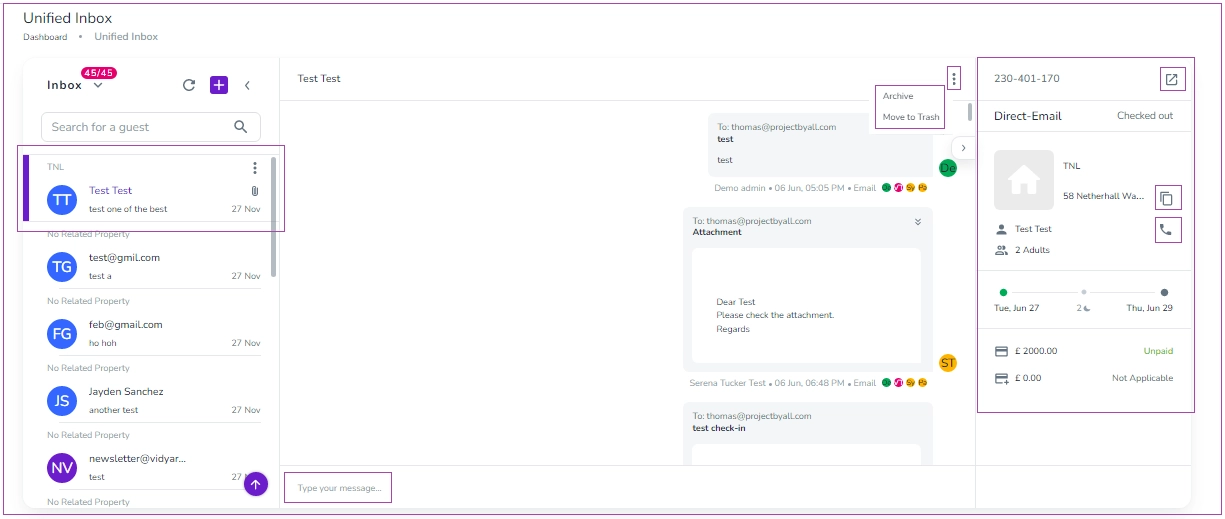
When you open a conversation with a guest who has already booked with you, the booking details appear in the right column of the Unified Inbox. This includes:
Booking Number (click the icon to open the booking in a new tab)
Channel and Status
Property Internal Name and Unit Name
Access Code and Address (click the copy icon to copy the address)
Guest Name and verification status
Number of Guests
Check-in/Check-out Dates & Times
Number of Nights
Total Price, Payment Status, Deposit Amount, and Deposit Status
You can interact with the guest using:
SMS (requires ClickSend integration and a valid mobile number)
Airbnb messaging via API
Note: The Airbnb messaging option works only if your property is mapped to your Airbnb listing, the booking originates from Airbnb, and the guest booked or sent an enquiry through Airbnb.
Additional actions in the Unified Inbox:
Click the phone icon to initiate a call.
Click the three dots to Archive or Move to Trash.
Click the Manage Inbox arrow on the top right corner.
Select Settings or Saved Responses from the drop-down menu.
You can import all your business emails into your Unified Inbox. To do so, navigate to your Organisation’s Settings, Messages tab, Inbox Integration card. Click Generate Forwarding Address to create an email automatically ([email protected]) through which you can forward your emails to Zeevou Unified Inbox.
Once emails are forwarded, all staff can send and receive emails from the Unified Inbox without logging into individual mailboxes.
Unified Inbox provides you with the opportunity to have all your communications in the Zeevou app. You can read more about Zeevou’s Unified Inbox feature.
The Unified Inbox gives access to emails, SMS, and channel communications from one central login. You can open Zeevou’s Unified inbox now!
Messages are arranged in folders, which include:
Inbox
Sent
All Conversations
Draft, and
Trash.
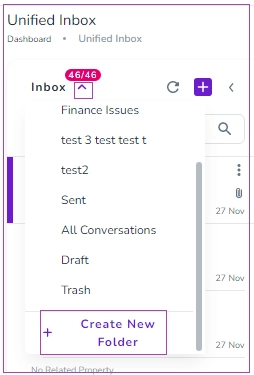
You can also click Create New Folder to add your desired one.
All incoming communications enter the Inbox. If a new message reply comes to an existing conversation, it will automatically be moved to the Inbox for you. If you click the three dots, a window pops up in which you can select Marks as Unread, Move to Trash, Move to or Remove from.
Note that you can search the Inbox by the name of a guest.
Under All Conversations, you can see ALL the communications including the automated emails triggered from the system, inbox, and sent communications.
You can import all your business emails into your Unified Inbox. Once your emails are forwarded, all staff using Zeevou can send and receive emails directly from the Unified Inbox—no need to log in to individual mailboxes.
In the Unified Inbox, you can view all communications related to:
Bookings
Properties
Brands
Log in to app.zeevou.com.
Click the gear icon and select Settings.
Go to the Messaging tab.
On the General Messages card, click the pencil icon next to Authorized Recipients.
Select the staff members you want to grant access from the drop-down menu.
Click Save.
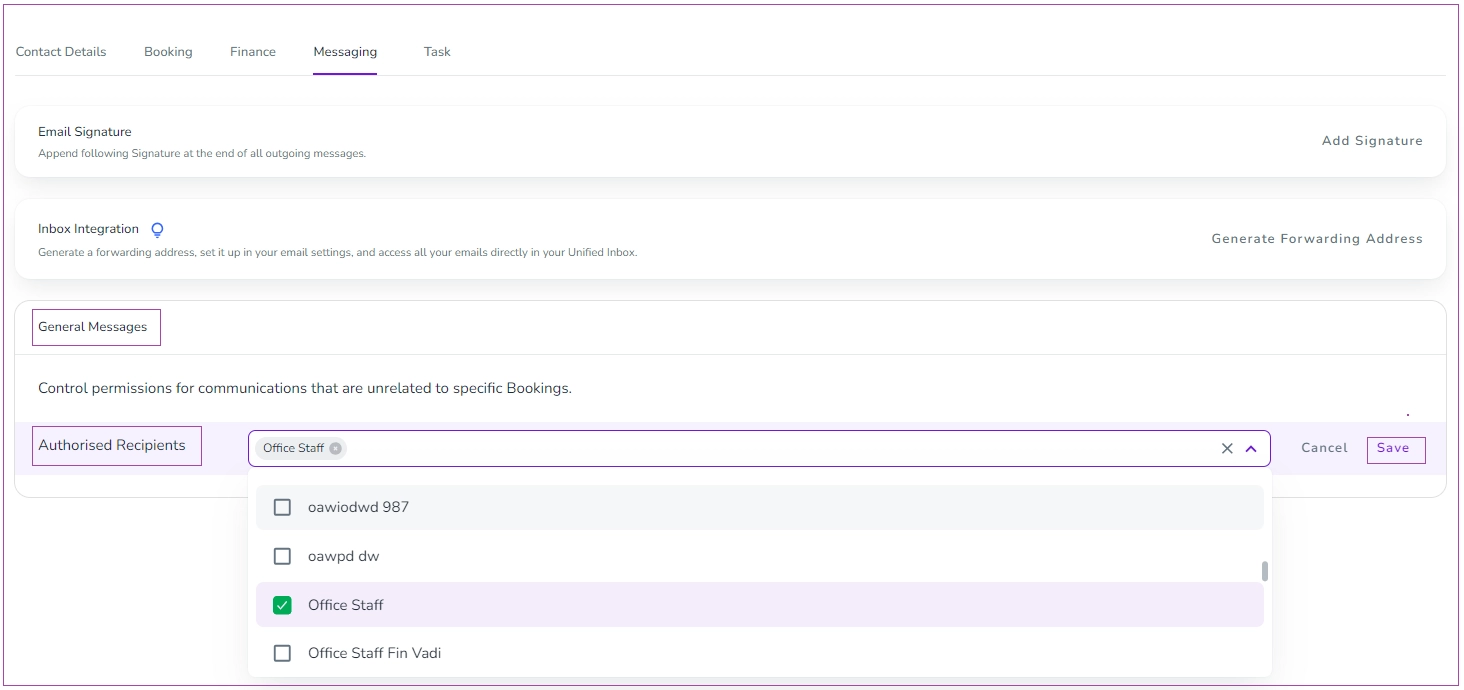
Once done, your staff will have access to the Brand’s conversations, and they can use the Brand's email to reply to conversations/questions.
The Unified Inbox includes helpdesk features that make it easier for your team to manage guest conversations collaboratively.
Reply Icon: Displays conversations that have been manually replied to by a staff member, provided no new incoming messages have been received since that reply.
Internal Notes: Add private notes to conversations for internal team communication.
Assignees: Assign conversations to specific team members to improve collaboration by clicking on + Add Assignee.
A Reply-To address allows you to send emails from one email address while specifying a different address for recipients to reply to.
Log in to app.zeevou.com.
Click the gear icon in the top-right corner and select Automated Messages.
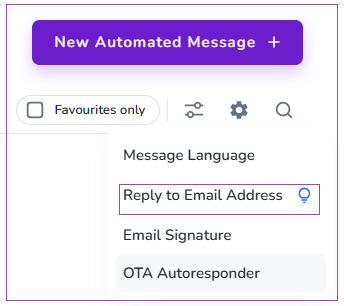
On that page, click the gear icon again (usually near the top), and then choose Reply to Email Address from the menu.
A side drawer will appear—enter the new email address you want guests to receive messages from.
Save your changes.
Note that this change only applies to the “Reply-To” address for automated guest emails—not your general profile or system notification settings.
Zeevou’s AI replies is integrated into the Unified Inbox and helps hosts respond to guest messages more efficiently. In the first version, hosts have Suggestion Mode – AI generates draft replies that hosts can review, edit, or send.
Enabling AI (Beta Flow)
If you don’t have the Message Automation Module:
The AI replies is part of the Message Automation Module. You can buy message automation module through Upgrade process (Click Upgrade button).
If you already have the Message Automation Module:
Go to your Inbox and click Activate AI replies to enable Suggestion Mode.
AI suggestions are generated when the host opens a conversation that contains:
A guest message is linked to a booking
New guest messages are sent after the last manual host reply
AI replies appear in the reply box with the label:“Suggested Response:”
Hosts can:
Edit the reply
Send it directly
Delete it and write a manual response
The suggestion is not saved as a draft. Once sent, it appears as a normal host message.
Note: If a user clears a response and reloads the conversation, it is restored.
New Guest Messages
If a new guest message arrives after a suggestion is generated:
The existing suggestion remains
AI does not regenerate a new one
This applies whether the host stays in the conversation or leaves and returns. ( The suggestion will appear in the text box)
Host Interaction While AI Is Generating
AI suggestions will not be shown if the host does any of the following while the AI is generating:
Starts typing
Inserts a saved response (template)
Adds an attachment
If the host deletes their text:
No suggestion is shown
A new suggestion is generated only if a new guest message arrives afterward
If the host is typing and a new guest message arrives:
No suggestion is generated
The AI label is removed if the host:
Edits the text
Changes formatting
Adds links or attachments
Inserts a saved response
Saved responses fully replace the AI suggestion.
Suggestions are not generated if:
Booking or listing data is missing
The conversation only contains empty messages
A draft already exists
The guest message contains attachments (text-only supported)
Zeevou’s AI replies is currently in Beta. The current version focuses on Suggestion Mode, allowing hosts to review AI-generated draft replies before sending them to guests.Because the AI replies is currently in Beta:
AI responses may occasionally contain incorrect or incomplete information
Hosts should continue monitoring conversations
AI escalates conversations when confidence or data availability is insufficient
Hosts will be able to enable AI Autopilot Mode so the AI can automatically respond to guest messages in controlled scenarios.
Initial MVP includes:
AI automatic responses
AI Contact identity/persona
AI escalation when data is missing
Notifications for escalated or exceptional AI conversations
Host takeover capability
OTA responder compatibility improvements
Feature | Description |
AI automatic responses | AI automatically responds to guest messages when Autopilot conditions are met. |
AI Contact identity/persona | AI responses are sent using a configurable AI contact identity/persona. |
AI escalation when data is missing | Conversations are escalated to hosts when required booking/property data is unavailable or AI confidence is low. |
Notifications for escalated or exceptional AI conversations | Hosts receive notifications when conversations require manual attention or intervention. |
Host takeover capability | Hosts can manually take over conversations from AI at any time. |
OTA responder compatibility improvements | the OTA Responder and AI replies work together without sending duplicate replies. |
