Zeevou lets you build your guest data collection into the online check-in journey, so guests can provide the required information before their stay.
Collecting this information in advance helps you prepare for arrival, reduce back-and-forth communication, and create a smoother check-in experience for both you and your guests.
With document upload, you can:
Ask guests to provide documents during online check-in.
Add instructions explaining what the guest should upload.
Choose the attachment method.
Exclude specific booking channels from the request.
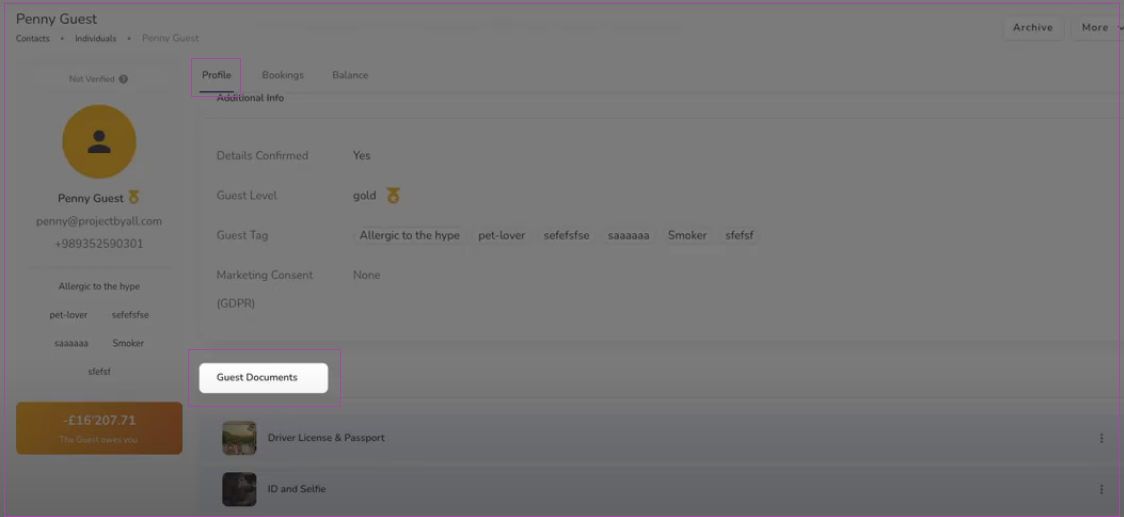
Review uploaded documents from the guest profile.
You can add fields with custom descriptions to collect IDs from guests. To do so:
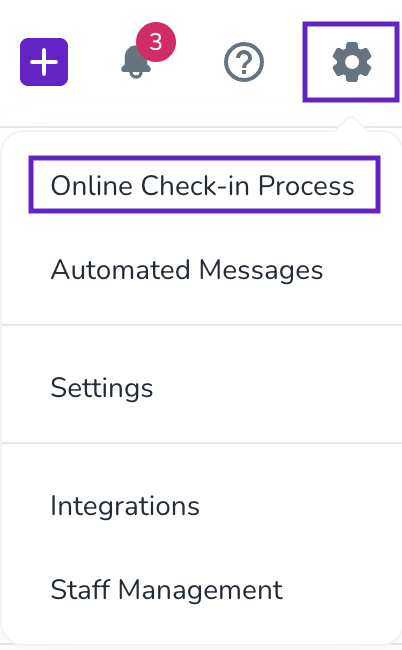
Click the gear icon in the top-right corner.
Select Online Check-in Process.
Go to General Info.
Find Person Booking.
Turn on Document Upload.
You can also configure document upload from Guest Info for the Lead Guest or Additional Guests.
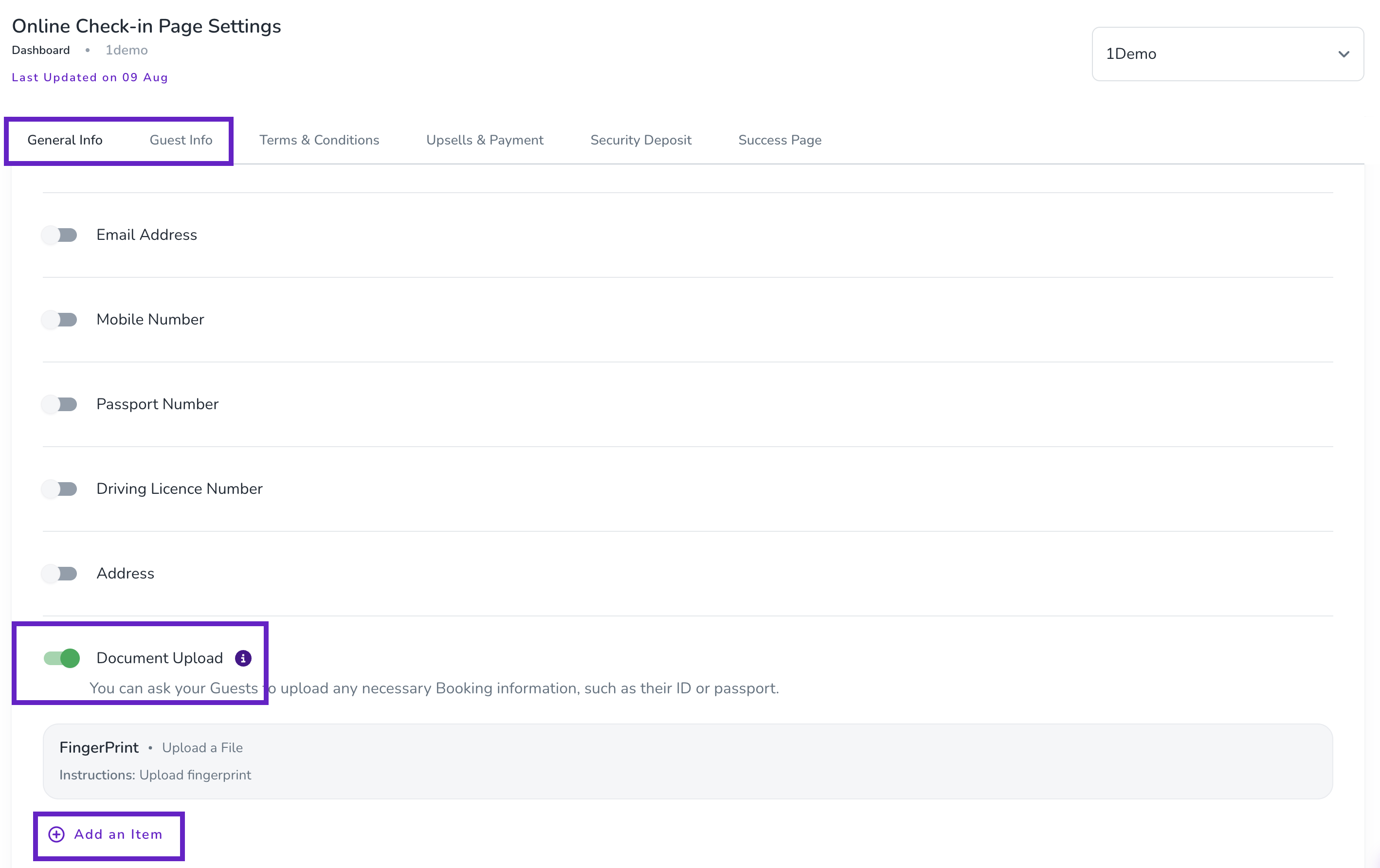
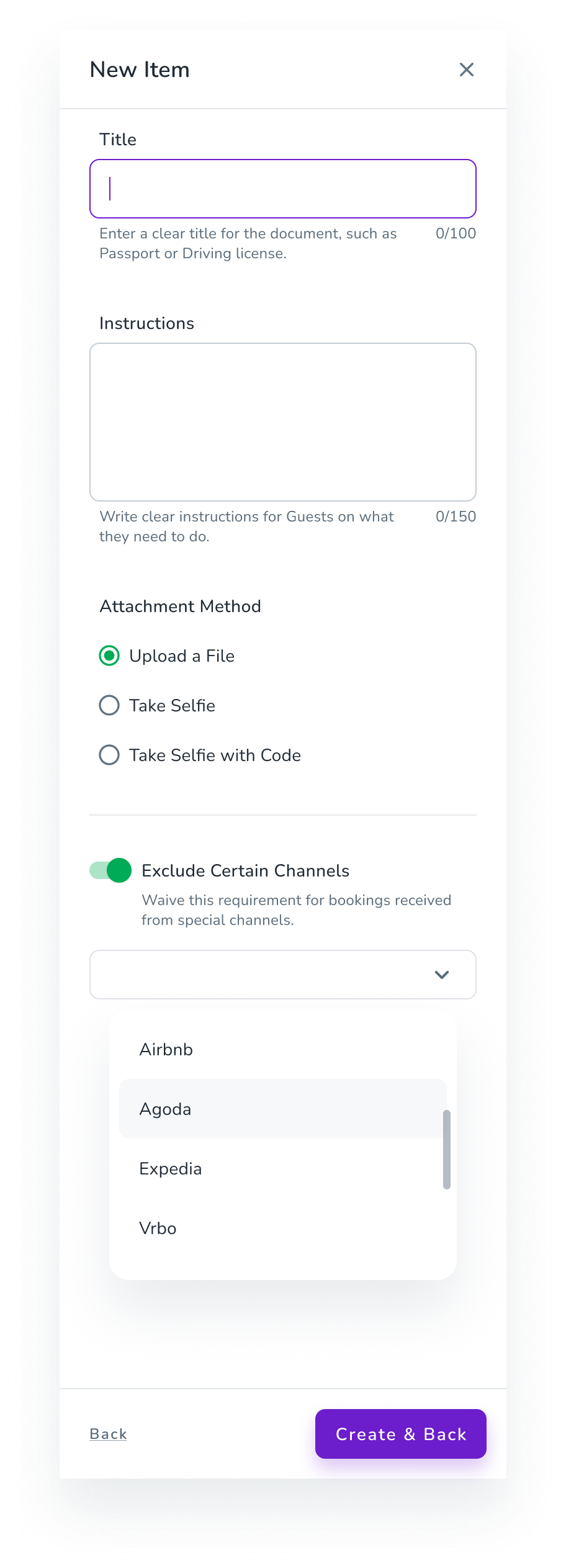
Click on Add an Item.
Choose Create a New Item.
Title: Give the request a clear name that tells the guest what to upload.
Instruction: Explain what the guest needs to provide and how to submit it.
Attachment Method: Choose how the guest should provide the document.
If you don't want the document request to apply to certain booking channels, turn on Exclude Certain Channels and select the relevant channels.
Click Create & Back.
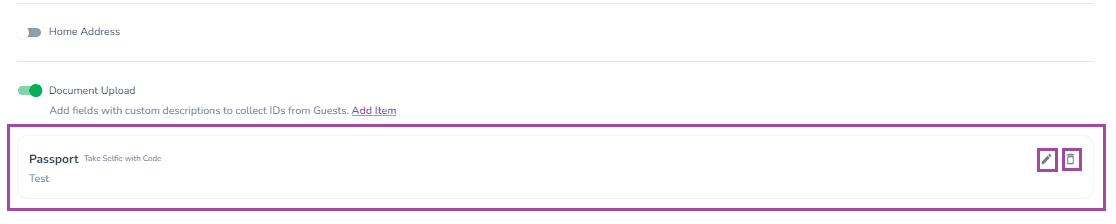
Your document request will appear in the list, where you can edit or delete it when needed.
Watch this tutorial video on how to ask your guests to upload their documents during the Booking Process:
Once document upload is included in the online check-in process, the guest will be asked to provide the required document.
The guest completes the request before continuing to the next step of the check-in process.
Online Check-In → Document Upload → Agreement → Next step
If the document is required, the guest must complete the upload before continuing.
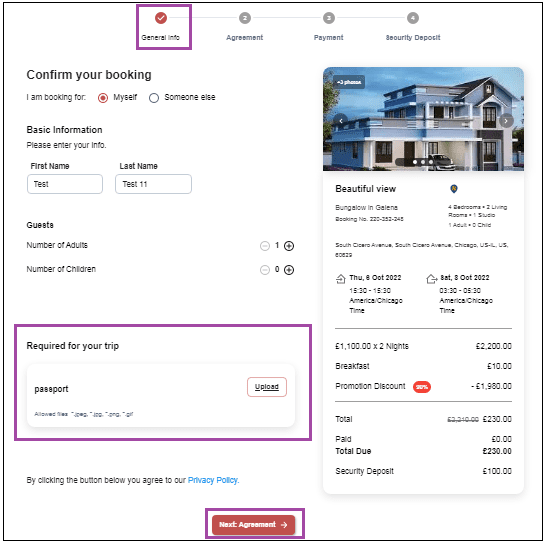
After a guest submits a document, you can review it from their guest profile.
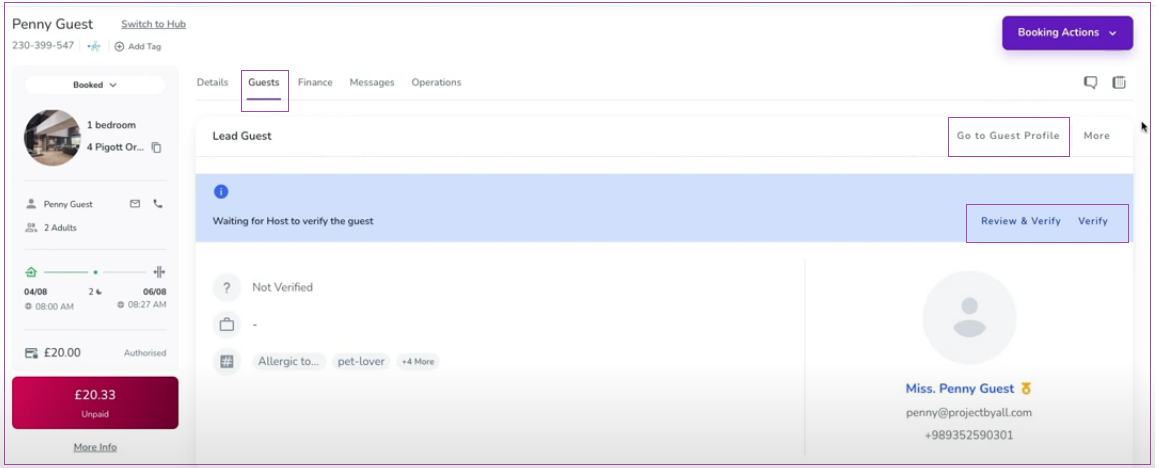
Open the booking's Overview.
Select the Lead Guest's name.
Open the guest page to view the uploaded document.
Use Review & Verify or Go to Guest Profile to view the document details.
Next, set up your rental agreement to make sure your guests can review and sign the required terms before their stay.
Continue to Set Up Rental Agreements→
