Zeevou provides two types of calendar views: the Rates and Availability Calendar and the Booking Calendar. Although both are linked to the same system, you can switch between the two views depending on what you need to manage.
Each Zeevou calendar is designed for a different task:
Watch this video tutorial for a detailed guide to setting up and managing your rates and availability:
Use the Rates & Availability Calendar to review and manage your property's rates, availability, and booking restrictions.
Log in to your Zeevou account.
Go to Calendar from the main menu.
Select Rates & Availability Calendar.
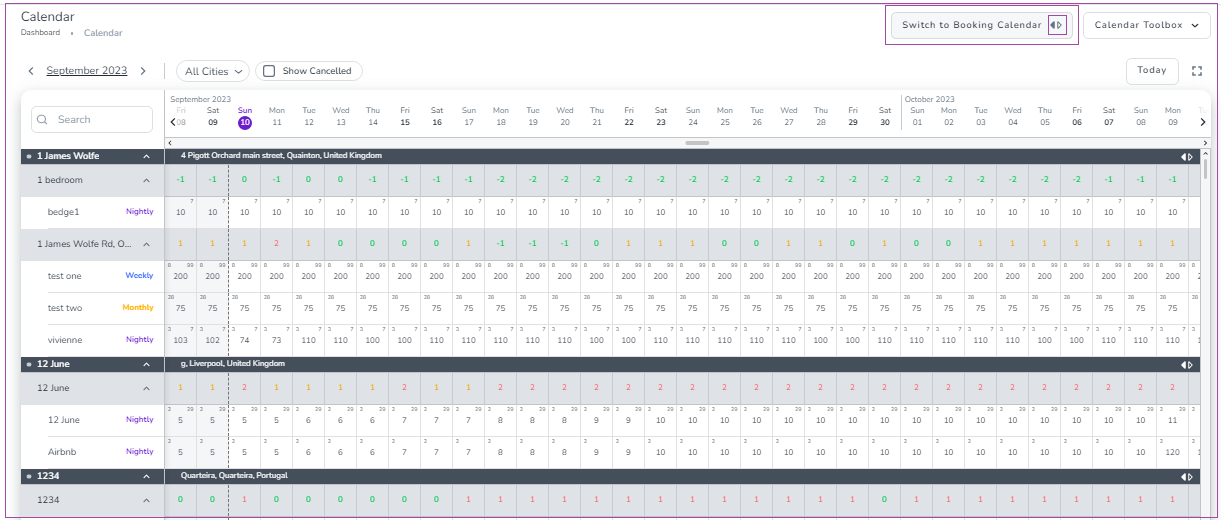
The calendar displays your properties, unit types, rate plans, rates, and availability.
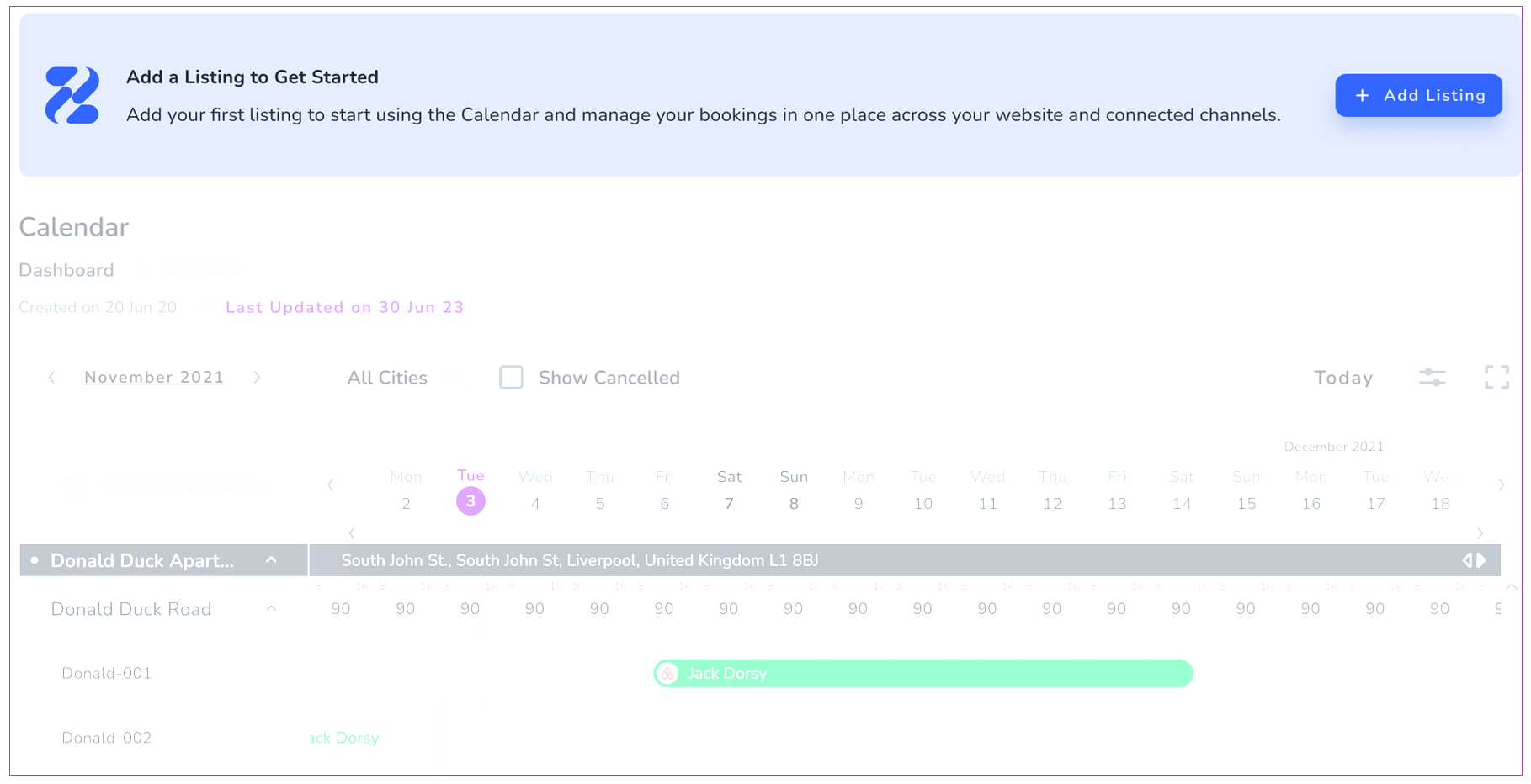
Note: Only active listings appear in the calendar. If all your listings are in Draft or Archived status, you will see an informational banner instead.
2. Understand the Calendar
Unit Availability: The number shows the available rooms and its colour shows the occupancy percentage.
Rate Plans: By default, Nightly Rate Plans are displayed. By default, If you have created Weekly or Monthly Rate Plans, they will also appear under the relevant unit type.
Each date cell can display:
Rate — The middle number in each box shows the rate for that plan.
Min Stay — The top left number shows the minimum stay required.
Max Stay — The top right number shows the maximum stay allowed.
Note: If Min Stay is set to 1 and Max Stay is set to 999, these values are not displayed in the calendar.
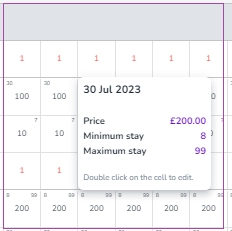
Details: Hover over a cell to see more details.
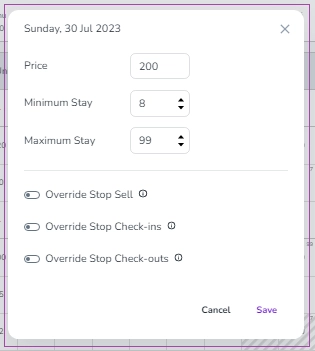
Editing: Double-click a cell to view and edit its details.
Drag and Edit: Drag across your preferred dates to reveal the options to create a New Booking or set Blocked Dates. Selecting an option will open a side panel where you can complete the necessary details and save your changes.
Navigate the Calendar
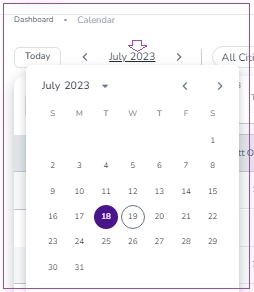
Use the date picker in the top-left corner to move quickly to a specific day, month, or year.
You can also select a date or date range to access actions available for those dates.
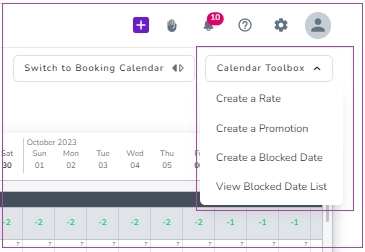
Calendar Toolbox
The Calendar Toolbox in the top-right corner provides quick access to common calendar actions.
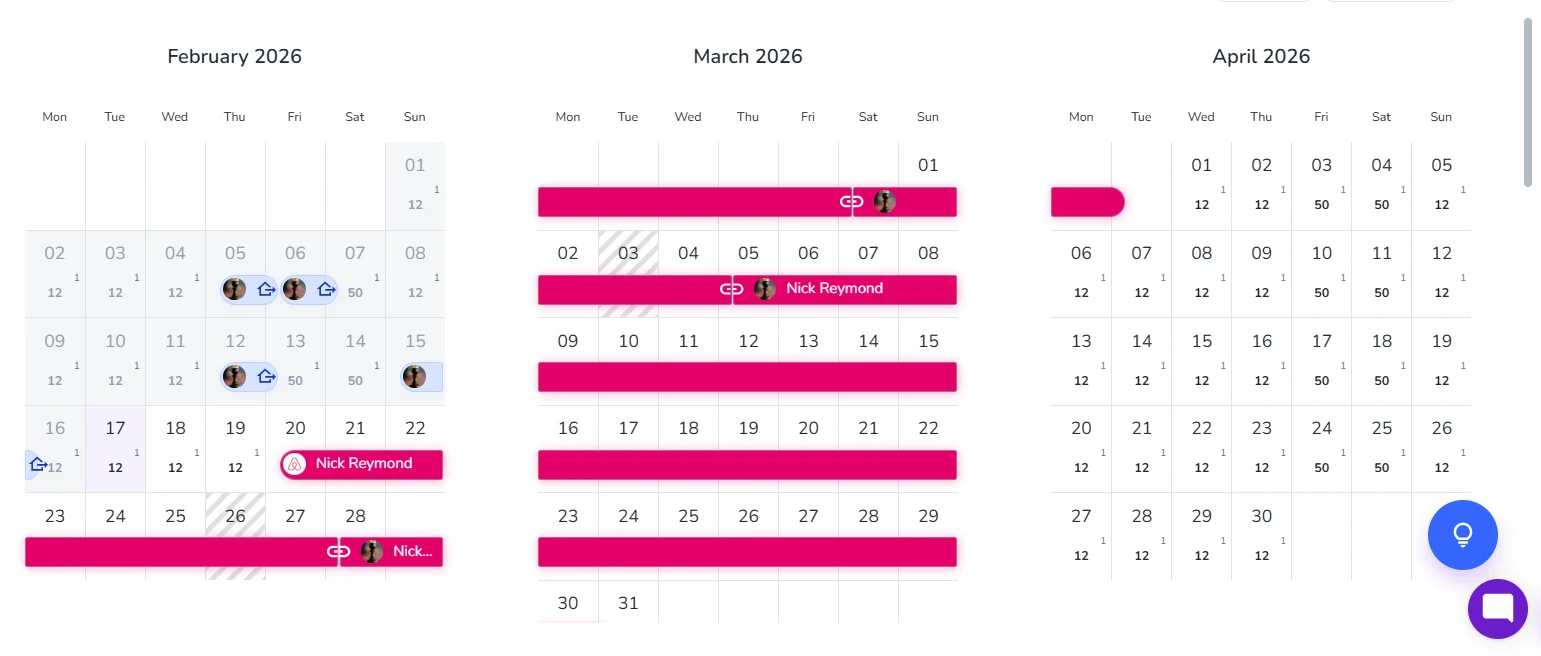
The Booking Calendar provides a visual overview of your bookings and blocked dates. Use it when you need to review or manage bookings.
You can use the Booking Calendar to:
View existing bookings
Search and filter bookings
Create new bookings
Create and manage blocked dates
View booking details
Change booking status
Perform booking actions
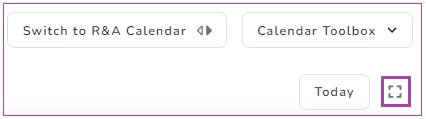
Switch to the Rates & Availability Calendar
You can expand the calendar to full-screen mode by clicking the full-screen icon next to the Today button.
To exit full-screen mode, click the same icon again.
You can change the status of a booking directly from the Booking Calendar.
Click the booking status in the booking overview. A window will open where you can change the status to:
Checked-in
Checked-out
Cancelled
No Show
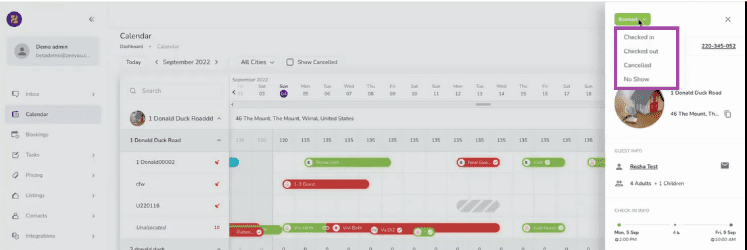
Note: Changing a booking to Checked-out does not change its availability. To change the dates and therefore the availability, you need to modify the booking itself.
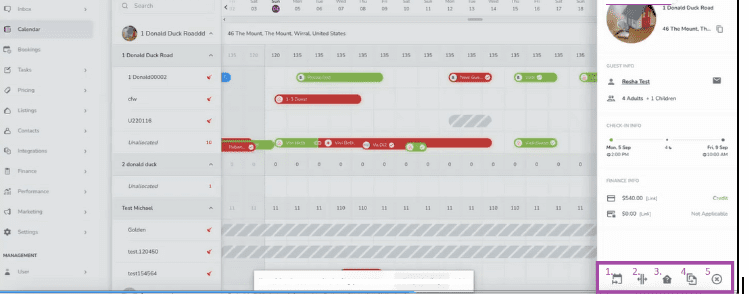
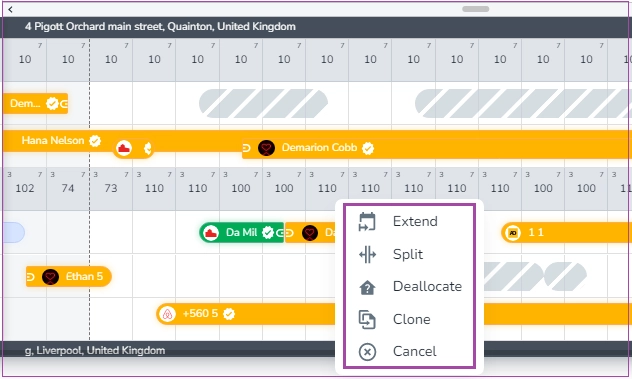
You can perform several actions directly from a booking.
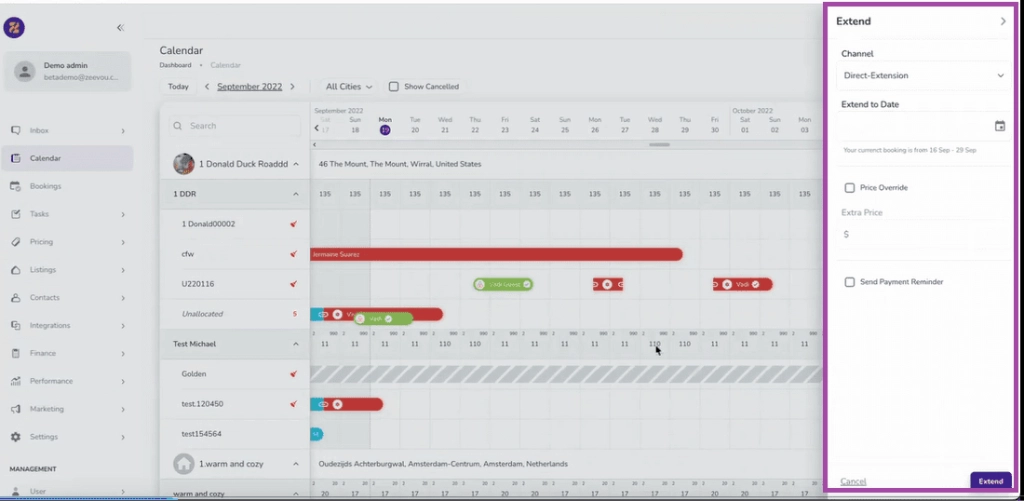
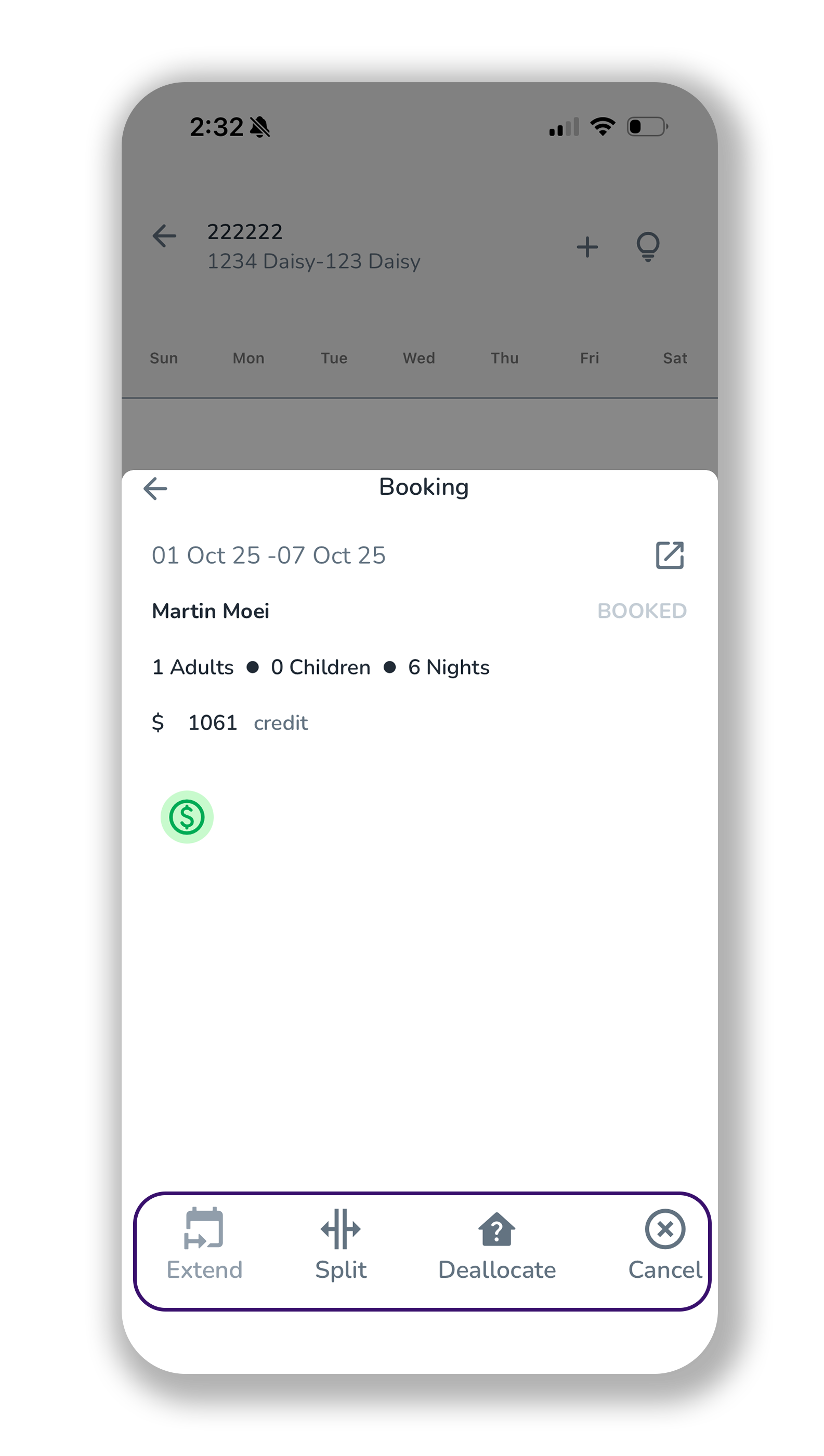
Extend — extend the booking to include additional dates.
Split — split a booking into separate bookings.
Deallocate — remove the allocated unit from the booking.
Clone — create a copy of the booking.
Cancel — cancel the booking.
You can perform these actions from three different places:
Click on a booking in the calendar to open the booking overview drawer and select the action icons at the bottom
Right-click directly on any booking in the Booking Calendar to open the actions menu.
Click the Manage Booking dropdown at the top right of the Booking page.
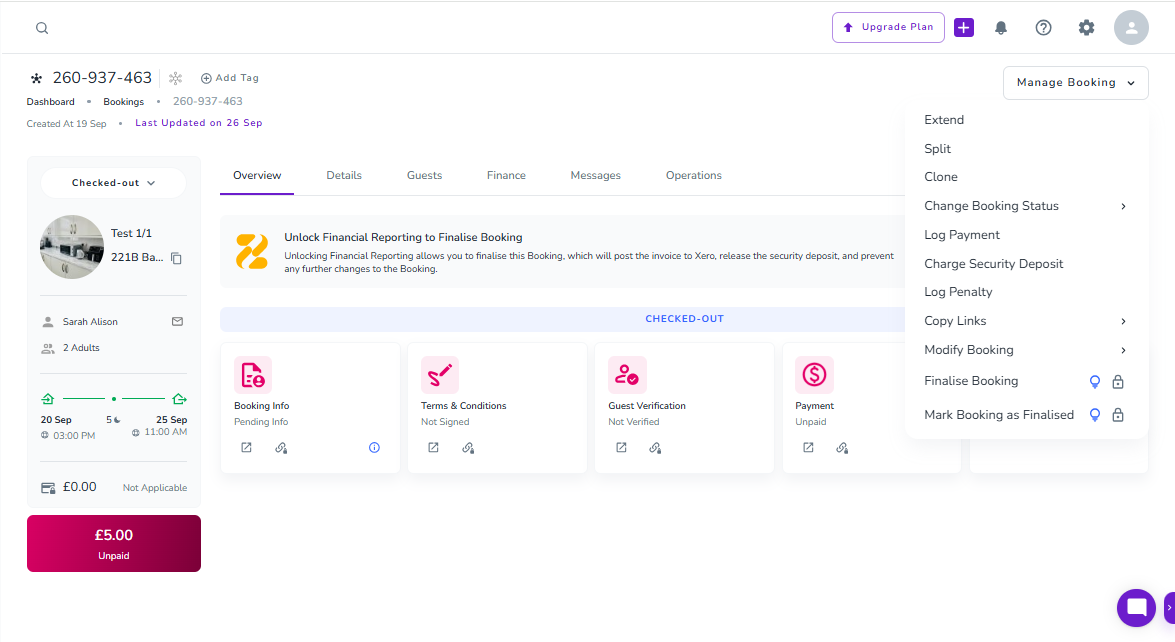
When you select an action, the relevant window opens so you can enter or update the required information.
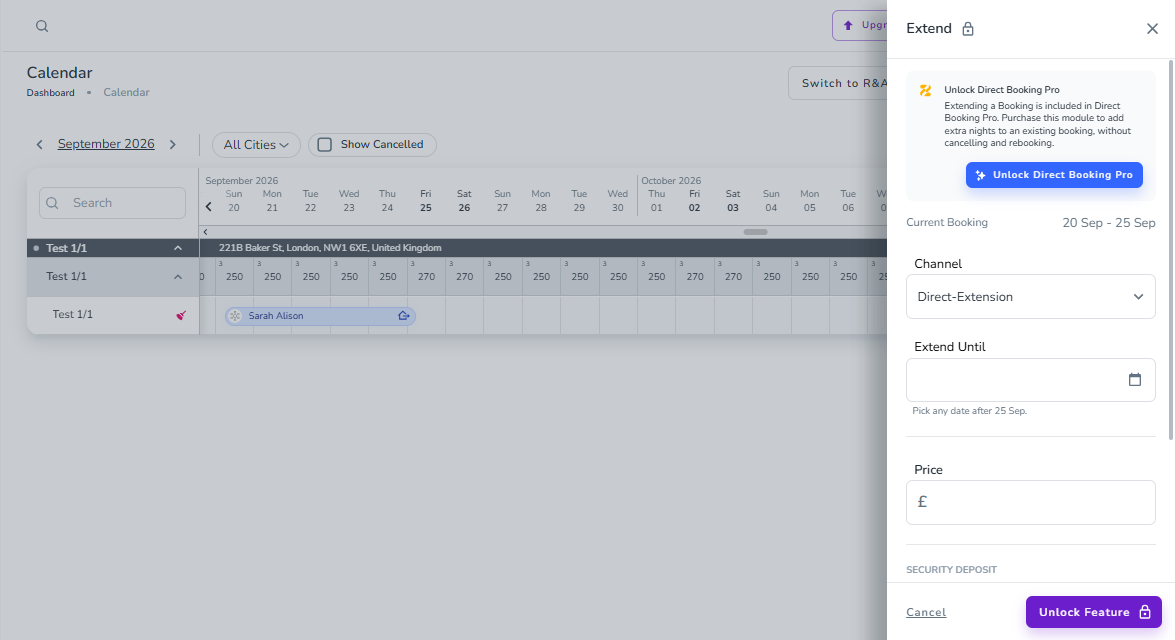
Access & Module Requirements:
The Split, Extend, and Clone features are locked for accounts without the Direct Booking Pro module.
If an action is locked, clicking the Unlock Feature button will display an upgrade pop-up. Selecting the banner upgrade prompt will guide you through the upgrade flow to unlock these features.
Once upgraded to Direct Booking Pro, these actions will be fully unlocked and accessible across all calendar and booking pages.
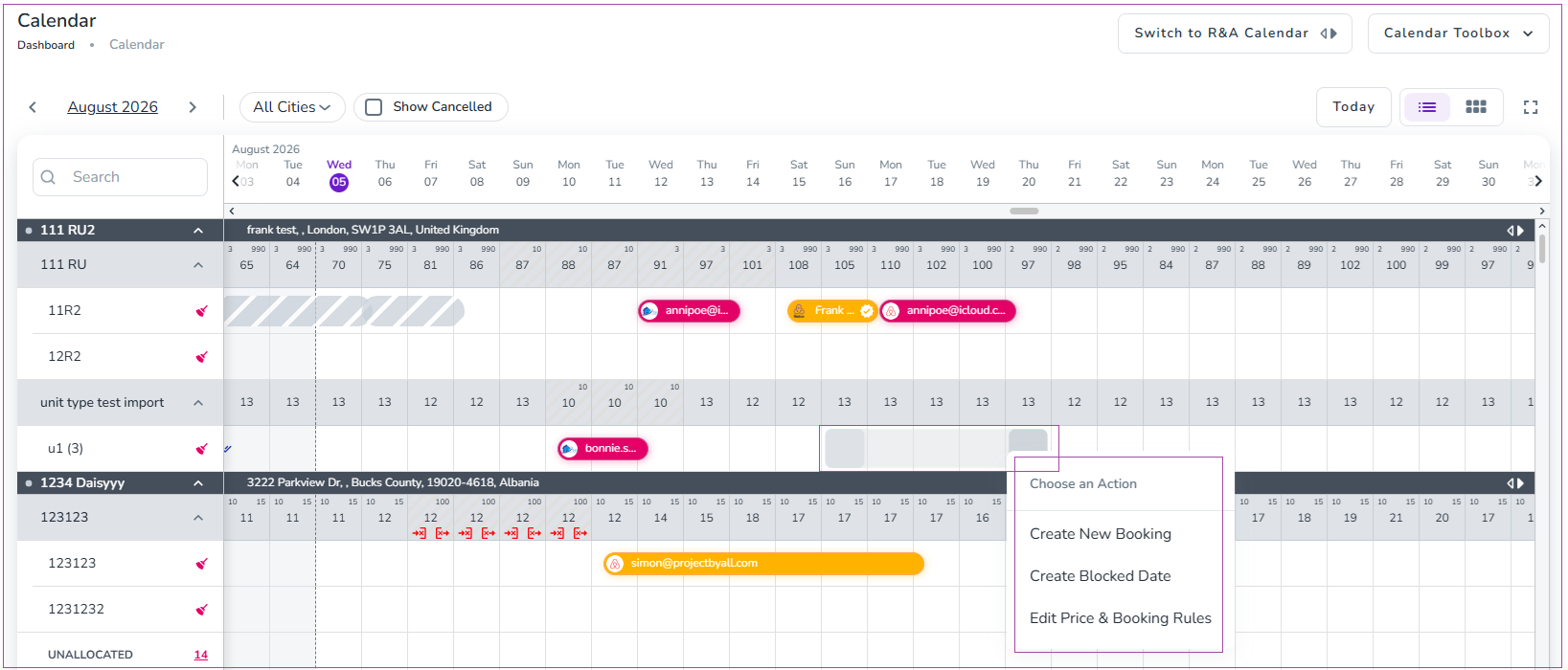
You can select a date range directly on the Booking Calendar to access actions for those dates.
Depending on the selected dates, you can:
Create New Booking
Create Blocked Date
Edit Price & Booking Rates
Selecting New Booking or Blocked Date opens the relevant window so you can complete the action.
Manage Blocked Dates
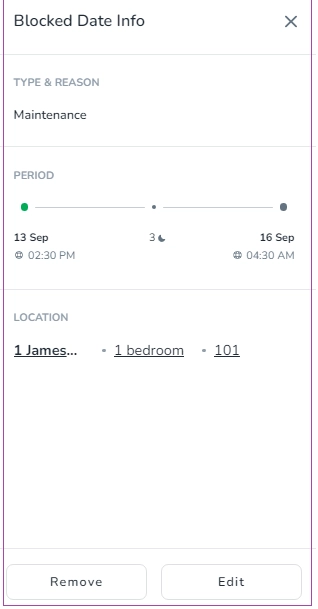
When you hover over a blocked date, you can see information such as the blocked date type and the number of nights.
Click a blocked date to open its details. From there, you can view the blocked date information and, where applicable, edit or remove it.
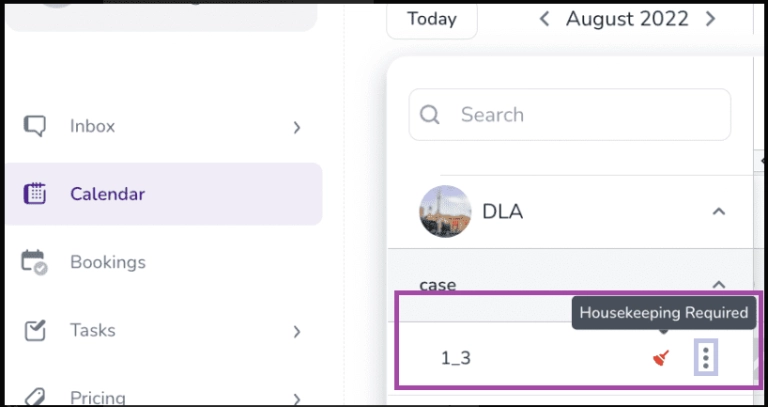
The Booking Calendar can also display a housekeeping indicator for units that require attention.
Hover over the housekeeping indicator to see whether Housekeeping Required.
You or your housekeeper can click the three-dot menu to change the status to Housekeeping Completed, and vice versa.
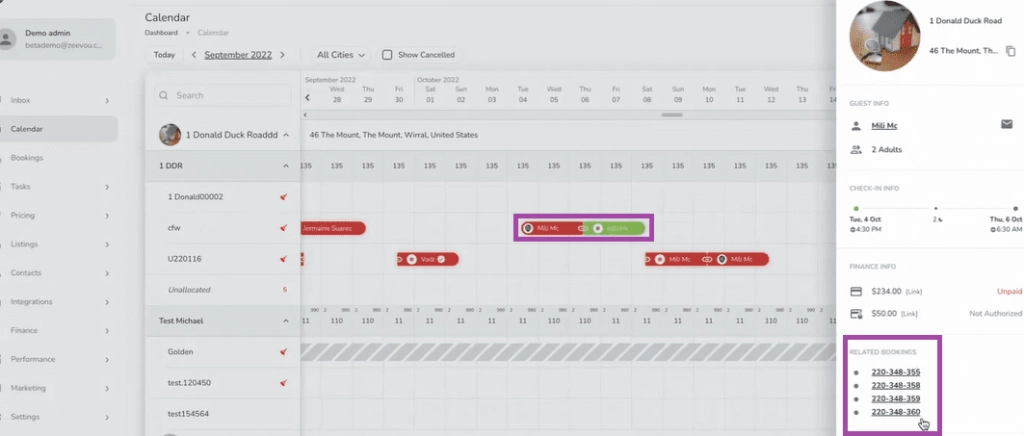
Some booking actions, such as Split and Extend, can create related bookings.
When you open a booking that has related bookings, the related bookings are displayed in the booking overview.
You can select a related booking to open it in Zeevou Hub.
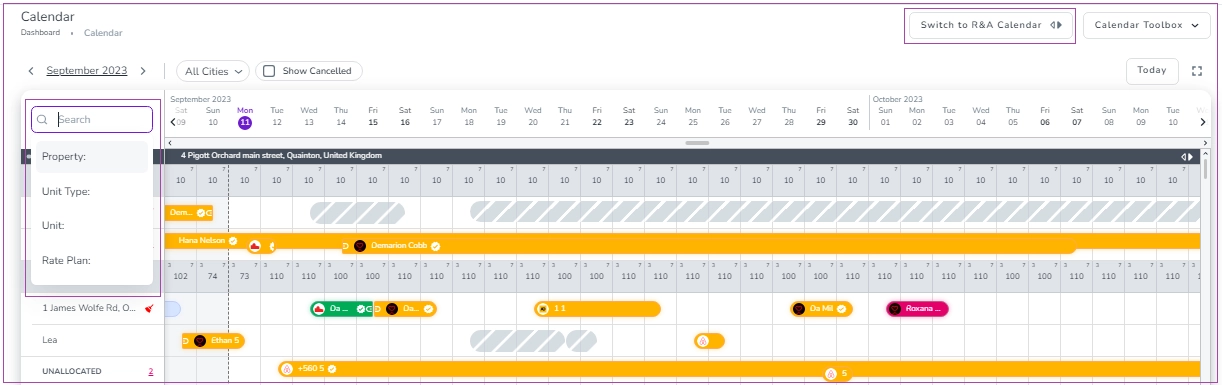
You can narrow down the information displayed in the Booking Calendar using the available filters.
You can filter by:
Property
Unit Type
Unit
Rate Plan
This is particularly useful when managing a large number of properties or units.
Filter by City
If you manage properties across multiple cities, you can use the City filter to select the city you want to view.
Select the desired city from the list to narrow the calendar to the relevant properties.
You can switch between the Booking Calendar and Rates & Availability Calendar when managing a specific property.
Use the arrows or calendar controls provided in the interface to move between the two views.
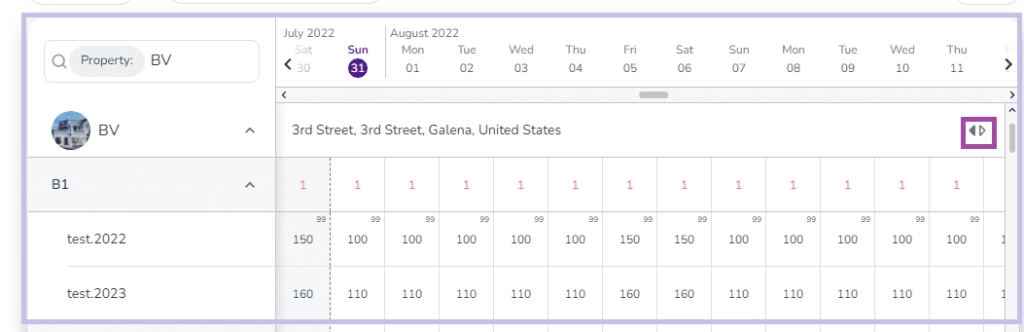
You can also select the required calendar view directly.

In addition to the Multi-Unit Calendar, you can use the Single-Unit Calendar View to focus on one unit at a time.
This view is useful when you need to review a specific unit's:
Bookings
Blocked dates
Availability
Restrictions
By default, the Booking Calendar opens in Multi-Unit mode.
To switch to Single-Unit Calendar View:
Use the toggle at the top-right corner of the calendar.
Select the required unit from the unit dropdown.
You can switch between units at any time using the dropdown.
Accessing the Calendar
Tap the Calendar icon at the bottom-left of the screen.
You’ll be directed to the Booking Calendar (BETA) interface.
Searching Properties
Use the search icon (🔍) in the top-right corner to find a specific property or unit quickly.
Property List
The screen displays a list of properties and units grouped under property names.
Click on each listing to view its Unit type calendar. The same applies to individual units.
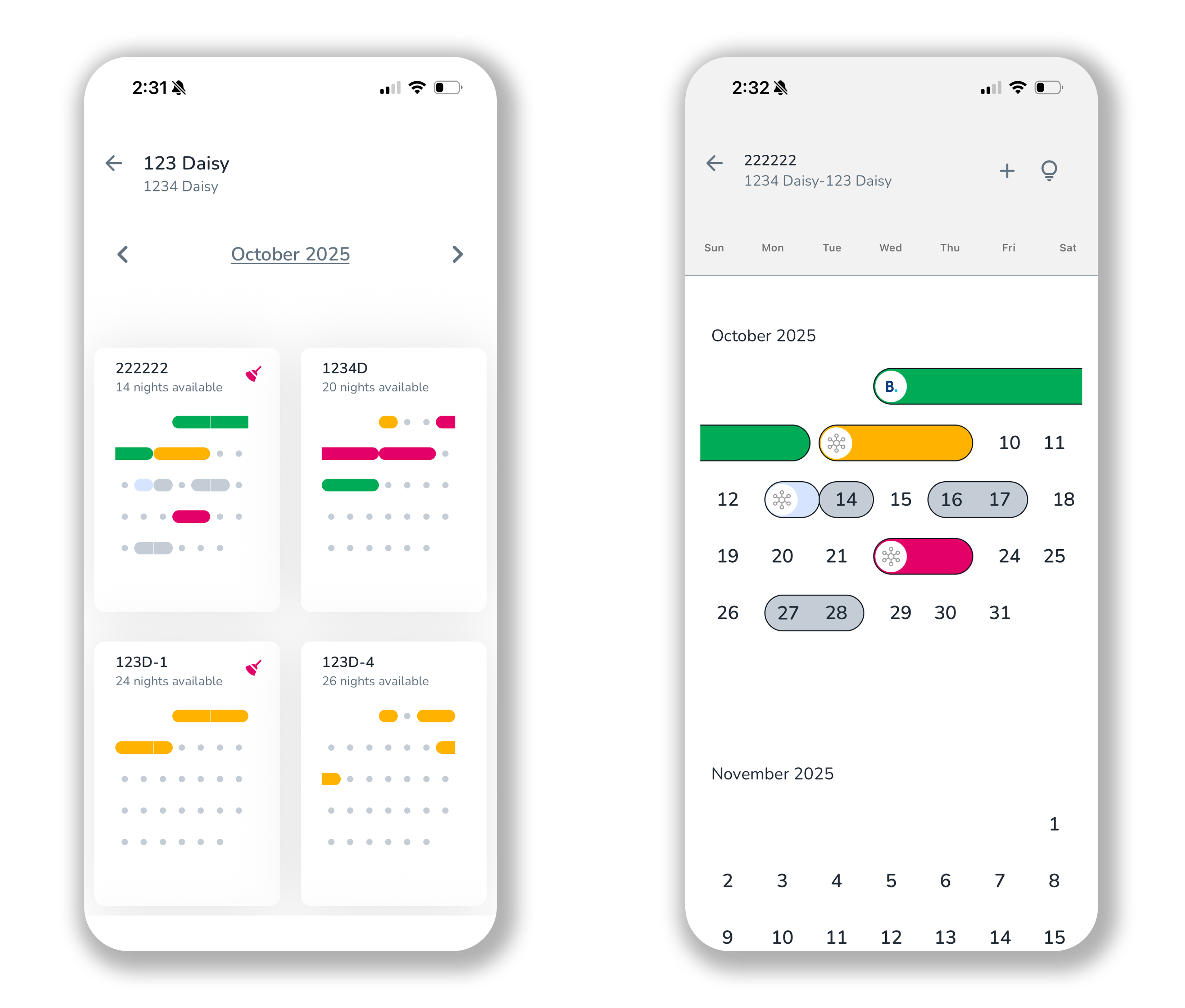
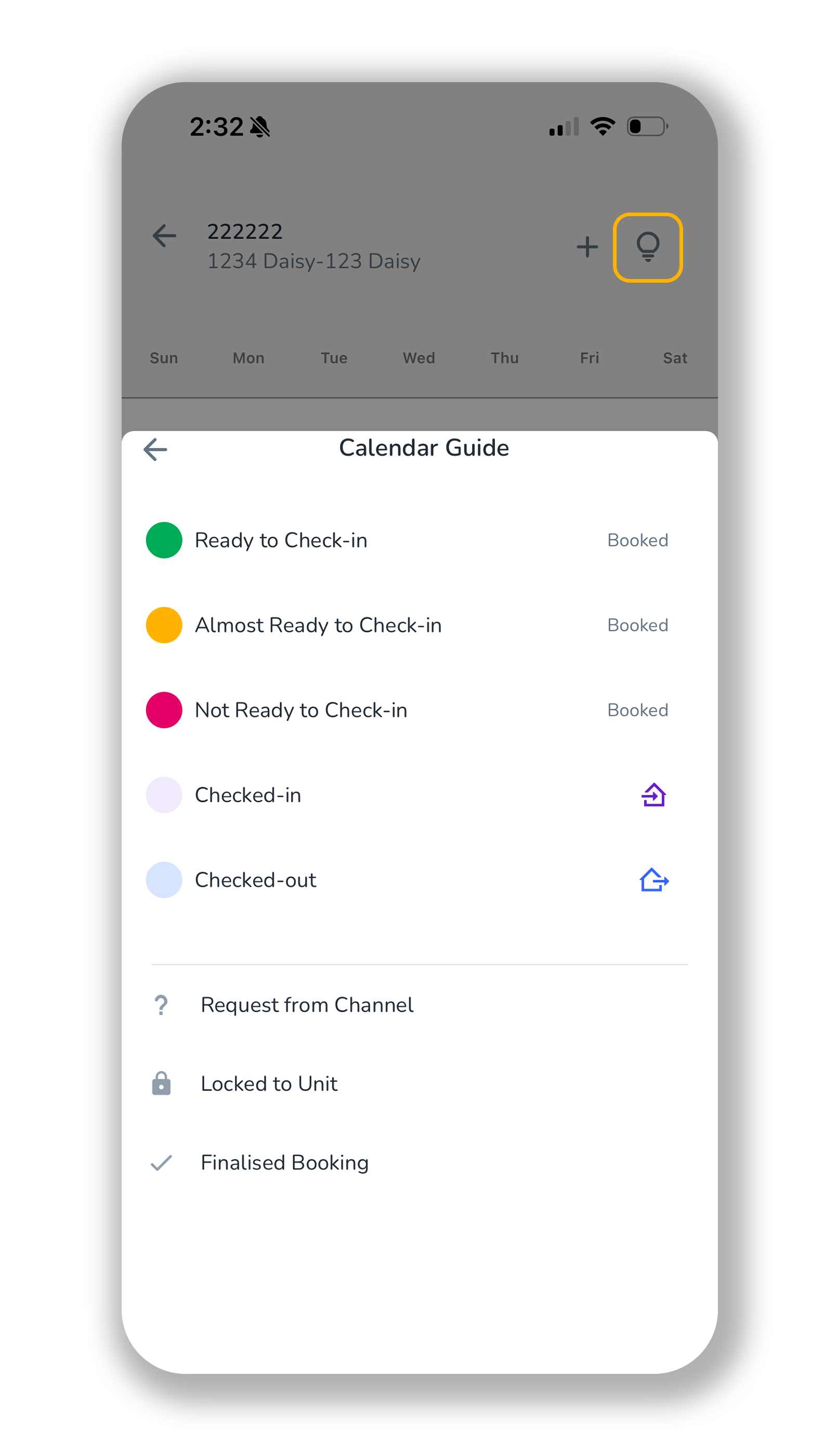
When you tap on the Guide icon, a window pops up which shows the colours of various booking statuses.
To view its details, click the booking and check the actions available at the bottom of the page.
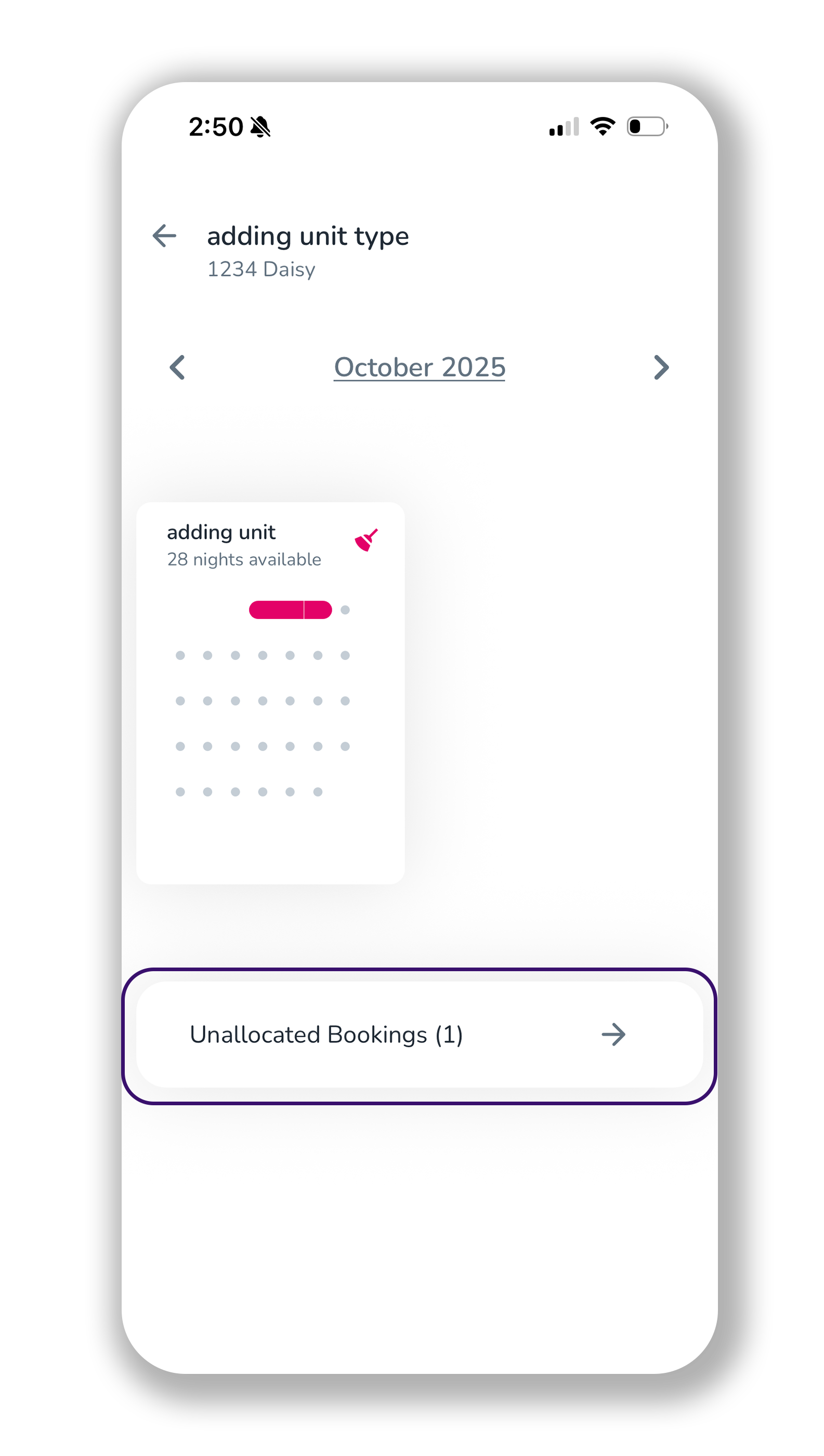
If you tap on a listing, the list of its unit types is displayed. If you click each unit type, the list of its units and unallocated bookings will be shown.
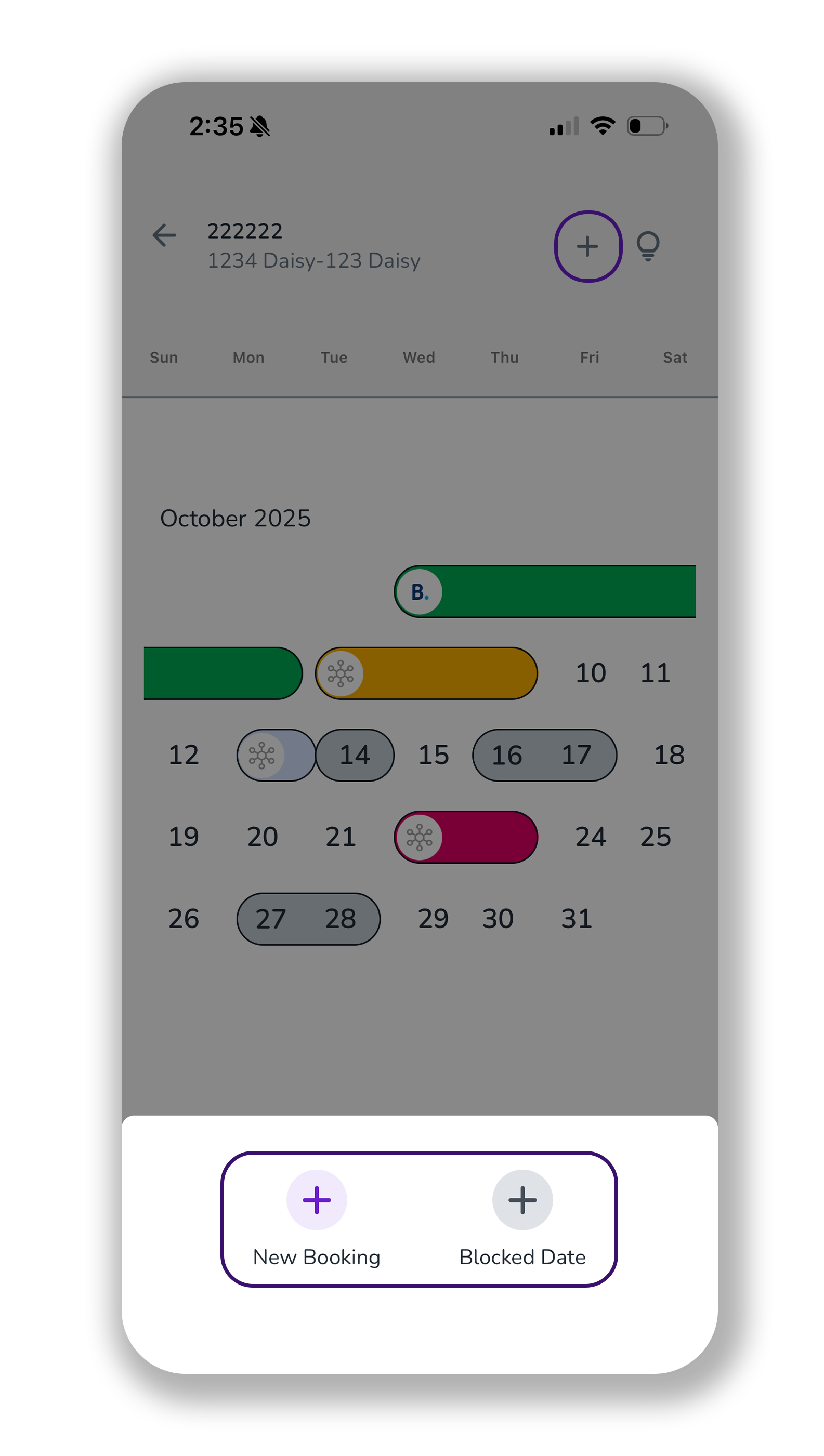
You can click plus(+) icon to Create a New Booking or Block a Date.