Watch this tutorial video on how to configure the Online Check-In Process steps:
Log in to your Zeevou account.
Click the gear icon in the top right corner.
Select Online Check-In Process.
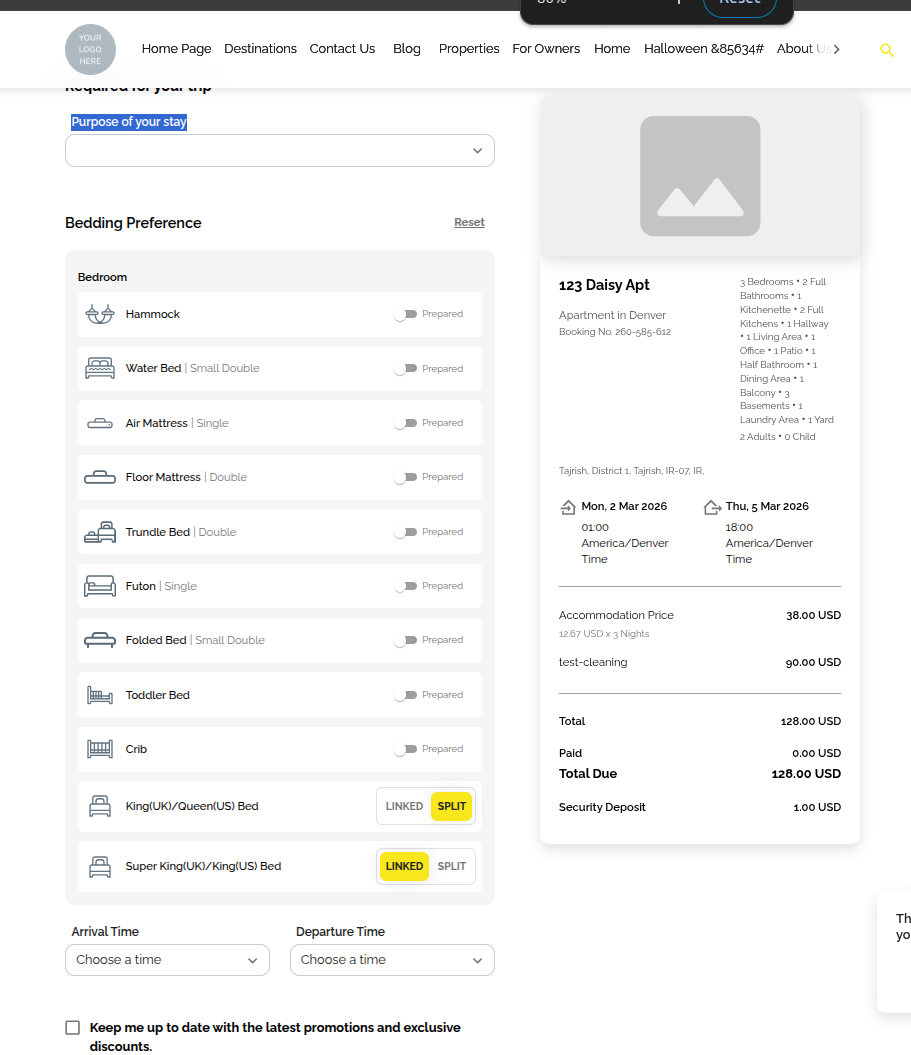
General: Turn on the toggle of your desired items to be shown to the guests during confirmation (e.g., Booking Purpose, Bedding Preference, Arrival/Departure Time).
Note that when this toggle is turned on, guests will see a Bedding Preference section in the General Info step of the online check-in flow. In this section, guests can select which beds they want prepared based on the beds available in the unit type.
Person Booking: Enable your desired items regarding the guest's personal info and add custom questions.
Click + Ask a Custom Question to add.
Select or create new questions.
Make questions Optional or Mandatory.
Marketing Consent: Enable and customise text for GDPR compliance.
Toggle Enable/Disable.
Click Edit to change Opt-in Prompt text.
Select marketing platforms for consent.
Privacy Policy: Include your privacy policy for guests.
Note: You can fill this in the same way as you did for the Person Booking section. If the Lead Guest and Person Booking are one person, the system will sum up the fields related to both. Otherwise, related fields will be shown for each.
Enable sections for Lead Guest Info and Additional Guests (ADULTS and CHILDREN).
Note that the Guest Info will appear as incomplete if additional guest information is marked as Mandatory in the online check-in process.
Add custom questions as needed.
Note: Disabled sections are hidden from guests.
Enable the Terms and Conditions toggle.
Specify which bookings should this Terms & Conditions should apply to.
Click Revise this Terms & Conditions to edit it.
Upsells: Upsell lists will be based on each Listing’s settings.
Payment Note: Edit the Payment Note shown to guests.
Security Deposit Note: Edit Security Deposit Note for guests.
Please note that this step will be shown only if the booking has a Security Deposit amount other than 0.
Edit the Success Page text shown after booking completion.
Profile View: Click on Lead Guest or Person Booking Name to view/edit their profile and custom question responses.
Custom Questions: Add hints, edit, or remove questions anytime.
Marketing Consent: Inform guests of promotions and discount.
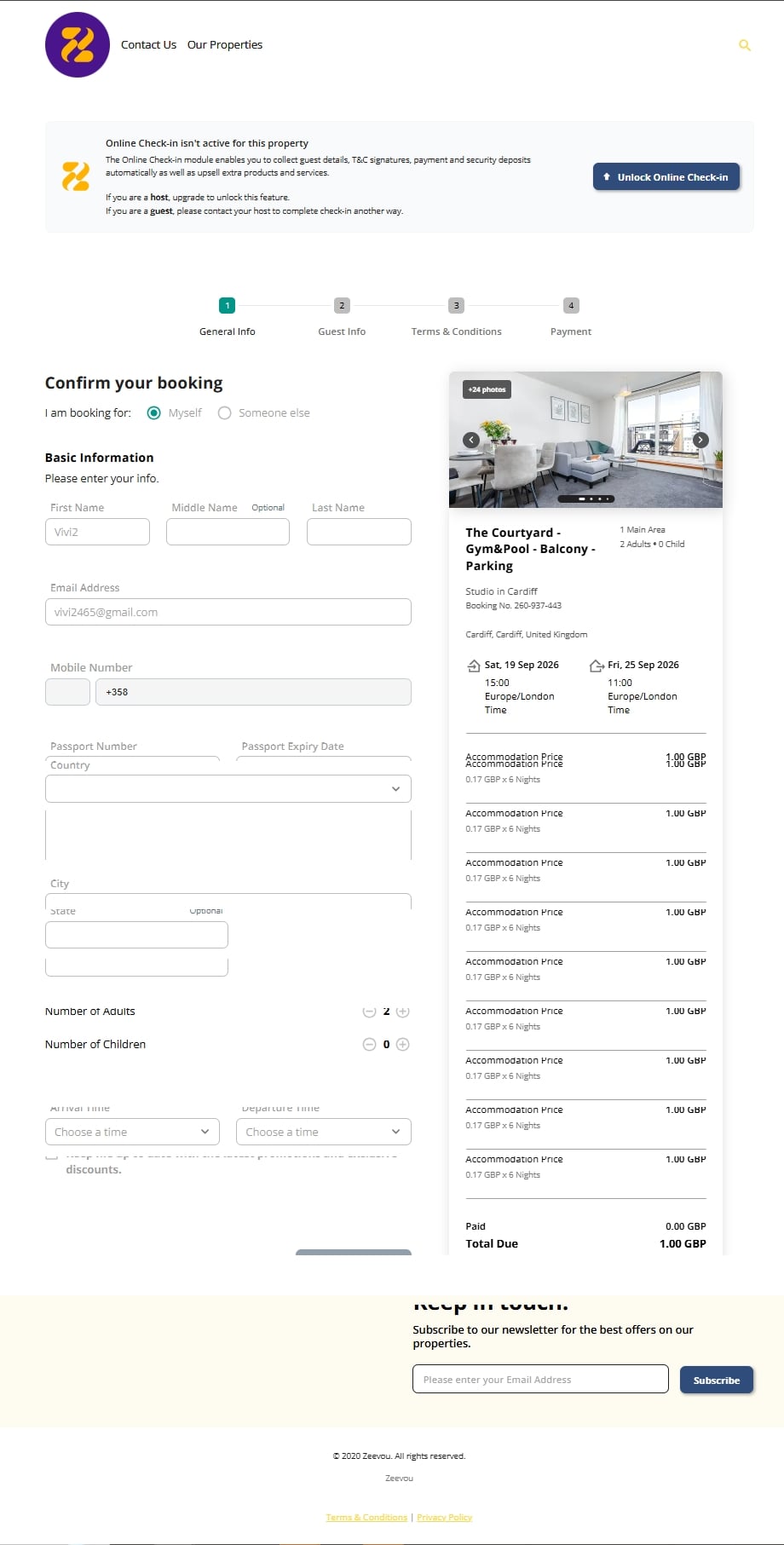
The Online Check-in module enables you to collect guest details, T&Cs signatures, payments, and security deposits automatically, as well as offer upsells for extra products and services.
If the Online Check-in module has not been purchased, a banner will be displayed at the top of the preview link page for both the host and the guest. For the host, this banner serves as a reminder to enable the module. For the guest, it prompts them to contact their host to complete the check-in process through alternative ways.
While accessing the preview link without the module, this banner remains visible throughout the process, and all fields and buttons will appear disabled. Immediately after purchasing and enabling the module, the banner will disappear, and all fields and buttons will return to their normal active state.
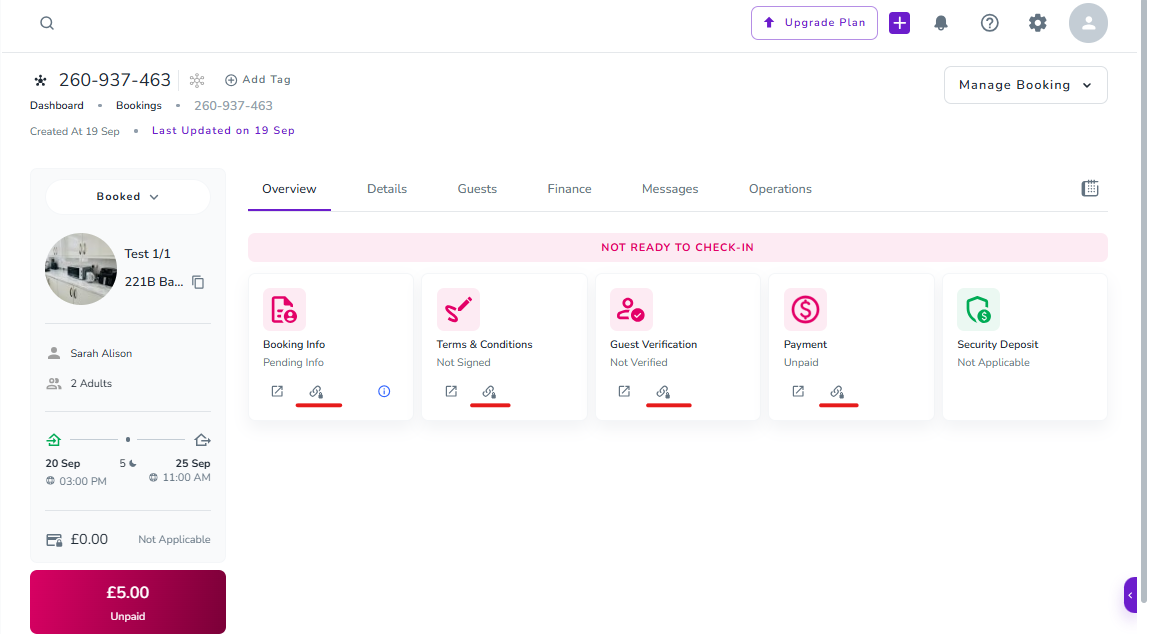
To get the online check-in link, open the booking. You will see 3–5 cards showing the steps the guest needs to complete before check-in. If any step is incomplete, a link icon will appear on the corresponding card. Click the icon to copy the link.
Note: If the Online Check-in module is not enabled, a lock icon appears on the link icon, preventing it from being copied.
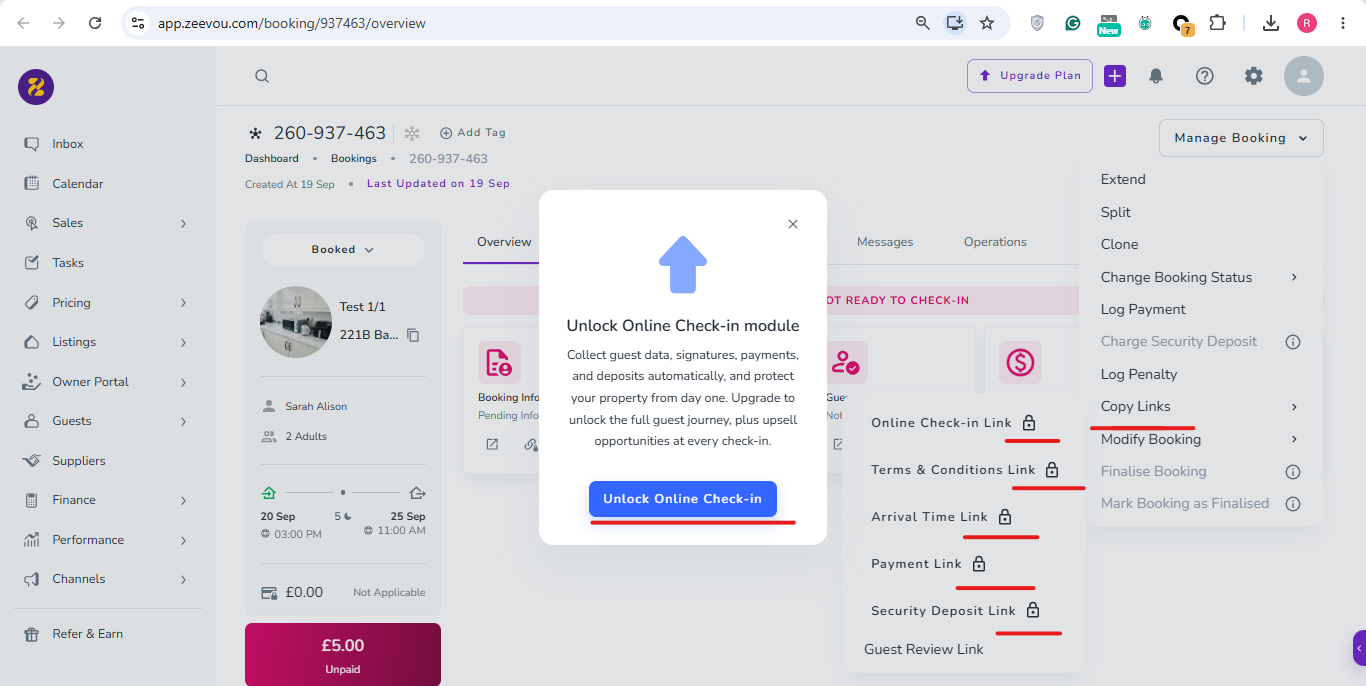
Alternatively, you can go to the Manage Booking button in the top-right corner, select Copy Links from the dropdown, and choose the relevant link.
Note: If the Online Check-in module is not yet enabled, you will see a lock icon next to the Copy options. To unlock these features, click Upgrade in the pop-up to open the Upgrade Flow and purchase the Online Check-in module. Once enabled, all copy actions, fields, and buttons will return to their active state.
continue your pre-check-in setup by designing your booking journey.
Next, Specify Your Check-In Requirements→
