Before you start: If your property contains more than one type of accommodation, create the first Unit Type during the listing creation process. You can add additional Unit Types after the listing has been created.
Log in to [app.zeevou.com].
From the main menu, go to Listings.
At the top right, click the dropdown arrow next to Add a Listing.
Select Create a Listing.
The Listing Creation Wizard opens.
Enter the address of your listing:
Address
City
Postcode
Country
Check the location shown by the map pin and make sure it is positioned correctly.
Click Next.
Enter the basic information for your listing.
Listing Type (Optional)
Internal Name
Check-in & Check-out Method
Number of Units
Unit Names
Click Next.
Add the information that will be displayed on your direct booking website.
Listing Headline
Description (Optional)
Click Next.
Upload images for your listing.
Adjust the settings for each image as needed.
Click Next.
Add the amenities available in all units of this listing.
Important: Only add an amenity here if it is available in every Unit included in the listing.
Click Next.
Enter the initial pricing information for the Unit Type.
Complete the following fields:
Currency
Weekday Price
Weekend Price
Maximum Capacity per Unit
Number of Guests Included in Price
You can also enable the following optional settings if they apply to your listing:
Minimum Stay
Maximum Stay
Security Deposit
Cleaning Fee
Click Next.
Important: Make sure the Maximum Capacity per Unit reflects the maximum number of guests that can stay in the Unit.
Pick one or more Brands to publish the Listing on their websites.
Select a Default Brand to be used for Bookings that come from Channels.
Click Next.
After completing the wizard, review the information you have entered.
You can now finalise the listing or save it as a draft.
Click Finalise Activation.
The listing will appear under the Active section on the Listings landing page.
Click Save draft and activate later.
You can return to the listing and complete it later.
To continue setting up a listing saved as a draft:
Go to Listings.
Open the Drafts section.
Select the listing you want to complete.
Click Complete.
Finish the remaining setup steps.
Click Finalise Activation when the listing is ready.
If your property contains more than one type of accommodation, you can add additional Unit Types after creating the listing.
For example, a property might contain:
5 One-Bedroom Apartments
3 Two-Bedroom Apartments
Each accommodation type should be created as a separate Unit Type.
Go to Listings.
Open the relevant listing.
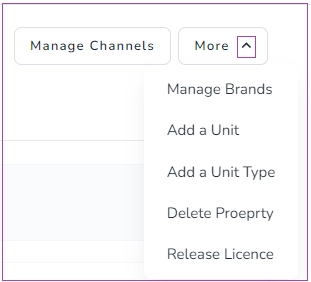
Click More.
Select Add a Unit Type.
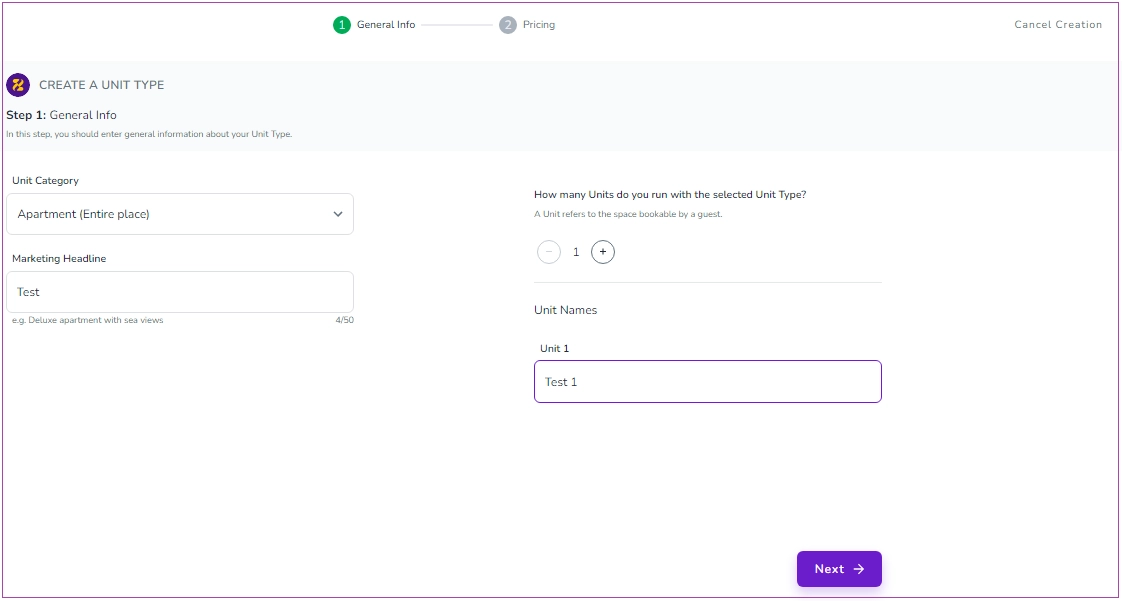
A two-step wizard opens.
Enter the Unit Type information:
Unit Category
Marketing Headline
Unit Name
Click Next.
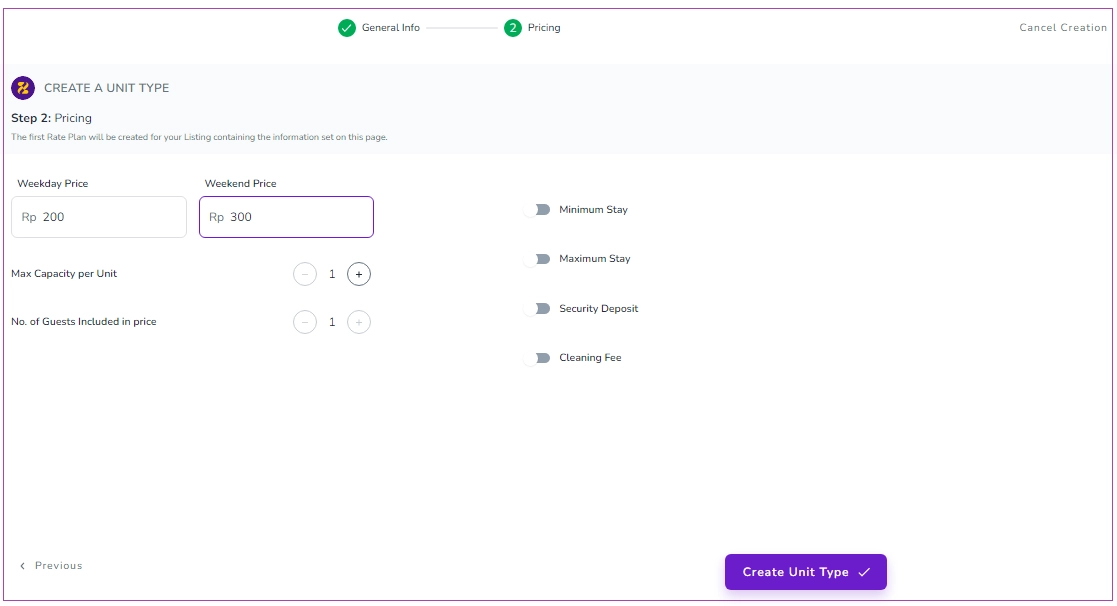
Enter the prices for:
Weekday
Weekend
You can also enable the available optional pricing settings if they apply to this Unit Type.
Click Create a Unit Type.
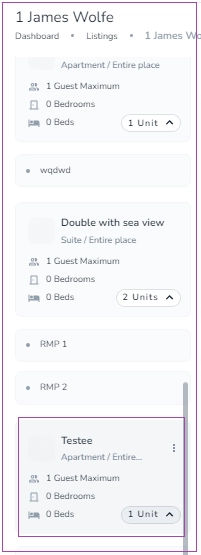
The new Unit Type will be added to the listing on the Listings page.
If you need to add another individual Unit to an existing Unit Type, follow the steps below.
A Single Unit is a property with one Unit Type and one Unit.
Go to Listings.
Find the relevant listing.
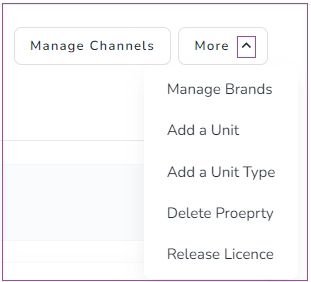
Click More.
Select Add a Unit.
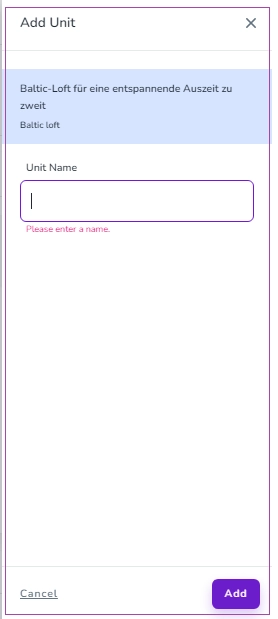
Enter the Unit Name in the drawer that opens.
Click Add.
The new Unit is added to the listing.
If the listing contains multiple Unit Types:
Go to Listings.
Find the relevant listing.
Find the Unit Type to which you want to add the Unit.
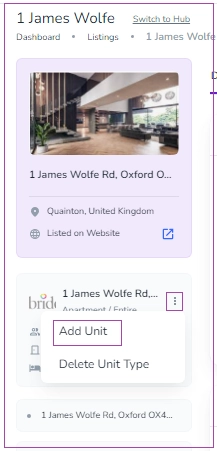
Click the three-dot menu for that Unit Type.
Select Add a Unit.
Enter the Unit Name in the drawer.
Click Add.
The Unit is added to that Unit Type.
After creating your listing, you must add the bedrooms and beds for each Unit Type.
This information is important for defining your property's accommodation configuration and guest capacity.
Go to Listings.
Select the relevant property.
Open the Details Card.
If the property contains multiple Unit Types, open the Details Card for the relevant Unit Type.
At the bottom of the page, click Add Rooms and Spaces.
Enter the number of bedrooms.
Enter the relevant bed count.
Click Save.
Important: Add enough bedrooms and beds to support the maximum guest capacity of the Unit Type. This information must be completed before you map the property to channels.
Repeat these steps for each Unit Type where necessary.
Before activating your listing, review the information you have entered. When everything is correct:
Open the listing.
Click Finalise Activation.
Confirm the activation if prompted.
Your listing will appear under the Active section on the Listings landing page.
If you are not ready to activate the listing, save it as a draft and complete it later.
Once your listing is active and the required property information has been completed, you can continue with the next stage of onboarding.
Next step: [Set Your Rates]
