Zeevou's Twilio integration allows you to send WhatsApp messages to guests through your Twilio account.
Follow the steps below to connect your Twilio Messaging Service and WhatsApp Sender to Zeevou.
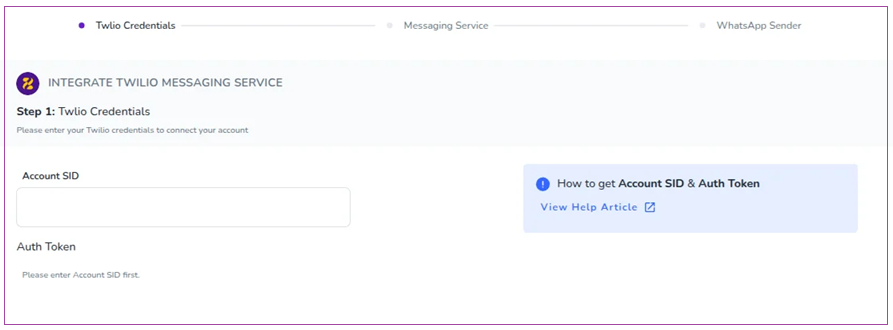
Go to Integrations and open the Twilio Messaging Service integration wizard.
In the Account SID field, enter your Twilio Account SID.
In the Auth Token field, enter the corresponding Auth Token.
Log in to your Twilio account via Twilio Console.
On the Console Dashboard, locate the Account Info section.
Copy your Account SID from the dashboard.
To view your Auth Token, click the Show icon next to the Auth Token field.
Copy the Auth Token and store it securely.
Note: The Auth Token field becomes available after entering a valid Account SID.
Click Next to continue.
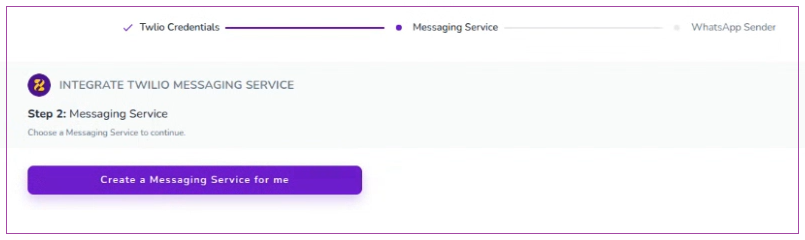
A: When there is no Messaging Service, you should click Create a Messaging Service for me to have it.
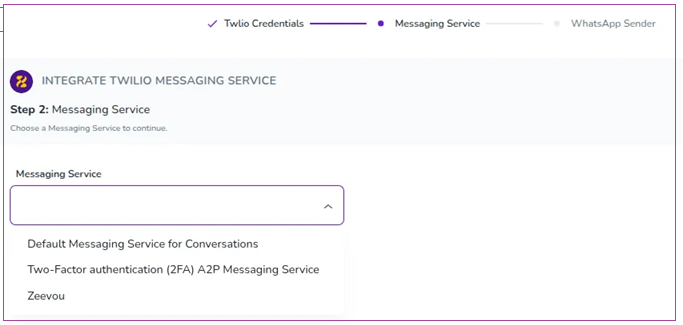
B: When there is a Messaging Service
Click the Messaging Service dropdown menu.
Select the Twilio Messaging Service you want Zeevou to use for sending messages.
Click Next to proceed.
Note: Only Messaging Services available in your connected Twilio account will appear in the dropdown list. If no services are displayed, create a Messaging Service in your Twilio Console before continuing.
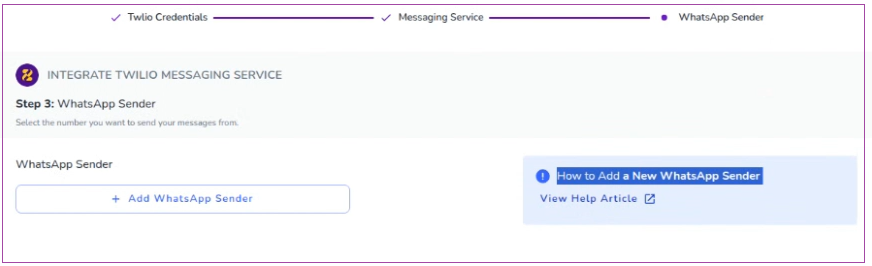
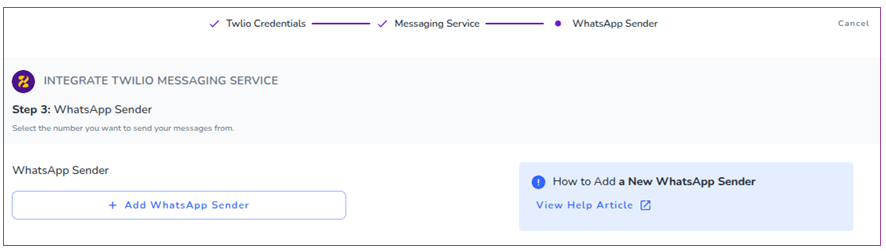
A: When there is no WhatsApp Sender, Click Add WhatApp Sender.
Log in to your Twilio account via Twilio Console.
Navigate to Messaging > Services > Senders> Whatsapp Senders > Add a WhatsApp Sender.
Follow the setup wizard and provide the required business and WhatsApp details.
Submit the sender for approval and wait for confirmation from Twilio and WhatsApp.
Once approved, the new WhatsApp sender will be available for use in your integrations.
B: When there is a WhatsApp Sender,
Click the WhatsApp Sender dropdown menu.
Select the WhatsApp-enabled phone number you want to use for guest communications.
Click Complete to finish the setup.
Note: Only WhatsApp sender numbers associated with the selected Messaging Service will be displayed. If no sender appears, ensure that a WhatsApp sender has been added and approved in your Twilio account.
Once the setup is complete, Zeevou will use the selected Twilio Messaging Service and WhatsApp sender number to send WhatsApp messages to guests through your connected Twilio account.
