The first step in managing a booking’s payment is identifying its payment status. There are various payment statuses shown on the booking page under the Overview and Payments tab:
Paid: When the payment is paid completely in Host Collect or Channel Collect Bookings.
Partially Paid: When part of the payment is paid in Host Collect or Channel Collect Bookings.
Unpaid: When the booking is not paid.
Overpaid: When the payment amount is more than the Booking Total Price.
Not Applicable: When the total price is zero, and you have a free booking.
Credit: This status applies to bookings where the channel is responsible for handling the payment. In Channel Collect bookings, the system receives Virtual Credit Card (VCC) details from the channel and attempts to charge the card on the designated payment date.
If the system does not receive VCC details, or if a previous attempt to charge the VCC has failed, the user must handle the payment manually.
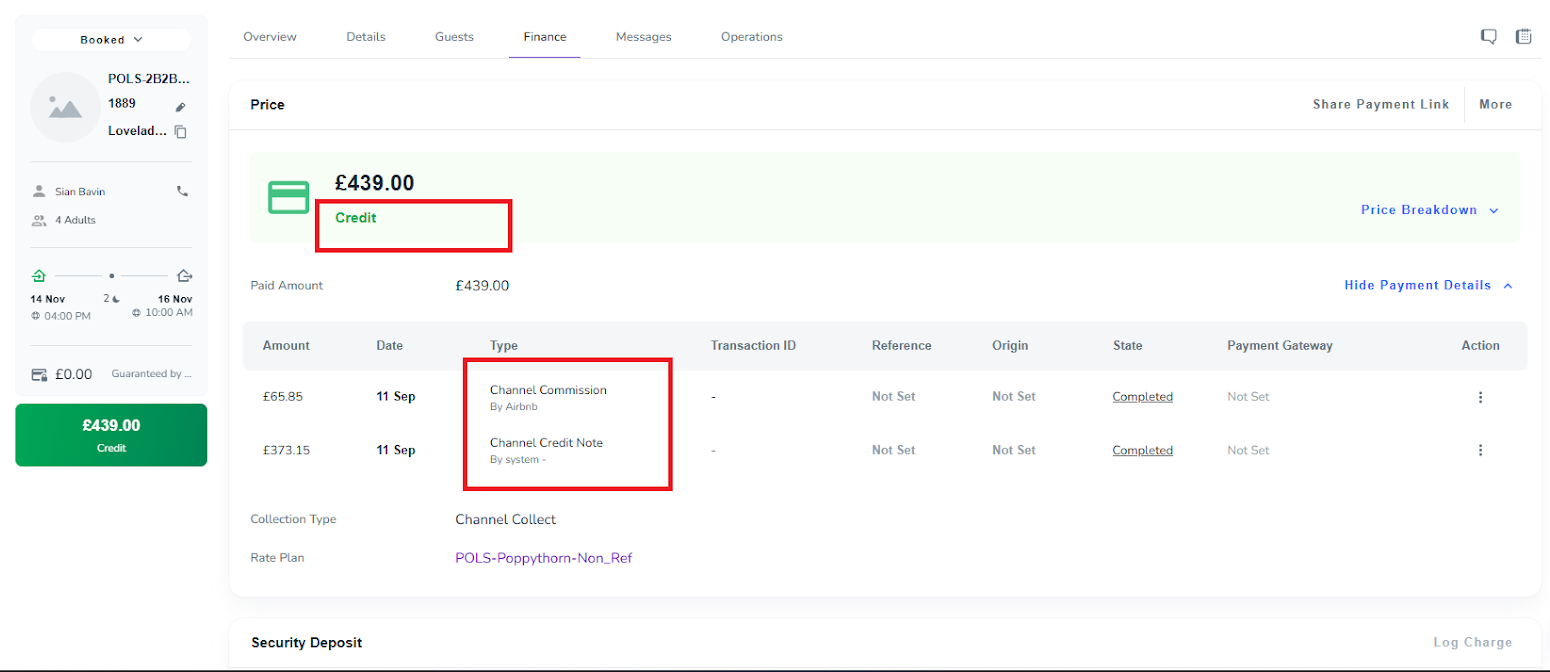
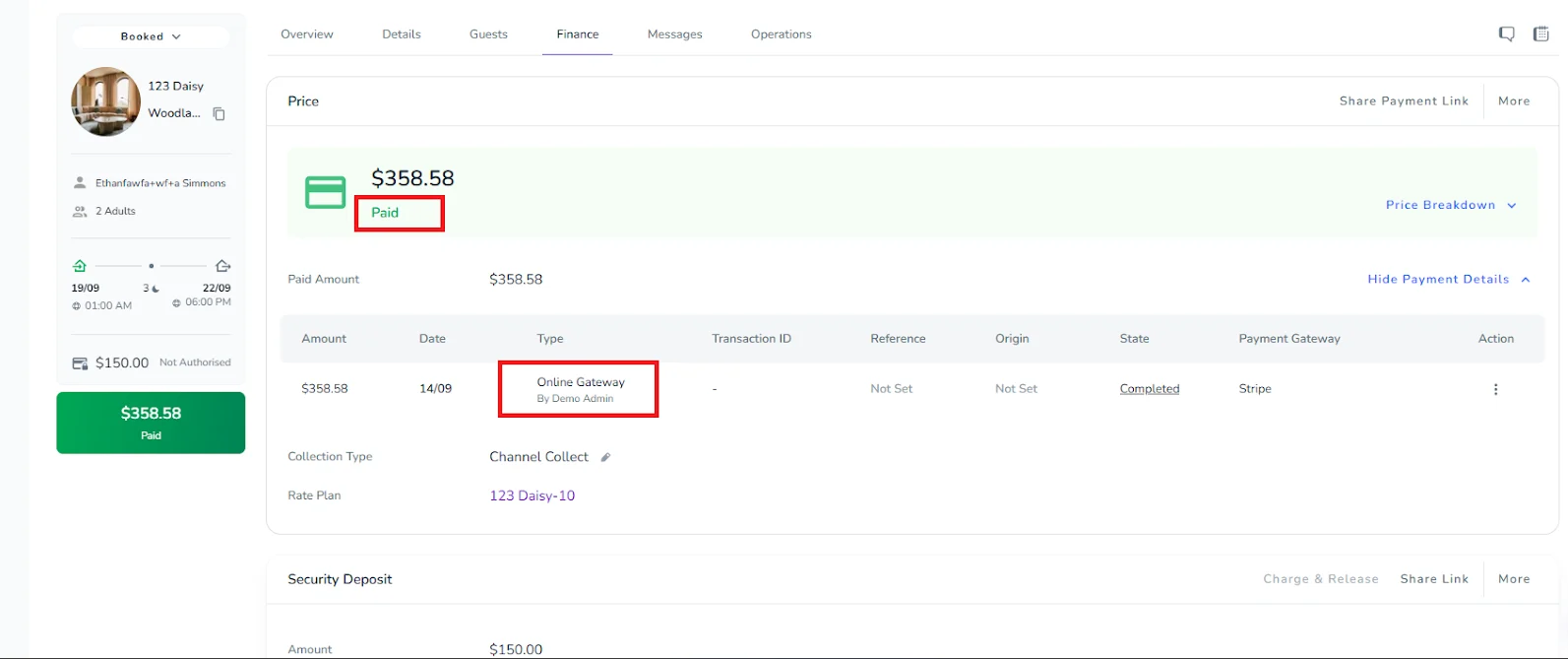
Note: In the initial state, the system creates a payment record with the Channel Credit Note type to cover the booking’s total price. Once the system successfully charges the VCC, this payment type is updated to Online Gateway, and the booking’s payment status changes from Credit to Paid.
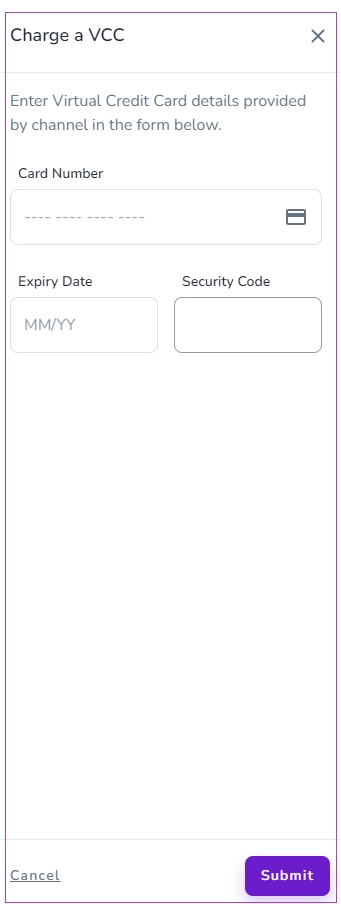
You can also add the VCC Card details manually. To do this, click More and select VCC Payment. A drawer will open where you can enter the VCC details and click Submit.
Once you complete the integration with your payment gateway, each time a booking comes in, Zeevou will check whether the OTA has informed us about the capture of the payment:
If the OTA has already collected the amount, the booking gets marked as Channel Collect. So, the booking payment status is set as Credit, which means the guest will not be asked for payment. You will also see the credit memo in the booking itself if you open the Booking View mode. Zeevou will automatically charge the channel credit amount and will change it to a VCC payment (The VCC is a Virtual Credit Card that the Channel pays us).
If the booking amount is not collected by the channel, it gets marked as Host Collect, which means the guest will be asked for payment as part of the Online Check-in steps.
For host-collect bookings, you will be able to toggle On / Off the payment methods in the Finance tab of your booking:
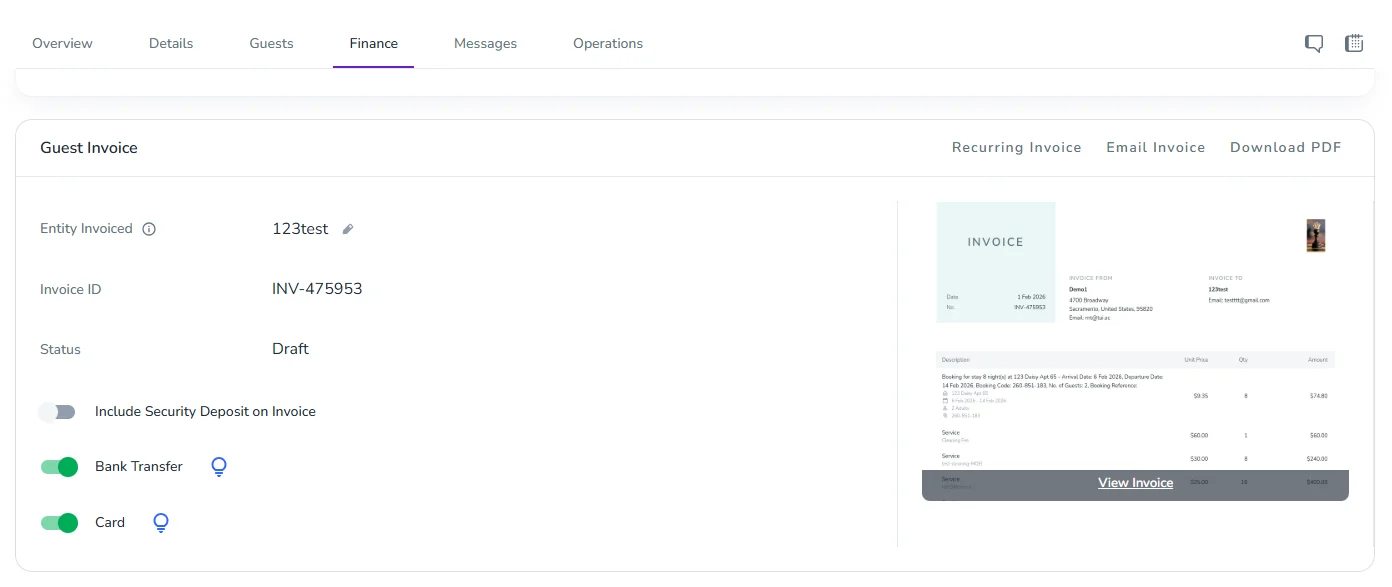
When the Bank Transfer toggle is turned on, the “Bank account info” appears on the guest invoice, and bank transfer becomes available for that booking. Turning it off, disables bank transfer in the online check-in process.
When the Card Payment toggle is turned on, the “Pay Now” button appears on the guest invoice, and card payment is enabled for that booking. Turning it off disables card payment in the online check-in process.
Note: Each option is available only if the corresponding payment method (Bank Transfer or Card Payment) is enabled at the brand level in Settings -> Finance. Otherwise, the toggle will be disabled.
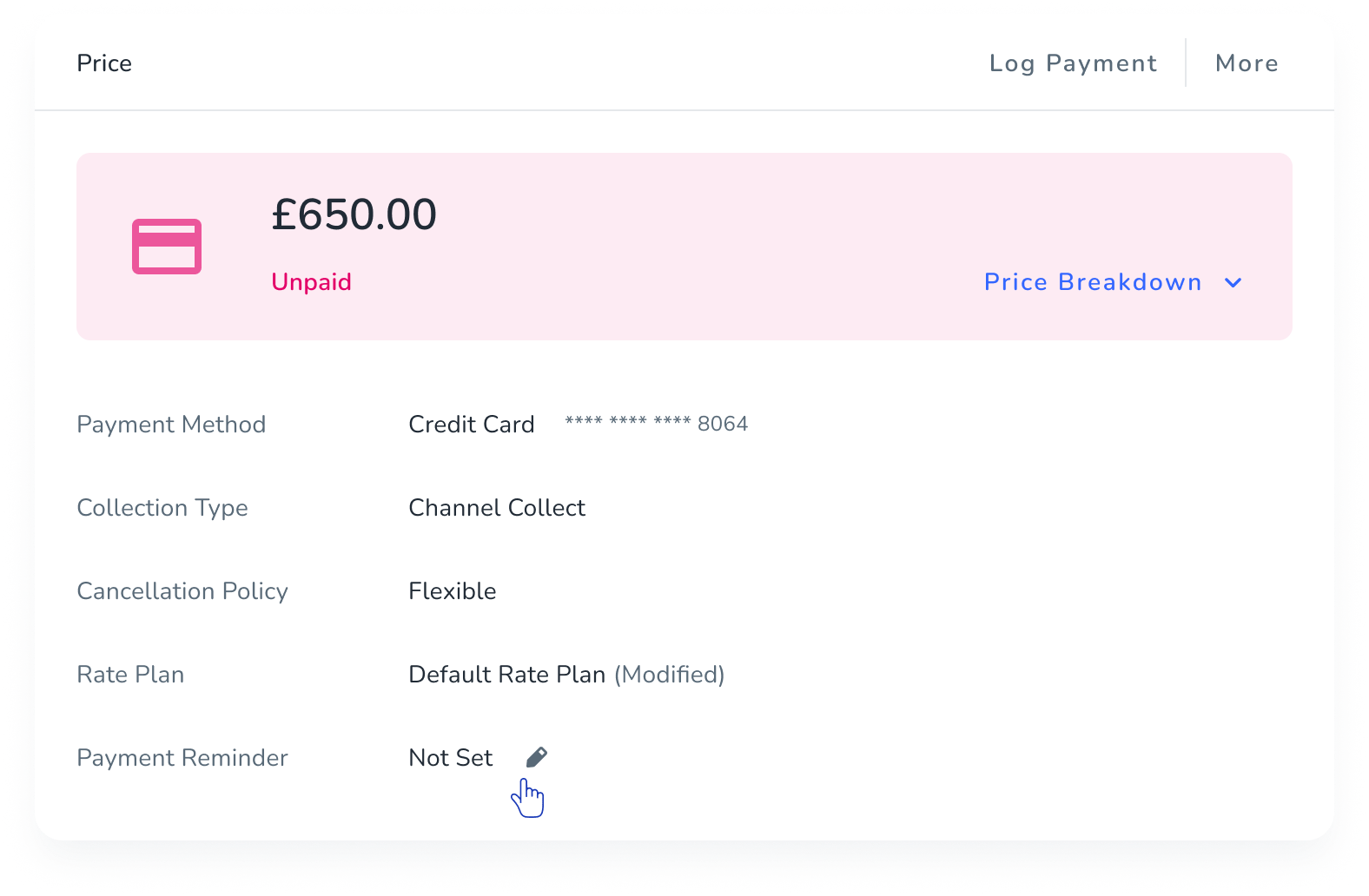
In the booking view page, you can set a Payment Reminder notification if the booking is unpaid. To do so, go to your desired booking, then the Finance tab. The Set Payment Reminder option is available on the main card. Click the pen icon to open the Set Payment Reminder drawer.
If the Operational Management module is not enabled, the Set Payment Reminder drawer opens in locked mode and displays an upgrade banner with a locked button. You need to purchase the Operational Management module to access this feature. A hover state is also available for the locked button, and clicking the button displays the upgrade pop-up.
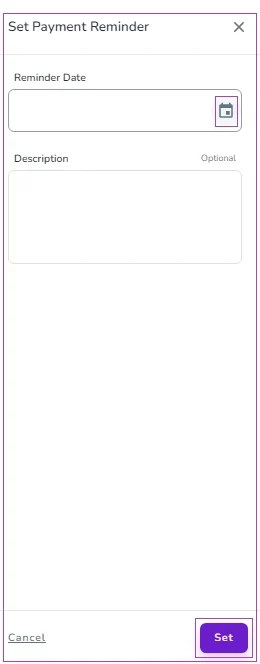
In the drawer, you can set the Reminder Date and add a description. To finalize the reminder, click Set.
The Payment Reminder feature is part of the Operational Management module. With this module, you can set payment reminders directly from the booking's Finance tab and keep track of unpaid bookings more efficiently. If the module is not enabled, the feature remains locked until you upgrade.
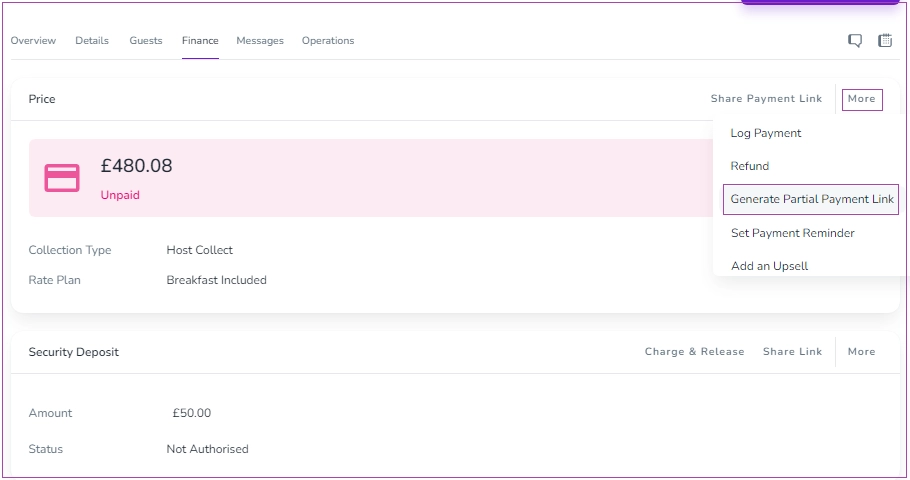
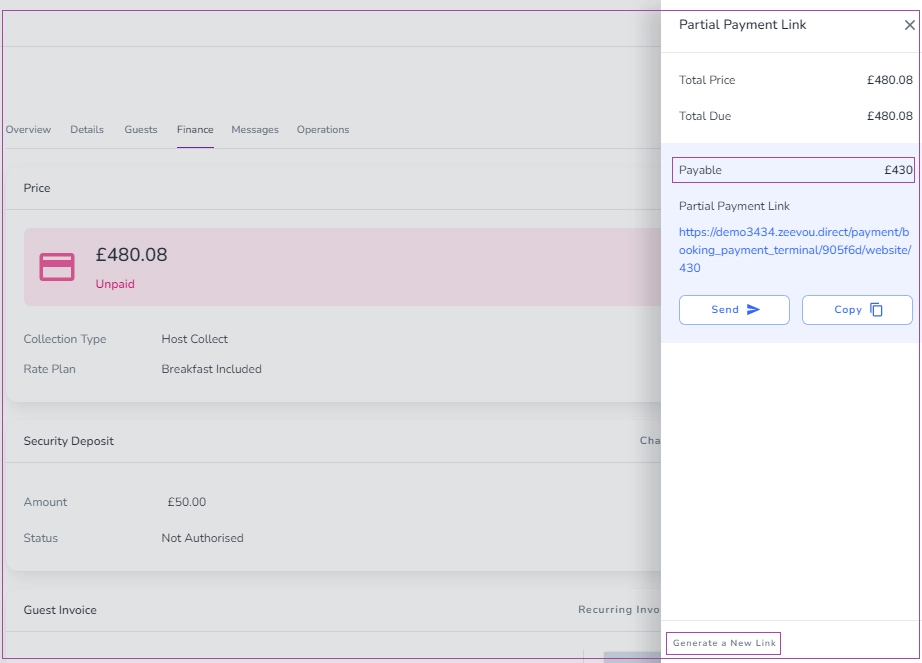
To break down the total price of a booking, go to the Booking view page->Finance tab, and click More to select Generate Partial Payment Link.
In the opened menu, you can add your desired amount and click Generate Link.
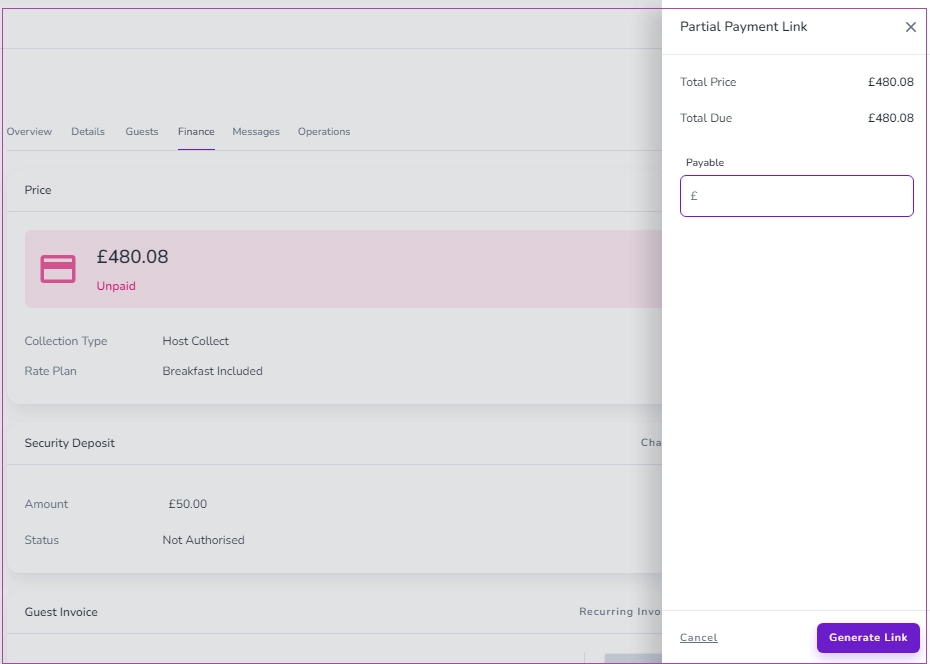
Then the Partial Payment Link gets generated, and you can send or copy the link to the guest.
Note: When generating a Partial Payment Link is automatically available to collect a fixed upfront amount (in near future), you can also use the Booking Code variable in your automated messages.
For bookings that come to Zeevou from Booking.com, Expedia, and Agoda and whose Collection Type is Channel Collect, the details of VCC will be saved in Zeevou. On the activation date of the card provided by the channel, the system will try to charge the booking amount from the card.
If successful, the payment status of the booking is automatically updated to paid. The payment status will change from Credit to Paid in the Price Breakdown on the Booking Page and from [OTA Credit] to [Credit Card] under the Payment title.
NOTE: The system will attempt to charge the amount every 24 hours following the activation date of the card. For No Show and Cancelled bookings, the system will not try to withdraw any amount from the credit card.
There are specific situations for handling Credit.
When VCC Details Are Received:
Once you receive the VCC details, the Payment Type will display as OTA Credit. The VCC will be charged according to the Activation Date.
When Virtual Credit Card (VCC) Details Are Missing:
If you have not received the Virtual Credit Card (VCC) details from the Channel, the Channel Collect option will be displayed under the Finance Tab, on the Price Card, as the Collection Type.
Click More and select VCC Payment.
A drawer will open, allowing you to input the VCC details. After entering the details, click Submit.
After Charging the VCC:
After successfully charging the VCC, the Payment Type will change from OTA Credit to Credit Card, and the Booking Payment Status will update from Credit to Paid.
