Fees configured in your rate plans can behave differently depending on the type of channel connection you are using. This guide explains how fees are handled for both connection types and best practices to ensure accuracy.
Zeevou handles fees differently depending on your channel connection type. Select the section that applies to your connection.
Excluded fees are sent to the channels.
No. They are sent to Airbnb as resort fees, but they are sent to other channels as well.
Syncing Fee Changes
If you update a fee (e.g., Cleaning Fee) in Zeevou, follow these steps to ensure it reflects correctly:
Go to Listings > Rate Plan.
Click Sync Manually.
Check the channel after syncing:
Airbnb: updates are typically instant (Content Sync).
Other channels: may take up to 24 hours.
Always verify the total price on the channel after syncing.
Included Fees Handling
When the fee is set as included, when we receive a booking we will extract it from the accommodation amount.
Example:
Cleaning Fee (included): $100
Booking accommodation total: $500
In Zeevou:
Accommodation: $400
Cleaning Fee: $100
For Type B connections:
Fees are not sent to the channels.
Matching Fee Names
If a fee on the channel has the same name as in Zeevou:
The sales amount will be overridden by the value set on the channel.
The purchase price (expense) from Zeevou will still apply.
Different Fee Names
If the fee names differ between Zeevou and the channel:
Example:
In Zeevou:
“Cleaning Fee” → Sales: $100, Expense: $90
On the channel:
“Housekeeping” fee
In Zeevou booking:
“Cleaning Fee”:
Sales: $0
Expense: $90
“Housekeeping”:
Sales: as set on the channel
Expense: $0
Included Fees Handling
Included fees are handled the same way as in Type A connections.
Example:
Cleaning Fee (included): $100
Booking accommodation total: $500
In Zeevou:
Accommodation: $400
Cleaning Fee: $100
Feature | Airbnb | VRBO | |
Fees Sent? | Yes | Yes | Yes |
Sync Type Required | Content Sync | set to Content Sync | Content Sync |
Update Method | Automatic | Manual (unless "Auto" is on) | Manual Content Update |
Update Speed | Up to 24 hours | Up to 24 hours | 24–48 hours |
Note: If you have a fee that doesn't have a direct equivalent in Airbnb's system, Zeevou will send it as a Resort Fee to ensure the value is still captured.
To ensure your pricing is accurate after making changes to fees in Zeevou, always follow this workflow:
Manual Sync: Go to Listings > Manage Channels > Content Sync Update.
Verify: Check the channel (Airbnb, Booking.com, or VRBO) after the sync window (instant for Airbnb; up to 48h for others) to ensure the total price presented to guests is correct.
To enable automatic content updates for your listings in the Channel Manager, follow these steps:
Finalise your updates in Zeevou.
Make sure all property content—such as descriptions, amenities, and photos—is accurate and complete.
Navigate to the Channel Manager.
Go to the Channel Manager section from the main menu.
Click Update Listing Content.
This will push your Zeevou content manually to the connected OTA(s).
Enable Automatic Updates (Optional but Recommended).
By default, automatic updates are turned off when using Content Sync. To turn it on, go to the specific channel settings. Look for the option to enable automatic content sync and activate it.
Enabling this ensures that any future changes you make in Zeevou are automatically pushed to the OTA without needing to update manually each time.
Note that the automatic content update exists only for VRBO and Airbnb for connection Type B.
Both features let property managers control how rates and fees appear on channels. They help cover commissions and adjust pricing, but work on different parts of your pricing.
What it does
Adjusts final fees before listing on channels. Works well with Price Mark-up for flexible pricing.
Benefits
Offset channel commissions
Reduce operational costs
Adapt quickly to market changes
When to use
Best applied when connecting a new channel. Know the channel’s commission policy and plan carefully—overpricing can reduce bookings, underpricing reduces profits.
How it works
Applies mark-up to non-percentage fees. Does not affect taxes.
Where to find it
In Property Settings for each sales channel.
What it does
Adjusts property pricing before sending to channels. Lets you offer different prices per channel.
Benefits
Cover channel commissions
Offer flexible pricing across channels
When to use
Use to cover channel commission costs. Mark-up can differ by property, rate, or channel.
How it works
Applies a percentage (+/- or 0%) to the base price. Base price in Step 5 remains unchanged.
Example:
Base price = 200 EUR
Airbnb: +10% → 220 EUR
Booking.com: +20% → 240 EUR
Vrbo: 0% → 200 EUR
Google Travel: -5% → 190 EUR
Where to find it
In Property Settings for each sales channel.
No fees are sent to the channels. Instead, Zeevou reconciles the data once the booking is received.
1. Identical Fee Names
When a booking arrives with a fee name that matches your Zeevou fee name:
Sales Price: The amount set on the channel overrides the Zeevou sales price.
Expense: Zeevou applies your pre-set purchase price/expense to that fee automatically.
2. Mismatched Fee Names
If the names differ (e.g., Zeevou says “Cleaning Fee” but the Channel says “Housekeeping”):
Zeevou displays both fees on the booking.
The Zeevou Fee will show a 0 sales amount but will keep its assigned expense (e.g., 90).
The Channel Fee will show the actual sales amount from the booking but will have 0 expense.
3. Included Fees
If a fee is marked as "Included in Nightly Price" Zeevou will subtract that amount from the base accommodation rate to show the breakdown clearly in your reports.
Example: For a $500 total booking with a $100 included cleaning fee, Zeevou records $400 for accommodation and $100 for the fee.
Step 1: Go to Listings dashoard and open your desired listing.
Step 2: Click Manage Channels on the top right.
Step 3: Click Airbnb logo form the pool list.
Step 4: Click Map Rate Plan.
Step 5: Click the three dots and select the Edit sign.
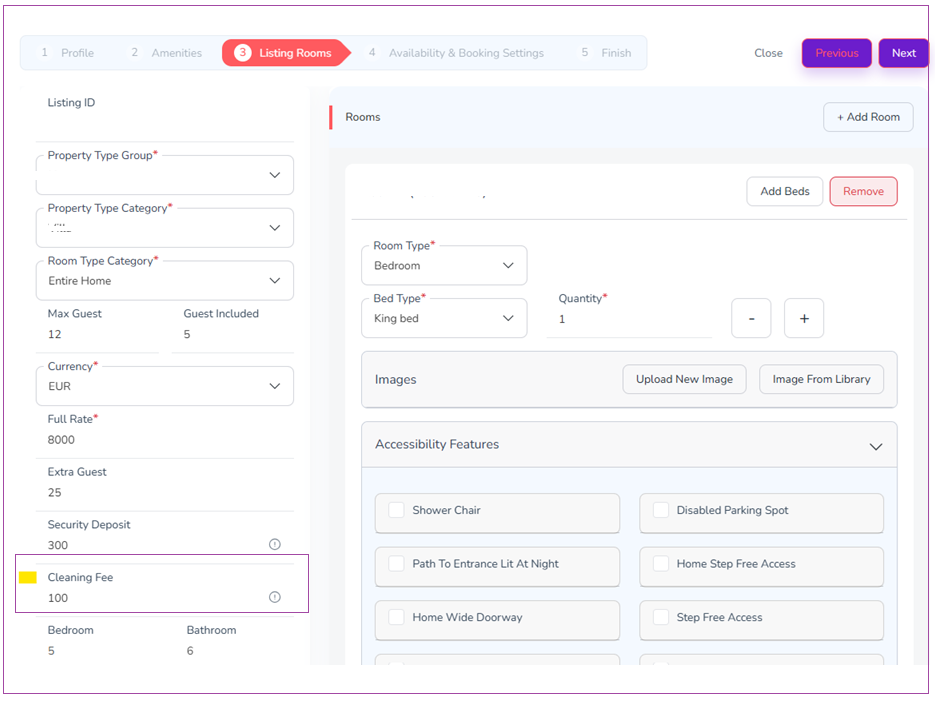
Step 6: In the Mapping Wizard, click Next until you reach Step 3: Listing Rooms.
Step 7: Edit the cleaning fee and click Next twice.
Once you’ve handled your fees, mark-ups, and sync settings, you’re ready to connect your channels to Zeevou. Explore the channel-specific guides to learn how to connect each channel and complete the setup.
