Managing additional charges is an important part of setting up your pricing strategy. Fees allow you to charge guests for extra services or costs related to their stay, such as cleaning, parking, or other property-related expenses.
Adding fees helps you provide transparent pricing to guests while keeping better control over your revenue and expenses.
Yes - if you charge guests separately for additional services or costs related to their booking.
No - if you are not charging any additional fees other than the nightly accommodation fee. In that case, you can continue with Creating Promotions and Discount Codes.
To add or edit fees for your listings, follow these steps:
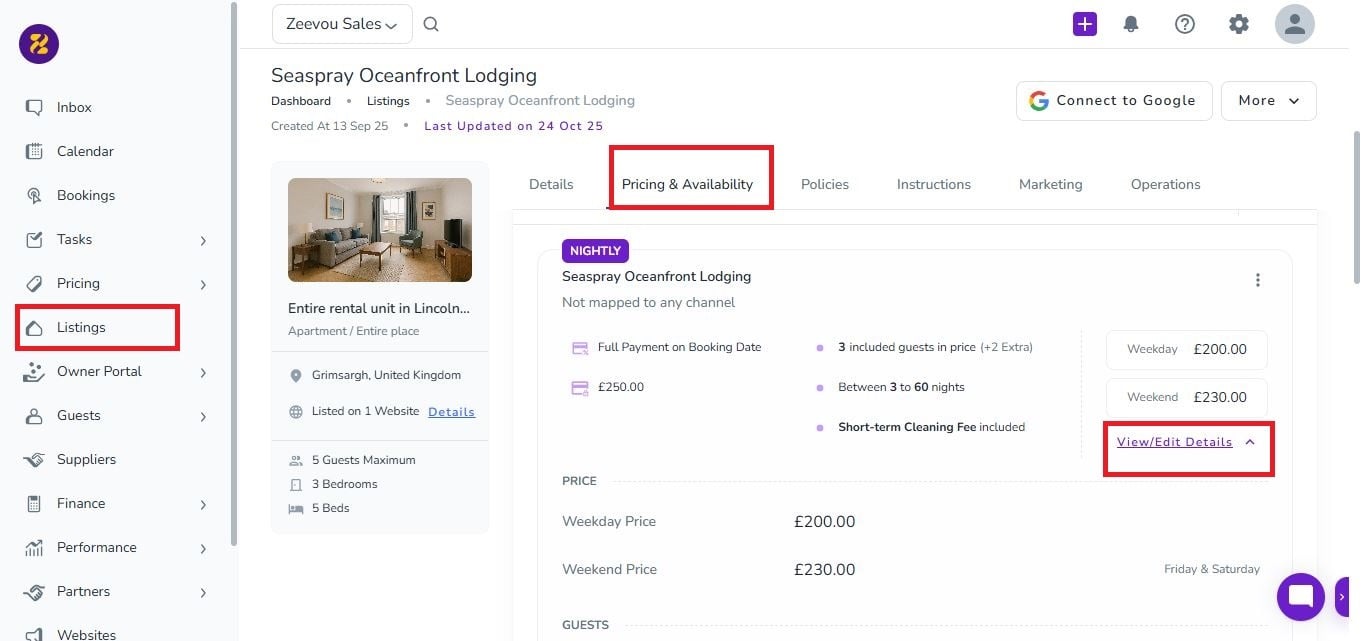
Select Listings from the main menu and open the desired listing.
Navigate to the Pricing & Availability tab and scroll to your rate plan.
Click View/Edit Details, then scroll down to the Fees section.
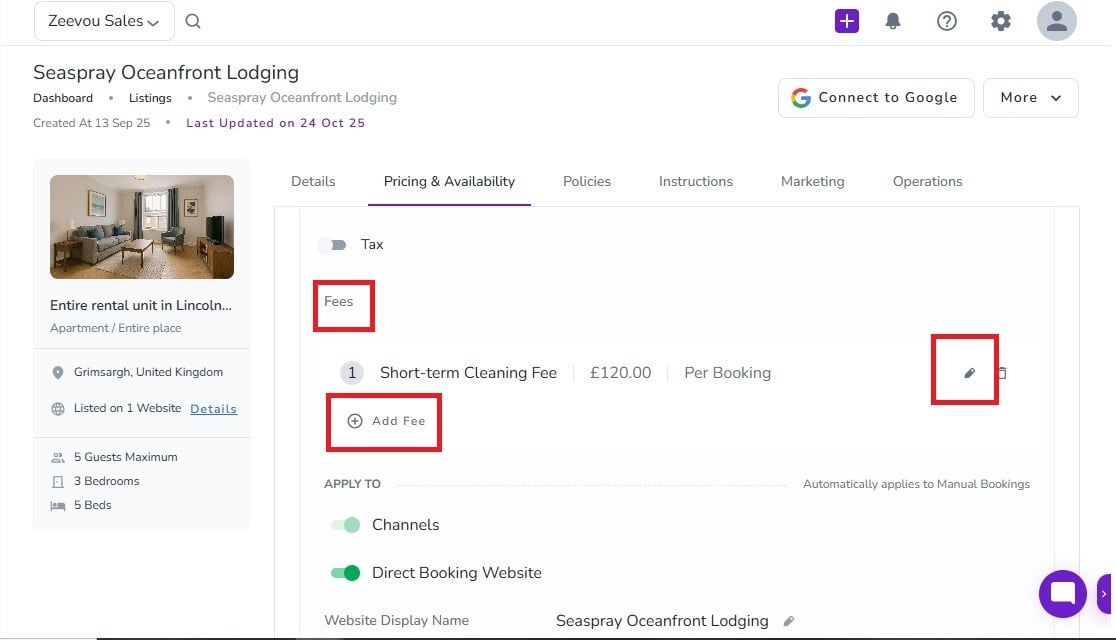
To add a fee: Click the plus (+) icon (or Add Fee) and select the fee type from the dropdown.
To edit a fee: Click the pencil icon.
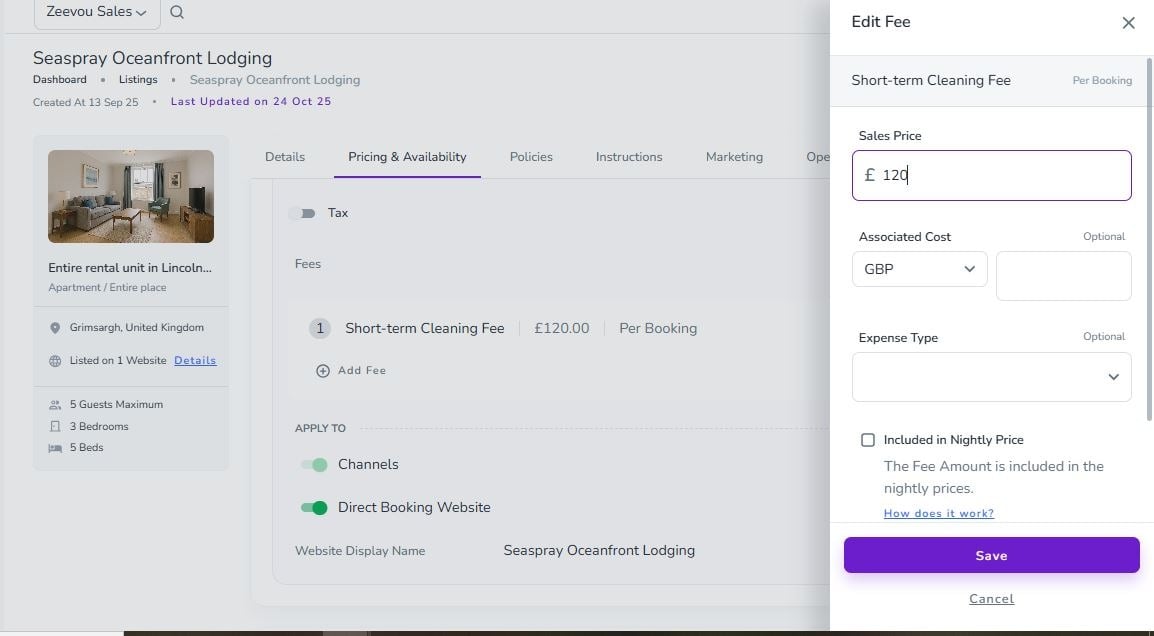
Enter the following details:
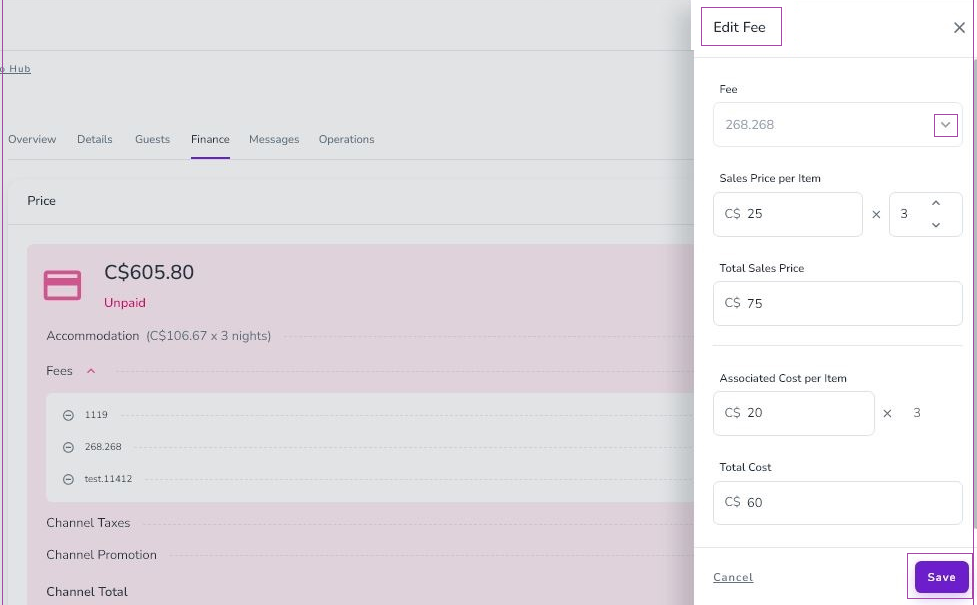
Sales Price: The amount charged to the guest.
Associated Cost / Purchase Price: Your expense for providing this service.
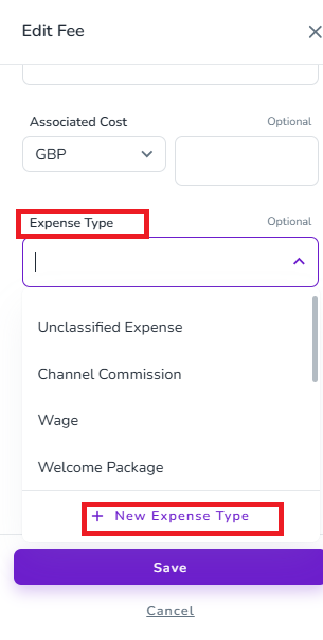
Related Expense Type: Choose a category for accurate Monthly Profit Reports (MPRs). If left blank, the system defaults to the Fees/Upsells Expense category.
Custom Settings
Included in Nightly Price: Check this to bundle the fee into the base rate.
Display on Website: Check this to show the fee as a line item on your direct booking page.
Note: Financial Tracking and Automated Expenses are available only if you have purchased the Finance Management add-on.
If you haven’t purchased it yet, you can check them here: Buy the Add-On →
Zeevou’s Expense category helps move costs out of "Unclassified" and into specific buckets for better financial clarity.
Automatic Expense Generation: When a booking is created with fees that have a "Purchase Price," Zeevou automatically generates corresponding expense lines.
Default Categorization: If no specific Expense Type is assigned to a fee, it will appear under the default Fees/Upsells Expense category in your reports.
Precision Reporting: By assigning specific types (e.g., "Cleaning Fee - HK"), you can see a granular breakdown of your costs versus revenue on your MPRs.
You can view and manage these charges directly within a specific booking:
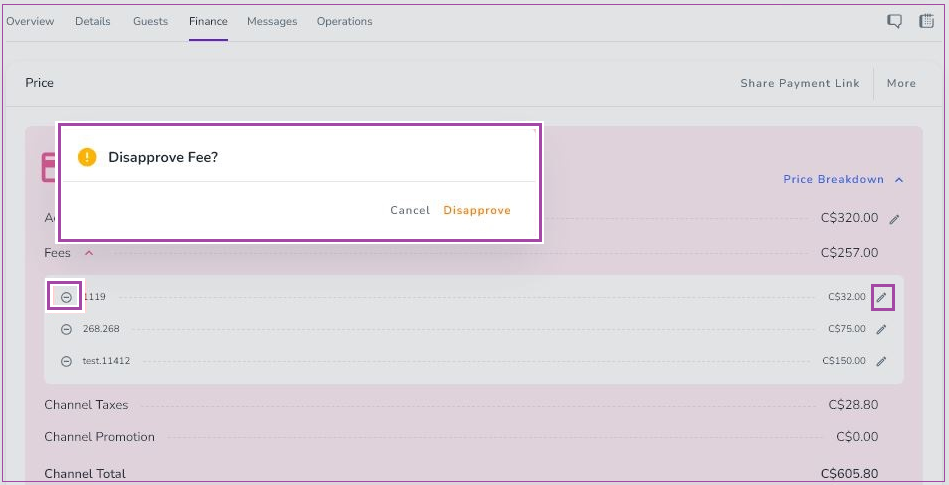
Navigate to the Finance tab and click on the Price Breakdown. Then click on the Fees or Upsells drop-down menu.
To Edit: Click the pencil icon to change the amount and click Save.
To Remove a Fee: Click the No Entry icon and select Disapprove.
Once you have created your fees, you can continue with creating your promotions and discount codes.
