The Zeevou Network is currently in Beta.
The Network’s current functionalities are limited to the following:
The listings of all hosts will be shared with the network if the listings meet the following conditions:
a. The organisation has a connected Stripe account.
b. All units in the listing have a contract assigned.
c. All sellers of the units have their Seller Identification Data entered.
d. The host is verified.
e. At least one of the listing’s rate plans is applied to the direct booking website.
f. The listing has at least one image.
Note that if any of the above conditions are not met, a new tab called “Network Requirements” will appear on the listing page. In this tab, users can see which steps are still required for the listing to be shared with the network.
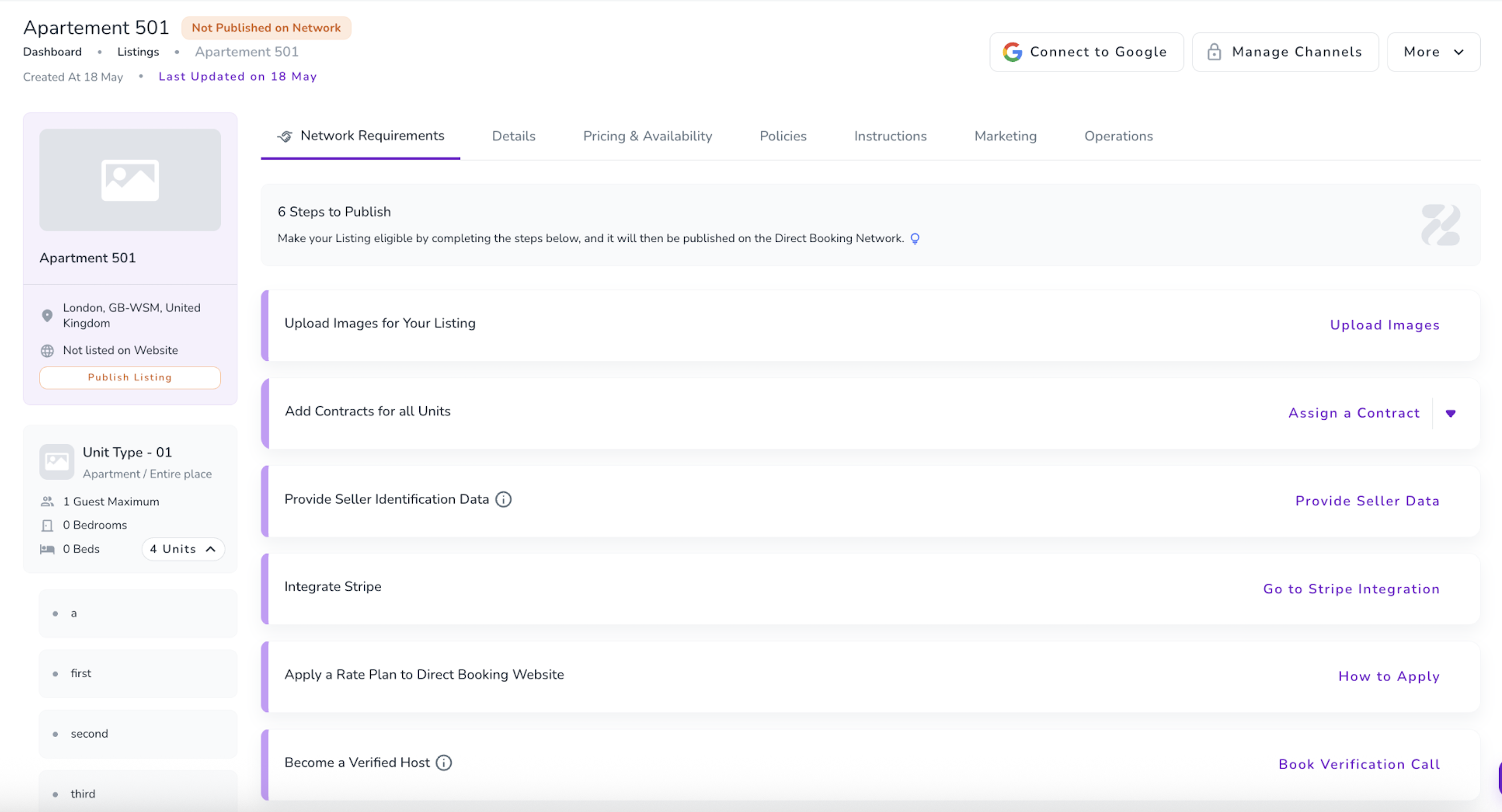
As each step is completed, it will be removed from the Network Requirements tab. Once all steps are completed, the listing will automatically be shared with the network, and the Network Requirements tab will be removed.
Hosts can browse through listings, preview them, search and filter, and select which ones to publish.
Hosts can see who has published their listings within each of their listings next to the list of their own websites under the listing image on the top left.
Published network listings appear on the reseller’s website with a “Partner Host” badge.
Guests can complete a booking for a Partner Host listing on a reseller’s website. Hosts receive the booking and payment directly.
Guests receive a booking confirmation email branded with the reseller’s identity, explaining the stay is fulfilled by a partner host and linking to host check‑in.
Hosts can allow other hosts to advertise through them directly through their websites. Hosts who refer other hosts will earn 20% of the network fees their referred hosts are charged in their first
Reseller receives notifications when bookings are made through their website.
Below is an outline of the upcoming roadmap for the Zeevou Network:
Next | Sold‑out date discovery | If a reseller has no availability, the system searches the full network to show matching partner host listings to guests. |
Next | Reseller booking overview | Resellers can view bookings generated through their network with limited, view‑only information. |
Later | Manual network booking creation | Resellers can search for availability and create bookings directly through the Network. |
Later | Commission Charging | Resellers can activate adding 10% to the listing’s direct rate, and earning a commission. |
Once you join the Beta, to get a live tour of the Network and how it works, click here.
Below are the detailed steps covered by the live tour on the link above:
Access Network Listings
Log in to app.zeevou.com.
Navigate to Listings → Network Listings from the left-hand menu.
You’ll see all available network listings. Each listing overview card shows:
Listing Name
Host name
Location
You can explore listings by searching, filtering, or browsing the Network.
Use the search bar to find listings by Listing Title or Host Name.
Apply filters to focus on listings that best match your brand by location, amenities, size, etc on the three two lines on the top right.
Use the Publishing Status filter to view:
All Listings – View all Network listings
Published Listings – Manage listings already published on your websites
Unpublished Listings – Find new listings to publish and grow your inventory
To Preview a Network Listing, click a listing card, or open the three-dot menu → Preview to view the full listing on the partner host’s website.
To advertise a listing on your website:
Click Publish on the listing card
Select the website(s) you’d like to publish to and click Save & Update
The listing goes live instantly and is ready to accept bookings
Use Manage Brands to:
Add the listing to more websites
Remove it from selected websites
To view the listing on your website:
Click Websites in the bottom-left menu
Select the card with your website’s name
Navigate to Site Management on the left
You’ll see your Zeevou subdomain URL (or custom domain, if you’ve activated one). Visit this URL to view:
Your own listings (if applicable)
Network Listings, clearly marked with a “Partner Host” badge so guests know these are not your own properties
