Expand your direct booking website with properties from other hosts in the ZeeLink network. By publishing eligible partner listings, you can offer guests more accommodation options without having to manage every property yourself.
The ZeeLink is currently in Beta. The ZeeLink Network’s current functionalities are limited to the following:
Sharing listings with the ZeeLink Network
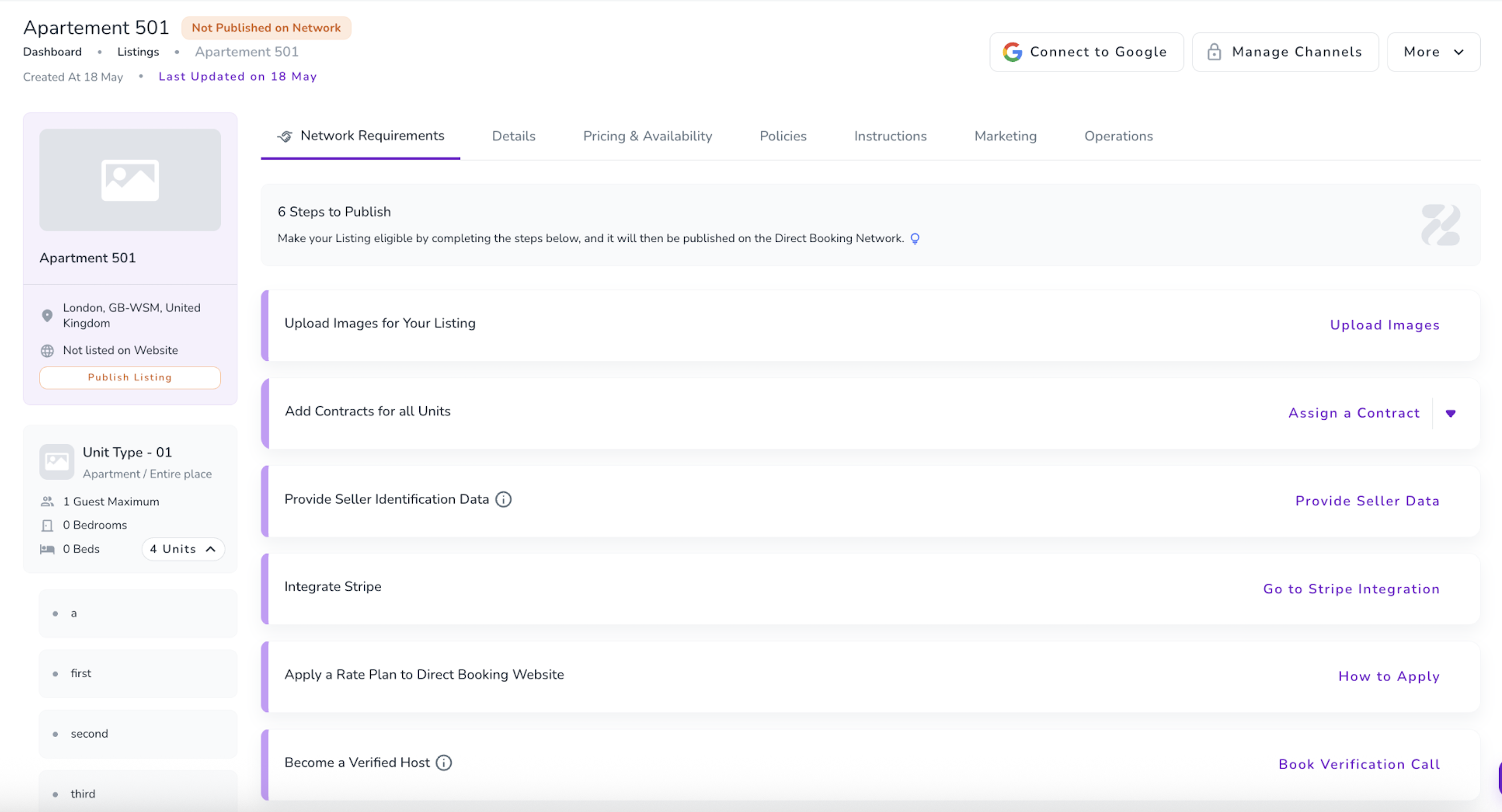
Listings from all hosts are shared with the ZeeLink Network when they meet the following conditions:
a. The organisation has a connected Stripe account.
b. All units in the listing have an assigned contract.
c. Seller Identification Data has been entered for all unit sellers.
d. The host has been verified.
e. At least one of the listing’s rate plans is applied to the direct booking website.
f. The listing has at least one image.
If any of these conditions are not met, a new tab called ZeeLink Network Requirements will appear on the listing page. This tab shows which steps must be completed before the listing can be shared with the ZeeLink Network.
As each requirement is completed, it will be removed from the ZeeLink Network Requirements tab. Once all requirements have been met, the listing will automatically be shared with the ZeeLink Network, and the Network Requirements tab will disappear.
Browsing and publishing listings
Hosts can browse, preview, search and filter listings in the network, then select which listings they want to publish.
Viewing who has published your listings
Hosts can see who has published their listings. This information appears within each listing, next to the list of the host’s own websites, beneath the listing image in the top-left corner.
Displaying partner listings
Published ZeeLink Network listings appear on the reseller’s website with a Partner Host badge.
Accepting bookings for partner listings
Guests can complete bookings for Partner Host listings on a reseller’s website. The host receives the booking and payment directly.
Sending booking confirmation emails
Guests receive a booking confirmation email branded with the reseller’s identity. The email explains that the stay will be provided by a partner host and includes a link to the host’s check-in information.
Referring other hosts and earning commission
Hosts can allow other hosts to advertise their properties directly through their websites. Hosts who refer other hosts will earn 20% of the ZeeLink Network fees charged to their referred hosts during their first period.
Receiving booking notifications
Resellers receive notifications when bookings are made through their websites.
Adding commission to listing rates
Resellers can enable an option to add 10% to a listing’s direct rate and earn commission.
Using SmartSource to find additional listings
When a guest searches for accommodation on a reseller’s website and no suitable results are available among the published listings, SmartSource searches the ZeeLink Network for matching listings and displays them to the guest.
Guests can book these listings through the reseller’s website in the same way as other ZeeLink listings. For these bookings, the reseller receives a 3% commission.
Currently, SmartSource is available only to users with ZeeLink Beta access.
Using FlexQuote to offer alternative accommodation
FlexQuote helps hosts find alternative accommodation for spare enquiries, overbookings or guest relocations. Hosts can search live rates and availability across other properties and send guests a branded quote.
Note: FlexQuote is initially available only to Beta users.
Below is an outline of the upcoming roadmap for the ZeeLink:
Next | Reseller booking overview | Resellers can view bookings generated through their ZeeLink network with limited, view‑only information. |
Once you have joined the Beta, you can access a live tour of the ZeeLink Network and learn how it works by opening the ZeeLink Network tour.
Below are the detailed steps covered by the live tour on the link above:
Accessing ZeeLink Network Listings
Log in to Zeevou.
From the left-hand menu, navigate to Listings → ZeeLink Network Listings.
You will see all available ZeeLink Network listings. Each listing overview card displays:
Listing name
Host name
Location
Explore the ZeeLink Network by searching, filtering or browsing the available listings.
Search: Use the search bar to find listings by listing title or host name.
Filters: Use the filter options to find listings that best match your brand, based on criteria such as location, amenities and size. Access these options using the three-line icon in the top-right corner.
Publishing Status: Use this filter to view listings by their publishing status:
All Listings: View all ZeeLink Network listings.
Published Listings: Manage listings that have already been published on your websites.
Unpublished Listings: Find new listings to publish and expand your inventory.
Preview a listing. Click a listing card or open the three-dot menu and select Preview to view the full listing on the partner host’s website.
Publish a listing on your website:
Click Publish on the listing card.
Select the website(s) where you want to publish the listing.
Click Save & Update.
The listing goes live immediately and is ready to accept bookings.
Use Manage Brands to:
Add the listing to additional websites.
Remove the listing from selected websites.
View the listing on your website:
Click Websites in the bottom-left menu.
Select the card displaying your website’s name.
Navigate to Site Management in the left-hand menu.
You will see your Zeevou subdomain URL or your custom domain, if you have activated one. Visit this URL to view:
Your own listings, if applicable.
ZeeLink Network listings, clearly marked with a Partner Host badge so guests can distinguish them from your own properties.
Resellers can earn commission on bookings generated through their brands for network listings. Commission is enabled by default for all brands.
To manage commission settings:
Go to Settings.
Select a Brand.
Open the ZeeLink Network tab.
Turn the Commission toggle on or off.
The commission rate is fixed at 10% (excluding VAT) and cannot currently be edited.
To view your share, go to the ZeeLink tab in Settings and click Price Breakdown.
When commission is enabled, the commission is added on top of the host price shown on your brand.
When publishing a network listing, the publish drawer displays whether commission is enabled for your brand.
If it is disabled, click Enable directly from the drawer.
For network bookings:
The host's share is paid directly to their Stripe account after guest payment.
The commission amount is collected by Zeevou.
To learn how to use FlexQuote to find alternative accommodation, compare live rates and availability across properties, and send branded quotes to guests, click here.
