Use FlexQuote to find alternative accommodation when you cannot accommodate a guest in your own properties. You can compare available accommodation, review pricing, and send a branded quote that allows the guest to review and pay for their stay.
FlexQuote can be useful when:
A spare enquiry that you cannot accommodate.
An overbooking that requires another property.
A relocation due to an unexpected maintenance issue.
With FlexQuote, you can search live rates and availability across other property managers' listings and create a branded quote to send to your guest.
Note: In the first version, FlexQuote is available only to users with beta access.
The FlexQuote process is similar to the Manual Booking flow.
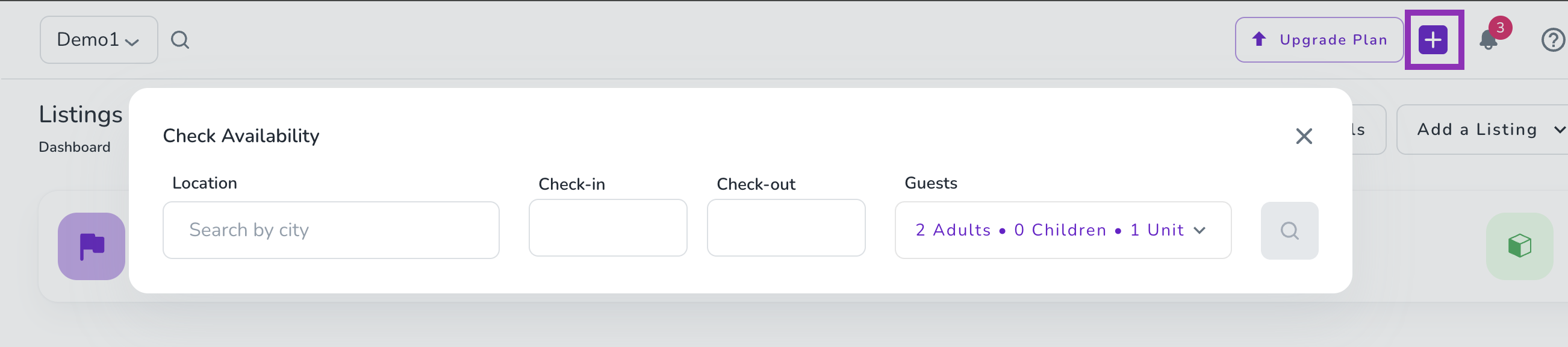
Click the + button in the top-right corner.
Enter the Location, Check-in, Check-out, and Number of guests in the search widget.
Click Search.
Zeevou opens the first step of the booking wizard, where you can review the matching accommodation options.
On the first step, you can see:
Your own unit types that match the search criteria.
ZeeLink unit types that match the search criteria.
For ZeeLink unit types, the property host's name is displayed as a badge on the unit type card.
You can also filter the results to show:
All Listings
My Listings
ZeeLink Listings
First, select the brand you want to use for the quote. The price is then calculated based on the commission setting for that brand.
The price depends on whether the commission toggle is enabled for the selected brand:
Commission enabled: The commission plus VAT is added to the host's price and displayed on the unit type card.
Commission disabled: The unit type price is the same as the host's price.
No. Group bookings are not available for ZeeLink unit types.
If you select one of your own unit types, you cannot add a ZeeLink unit type.
If you select a ZeeLink unit type, you cannot add another unit type.
After selecting a unit type, its details appear in the panel on the right.
You can update:
Rate plan
Number of guests
Check-in date
Check-out date
For ZeeLink unit types, only rate plans that are applied to the Direct Booking Website are available.
Unlike a manual booking for your own listings, you cannot select unavailable or sold-out nights for ZeeLink unit types.
Once you have configured the unit type, click Next.
On the second step, enter the guest's details.
As in the Manual Booking flow, you can either:
Select an existing guest.
Create a new guest profile.
The remaining guest fields are the same as those available in the Manual Booking flow.
You can also expand the unit type box in the top-right corner to review the booking details and make any required changes.
Click Next to continue.
On the pricing step, you can review:
The total amount payable by the guest.
Your share of the booking.
The reseller share for bookings created through FlexQuote is 10.5%.
Expand the price breakdown to review the booking details.
The breakdown includes:
Accommodation: The host's price.
Fees and taxes: Any applicable fees and taxes included in the host's price.
Commission: Your share, network fee, and VAT.
You cannot manually edit or override the prices.
You can, however:
Enable or disable the Commission toggle.
Change the Rate Plan.
Change the Check-in and Check-out dates.
Change the Number of guests.
Any changes to the booking details automatically update the price.
The commission toggle applies only to the current quote and does not change the commission setting for the selected brand.
After reviewing the pricing, click Next.
On the final step, select one or more communication channels to send the quote.
Depending on the selected channel, the relevant email address or phone number field appears. Guest details are pre-filled when they are available.
The available channels are:
SMS — available only when the organisation has a ClickSend integration.
WhatsApp — available only to organisations with access to this feature.
Enter or confirm the guest's contact details, then click Finalise and Send.
After the quote is successfully sent, you can choose to:
Go to the Quote page. Currently, quotes are created under the Booking Requests table.
Go to the Booking Dashboard.
The success page also displays the property's host contact details in case you need to contact the host.
The agent receives the same message in the Unified Inbox, allowing them to communicate directly with the guest.
Before the booking is created, communication is between the guest and agent only.
Once the booking is created, the related communication is between the guest and host.
The guest receives the quote through the communication channel selected by the agent:
SMS
When the guest clicks Review and Pay, they are redirected to the payment page on the agent's website.
The guest can review the quote, make the payment, and finalise the booking.
The guest sees the latest available price when they open the payment page.
If the host changes the pricing after the quote is sent, the updated price is displayed when the guest opens the payment page.
When the guest enters their card details and clicks Pay, the system checks the following:
Unit availability: The system checks whether the selected unit type is still available.
Current pricing: If the unit is available, the system checks whether its price has changed.
If the unit type is no longer available, the guest is informed that the quote is no longer bookable.
If the price has changed, the guest sees a confirmation message informing them that the price has been updated. If they confirm, the booking is created using the updated price.
