Upsells let you offer extra services, such as early check-ins, late check-outs, transfers, and hampers, during booking or pre-check-in.
If you have Direct Booking Pro or Online Check-in Module enabled, you can access, create, and manage upsells and use them in the available booking or pre-check-in flow. If neither module is enabled, you can still view your existing upsells on the Upsells page.
If neither Direct Booking Pro nor Online Check-in Module is enabled, the Unlock Upsells banner is displayed on the Upsells page.
Select Unlock Upsells in the banner to open the Upgrade Flow.
Purchase Direct Booking Pro or Online Check-in.
Once at least one required module is enabled, the banner is no longer displayed.
Go to Pricing & Availability.
Open the Upsells card.
Click Add an Upsell.
In the drawer that opens, select your desired Upsell from the drop-down menu.
If the upsell you need does not already exist:
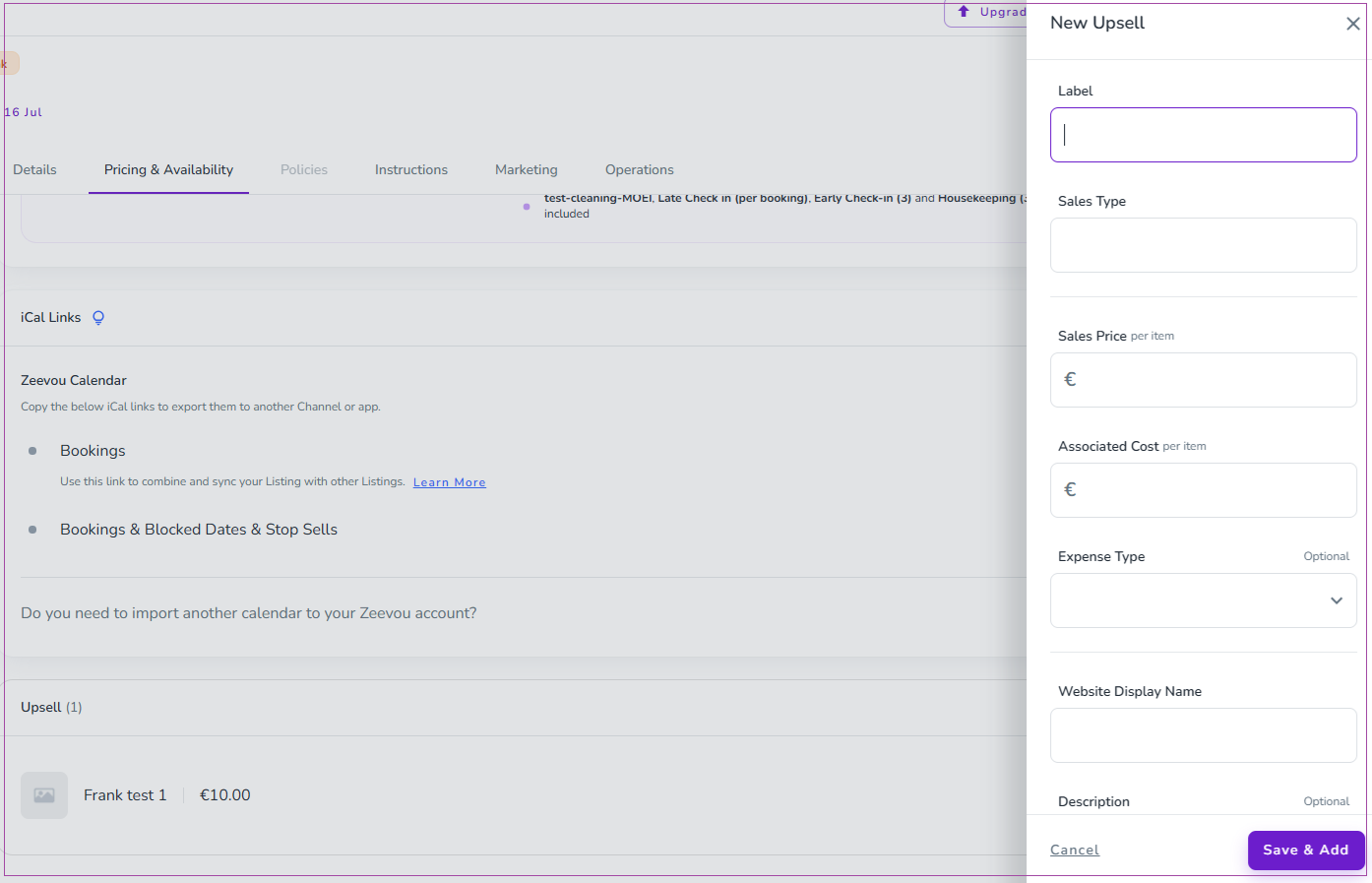
Click + Create a New Upsell.
In the drawer, complete the following fields:
Label
Sales Type
Sales Price per Item
Associated Cost per Item
Expense Type (Optional)
Website Display Name
Description (Optional)
Click Save & Add.
Note:
Expense Type and Description are optional fields.
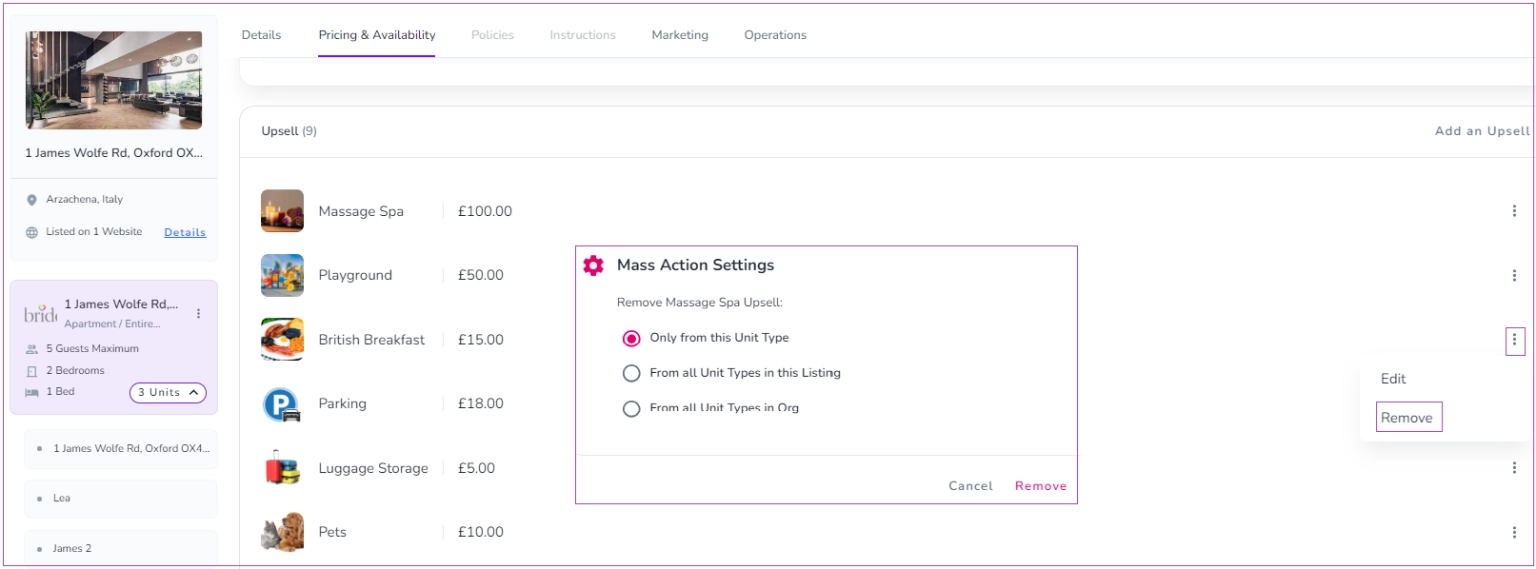
To manage an existing upsell, click the three dots next to it to Edit or Remove.
When clicking Remove, a pop-up will ask you to select where you want to remove the upsell from. Confirm by clicking Remove.
You can also add upsells manually to an individual booking:
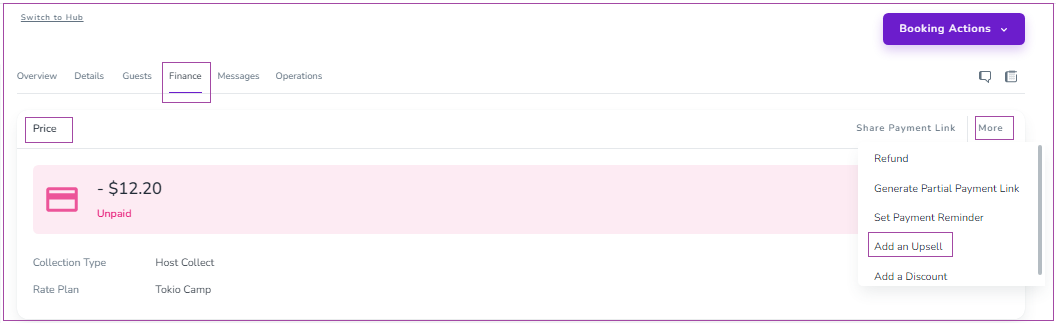
Open the booking.
Go to the Finance tab.
In the Price card, click More (top right).
Select Add an Upsell.
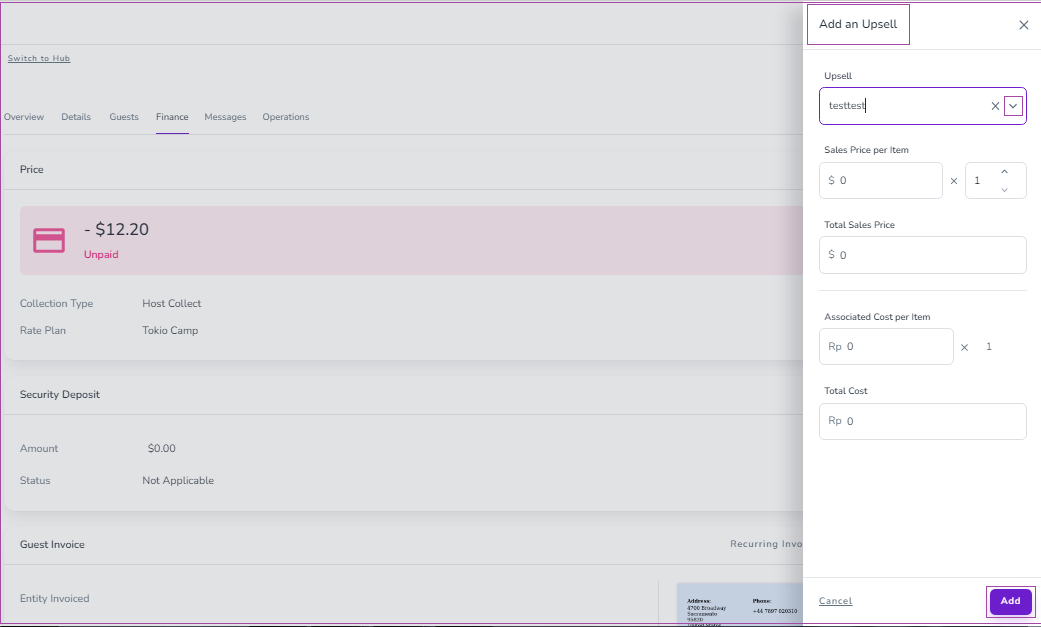
In the drawer, choose the desired Upsell from the drop-down menu.
Enter the following details as needed:
Sales Price per Item
Total Sales Price
Associated Cost per Item
Total Cost
Click Add.
Upsells are displayed during the reservation process.
When enabled, guests will see available add-ons (such as early check-in, breakfast, or parking) while completing their booking and payment, allowing them to select additional services before confirming their reservation.
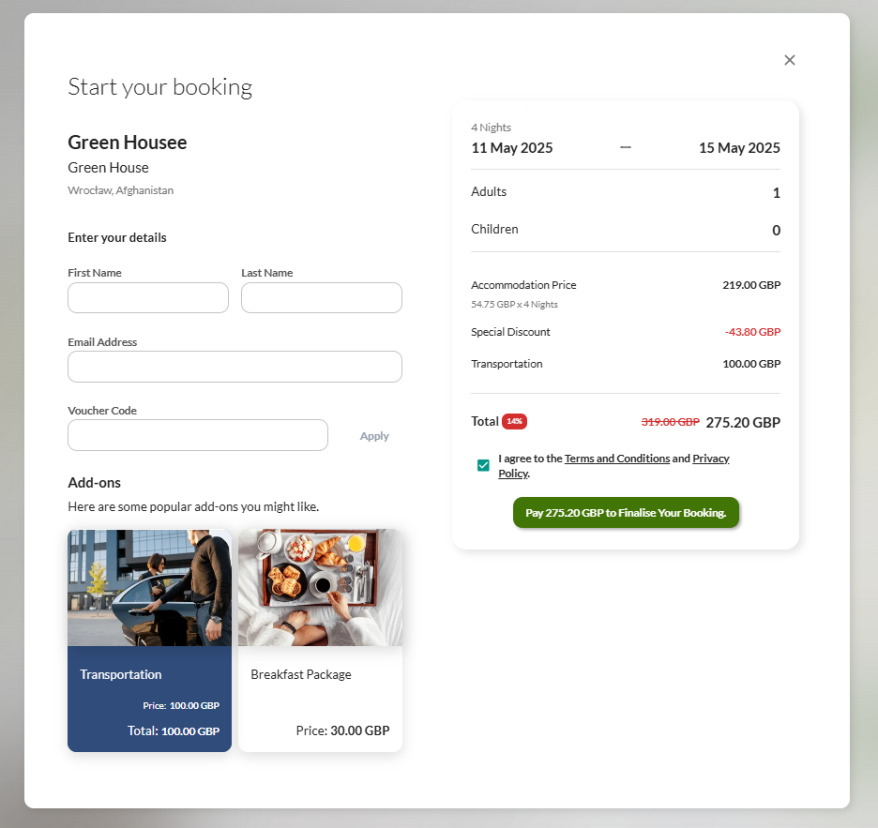
Increases revenue by promoting extras at the point of purchase.
Enhances the guest experience by integrating smoothly into the booking flow.
Guests can choose the specified upsells in the system after passing through the General Info and Guest Info, during the booking confirmation process. When they can click the Next: Payment button, a pop-up window of Upsells you created in Zeevou appears:
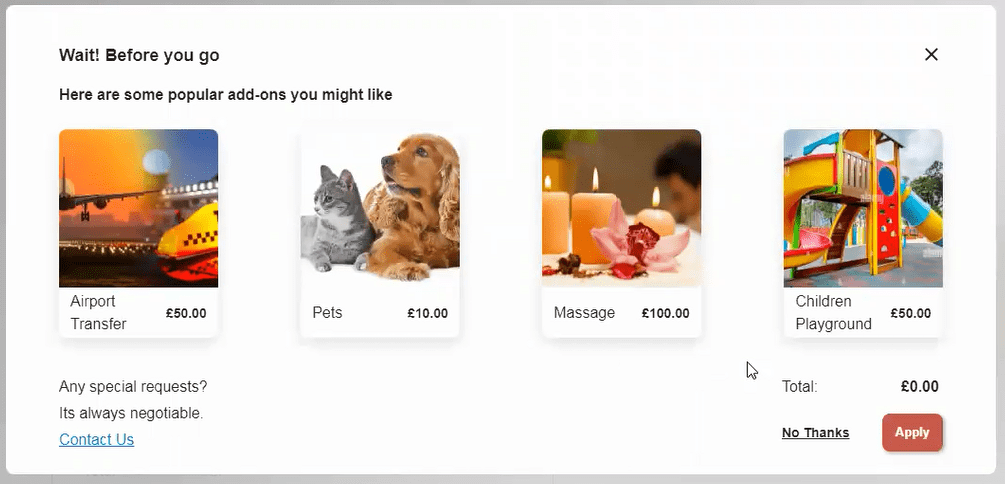
Guests can select their desired upsells and specify the number of times they need each one. Then, by clicking the Apply button, they will be redirected to the payment step. However, if they do not need any extra services, they can click the No Thanks button to continue to the payment step. If there are any special requests, they can click the Contact Us button and directly message Hosts.
Note: In the Payment step, guests can edit their selected upsells by clicking here at the bottom left of the booking summary.
