Before going live, make sure Zeevou has an accurate picture of when your properties are available, what guests should pay, and which dates are already booked or unavailable.
Zeevou sends 720 days of updates in terms of availability & rates to channels. However, each OTA accepts updates on a different basis. Most of the OTAs accept up to 365 days of availability, but some OTAs like Expedia, Booking.com & Airbnb support 500 days of updates.
Import existing bookings → [Import Your Existing Bookings]
Block unavailable dates → [Block Unavailable Dates]
Note: When you connect to channels via API, we automatically import future bookings. You only need to manually import bookings arriving today or from channels that don’t support booking import via API.
If you are using Zeevou alongside another PMS or channel manager, you can keep your calendars in sync using iCal integrations.
If you use another PMS, channel manager or booking platform as your main system, you can use iCal to share availability between systems.
iCal is a calendar-based synchronisation method used in hospitality software to share availability between your PMS and third-party platforms such as OTAs or listing websites.
When calendars are connected through iCal, booked dates are blocked on the connected systems to help prevent overlapping bookings.
Important: iCal updates are typically pulled only a few times per day rather than in real time, which means availability changes are not instantly reflected across all channels. Calendar occupancy is typically updated every 3–4 hours, so changes may not appear immediately on connected platforms. iCal also does not push rates in real time.
If an API integration is available for your channel, use the API connection instead of iCal.
Only use this option if you are not paying for the Channel Manager add-on, or you need to sync your calendar to a channel that we don’t have an API integration with. Do not use iCal for pulling your calendar from Airbnb, Booking.com, Vrbo, etc., if you have purchased the Channel Manager add-on in Zeevou. Your bookings from API-connected platforms can be imported once you finalise the mapping.
Go to Listings.
Select the relevant Unit Type or Unit.
Open Pricing & Availability.
Find iCal Links and select Import Calendar.
Select Proceed.
Enter the:
iCal Source Name (optional)
iCal URL (optional)
Description (optional)
Select Import.
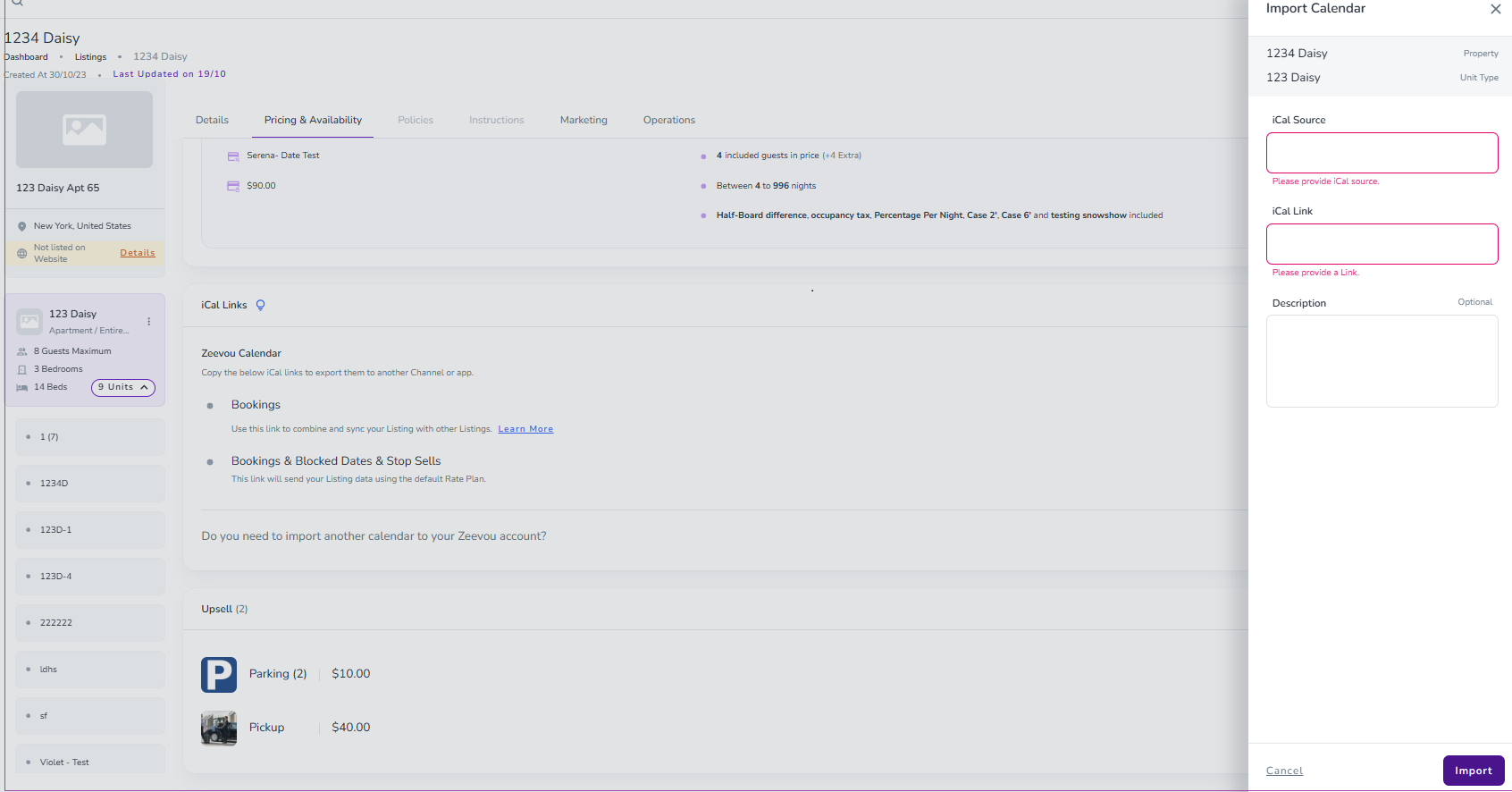
Tip: Import at the Unit Type level to block across all units; Unit level blocks only that specific unit.
Use this when you want another platform to receive Zeevou's booking availability.
Go to Listings.
Select the relevant Unit Type or Unit.
Open Pricing & Availability.
Find iCal Links.
Select Copy iCal Link.
Paste the copied link into the external platform you want to synchronise with.
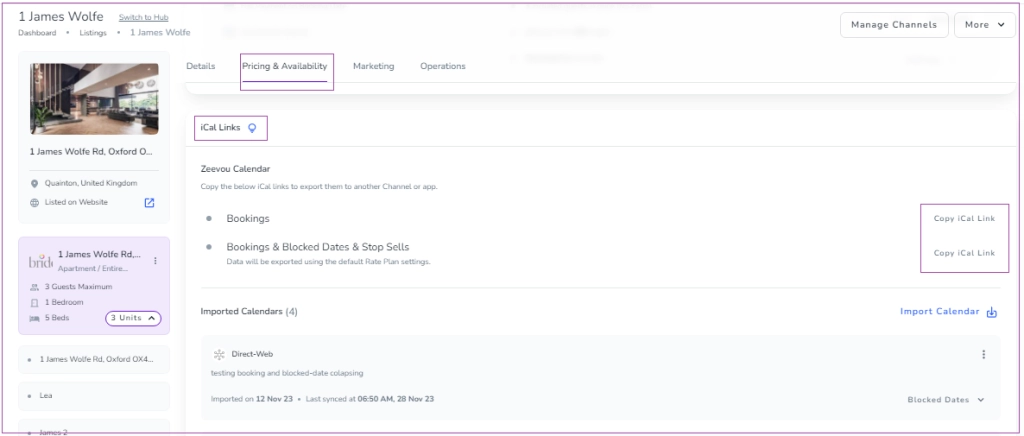
Note 1: iCal only updates the overall occupancy every 3-4 hours. Using iCal, you cannot push availability and pricing from Zeevou in real-time. Use this for channels without API integrations or when managing properties in multiple systems.
Note 2: If you use the ical of the unit type, it blocks all the bookings of all the units under a unit type. While the unit iCal blocks just the bookings of that specified unit. For example, if you have one listing on Airbnb with several units under that, you should use the unit type.
Note 3: Paste the copied link into the OTA/listing site/Google Calendar that you are trying to export the events to.
For VRBO: Follow VRBO's instructions for importing an iCal here.
Once your calendar is set up, add any existing bookings so your availability is accurate and up to date.
