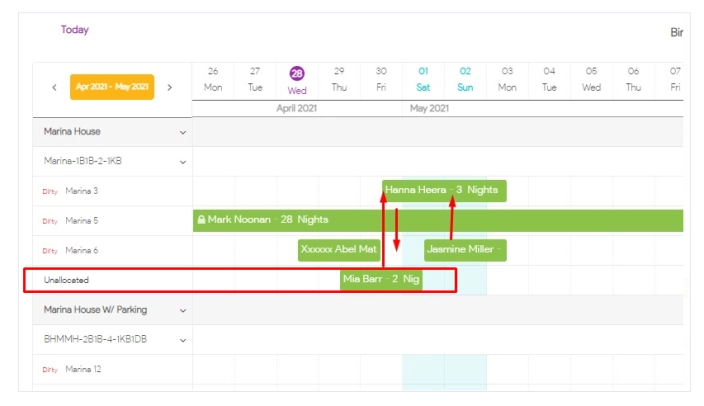
An unallocated booking is a booking that does not have a unit, but it affects the availability just like a normal booking. You can change an unallocated booking to a normal booking by dragging and dropping it to a unit on the Calendar or editing the booking and adding a unit to it. However, if you have several units under a unit type, you might not find an empty unit for the unallocated booking. This is because of the Auto-Allocate Feature which optimises occupancy. When the system optimises the occupancy of unit types, it will Auto-Allocate. By adjusting the bookings as shown below as an example, you can find a place for the booking.
Note: If a booking is unallocated, the instructions won’t be sent to the guest as we cannot read the data from any unit.
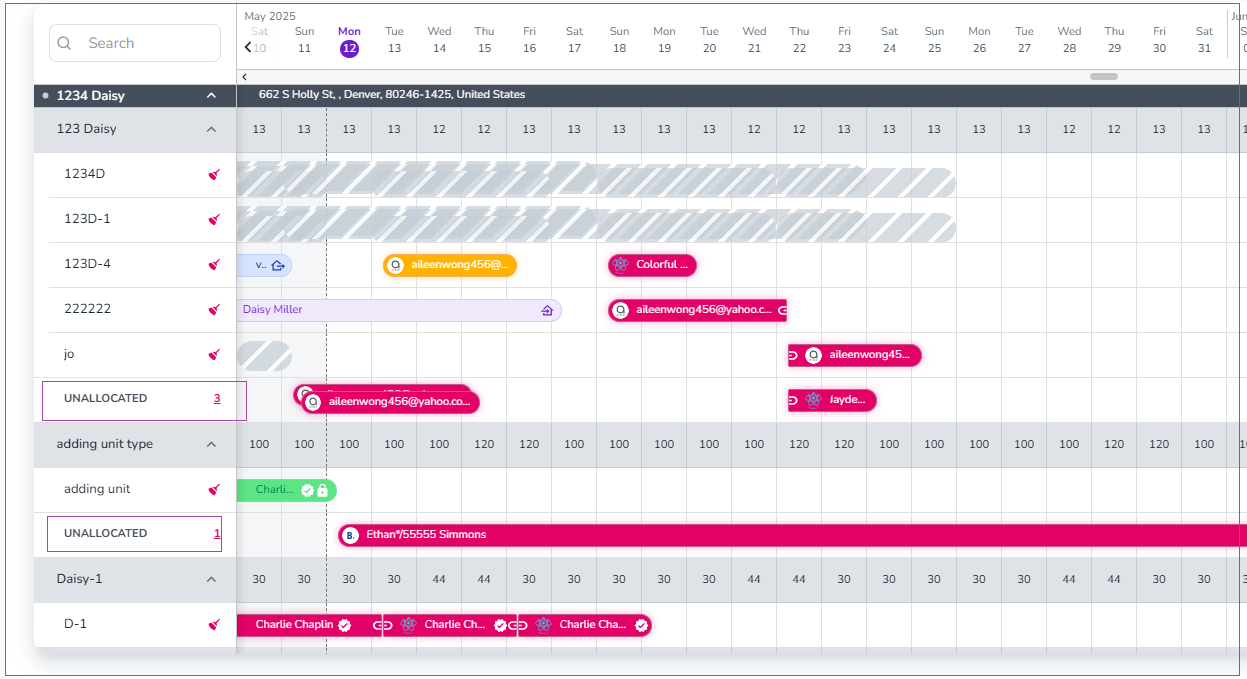
In the Calendar view, unallocated bookings appear directly under each property group. Here's how you can identify and access them:
Navigate to the Calendar
Go to the Calendar tab from the left-hand menu.
Locate the Property Groups
On the left side of the calendar, you'll see a list of properties such as 14 Burnett House and Lime Street.
Find the "UNALLOCATED" Rows
Within each property group, there may be a row labeled “UNALLOCATED”.
This row appears under the regular units within that property (highlighted in green boxes in the image).
A red number (e.g., 1) indicates how many bookings are currently unallocated for that group.
View the Booking Details
Click on the booking shown in the UNALLOCATED row (e.g., "Adam Ltd") to open the booking card.
At the bottom of the booking details page, you'll find Actions to assign the booking to an appropriate unit.
To move an entire booking, simply change its unit allocation—no split is required. You can do this in any of the following ways: (1) From the Calendar, drag and drop the booking onto the target unit or property group. (2) From the Booking page, go to Details → Location card, click Change the Location, click the red Proceed with Zeevou update button, select the required unit from the dropdown menu, and click Save. (3) From the Booking page, go to Details → Location card, click the  icon next to Unit, select the new unit, and click Save.
If you want to move a booking to another unit for an Airbnb booking, you should do it in Airbnb rather than Zeevou. You can read further on how you can apply the changes here.
