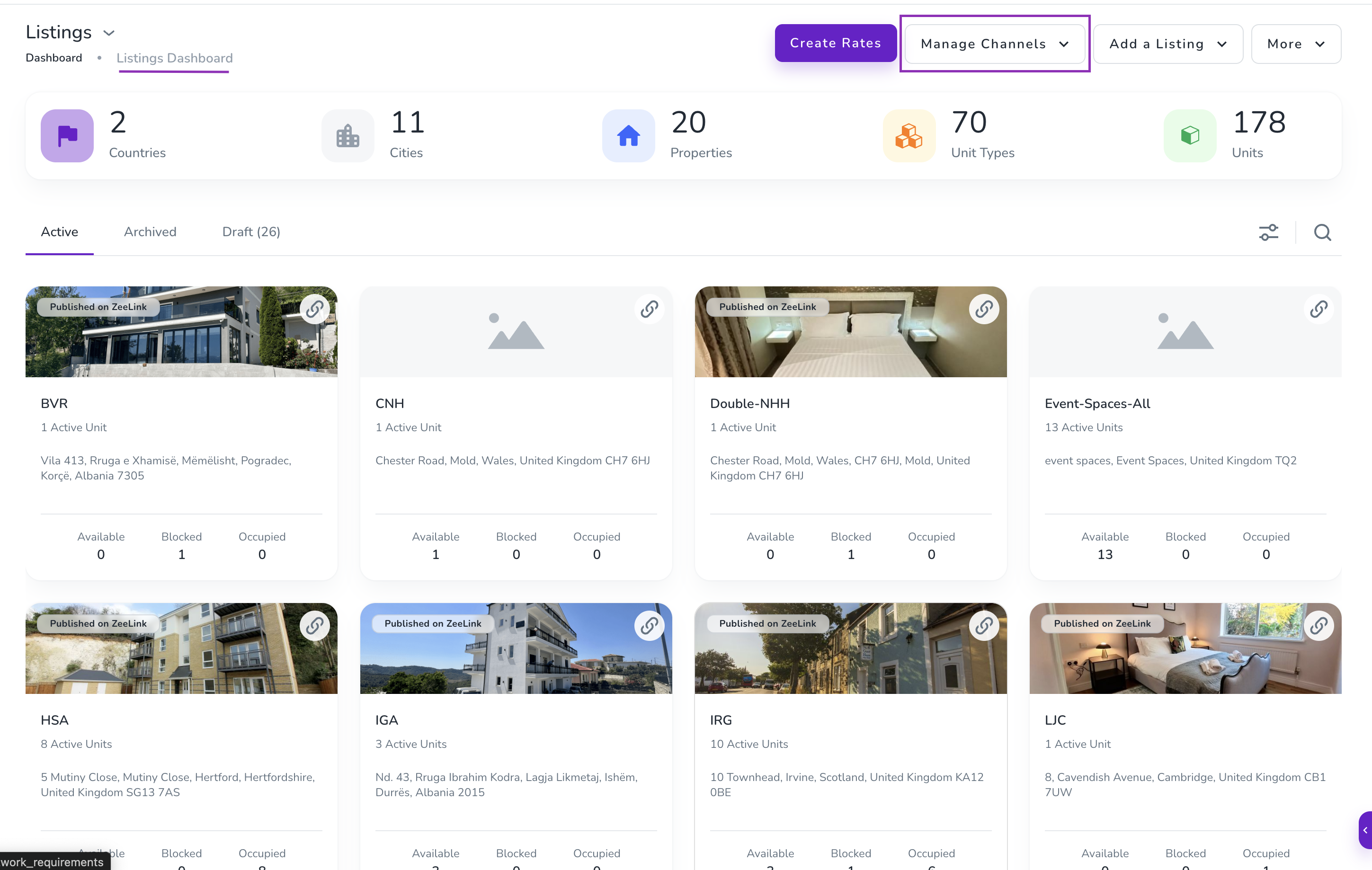
Note that before taking any steps, if you log in to app.zeevou.com and see the figure below on your Listings Dashboard page, please follow the Connection Type A Instructions. Otherwise, proceed with the Connection Type B Instructions.
In order to connect the Zeevou listing to Vrbo, each of the following requirements must be met:
Company profile (phone number, email address, and so on).
Address (street name and number, postcode) and location (geographical coordinates) must be complete.
Licence number must be provided.
Description: minimum 400 characters and maximum 10,000 characters.
Bathroom: At least one bathroom is required. The bathroom in Zeevou must have at least a toilet as an amenity and one of the following: shower, bathtub, or bath with shower. Only then will the additional bathroom amenities be displayed on Vrbo.
Kitchen: There must be a kitchen at the property.
Photos: A minimum of six photos (minimum width: 1,024 px; minimum height: 768 px) must be uploaded, and the number of photos cannot exceed 50.
Bedding composition across rooms must be provided.
Prices and availability must be provided for some seasons.
Cancellation policy: A cancellation policy must be selected.
Arrival information, normal check-in and check-out times, and arrival instructions must be provided.
Log in to app.zeevou.com, go to Listings, and click Manage Channels in the top right.
Select Vrbo and click Connect.
You’ll have two options to continue:
A. First Property:
If this is your first property, follow these instructions:
Follow How It Works: Read about how this channel connection works and confirm that you understand and agree to its terms and conditions.
Currency: Select the currency in which prices will be sent to Vrbo. Note that the Vrbo breakdown is displayed in the advertiser’s set currency (currently GBP) and is not recalculated by the platform. The currency used is indicated in the reservation report. To receive Vrbo reservations in USD, the advertiser’s currency can be updated accordingly.
Default channel markup: Vrbo commission: 5–15% taken from your rates.
Vrbo cancellation policy: If you wish to change the cancellation policy you are sending to Vrbo, click Map, then the three dots, and select Edit. Then click Add to override the cancellation policy.
Prepayment: Vrbo allows you to charge a deposit at the time of booking. Enter how much you will charge if required.
Minimum guest age: Specify the minimum age a guest must be to rent the property.
Connect properties: Connect your inventory to Vrbo. You can add the markup and deposit here.
Note: You may have properties that are not ready to be published, so please improve their content to enable publication. Download the Quality Check report in XLSX format to see which content is missing or incorrect.
Further instructions: Your properties have been connected. Now, please go to Vrbo and follow the instructions provided.
Then, tick the box below:
Attestation*: I completed the registration form in Vrbo.
Finally, click Save & Next.
In the meantime, your connection will show as Pending. You’ll need to contact Vrbo Support to confirm your listing using the Advertiser ID displayed at the top of the page and identify your channel manager as QuickConnect.
The account owner must submit an integration request to Vrbo’s Onboarding Team via this link. Once you begin the Vrbo self-onboarding process, a pop-up with onboarding steps will appear on the Vrbo channel mapping page until your connection is confirmed and approved. Select “Rentals United” when asked which software you are using to connect to Vrbo, rather than Zeevou.
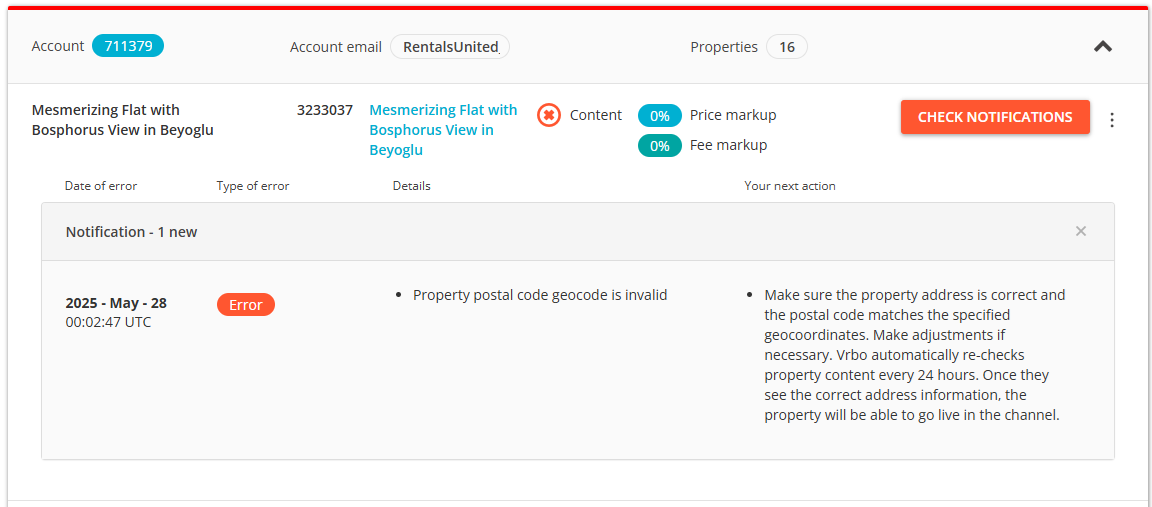
After connecting the property to the channel, you can check its connection status at any time. The connection status page clearly indicates whether your property is successfully connected to Vrbo or requires action to resolve anything that may prevent it from being listed on the Vrbo website.

Pending – This is the default status a property enters after connecting to Vrbo. You need to wait until Vrbo completes all the necessary steps on its side to connect your property successfully. This may involve signing a contract, completing the account setup, and so on. The status will change after the live link to your property appears on the Vrbo website. You may need to wait a few days for the status to change. If you do not hear from the channel, you should contact them.
If your listings are already published on the channel and the connection and mapping have been confirmed on the channel side, but the status is still showing as Pending, follow the steps below:
Open your listings on Vrbo and copy the public URL for each listing individually.
In Zeevou, open the corresponding listing page.
Navigate to Channel Mapping, select Vrbo, and paste the public URL into the designated field, as shown in the attached screenshot.
Once these steps are completed, the connection status will change from Pending to Active.

Active – The property has been successfully connected and is listed on the sales channel website. You can receive reservations at this point.

Not connected – An error occurred while connecting to Vrbo, preventing the property from being listed.
This status may indicate that the property is missing descriptive content. For example, the photos may be too large, or the description may be too short. You can check the summary of the invalid content that caused this status by clicking the Check notifications button and reviewing the areas that need improvement. Please edit the property content according to the suggestions provided and wait for Vrbo to attempt to reconnect the property during the next synchronisation. See Static Content.
To add another existing property:
Click Add Property.
Select your desired Zeevou property and rate plan from the list.

Click CONTINUE twice.
If your property is ready to be published, set the price markup and down payment, then click PUBLISH PROPERTIES. The published properties will enter the Pending status.
The listing status changes to Active.
Note: If you are in the middle of the onboarding process with Vrbo, your properties will not go live immediately. Vrbo will publish them after you have completed the onboarding process.
Connecting additional Vrbo accounts requires our Support Team to manually generate additional Advertiser IDs. Please use the chat function at the bottom right of app.zeevou.com and indicate how many additional accounts you need to integrate besides the one you have already integrated.
Before you begin mapping, we recommend that you have the following information ready.
Descriptions – If you already have a listing on Vrbo, we recommend copying the information from the extranet.
Listing features – Sports & Adventure, View, Attractions, Leisure Activities, and Local Features.
Payment type, cancellation policy, house rule agreement (PDF format), and images.
You should contact the Vrbo account manager to understand the terms and any changes before proceeding.
When a property is ready, proceed with the onboarding steps.
Connecting your Vrbo account is a straightforward process. Follow these comprehensive steps to complete your setup smoothly.
Step 1. Go to app.zeevou.com and click Listings.
Step 2. Open your desired listing and click Manage Channels in the top right.
Step 3. Click Vrbo from the list.
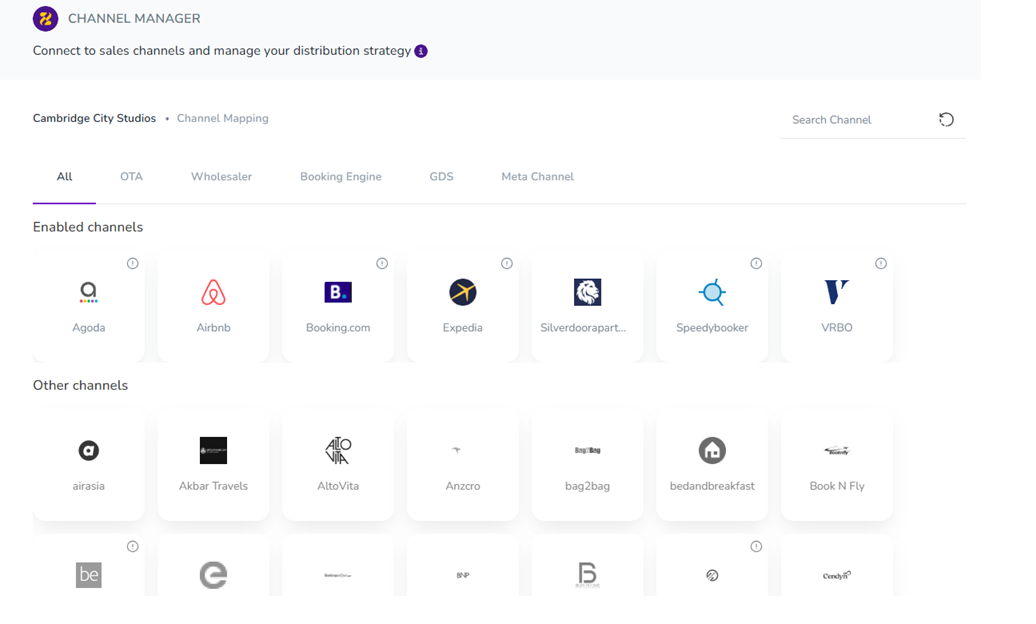
Step 4. Then assign a Connection Name (optional).
Step 5. Configure a Default Multiplier and Surcharge (if needed) using a formula to manage rates.
Step 6. If your listing does not already exist on Vrbo, click Generate Advertiser ID. Click Next to proceed. Otherwise, select Existing Advertiser ID.
Note: When mapping a new listing to Vrbo in Zeevou, choose Generate Advertiser ID if this is a brand-new connection and the listing has not been mapped to Vrbo before.
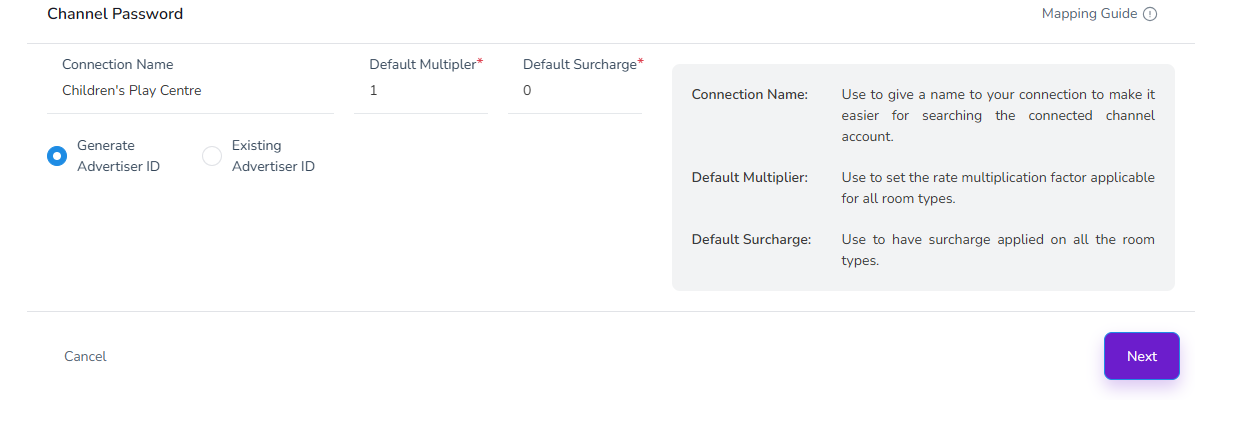
A. Generate Advertiser ID
A window will pop up where you can copy the ID and then click Proceed.
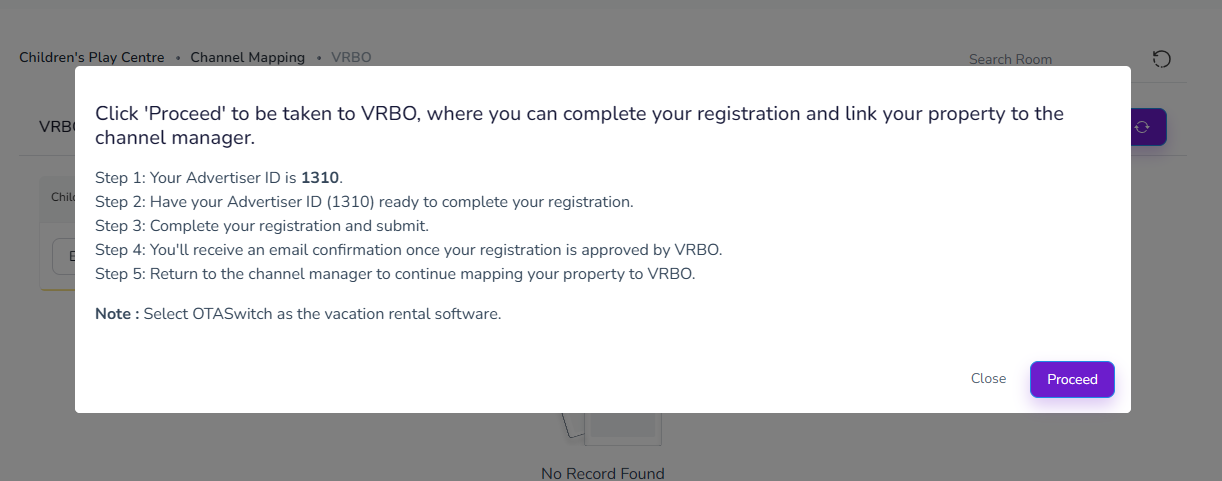
Once you begin the process:
Your Advertiser ID will be generated automatically.
Carefully read the pop-up message—it outlines the critical next steps. Note that you should select “Type B” as your channel manager (Holiday/Vacation Rentals Software).
Save your Advertiser ID. You’ll need it during your Vrbo registration.
When ready, click Proceed to continue.
Once you have started the Vrbo self-onboarding process, the pop-up message outlining the onboarding steps will appear each time you access the Vrbo channel mapping page. This will continue until your connection is confirmed and approved.
Important: If you have already completed the onboarding steps and are awaiting confirmation, do not start a new registration.
After submitting your request:
Vrbo will review your connection request.
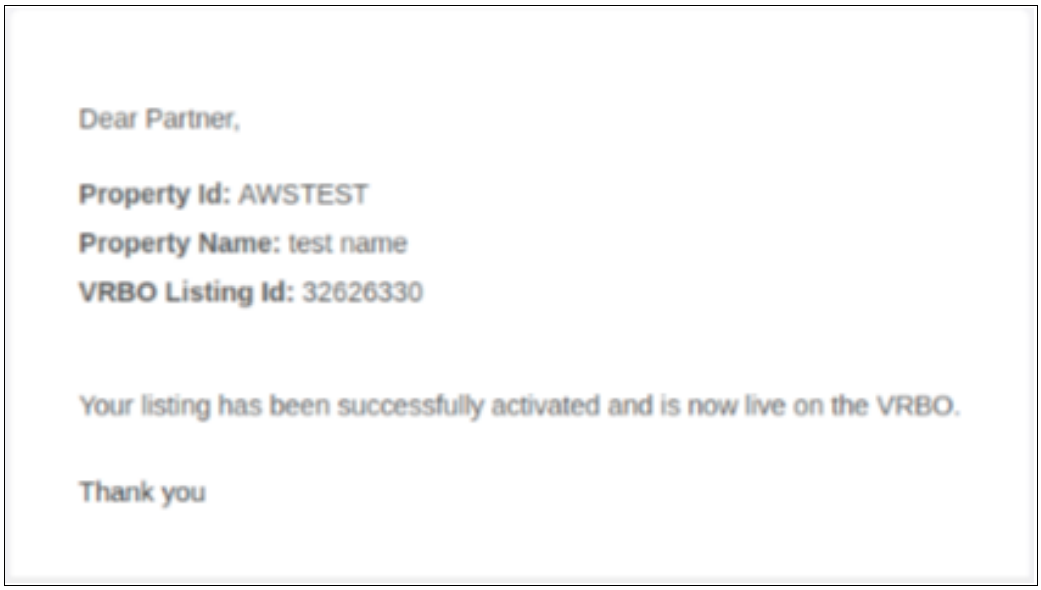
Upon approval, you will receive an email notification confirming the connection.
Once approved, you can complete the mapping.
⚠ Until confirmation is received, avoid restarting the registration process.
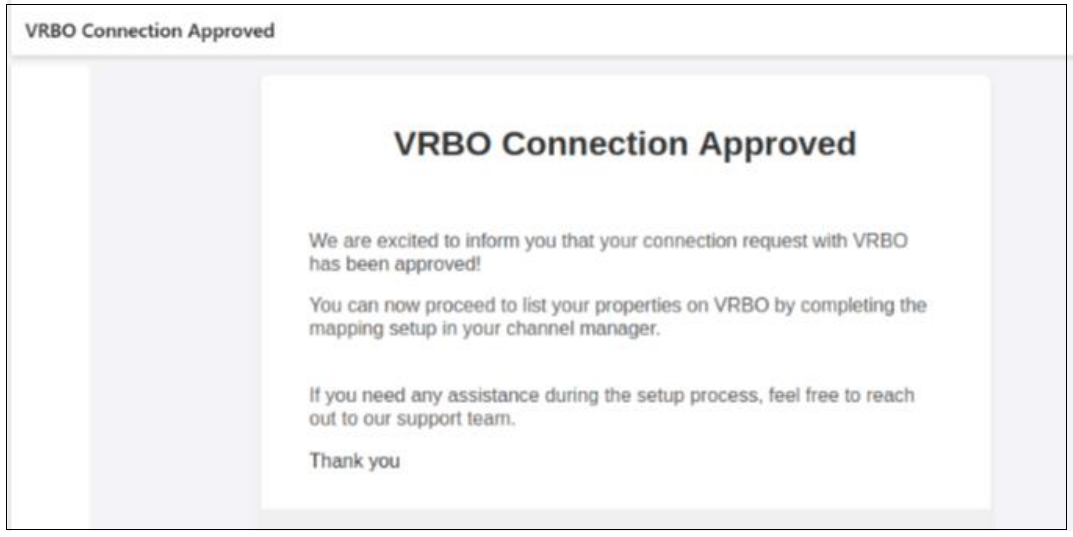
After your connection is approved:
1. Go to app.zeevou.com and click Listings.
2. Open your desired listing and click Manage Channels in the top right.
3. Click Vrbo from the list.
4. Click the Map button next to your listing name.
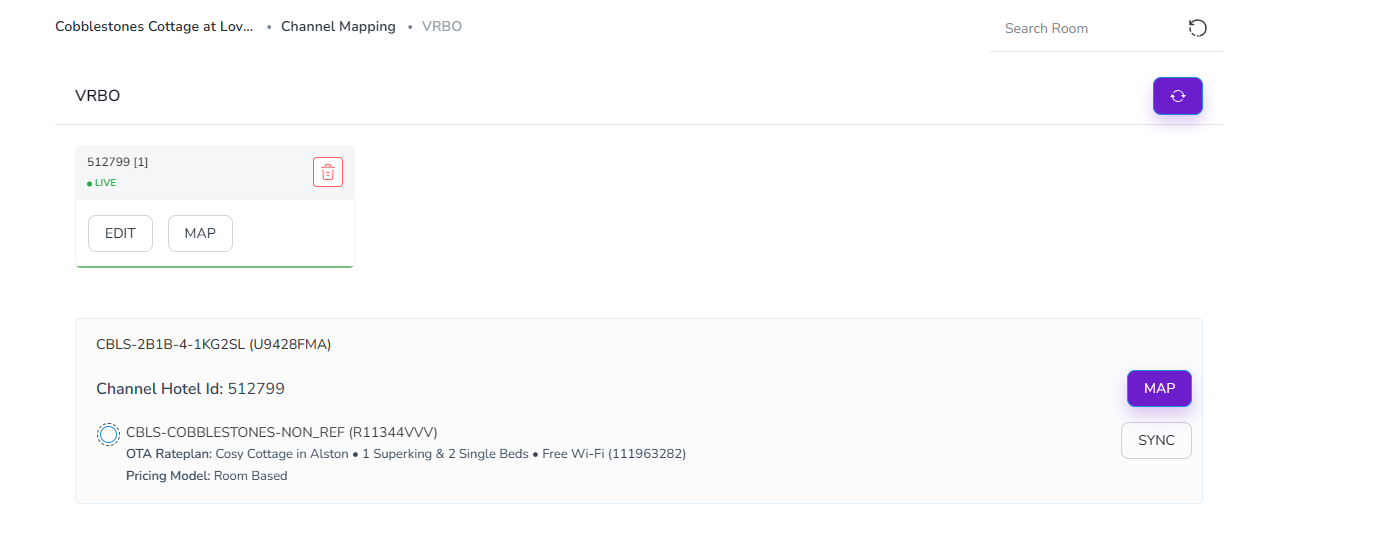
5. Go through the mapping wizard (Listings, Unit, Availability & Booking Settings) and fill out the necessary information, including the required fields.
6. Finally, click Save & Next to complete the mapping wizard.
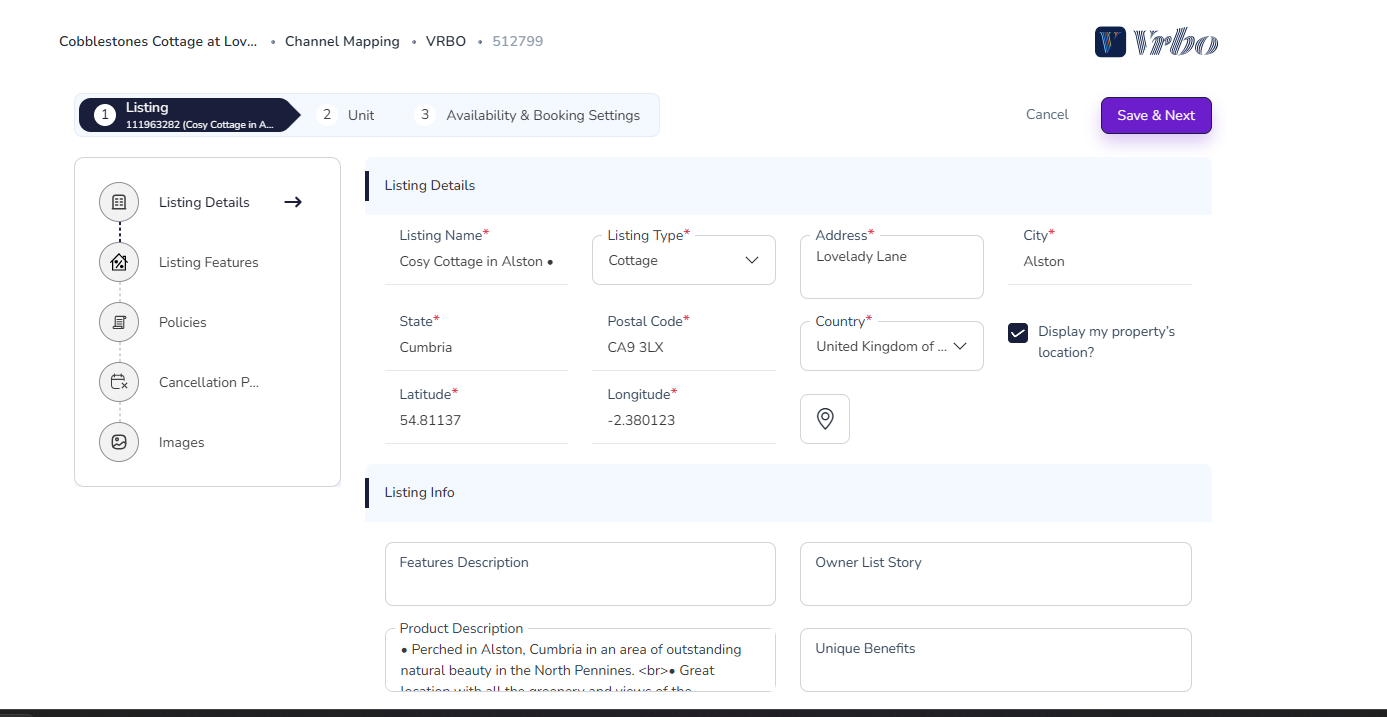
Your listing status will then become Approved and Bookable.

B. Existing Advertiser ID
To map existing Vrbo listings:
On the mapping screen, locate your Vrbo Room-Rate.
Select the corresponding Zeevou Room Name and Zeevou Rate Name.
Click Map.
Enter all required fields and complete the setup wizard.
Note that in both Advertiser ID scenarios, once Vrbo verifies the mapping, a confirmation email will be sent.
Adding Promotions to Your Vrbo Listings (Type B)
If you need to add promotions to your Vrbo listings, you must do so through the mapping page. This is because Vrbo does not allow you to manage promotions directly on its platform once your account is connected to a channel manager.
Accessing the Promotions Section
Go to app.zeevou.com and click Listings.
Open your desired listing and click Manage Channels in the top right.
Select Vrbo from the list.
On the mapping page, locate the three dots (⋯) under the Actions column and select Promotions.
Creating a New Promotion
Click the “+” icon on the Promotions page.
Select your desired Promotion Type and Discount Type.
Enter the discount value and configure the necessary conditions, including:
Stay restrictions.
Booking window.
Specific booking and travel dates.
Click Save to create the promotion.
Available Promotion Types
Last Minute: Targeted at guests booking close to their check-in date.
Early Booking: Rewards guests who plan and book well in advance.
Mobile Only: Exclusive discounts applied only to users on mobile devices.
Member Only: Targeted at logged-in Vrbo members to build loyalty.
New Listing: A specialised boost used to gain initial traction for brand-new properties.
Note 1: Ensure that the full mapping process is completed before attempting to set up promotions.
Note 2: You can run multiple promotions simultaneously based on your configured conditions.
Want to learn how to connect Agoda to Zeevou? Read the guide here →
Need to disconnect your property from a connected channel? Read the guide here→
