Managing security deposits efficiently helps you protect your property and keep your financial records accurate. In Zeevou, you can log, charge, release, and automate security deposits, depending on your payment gateway and settings.
There are different things that you might need to do with your guests’ security deposits. You can find the instructions for each one here:
Log in to your Zeevou account.
Go to the Finance tab of the booking and open the Security Deposit card.
Click More to log a new deposit.
A window will appear.
Enter the Amount, Date, and Time.
Select the Payment Type from the drop-down menu.
Add a Reference and Description. (Optional)
Click Log to save the deposit.
Click Charge & Release.
A window will open.
Select the Deposit Type.
Enter the Associated Cost, Amount to Capture, and Reason.
Click Save and Close to complete the action.
Note 1: If the booking status is 'Booked,' Charge & Release is not shown. You need to check the guest in before you can charge their deposit.
If the security deposit was collected through a payment gateway, you can manage it through Charge & Release.
Open the relevant booking and go to the Finance tab.
Open the Security Deposit card.
Click Charge & Release.
Select the appropriate option:
Captured (Automatic) – the authorised deposit is charged to the guest’s card.
Logged – the deposit is recorded in Zeevou without charging the guest’s card through Zeevou.
A Logged security deposit is typically used when the deposit was received outside Zeevou and needs to be recorded in the system. A Captured security deposit means that the authorised amount has been charged from the guest’s card.
You can change the security deposit amount for a Unit Type from its applicable Rate Plan.
Go to the Listings page and select the relevant Unit Type.
Click the Pricing & Availability tab.
In the Rate Plans card, click View/Edit Details for the applicable rate plan.
Click the edit icon next to the Security Deposit amount.
Enter the new deposit amount.
Click Save to apply the changes.
Zeevou’s Auto Charge/Auto Refund feature automates payment collection and refunds based on booking policies, reducing manual work. It ensures deposits, balances, and refunds are processed seamlessly through integrated payment gateways.
To enable this option:
Click the Settings gear icon.
Select Settings.
Under the Finance tab, locate the Security Deposit Collection Methods card.
Turn on the Card toggle.
Select Stripe as your payment gateway.
Select Auto Charge/Auto Refund.
Click Save.
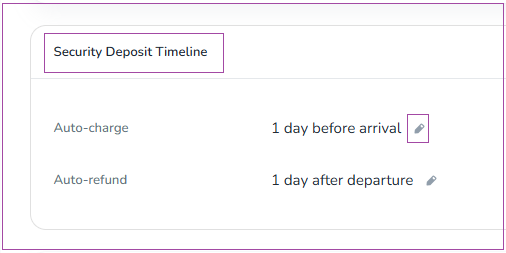
This setting allows you to specify the number of days after the departure date when the security deposit should be automatically released to the guest. Crucially, if you have selected the Auto Charge/Auto Refund method, the deposit will be processed as an actual payment upon authorization and automatically refunded according to your specified timeline.
These two options handle the guest’s security deposit differently:
Auto Charge/Auto Refund: The deposit is charged to the guest’s card and automatically refunded according to your configured timeline if you do not need to retain any of it.
Pre-authorisation: The deposit amount is temporarily held on the guest’s card without being captured. You can capture the required amount if you need to retain some or all of the deposit, or release the authorisation when no charge is required.
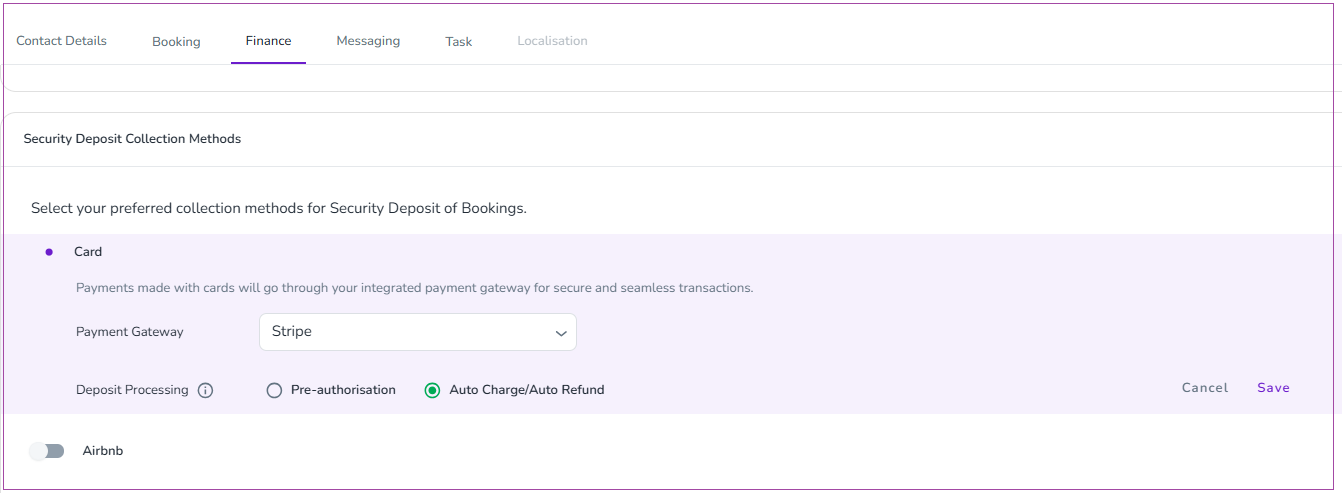
Important: When handling security deposits with Stripe, it's important to distinguish between Auto Charge/Auto Refund and Pre-Authorisation, as they serve different purposes.
Stripe has limitations regarding the duration of pre-authorised security deposits, typically allowing a maximum hold of 7 days from the point of authorisation. To address this, Zeevou offers two options:
Auto-capture and auto-refund: This method captures the security deposit as a payment and then automatically refunds it after the guest's departure based on your configured timeline. This allows you to hold a security deposit for bookings of any length.
Security deposit extend module: This module automatically re-authorises the deposit according to your security deposit timeline settings, overcoming the 7-day limitation for pre-authorisations.
However, when you tick the Auto Charge/Auto Refund box, the system treats Stripe deposits as actual payments. This means that when guests authorise the deposit, the funds are transferred to your account. Following the guests’ departure, if you do not intend to Capture any or all of the deposit, the system will automatically initiate a refund based on the timeframe you have set in the Online Check-in Process or Listings → Set Listing Defaults → Security Deposit Timeline.
Note: The reauthorization process typically takes 3–5 days. However, depending on your settings, the card may continue to repeat the process and get reauthorized for up to 7 days or more.
Regarding the timeframe for guests receiving their refund via Stripe with the Auto Charge/Auto Refund method:
If you have configured the system to release the funds, for example, 2 days after checkout, Zeevou will instruct Stripe to process the refund at that point. While the system initiates the refund on the specified day, please note that it can take up to 14 working days for the refunded amount to appear back on the guest's card due to processing times by Stripe and the guest's bank.
Please note that £3.00 per deposit transaction will be deducted from your account if the security deposit is captured.
If you want to automate the security deposit collection of Airbnb bookings via Zeevou, follow these steps:
Step 1: Log into app.zeevou.com and click on the gear icon, select Settings→ Finance card→ Security Deposit tab→ Security Deposit Collection Method card.
Step 2: Turn the toggle of Airbnb on.
Step 3: A drawer opens in which you should select Date and Time. Finally, click Save.
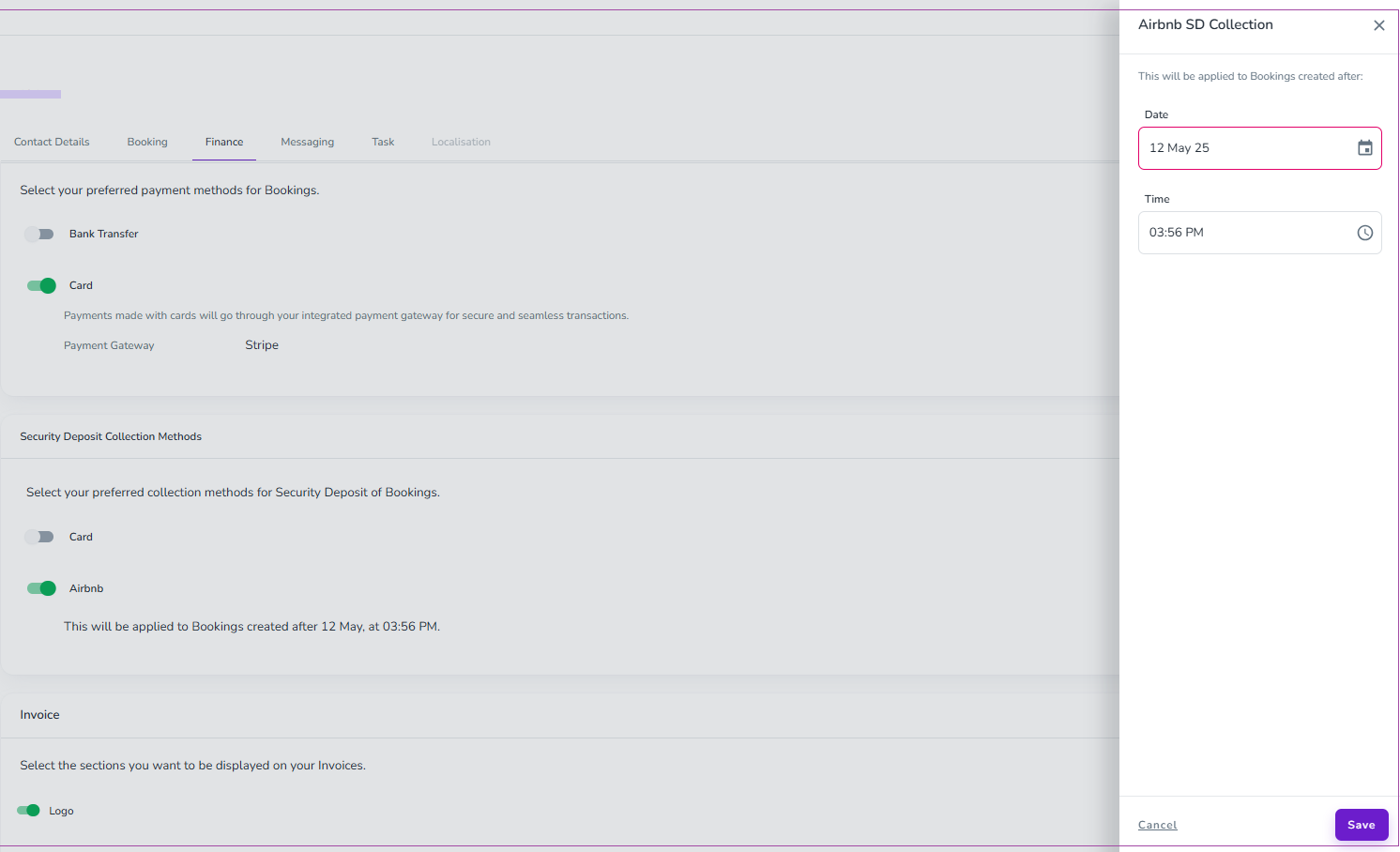
Note 1: This will be applied to Bookings created after the selected date.
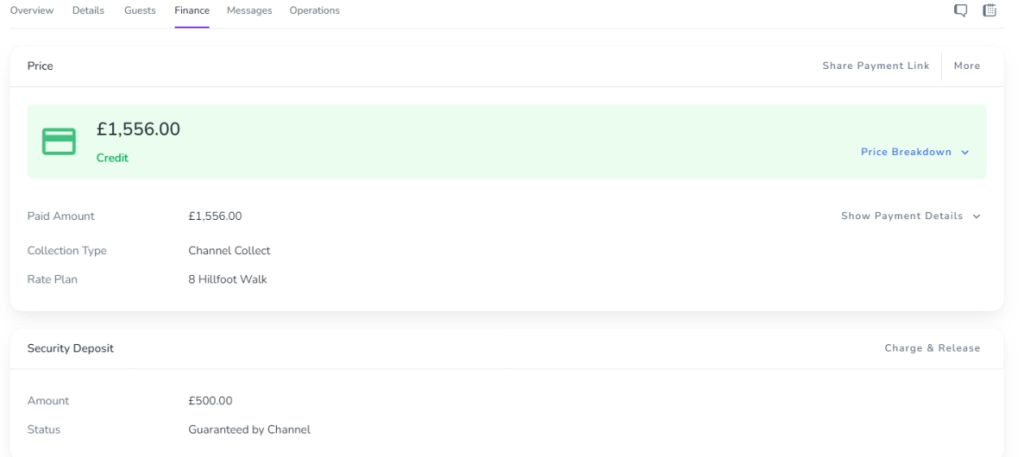
Note 2: If you enable the toggle of Airbnb, the Security Deposit collection will be applied for the bookings that are created after the date you set in the open drawer. When you disable the Airbnb toggle, the Security Deposit status gets Guaranteed by Channel under the Finance tab.
In this situation, Zeevou will not track the Security Deposit, and you need to check manually in the channel where the process will take place.
Once the guest enters their card details, Zeevou will automatically pre-authorise the specified amount according to the settings configured in your Security Deposit Timeline.
The pre-authorised amount is not captured unless you need to charge the guest for damage or another applicable cost.
If no charge is required, the authorisation can be released according to your configured settings.
Once you’ve set up your security deposits, you can continue to the next step and activate your communication channels to keep guests informed throughout their booking journey.
