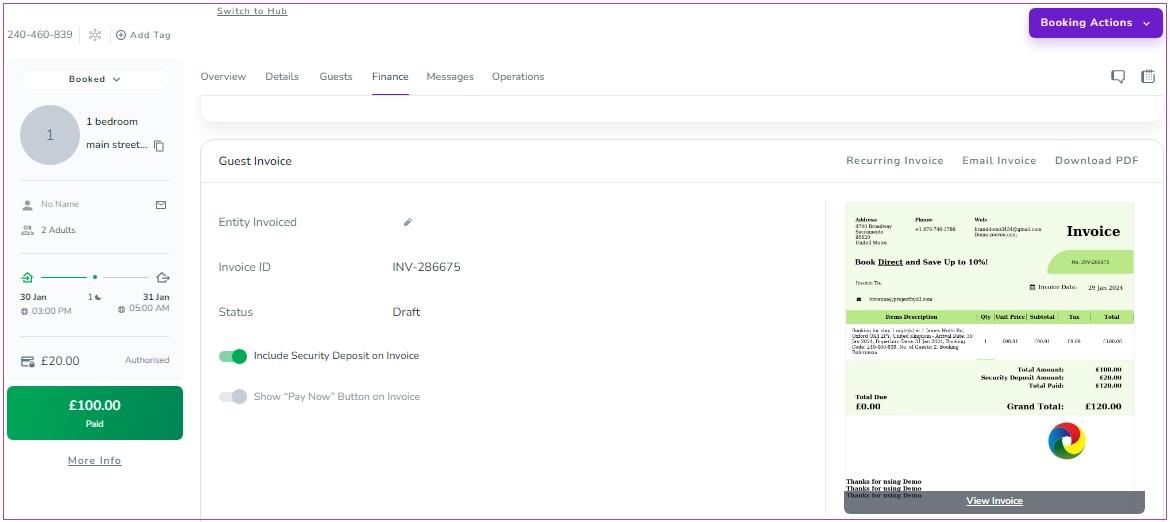
You can find a guest invoice easily in the Finance tab of Booking View. Then, you can send the invoices to Entity Invoiced, Person Booking, Lead Guest, Company, or Others. If there is only one entity for the invoice, you can click Email Invoice.
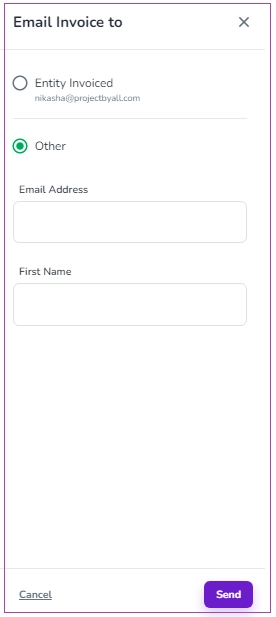
A window will appear in which you can select Entity Invoiced or Other. For Other, you should insert Email Address and First Name. Finally, click Send.
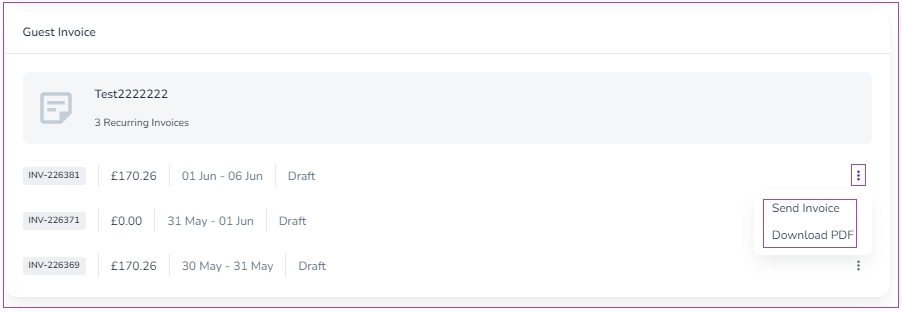
Note 1: If there are Recurring Invoices, you can click the three dots in front of the desired invoice. Then, you can press Send Invoice.
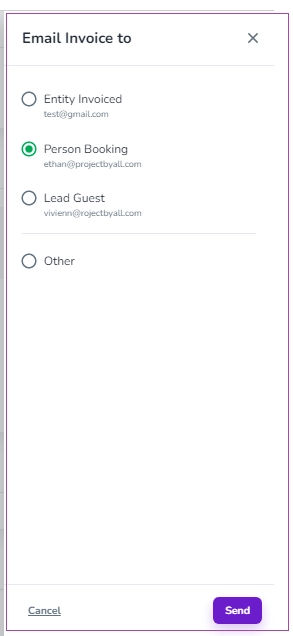
A window will appear in which you can select Entity Invoiced, Person Booking, Lead Guest or Other.
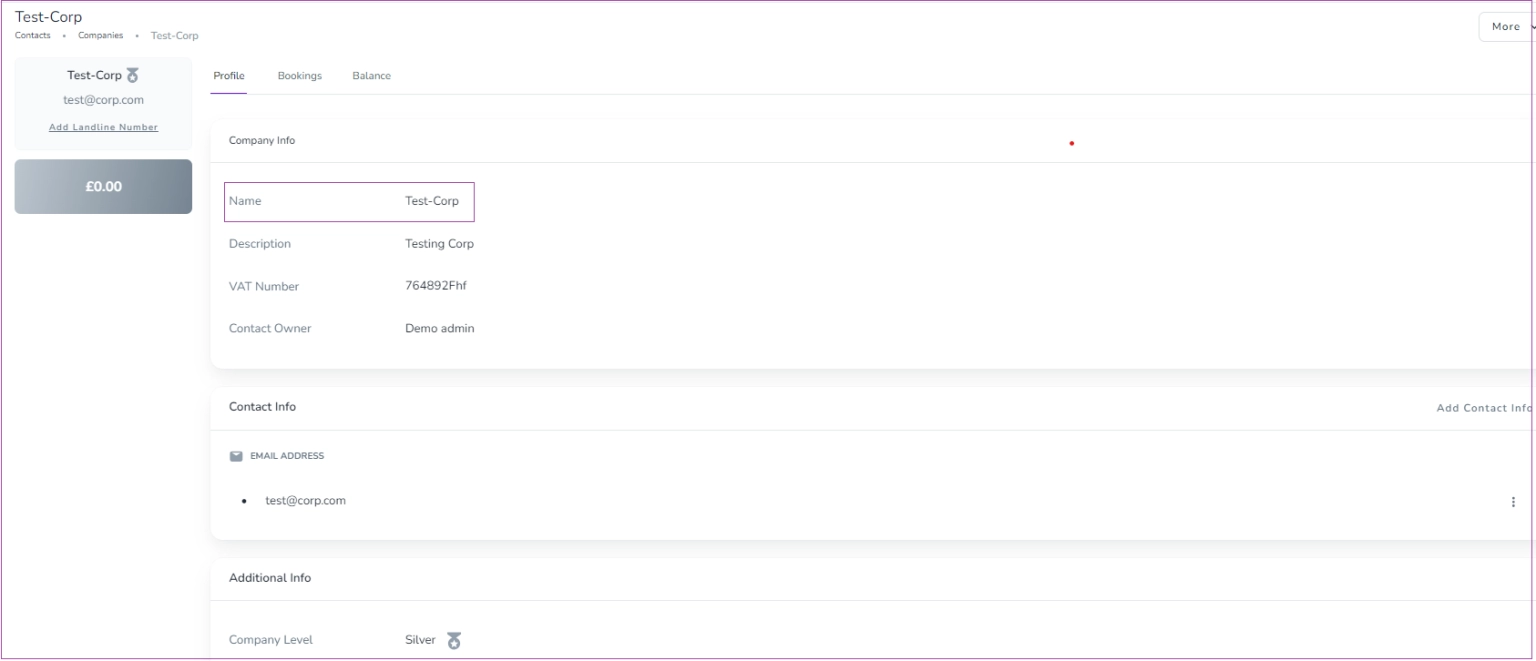
To set the company as the recipient of the invoice, please make sure that Zeevou Company has been created beforehand.
Note 1: The company must be created under Contacts -> Guests -> Companies. If it’s created but still not showing, try refreshing or checking the details.
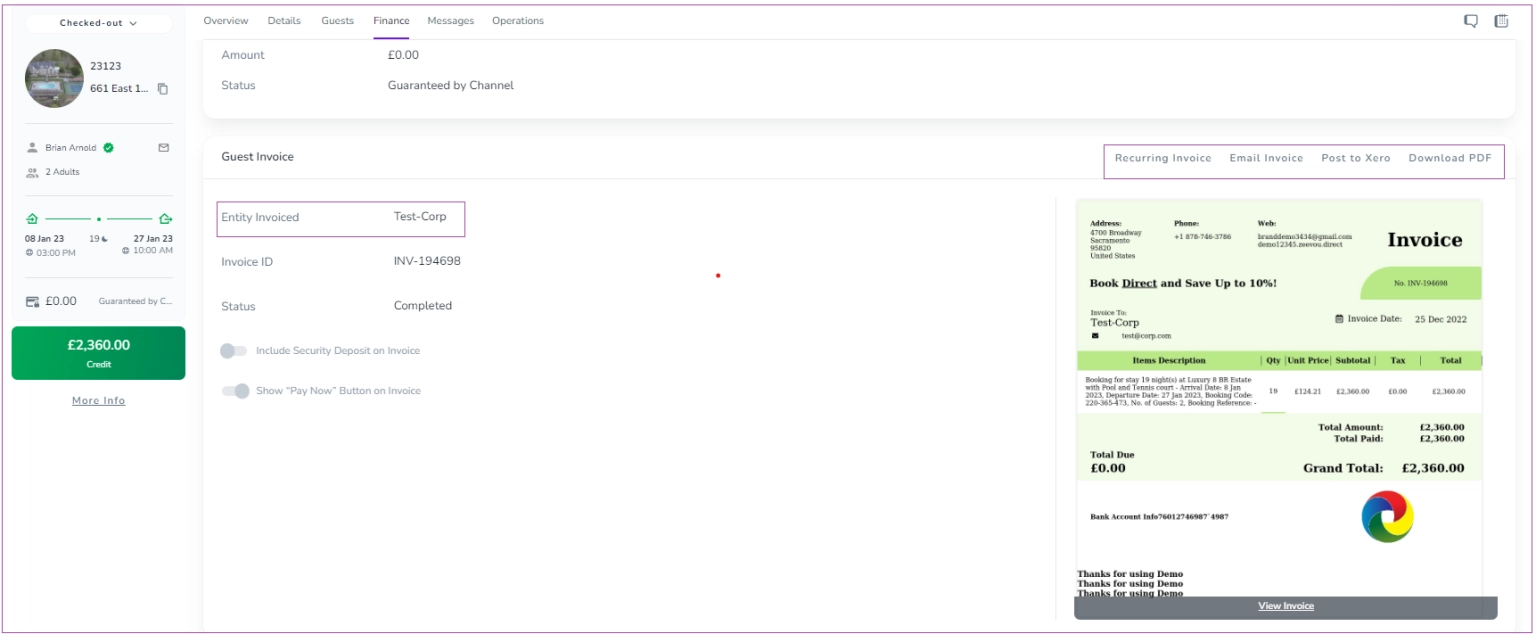
To see the invoice, go to Booking View Page-> Finance Tab -> Invoice card. Click the pen icon to edit the Entity Invoiced and set the company as the recipient. This will generate the invoice for the company, not the guest. You can click Download PDF or Email Invoice to send the Invoice to the company.
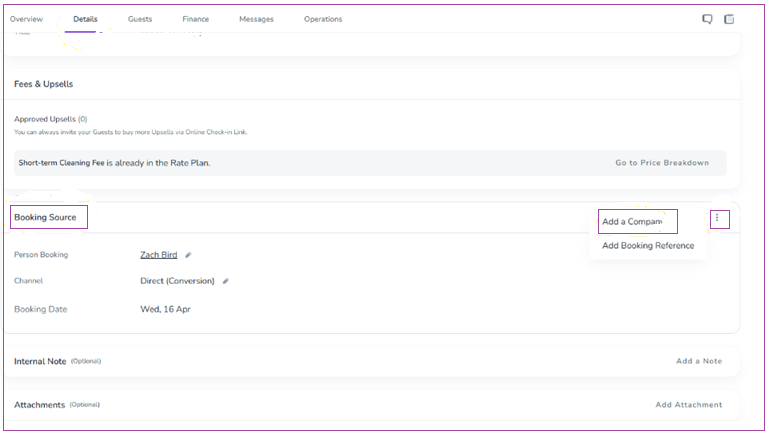
Note 2: You should go to the Details tab and add the Company in the booking source section to be shown in the Finance tab.
Note 3: You can change the Entity Invoiced and regenerate the invoice.
You can also set up a Recurring Invoice for a booking in the Finance tab by following these steps:
Open your desired booking.
Navigate to the Finance tab.
Locate the Invoice card and click on Recurring Invoice.
Choose Weekly or Monthly (Note that if the booking is longer than a week, “Weekly” will appear, and if it is longer than a month, Monthly will appear too).
Select the Start Date as either First Day of Week or Booking.
Click Process to review the Recurred Invoice.
Click Save to finalize the setup.
