Note: Price automation is available only if you have purchased the related add-on.
If you haven’t purchased it yet, you can get it here: [Buy the Add-On →]
Rate Rules help you automate your pricing strategy in Zeevou. They allow you to automatically adjust your nightly rates, minimum stay, maximum stay, and availability based on conditions you define. This ensures your pricing stays competitive without needing constant manual updates.
You can create rules based on seasonality, occupancy levels, booking window, day of the week, and more. By using Rate Rules, you can increase revenue, protect occupancy, and maintain full control over your pricing strategy—while saving time and reducing errors.
Navigate to Pricing > Rate Rules.
Click Create a Rate Rule in the top-right corner.
Select your Rate Rule type:
Change in Price
Change in Availability
Early Bird Bookings
Last Minute Bookings
Orphan Nights
Booking Window
Advanced Rule
Click Proceed.
On the General Info card, configure:
Title: Give your rule a descriptive name.
Mode: Choose One-time or Annual (repeats yearly).
Time Period: Set the Start Date and End Date when the rule applies.
Select the type of rule that matches your pricing strategy:
Adjust pricing on specific days of the week.
Select Days of the Week when the rule applies.
Set Price Adjustment to increase or decrease by percentage.
Control availability and booking restrictions for specific days.
Select Days of the Week you want to modify
Choose the actions to apply using these toggles:
Override Length of Stay: Adjust minimum or maximum stay requirements.
Override Stop Sell: Prevent or allow bookings on certain dates.
Override Stop Check-ins: Prevent or allow check-ins on specific dates.
Override Stop Check-outs: Prevent or allow check-outs on specific dates.
Note: If any toggles are not enabled, the Rate Plan settings will automatically apply for the corresponding options.
Reward guests who book in advance:
Set the number of days/months before stay dates when the rule applies
Select the actions you wish to apply:
Override Price
Override Length of Stay
Override Stop Sell
Override Stop Check-ins/Check-outs
Encourage last-minute bookings with special rates:
Set the number of days/hours before stay dates when this rule applies.
Configure the same actions as Early Bird Bookings.
Automatically adjust pricing for gaps between bookings that are shorter than your minimum stay requirement.
Select specific Days of the Week.
Configure Override Price, Length of Stay, Stop Sell, or Check-ins/Outs.
Set how far in advance this rule applies to future bookings by specifying the number of days or months.
Create custom rules with multiple conditions and actions:
Conditions (toggle on as needed):
Days of the Week: Apply rules only on selected days
Occupancy Level: Trigger actions when occupancy is above or below a certain percentage
Lead Time: Specify how far in advance the rule should apply
Booking Gap: Calculate the number of nights between two bookings
Shoulder Nights: Apply actions to nights before and/or after a unit becomes available
Actions (at least one required):
Override Price: Adjust by percentage or fixed amount. Option to set price limits (caps) to prevent prices from going too high or too low.
Override Length of Stay: Adjust minimum or maximum stay requirements.
Override Stop Sell: Prevent or allow bookings on certain dates.
Override Stop Check-Ins/Outs: Control check-in and check-out availability.
Note: You can turn all Condition toggles off in the Advanced Rate Rule. This causes the Rate Rule to apply the actions on all days of the selected date range.
On the Allocation card:
By default, the rule applies to Channels, Direct Websites, and Manual Bookings.
Click Modify Rate Plans to change if needed.
All Possible Rate Plans – Applies to all existing and future rate plans.
Specific Rate Plans – Select individual rate plans.
Click Save to activate your rate rule.
When configuring allocation, you control where and how your rate rules apply:
Booking Source Options:
Channels (OTA bookings)
Direct Websites and Manual Bookings
Rate Plan Selection:
Specific Rate Plans: Manually select particular rate plans.
All Possible Rate Plans: Applies the rule to all available rate plans.
Use the search bar to quickly find specific rate plans when making your selection.
Price Limit (Cap) acts as a safety net to prevent prices from going too high or too low.
How the Cap Works:
Increasing Prices: If you set a cap for price increases, it becomes the maximum price per night, even if a Rate Rule would normally raise it higher.
Decreasing Prices: The cap acts as a minimum price. Even if a Rate Rule significantly lowers the price, the cap ensures it won't drop below the set minimum.
Multiple Adjustments: If multiple Rate Rules are increasing or decreasing prices, the highest cap will serve as the overall limit.
From the Rate Rules Dashboard, click the three dots under Actions to:
View/Edit the rule
Activate/Deactivate the rule
Archive the rule
Note: You cannot delete a created Rate Rule. When a Rate Rule is archived, it is deactivated.
To view archived Rate Rules:
Click on the Rate Rules arrow.
Select Archived Rate Rules.
Click the three dots under Actions to Unarchive or View.
Use the Filter icon to apply filters and find specific rules.
These guidelines discuss how to manage the overlapping rate rules in a booking or channel management system and prioritize them as a solution.
Two rate rules are considered overlapping if all of the following conditions apply:
They apply to at least one common rate plan.
Both rules are active and not expired.
They are both applicable to the booking engine or to the channel manager.
Their date ranges have some overlap.
Their defined days of the week have some overlap.
They have common actions.
If there are any overlapping Rate Rules due to the following actions in the system,
Editing the Rate Rule,
Changing an Inactive Rate Rule to Active,
Creating a new Rate Rule,
A window will appear notifying you of a conflict, and you can set priorities through it. You can drag and drop to rearrange the order of Rate Rules. Moreover, you can click on More and select Rearrange Priorities on the Rate Rule Dashboard.
You can see the summary of the Rate Rule using the icon on the right side of each Rate Rule.
Note 1: Priority can be set across more than one group for Rate Rules.
Note 2: When there is no overlap, you cannot see the rearrange option.
Rate rules apply to rate plans, which are linked to unit types, not individual units. Therefore, when verifying rate rule application, you should have checked the name of the rate plan assigned to the unit type under which the unit was added. This ensures that the rate rule correctly applies based on the rate plan's configuration.
To prevent weekend changeovers, you'll need to set up two separate rate rules with specific conditions:
Set the days of the week in the conditions section to Saturday and Sunday. Then, configure Shoulder Nights for each rule:
First Rule – Stop Check-Outs:
Condition: If the unit types become unavailable within 1 day after the stay dates, stop check-out.
Second Rule – Stop Check-Ins:
Condition: If the types become unavailable within 1 day before the stay dates, stop check-in.
Note that these rate rules only work for single unit types.
This setup ensures that guests cannot check in or out on weekends.
If you want to prevent a guest from checking out on the same day another guest is checking in, you can set this up using Rate Rules.
Use a rule with the “Shoulder Night” condition and apply Stop Sell as the action. This will automatically block availability based on the parameters you define.
To set up a Shoulder Night in Rate Rules:
Go to Pricing > Rate Rules.
Click Add Rate Rule.
Select the Shoulder Night condition.
Decide if you want to affect the night before check-in (pre-stay) or the night after check-out (post-stay).
Choose the action, e.g., set Stop Sell to block bookings for that shoulder night.
Assign the rule to your rates/units and Save.
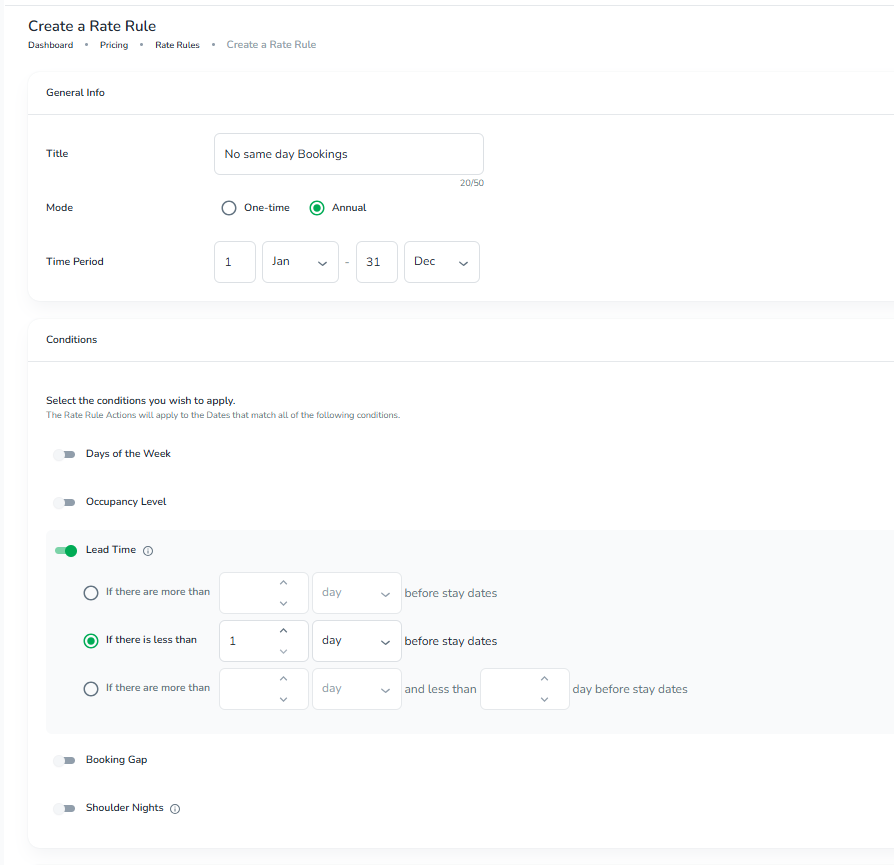
If you want to prevent a guest from being able to book on the same day, or a few days before arrival, create an Advanced Rate Rule.
Under Conditions select Lead Time, and select If there is less than… as appropriate
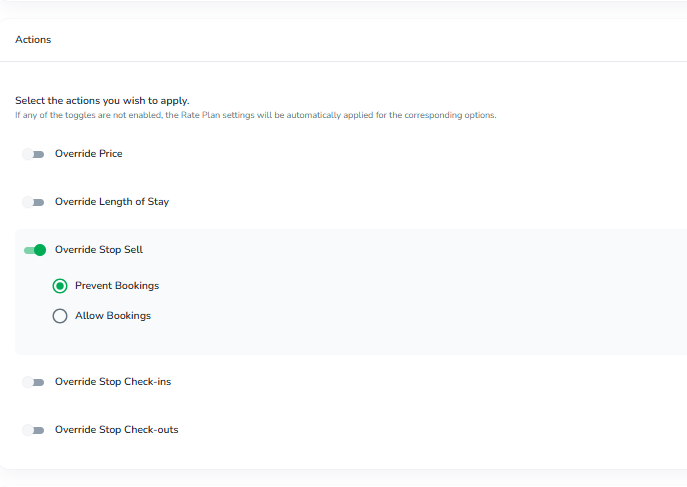
Under Actions select Override Stop Sell → Prevent Bookings.
Select the Rate Plans you want it to apply to and click save.
Once you have created your rate rules, you can continue with Adding your Fees and Associated Costs.
