Watch this tutorial video on how to use Zeevou’s Housekeeping App:
The Mobile app lets housekeepers view the lists of their tasks, start, and complete them.
They can add images, videos, issues, and notes for a property they have already cleaned up.
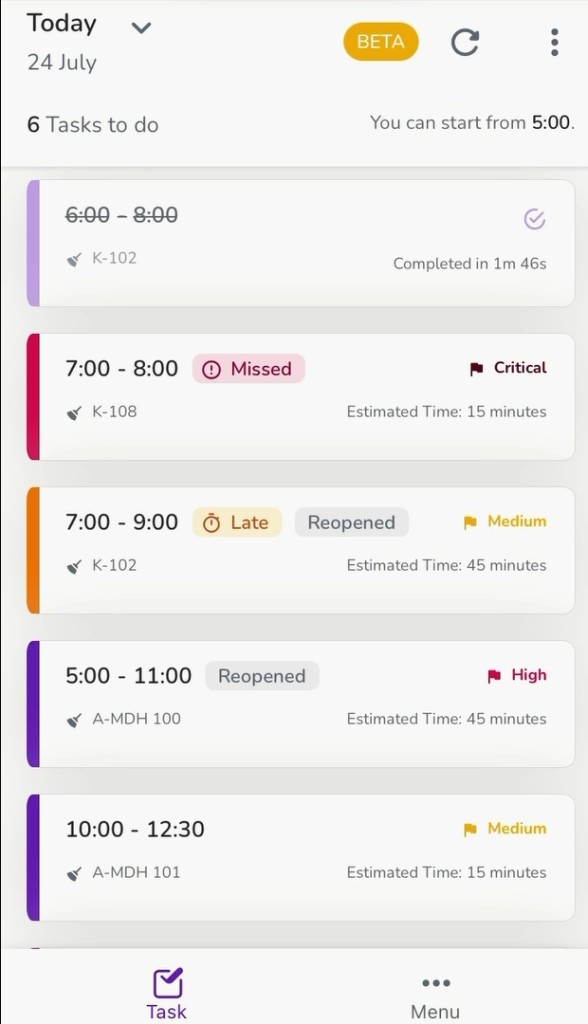
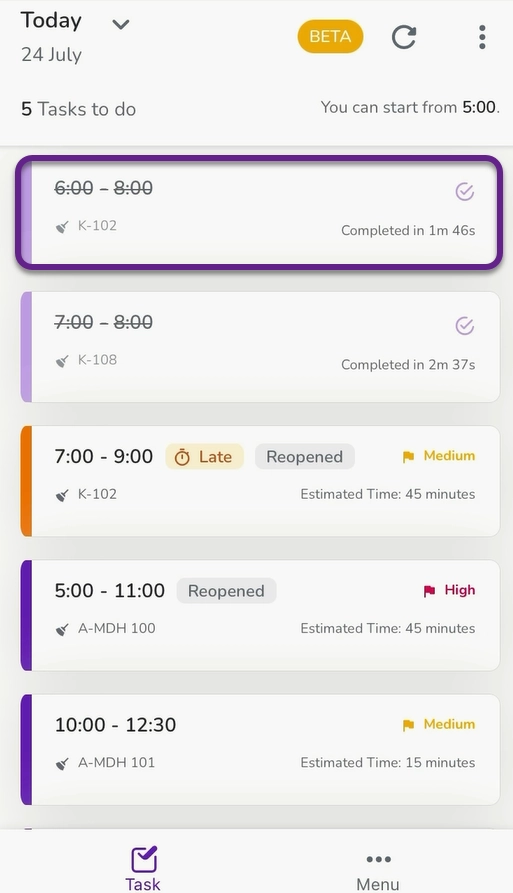
When the housekeepers log into their account, they can view the list of Today assigned tasks. They can also click on the three dots on the top right to report a general issue and attach the image from their Mobile Gallery.
Each task card shows the Can Start From, Must Finish by, and Estimated Time to complete the task, the condition (Late, Missed, Reopened, or Complete), and the Priority level (Low, Medium, High, or Critical).
Note that Late is the condition which has less time related to its Estimated Time. Missed is the condition which its Must Finish by time is passed and Reopened is the condition which is not confirmed by the host for any reason and is set to the Housekeeper task list.
They can also select their desired Task date from the calendar by clicking the arrow in front of Today to view.
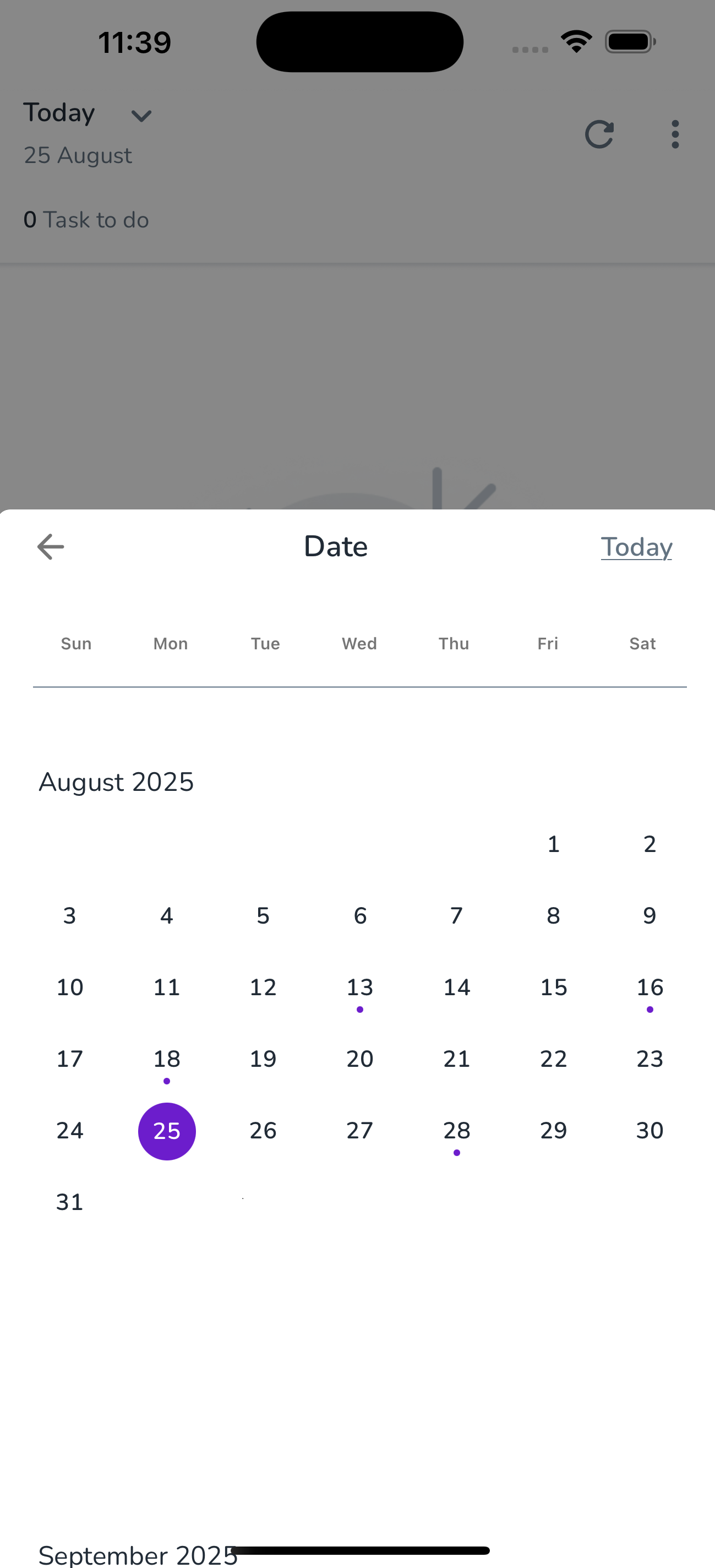
Note that the dates with tasks are marked with dots under their numbers.
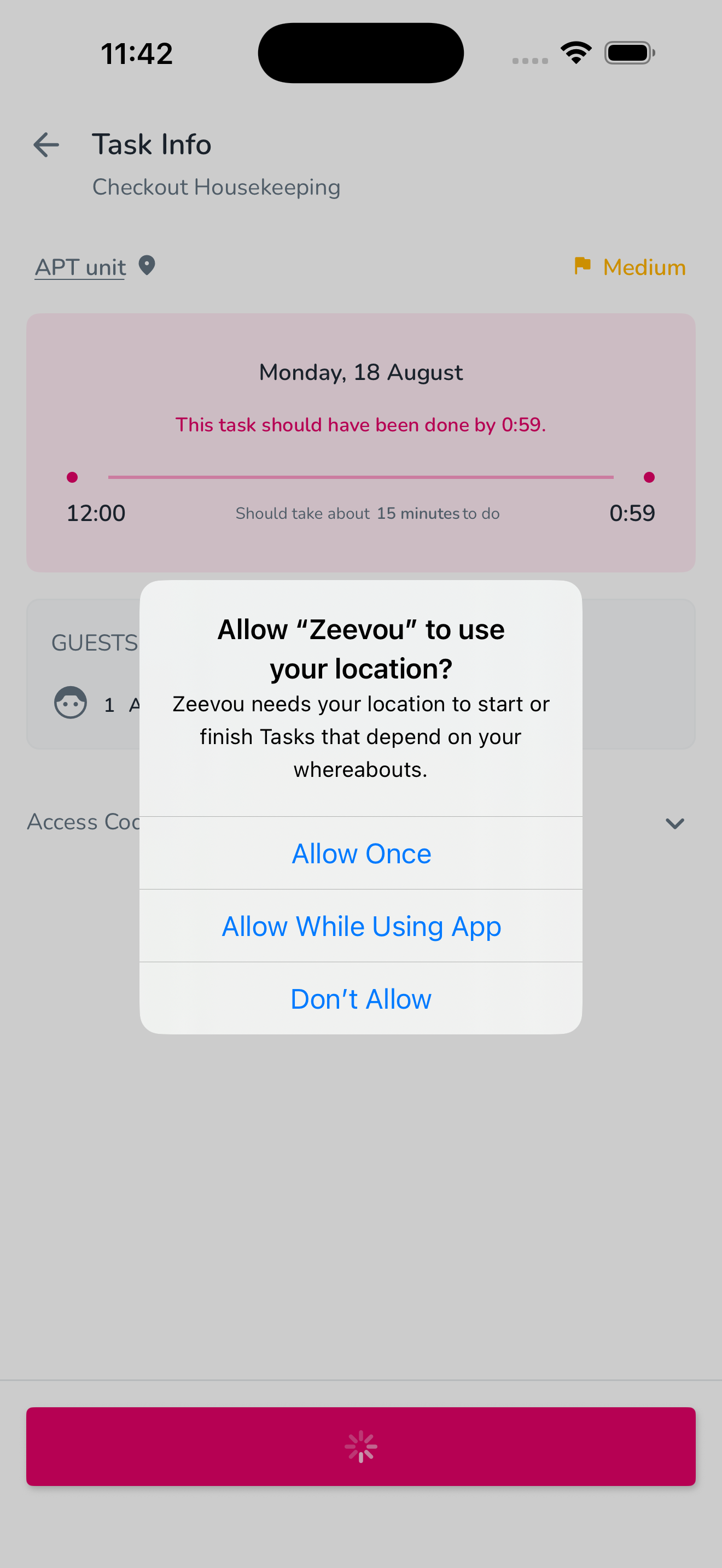
When the housekeeper click on a task in the Zeevou mobile app, they may be asked to allow location access. Location tracking is necessary to start or complete tasks that depend on their physical presence at the property. When prompted, they can choose Allow Once, Allow While Using App, or Don’t Allow. For the smoothest experience, select Allow While Using App, so their location is automatically shared whenever you manage tasks.
Housekeepers can click on their task card to view the detailed task data such as the check-in time and Early check-in time of the booking, Number of Guests, Access Codes, Sleeping Arrangements Status, Host Note, and Unit Note for Housekeeper .
For example, if you click on K-102 in the image below, you will see the location.
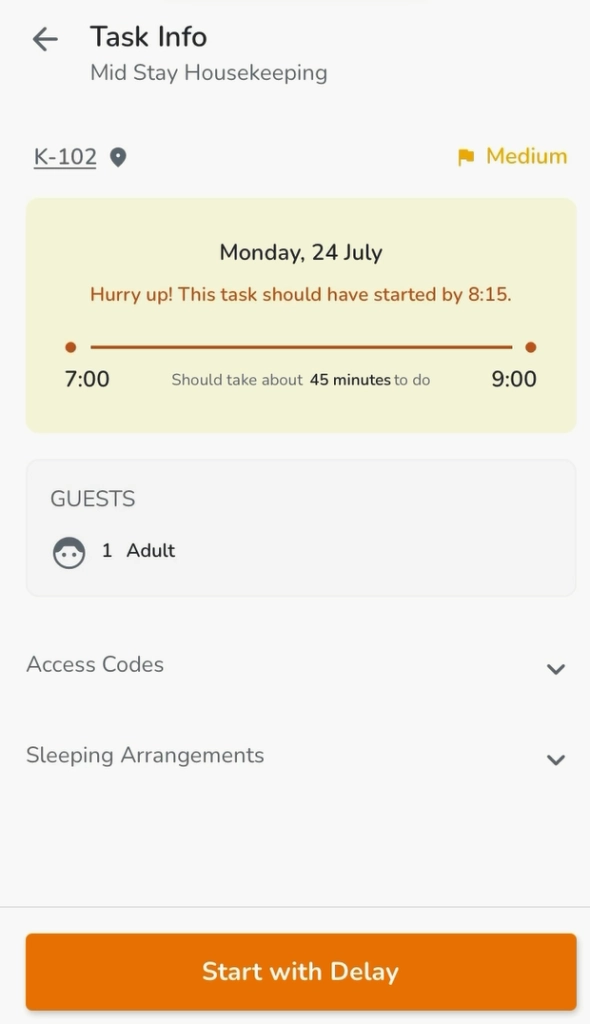
The task cannot be started before its Start Time. When housekeepers tap on the Start button to start a task, They can do the following:
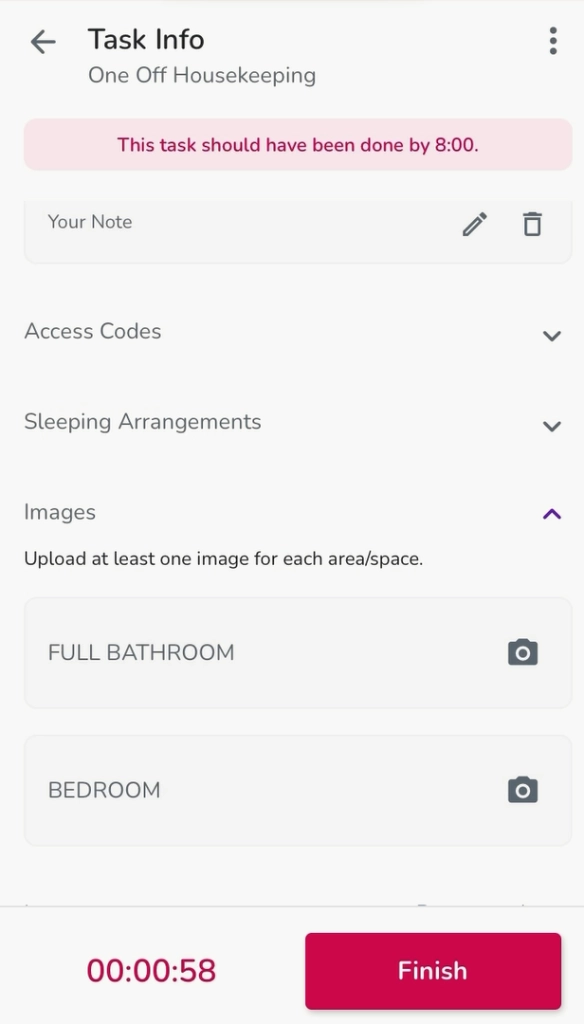
1- Upload the images or videos for the requested items in the task. The system does not allow uploading a saved image or video from the Mobile Gallery.
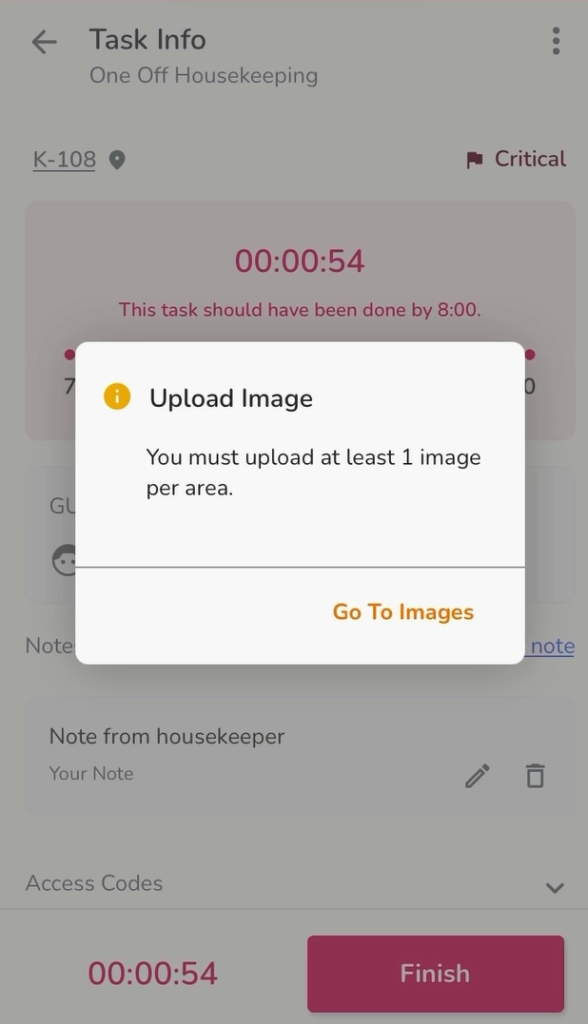
Note 1: If the host sets image upload Mandatory, the housekeeper cannot finish the task before uploading at least one image per area.
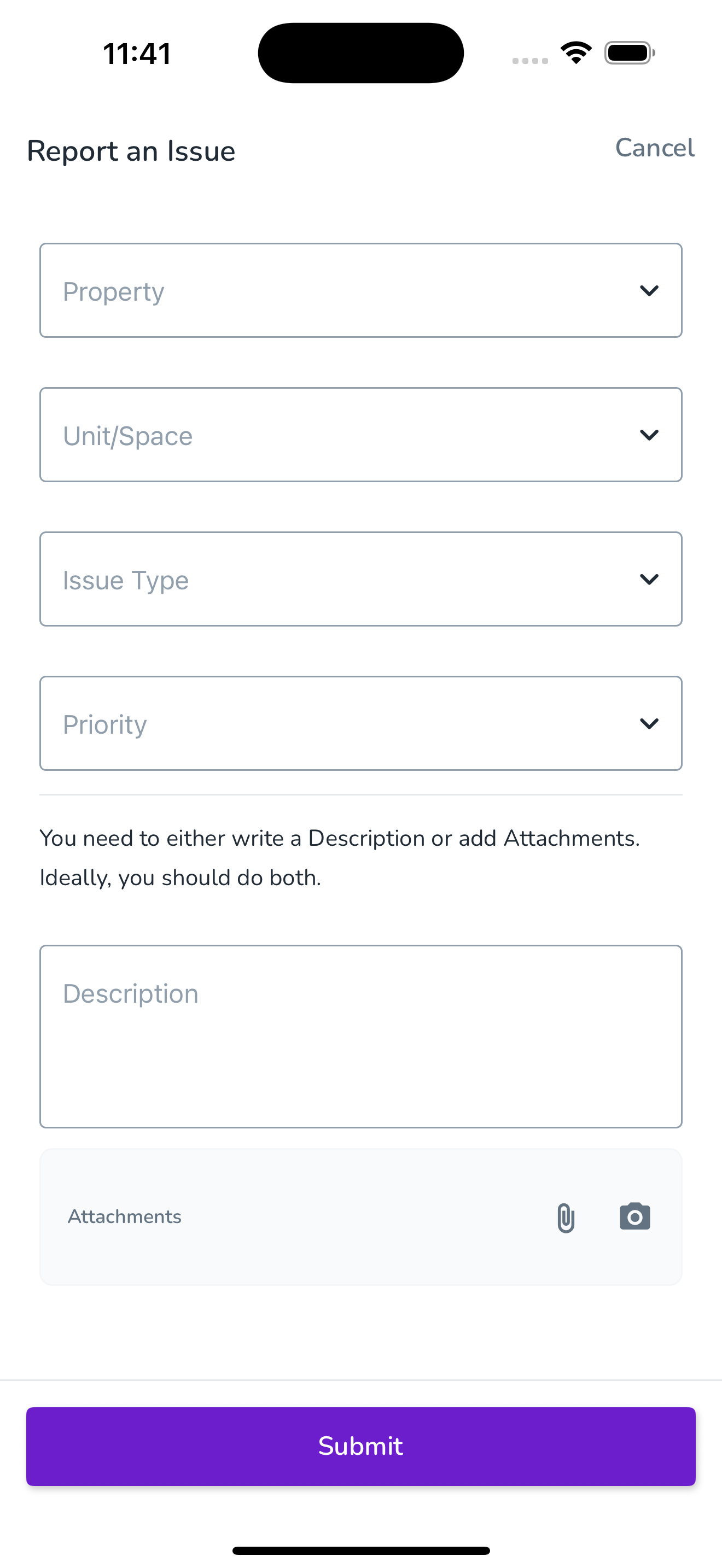
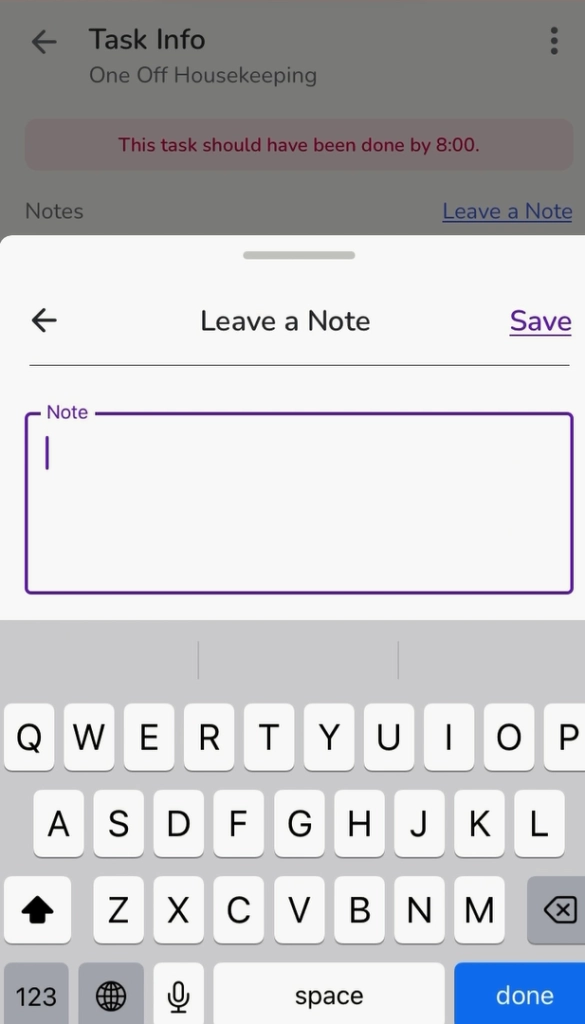
2- Leave a Note or Report an Issue for each task by clicking on its link or on the three dots on the top right of the opened task.
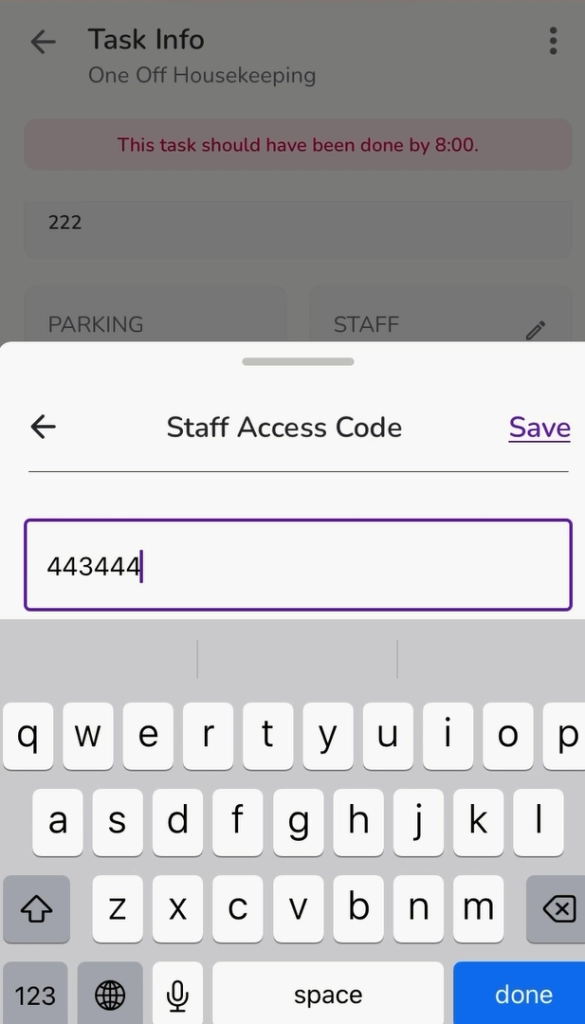
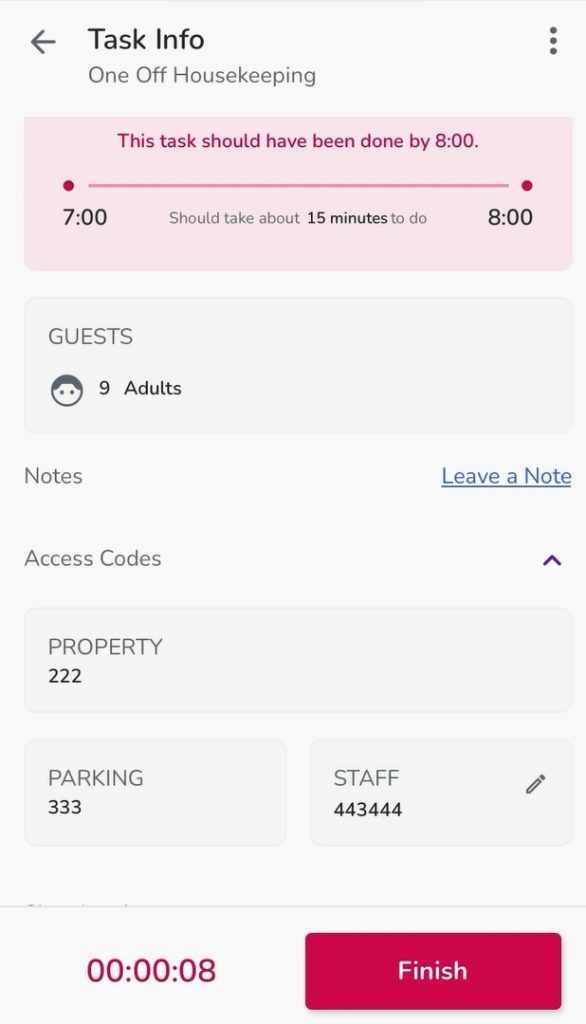
3- Click the pen icon to edit and Save the Guest’s and Staff’s Access Codes.
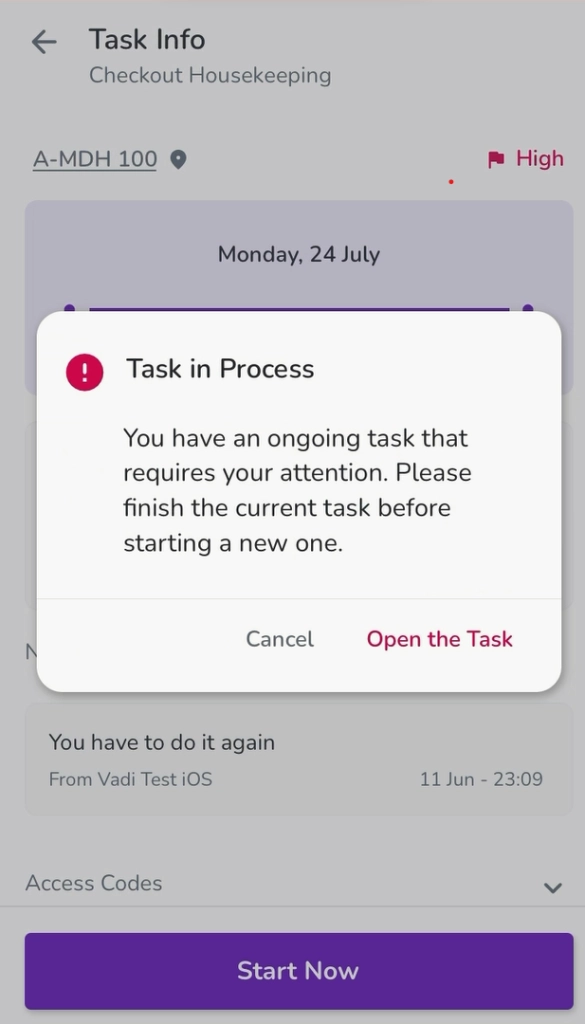
Note 1: If a task is in Process, the housekeeper can not start another task. The system gives a warning message.
Note 2: If the issue priority is Urgent, it will be sent right away. It cannot be deleted anymore, but it can be updated. If its priority is not Urgent, it will be sent when you click the task Finish, edit and delete before finishing the task.
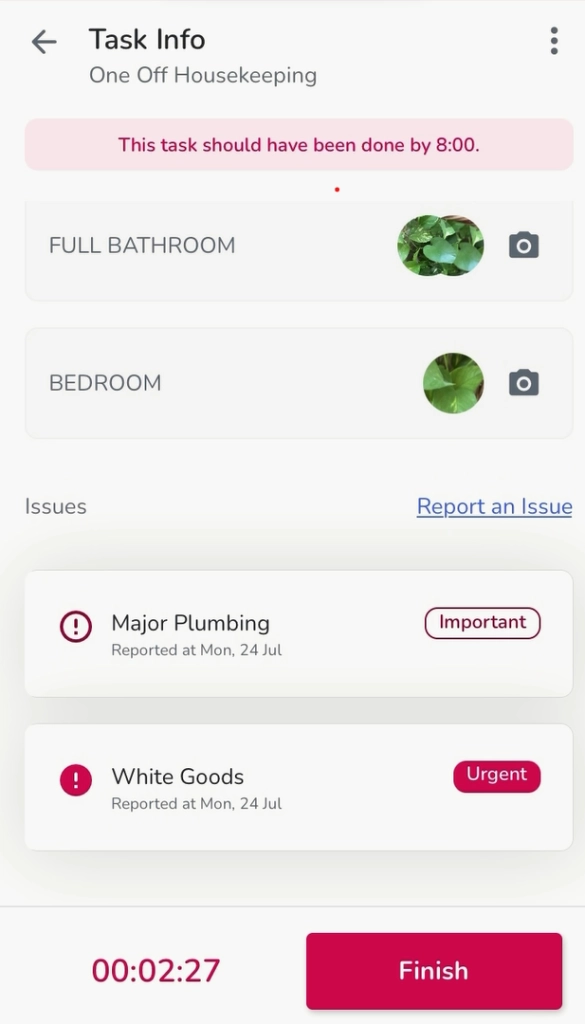
Note 3: When you click the task Finish button, the task card will be shown as Completed.
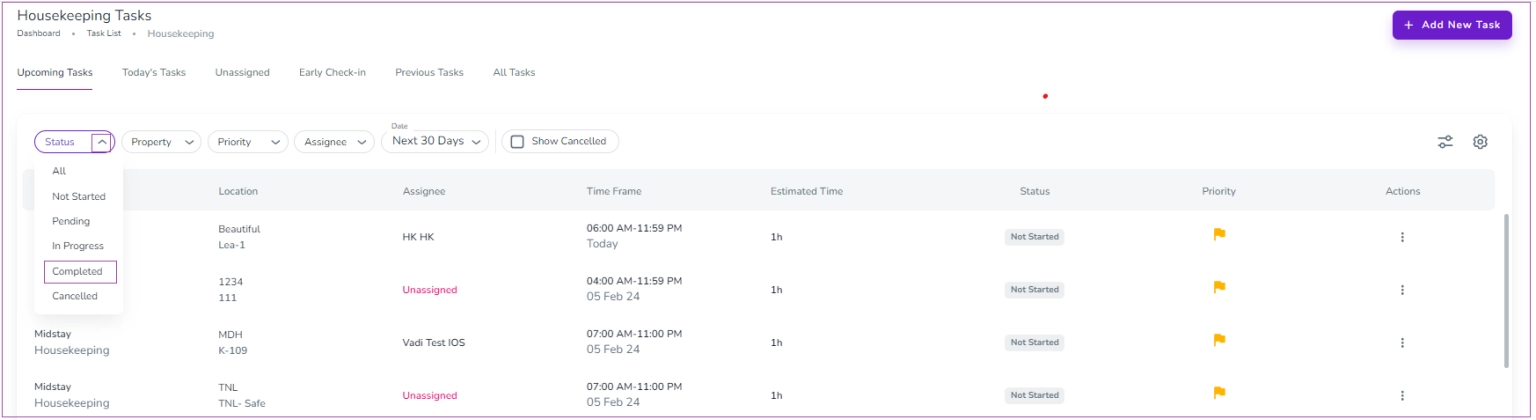
If you want to see the list of the completed housekeeping tasks:
Step 1: Log into app.zeevou.com.
Step 2: Click Tasks->Housekeeping List -> Upcoming Task tab. There, you can click the arrow of Status and select the Completed from the dropdown menu to have the list of the tasks that have already been finished.
Step 3: If you click each task, you can see the details.
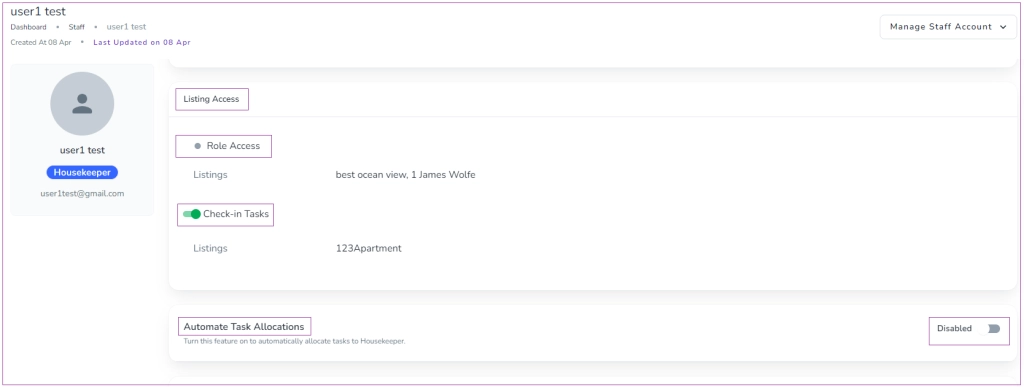
The system assigns cleaning tasks only when all the below conditions are met:
- You have created the staff by clicking gear icon and selecting Staff Management. On the Staff dashboard, click Create a New Staff.
- The property is assigned to the staff on the Staff dashboard -> Listing Access card. If you turn on the toggle of Check-in Tasks or Housekeeping Tasks, the staff has access to Check-in Tasks or Housekeeping Tasks. If you disable this feature, any Tasks assigned to this Staff will be automatically unassigned.
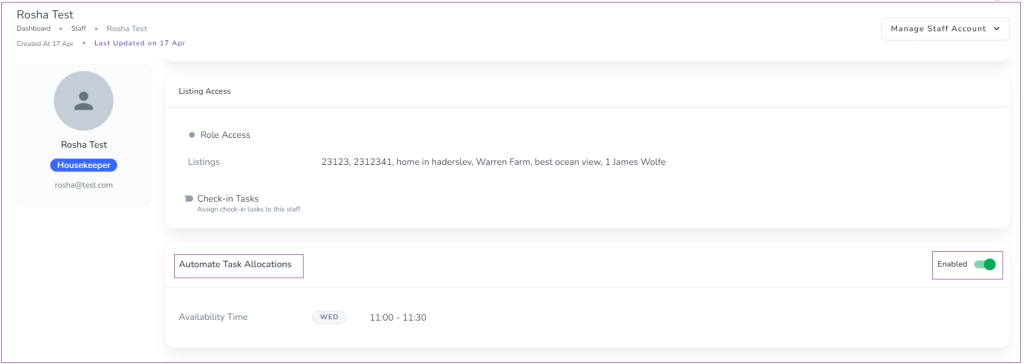
On the Staff dashboard, the Automate Task Allocate card is Disabled as default. It means that tasks will no longer be automatically assigned to Staff based on their availability. However, you can still assign Tasks manually in app.zeevou.com.
If you turn its toggle on, it gets Enabled and you can automatically allocate tasks to the Housekeeper. You can also edit Availability Time.
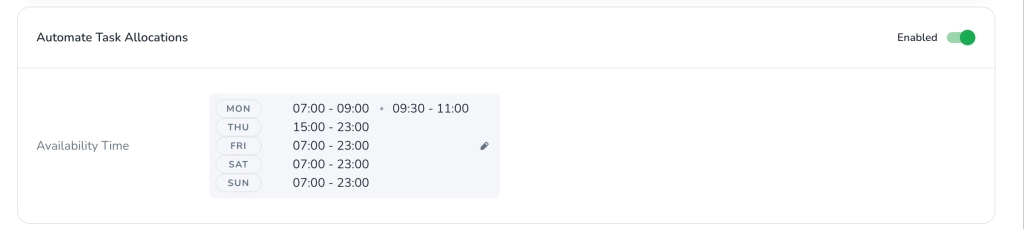
Note that the system should auto-assign all existing bookings to the team member(s). It runs the assignment process four times a day.
To do so or change its time manually:
Step 1: Go to the Tasks dashboard.
Step 2: Click the three dots of your desired Task.
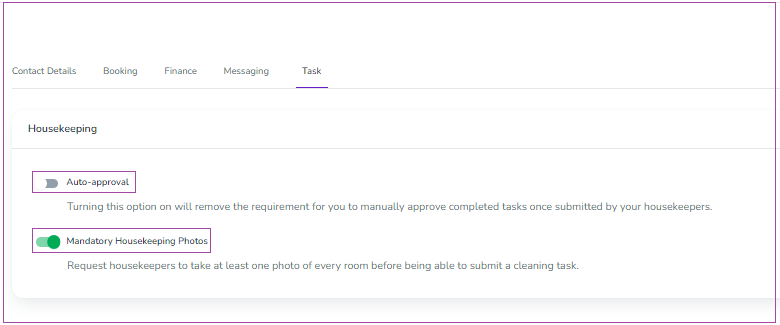
Step 3: A window opens in which you can select Change Priority, Add Note, Change Assignee, Change Time Frame or View Task.
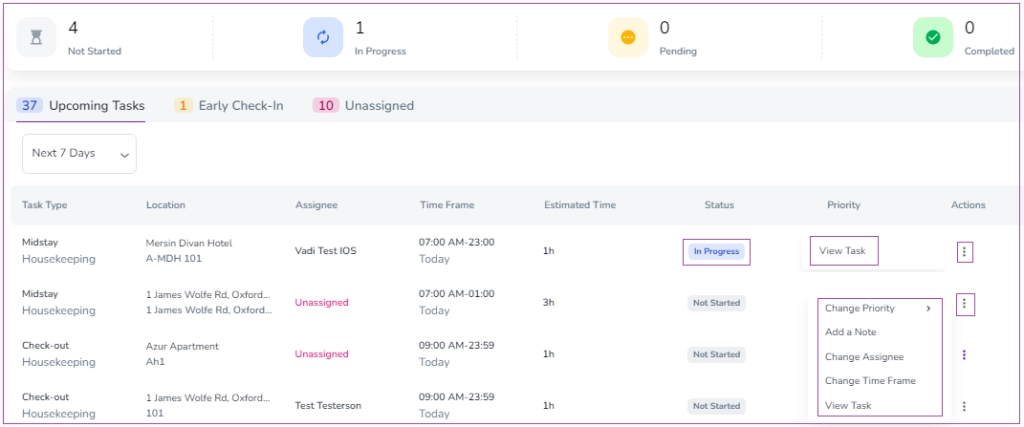
To do so, go to Brand Settings -> the Task tab -> the Housekeeping card and turn off the toggle of Auto-approval. This way, you can manually Approve or Reopen the task completed once submitted by your housekeepers. You can also turn on the toggle of Mandatory Housekeeping Photos to request housekeepers to take at least one photo of every room before being able to submit a cleaning task.
Note that you need to add spaces to manage the uploading of photos. To do so, navigate to Listings dashboard→ Details tab→Rooms & Spaces card and click Rooms and Spaces. You need to add at least one room or space to the unit.
Then, go to the Task dashboard and click on your desired Pending task. On the opened page, you can click Approve or Reopen the task after viewing the images.
Note that after approval, the status gets Completed and you will not be able to make any changes.
To edit a housekeeper’s listing access:
Click the gear icon and select Staff Management.
On the Staff Dashboard, click the three dots next to the relevant housekeeper.
Select View.
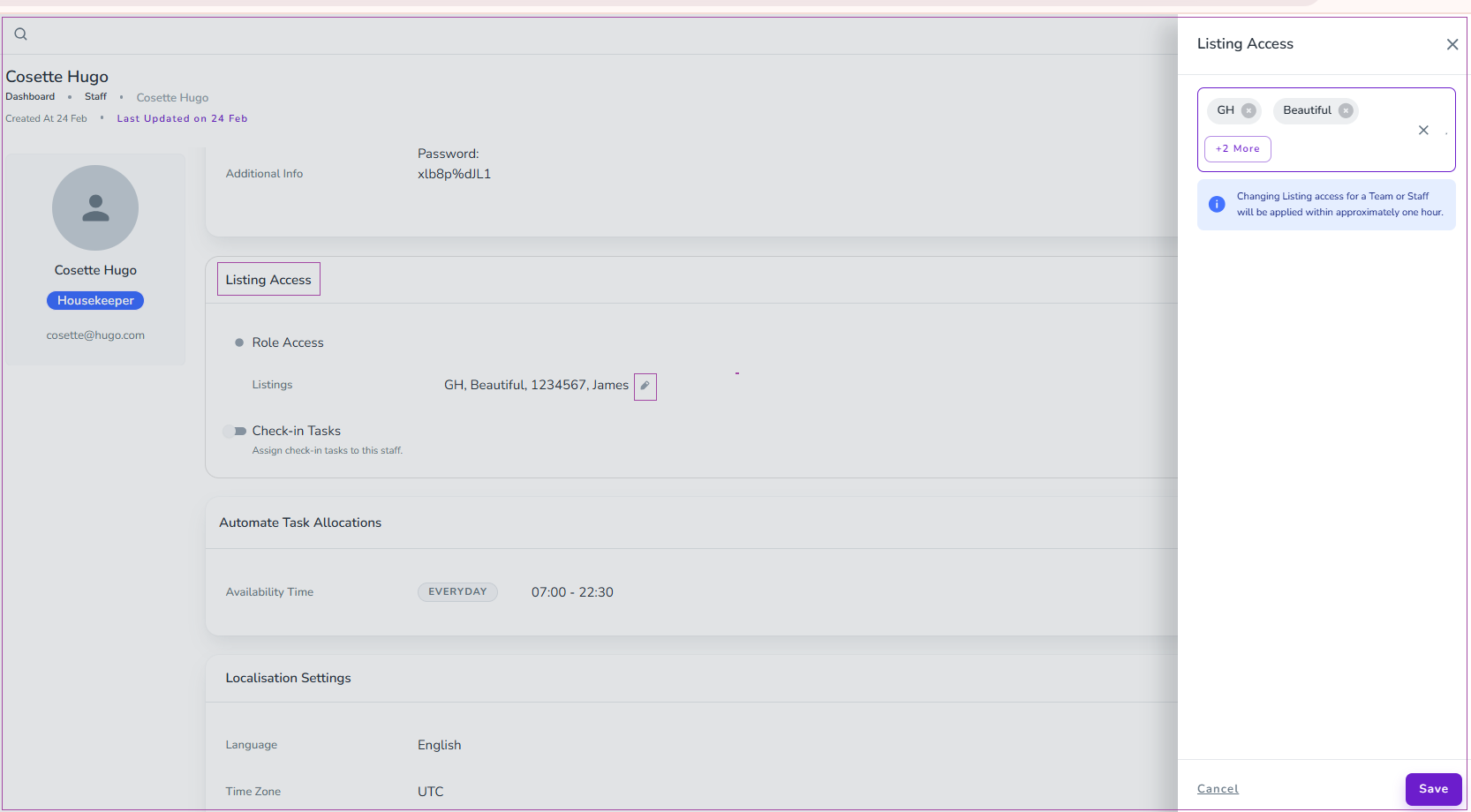
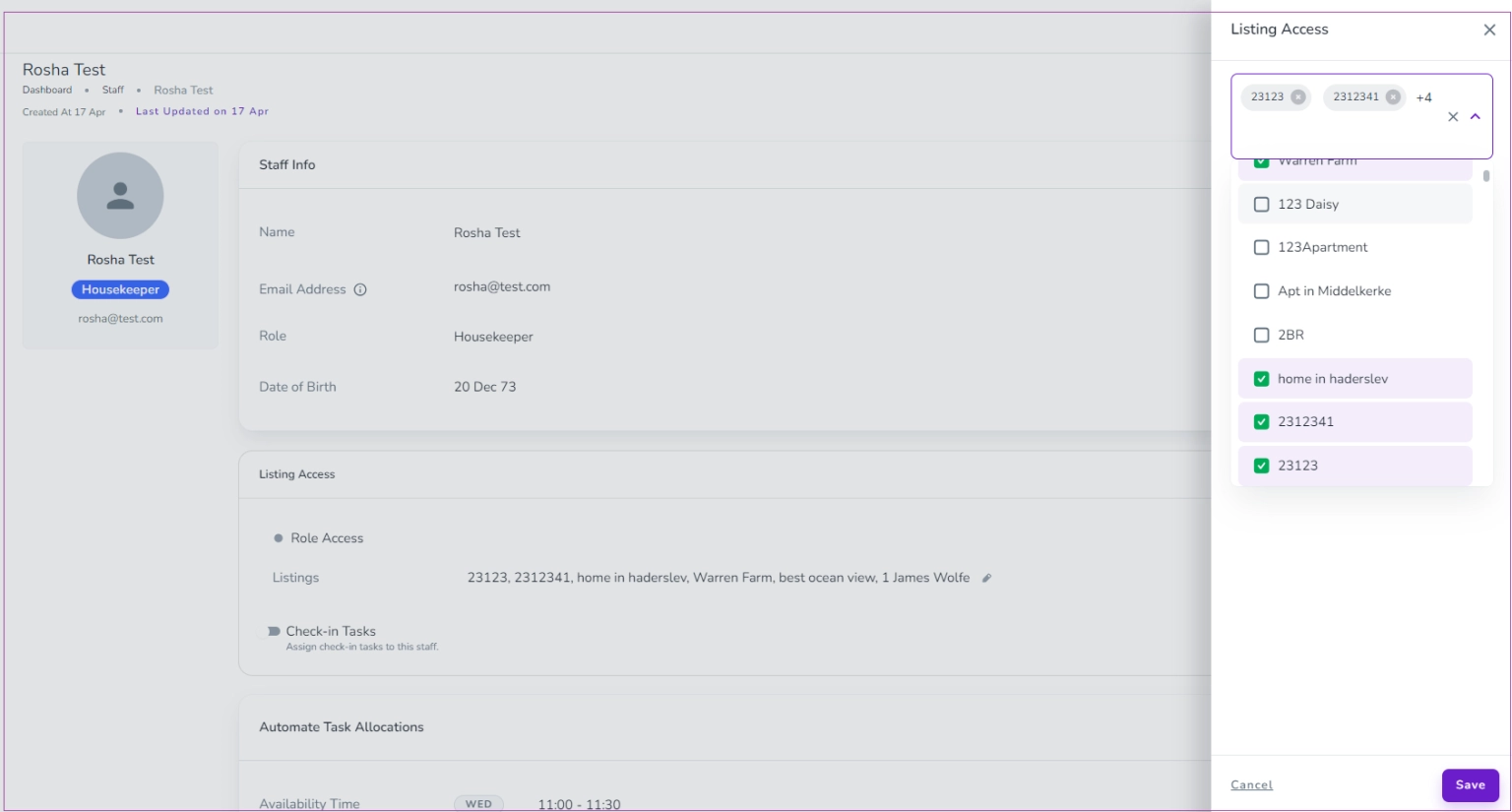
On the Listing Access card, click the pencil icon.
Update the listings as needed in the drawer that opens.
Click Save.
Note: Changes to listing access for a Team or Staff member are applied within approximately one hour.
You can assign different housekeepers to different properties. Please ask them to install the application on their mobile phones so that they can get the notifications. They can see the bookings on app.zeevou.com too.
Step 1:
Click the Settings (gear) icon and select Staff Management.
On the Staff Dashboard, click Create a New Staff to set up the housekeeper’s profile.
Important: Make sure to enable Automate Task Allocation and set the housekeeper’s availability.
If this is not enabled, the system will assume the housekeeper is unavailable and no tasks will be assigned automatically.
In the view mode of Housekeeper’s Profile, on the Listing Access card, turn on the toggle of Role Access. A drawer opens in which you can select the property.
To assign a housekeeper to a listing:
Go to your Listing.
Open the Operations tab.
On the Staff card, click Add Staff.
In the drawer that opens, select the staff member from the dropdown menu or click + New Staff to create one.
Click Add to confirm.
Automatic Task Assignment:
The system begins assigning housekeeping tasks automatically 30 days or less before the task start date.
Cleaner App Access:
Once tasks are assigned, cleaners can view them directly in their app.
Task Timing Logic:
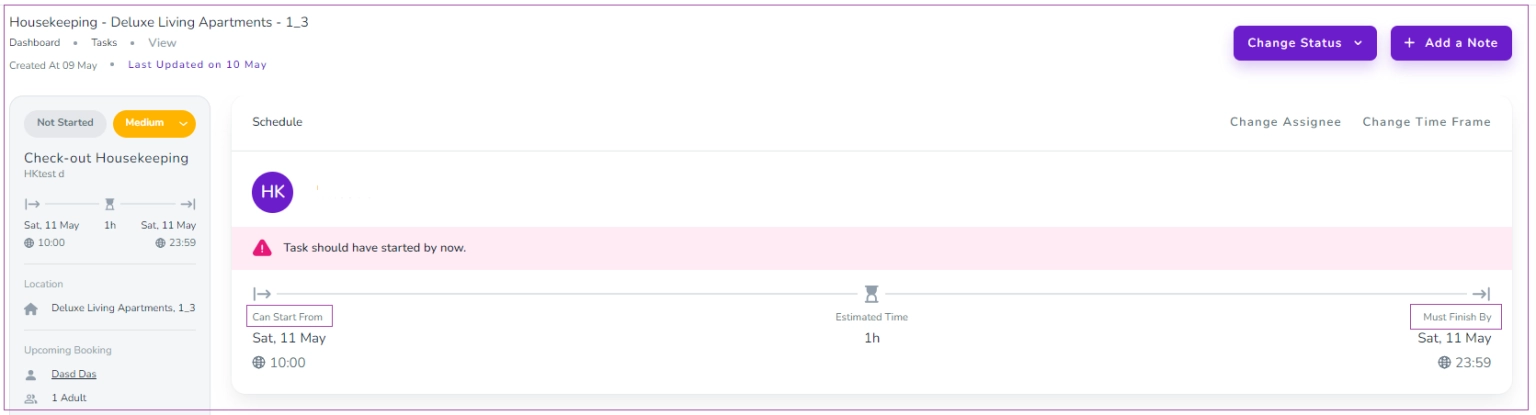
Can Start From is based on the last check-out time (or the default check-out time for that day).
Must Finish By is calculated as the next check-in time minus the Average Housekeeping Time set in the Unit Type.
Housekeeping tasks are distributed equally among team members based on their availability.
Go to the Staff Dashboard.
Click More and select Create a Team.
Enter a team name, e.g., Housekeeping Team.
Click Add Members.
In the drawer that opens, select existing staff from the dropdown or click + New Staff to create a member.
Click the three dots next to the team and select Edit.
In the drawer, choose the desired listing(s) from the dropdown menu and save.
Alternative Method: You can also go to Listings → Operations tab → Staff card, click Add Staff, and select your Housekeeping Team to assign the team to a listing.
To do so, navigate to Organisation Settings and open the Tasks tab. Under the Auto-Approval card, enable this option to automatically approve tasks submitted by housekeepers.
2.Enable Mandatory Housekeeping Photos
To do so, navigate to Organisation Settings and open the Tasks tab. Under the relevant card, enable Mandatory Housekeeping Photos to require housekeepers to upload photos of every room before submitting a task. This ensures all areas are properly checked and documented prior to completion.
