Before you start make sure you have an active ClickSend account and access to your ClickSend Username and API Key.
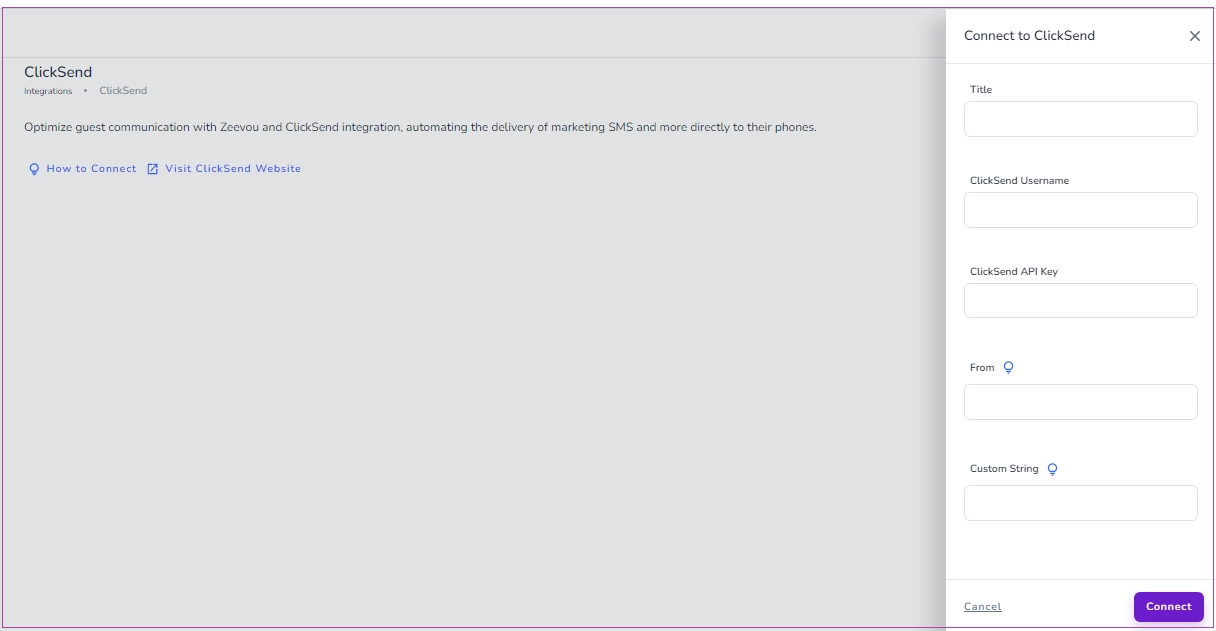
Go to Integrations → ClickSend.
Click Connect to ClickSend.
In the drawer that opens, enter a Title for your SMS panel.
Enter your ClickSend Username and ClickSend API Key.
In the From field, enter name or phone number you want to use for your SMS messages. Your name shouldn’t be longer than 8 letters. For more information, click here.
In Custom String, enter your brand or organisation name.
Click Connect.
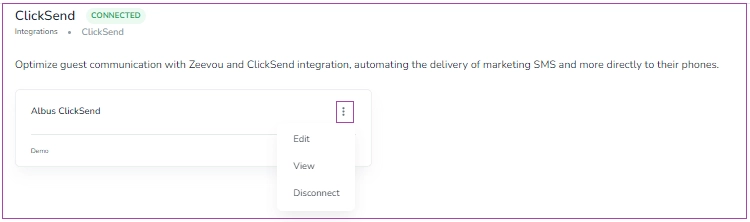
Note that when you are connected, you can click the three dots to Edit, View, or Disconnect your integration.
If you want guests to reply to your SMS messages and have their replies appear in Zeevou's Unified Inbox, you also need to configure an inbound rule in ClickSend.
Log in to your ClickSend account.
Open Messaging Settings.
Go to SMS/MMS → Inbound Rules.
Click Add New Rule.
Create a rule for your incoming SMS messages.
Set the Action to URL.
Enter the following as the Action Address:
https://hub.zeevou.com/webhook/inbound-sms
Save the rule.
This forwards incoming SMS replies to Zeevou so they can appear in the Unified Inbox.
Important: If you use the same ClickSend account for other SMS integrations, make sure your inbound rules are configured correctly. Otherwise, incoming messages may also be forwarded to Zeevou. If necessary, use

Each SMS Template can contain about 160 characters.
SMS is sent to recipients only if their numbers follow this format:
(+)(Country Code)(Mobile Number)
Example: +18889990000
Please make sure the carriers of the recipient country support alphanumeric sender ID.
If you send a message through ClickSend, it will not appear in Zeevou.
Go to your ClickSend account
Click Messaging Settings
Click Add New Rule.
Choose the rule name
Set the URL under Action
Insert https://hub.zeevou.com/webhook/inbound-sms as Action Address.
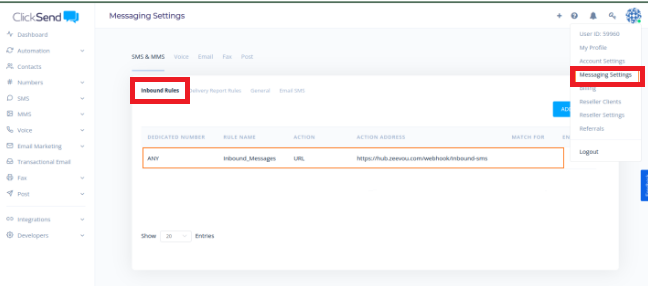
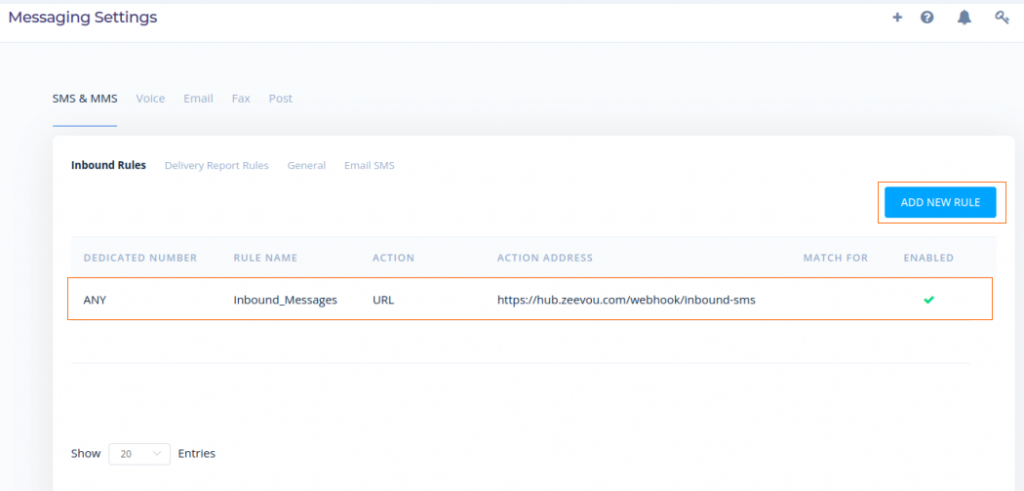
Note: This setting will lead to SMS replies to Zeevou. So, it is best that you use this Clicksend account only for connection to Zeevou. If not, please make sure that you set a Unique Identifier in Zeevou.
Your ClickSend integration is now connected. You can use SMS in Zeevou's communication workflows
Now that your email communication details are ready, continue to the next step in Design the Booking Journey.
