Empower your team by creating staff profiles in Zeevou. This guide explains how to add new team members, manage their roles, and connect them to your Unified Inbox for smooth communication.
Note: Each email address can only have one Zeevou account per organisation. You cannot invite an existing Zeevou user from another organisation.
Log in to app.zeevou.com.
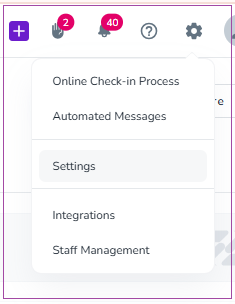
Click the gear icon on the top right.
Select Staff Management.
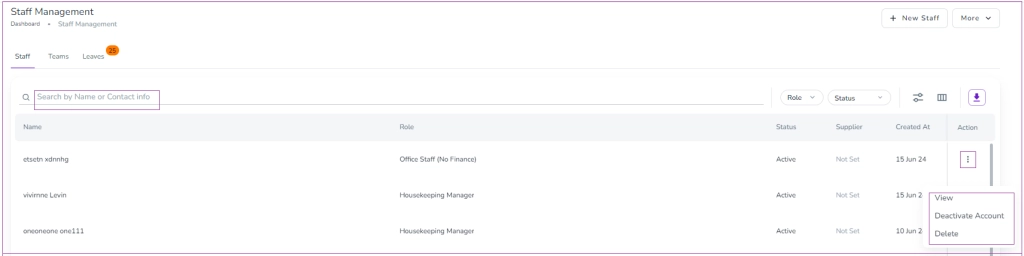
You will be directed to the Staff Management Dashboard, which has three tabs: Staff, Teams, and Leaves.
Click + New Staff to add a staff member.
Click the More arrow to create a Leave or a Team.

The Staff list shows:
Name
Contact Info
Role
Status
For each staff member, click the three dots to:
View
Delete
Deactivate / Activate Account
View and edit listing access.
Assign one role per staff member.
Turn on toggles for:
Role Access
Housekeeping Tasks
Maintenance Tasks
If disabled, tasks will be unassigned automatically.
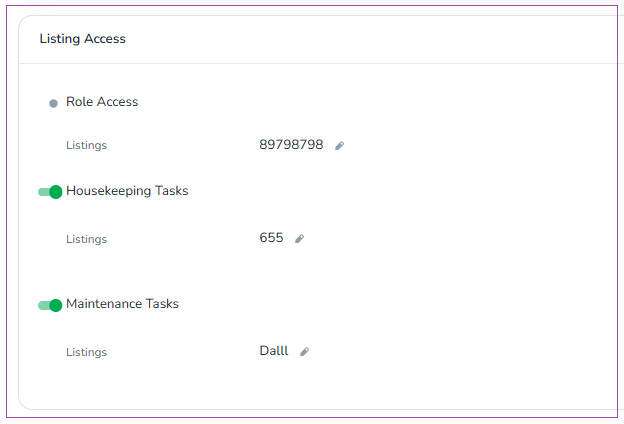
Disabled by default. Tasks are not auto-assigned.
Turn toggle on to enable automatic task allocation.
You can also edit availability times.

Update staff account settings for language, region, and formatting preferences.

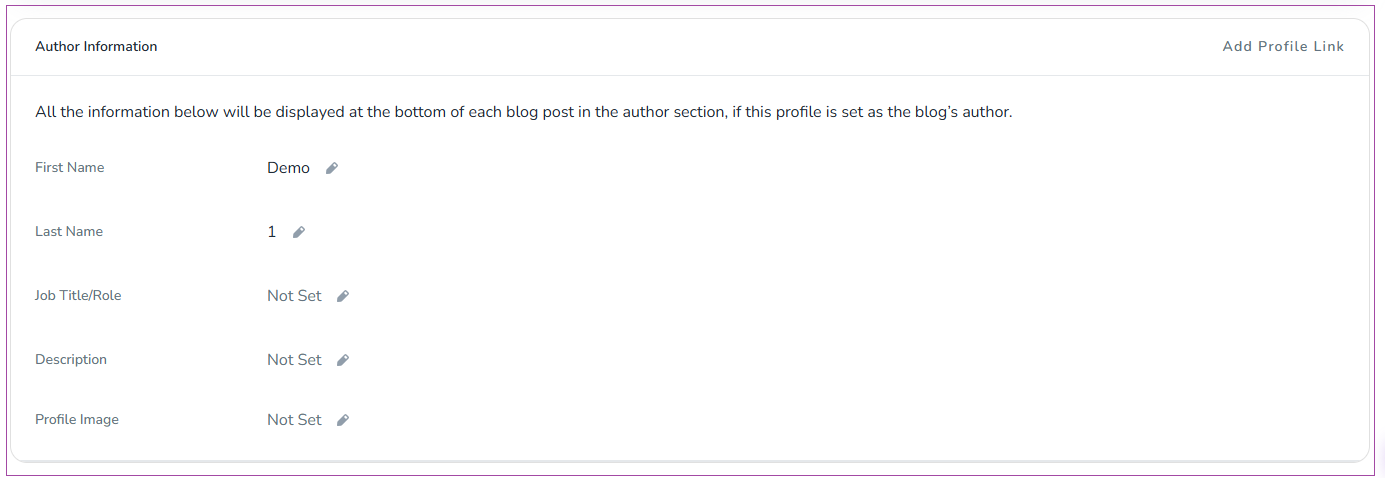
Configure details for blog authors.
This information appears at the bottom of each blog post.
On the top right of each staff page, click Manage Staff Account. Options include:
Add to Team
Reset Password
Generate Email Forwarding
Deactivate Account
Delete

Follow these steps to add a new staff member to your Zeevou account:
Go to Staff Management
Log in to Zeevou, click the gear icon, and select Staff Management.
Open the New Staff Drawer
On the top right of the Staff Landing Page, click + New Staff. A drawer will open where you can enter the staff information.
Enter Staff Details
Fill in the staff member’s name, email, and other required information.
Assign a Role
From the drop-down menu, select only one role for this staff member.
Create the Account
Click Create. The staff member will now have access based on the role you assigned.

Use the search and filter bars to find staff quickly.
Search by Name or Contact Info
Enter the staff member’s name or contact information in the search bar.
Filter by Role or Status
Click the downward arrow next to Role or Status.
Select your desired option from the drop-down menu.
Use the Filter Drawer
Click the Filter icon. A drawer will open.
Use the downward arrows to choose Role or Status.


Zeevou implements a sophisticated role-based access control (RBAC) system with 22 distinct roles organized into four main categories:
Host Roles (3 roles) - Property managers with varying subscription tiers
Office Staff (2 roles) - Administrative staff with organization-wide access
Owner Roles (7 roles) - Property investors with view-only access
Operational Staff (5 roles) - Frontline workers with task-specific access
Host roles are the primary subscription tiers for property managers running their operations.
Access Level: 91.7% (66/72 features)
Profile: Full-featured property management with complete operational control.
✅ Complete Access To:
✅ Inbox and guest communication (Saved Responses, Templates, Trigger Rules)
✅ Full calendar management (bookings, R&A, blocked dates)
✅ All tasks (Housekeeping, Maintenance, Issues)
✅ Complete listings management (properties, units, areas)
✅ All pricing tools (Rates, Promotions, Rate Rules, Dynamic Pricing)
✅ Staff and task management
✅ Channel management and marketing
✅ Full financial suite (Payments, Refunds, Taxes, Expenses, Invoices)
✅ Owner management (contracts, MPRs, deals, payment terms)
✅ Complete performance analytics (Sales, Occupancy, MPRs, Marketing)
✅ Supplier management
✅ All configurations and integrations
❌ Restrictions:
❌ Add-on Type (single restricted feature)
Use Case: Power users managing 10-200+ properties with complex operations requiring full system access.
Access Level: 68.1% (49/72 features)
Profile: Core property management without advanced operational tools.
Key Differences from Blaze:
✅ Guest communication (inbox, templates, messaging)
✅ Booking management and rates
✅ Basic financial access (Payments, Tax, Refunds, Invoices)
❌ NO Housekeeping, Maintenance, or Task Management
❌ NO Staff management
❌ NO Advanced pricing (Dynamic Pricing, Rate Rules)
❌ NO Financial accounting (Expenses, Payment Terms, Owner Deals)
❌ NO Performance analytics (Sales, Occupancy, MPRs)
❌ NO Supplier management
❌ NO Owner MPRs
Use Case: Smaller operators (5-20 units) managing their own properties without dedicated staff or complex financial tracking.
Access Level: 54.2% (39/72 features)
Profile: Basic property management with significant operational limitations.
Key Differences from Glow:
❌ NO Inbox access or guest communication
❌ NO Booking Request management
❌ NO Channel management
❌ NO Owner/contract management
❌ NO Financial transactions (Payments, Taxes, Channel Deals)
❌ NO Customer review management
✅ Can view bookings and rates
✅ Can manage property listings and settings
✅ Can create promotions
✅ Can process refunds and view invoices
Use Case: Very small operators (1-5 units) or those in managed arrangements where operations are handled by others.
Feature Category
Blaze
Glow
Spark
Guest Communication | ✅ Full | ✅ Full | ❌ None |
Task Management | ✅ Full | ❌ None | ❌ None |
Financial Accounting | ✅ Full | ❌ Basic | ❌ Basic |
Performance Analytics | ✅ Full | ❌ None | ❌ None |
Owner Management | ✅ Full | ✅ Full | ❌ None |
Pricing Control | ✅ Advanced | ✅ Standard | ✅ Standard |
Channel Management | ✅ Full | ✅ Full | ❌ None |
Staff Management | ✅ Full | ❌ None | ❌ None |
Office staff have organization-wide access and cannot have their permissions restricted to specific properties.
Access Level: 88.9% (64/72 features)
Profile: Administrative role with full financial control and org-wide access.
Key Characteristics:
✅ Automatic organization-wide access to ALL listings
✅ Full pricing controls (cannot be modified)
✅ Complete financial suite (all payment functions, taxes, expenses)
✅ All operational features (tasks, cleaning, maintenance)
✅ Owner management and contracts
✅ Performance analytics
❌ NO Add-on Type management
❌ NO Marketing tools
❌ NO Brand management
Use Case: Finance managers, operations directors, or virtual assistants who need full access to manage day-to-day operations and financials across the entire portfolio.
Access Level: 69.4% (50/72 features)
Profile: Administrative role without financial transaction authority.
Key Restrictions vs Finance Office Staff:
❌ NO Financial transactions in bookings (requires approval)
❌ NO Owner profile editing
❌ NO Deal templates or owner deals
❌ NO Performance analytics (Sales, Occupancy, Profit)
❌ NO Payments, Taxes, Channel Deals, Payment Terms
❌ NO Expenses (can only view invoices and process refunds)
❌ NO Staff management
✅ All operational features (tasks, cleaning, maintenance)
✅ Full guest communication
✅ Booking and calendar management
✅ Pricing and rate management
Use Case: Junior administrators, operations coordinators, or customer service staff who manage bookings and operations but shouldn't handle financial transactions or owner relationships.
Frontline workers with narrowly-scoped access for specific job functions.
Access Level: 15.3% (11/72 features)
Narrow Task-Focused Access:
✅ View housekeeping and maintenance tasks
✅ View Booking Calendar (nightly rates are visible by default when Property and Unit Type are selected under Display Settings)
✅ View issues
✅ View property details (house rules, check-in/out, location, rooms)
✅ View cleaning tasks and task lists
❌ Cannot see guest names or financial details inside bookings
❌ No access to Rates & Availability (R&A) Calendar
❌ No financial access
❌ No communication tools
Use Case: Housekeepers who need to see their task assignments and property details but shouldn't access guest information or financial data.
For more details on the difference between these two roles, see below.
Access Level: 15.3% (11/72 features)
Same access as Housekeeper Blaze:
✅ View and manage cleaning/maintenance tasks
✅ View R&A calendar (availability, not guest names)
✅ View property information
❌ No guest information
❌ No financial access
Use Case: Supervisors managing housekeeping teams without needing guest or financial access.
Access Level: 12.5% (9/72 features)
Guest-Facing Role:
✅ View guest names (Individuals & Companies)
✅ View booking calendar with names
✅ View issues
✅ View property details (house rules, check-in/out, location)
❌ No task management
❌ No financial access
❌ No booking creation/editing
Use Case: Front desk staff or check-in coordinators who greet guests and need to know who's arriving but shouldn't edit bookings or access finances.
Access Level: 29.2% (21/72 features)
Expanded Front Desk Role:
✅ Full inbox access and guest communication
✅ View guest names and booking calendar
✅ View booking list and booking requests
✅ View all tasks (housekeeping, maintenance, issues)
✅ Create blocked dates
✅ View and edit cleaning/maintenance
✅ Marketing and instructions access
❌ Cannot create or edit bookings
❌ No pricing/rate management
❌ No financial transactions
❌ No listing management
Use Case: Receptionists who communicate with guests and coordinate operations but don't handle bookings or finances.
Access Level: 1.4% (1/72 features)
Extremely Limited Access:
✅ View R&A (Rates & Availability) Calendar ONLY
❌ Everything else restricted
Use Case: External sales agents or referral partners who need to check availability to book guests but have no access to operational details, guest data, or financials.
Access Level: While a Financial Office Staff has access to all the accounting and MPRs, a No Finance Office Staff does not have access to the accounting and MPRs.
There are other areas to which a No Finance Office Staff has no access, such as:
Invoices in a Booking
Refund in a Booking
Finalisation in Booking Status
Although No Finance Office Staff can set checked out in a Booking Status, they cannot finalise that Booking.
Manual Payment Button
Payments
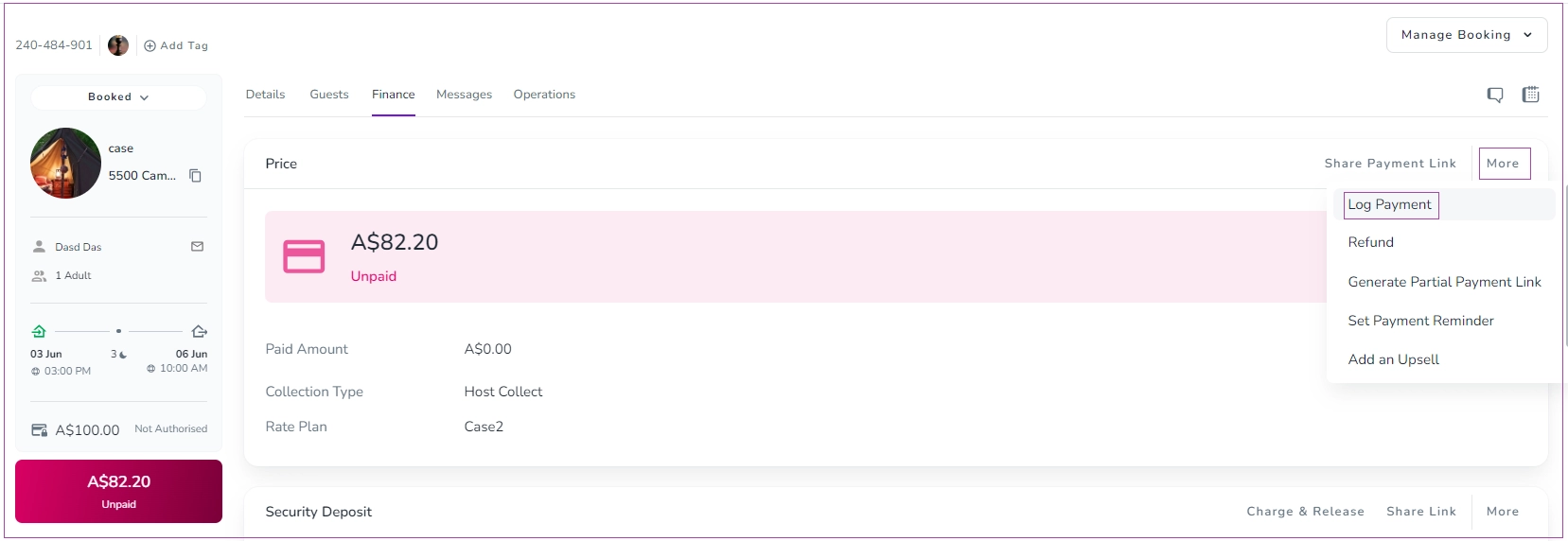
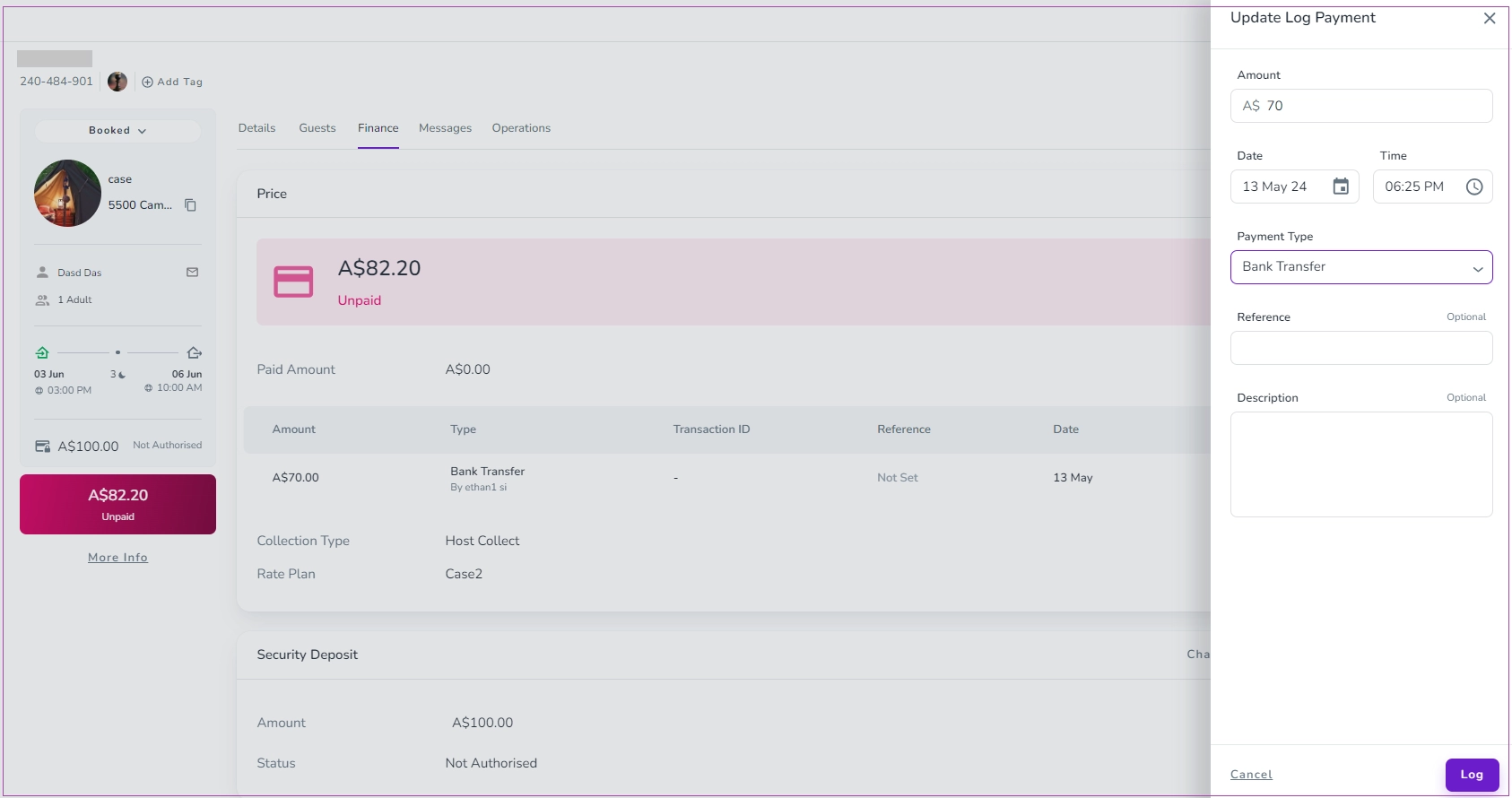
No Finance Office Staff can only log a payment in a Booking whose status becomes Pending . To do so, go to Finance tab and click on More. Then, select Log Payment. on the open drawer, you can enter the Amount and select the Payment Type. Finally, click on Log.
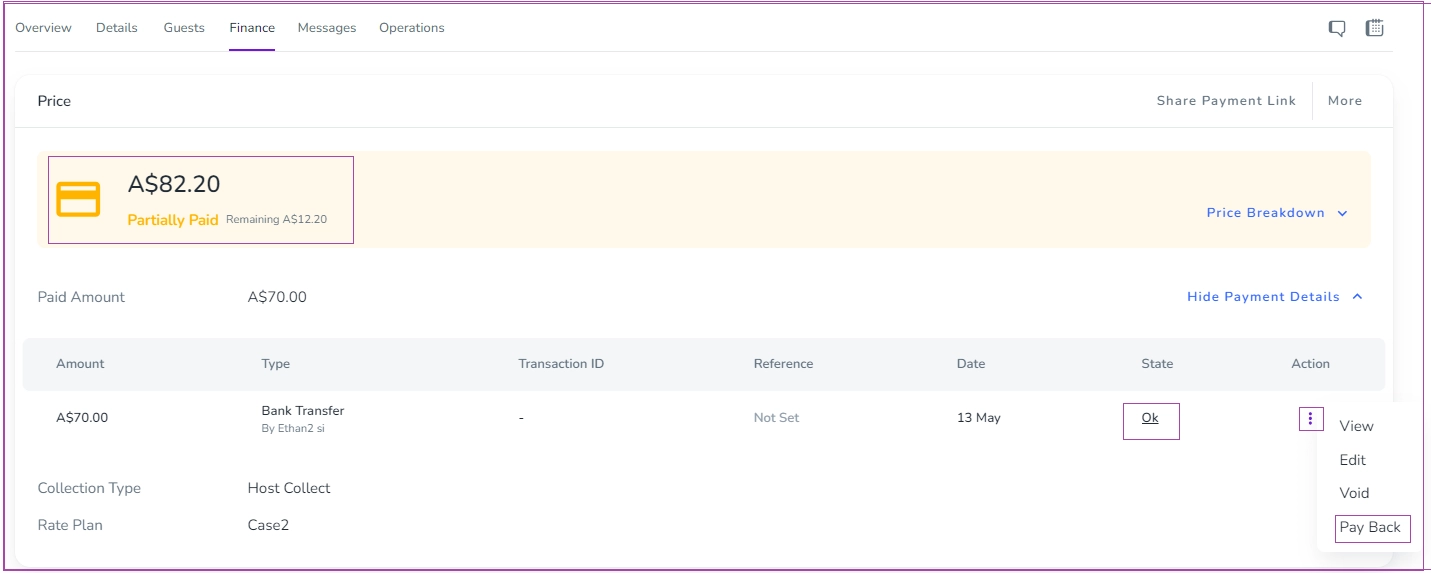
No Finance Office Staff can only View, Edit, or Void the payments which are on Pending by clicking on the three dots on the right.
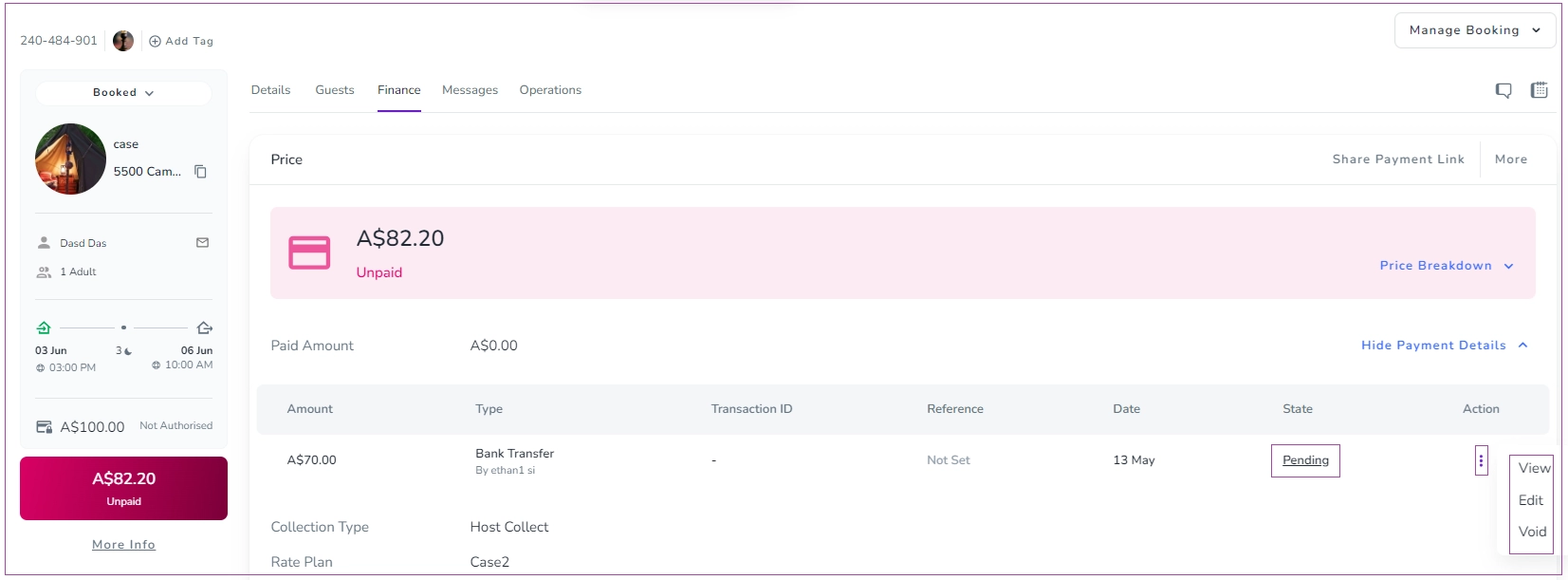
By clicking on the Edit button, the Update Log Payment window will pop up, and you can make changes. Finally, click on Log.
Security Deposits Charges and Captures:
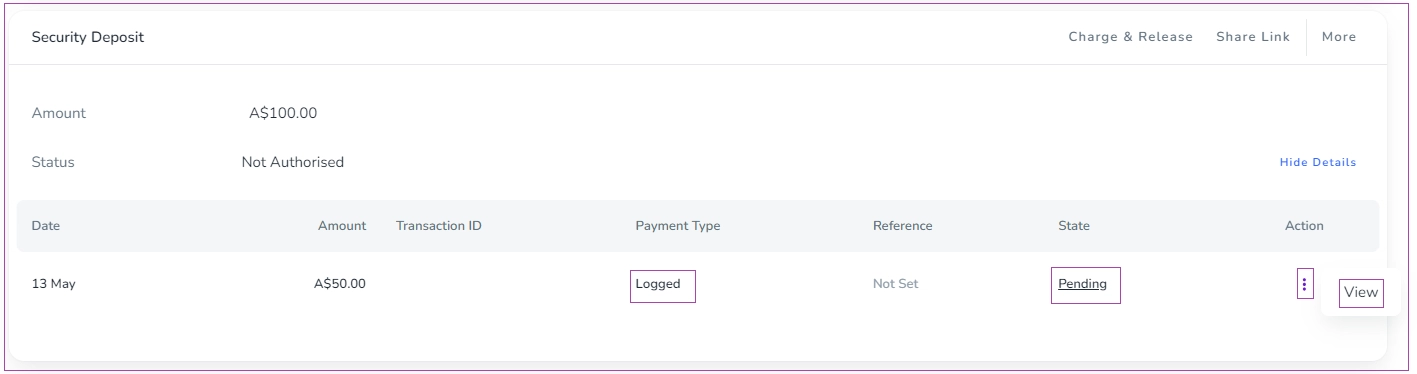
The same process and rules apply for logging and editing the Security Deposits:

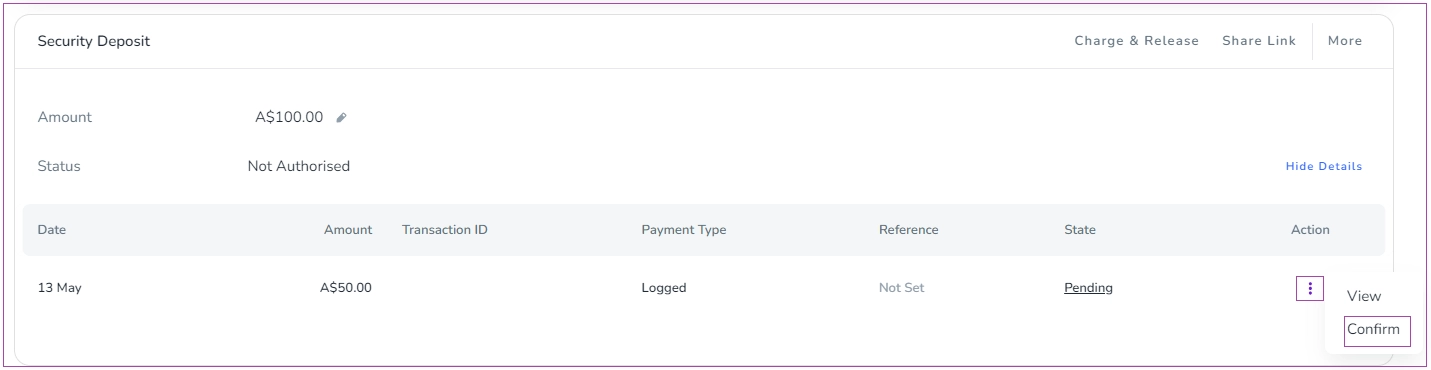
Note: The Pending status made by No Finance Office Staff would be as below.
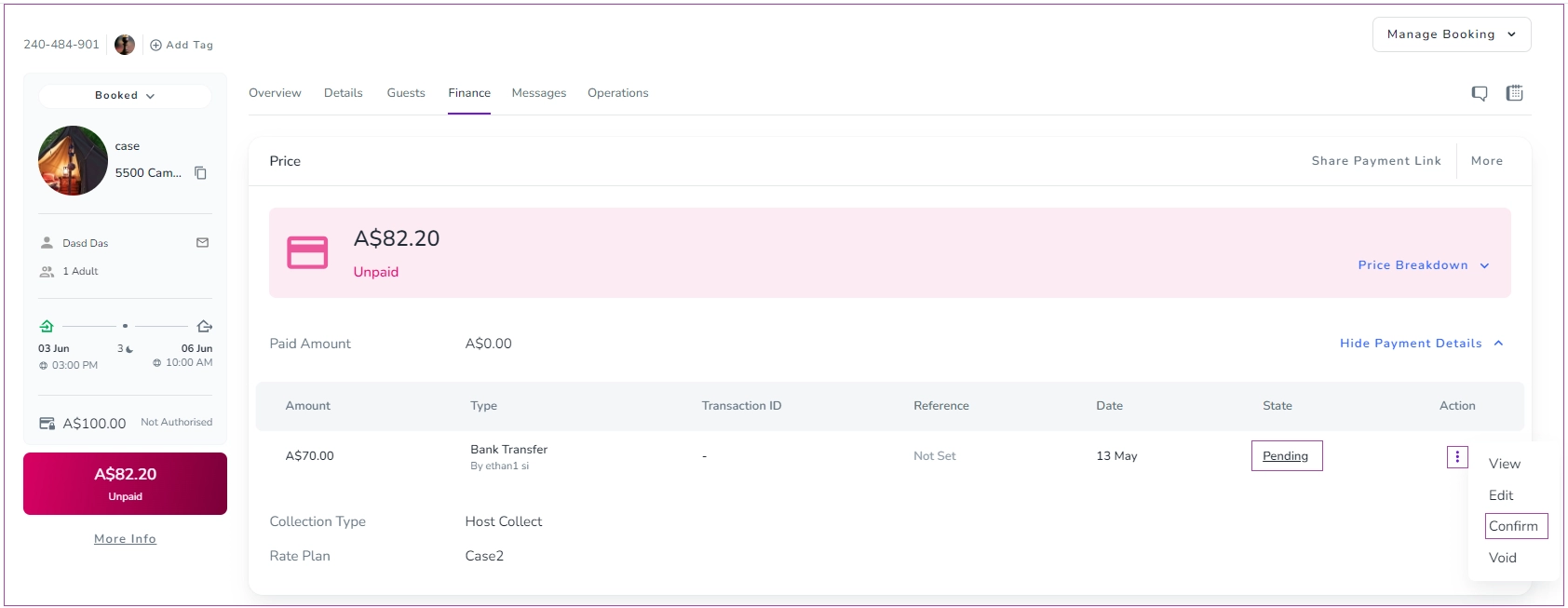
Financial Office Staff can not only View, Edit, or Void a Payment, but also confirm a Pending Booking by clicking on the three dots on the right:
When Confirm is clicked, a pop-up window opens like the one below:
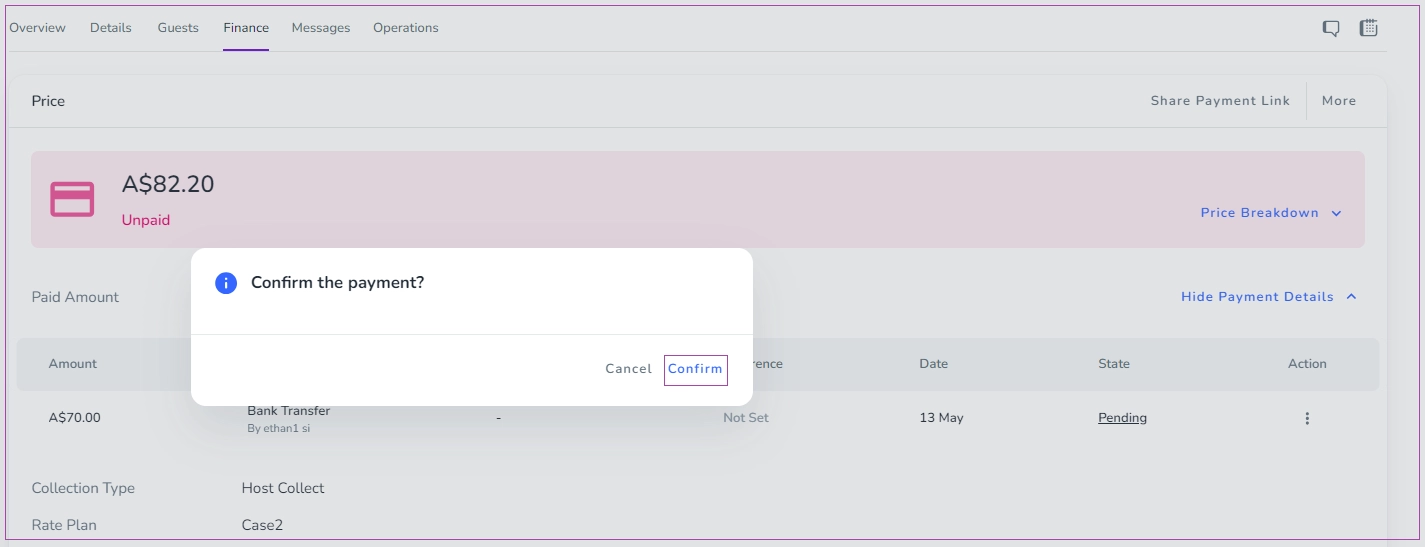
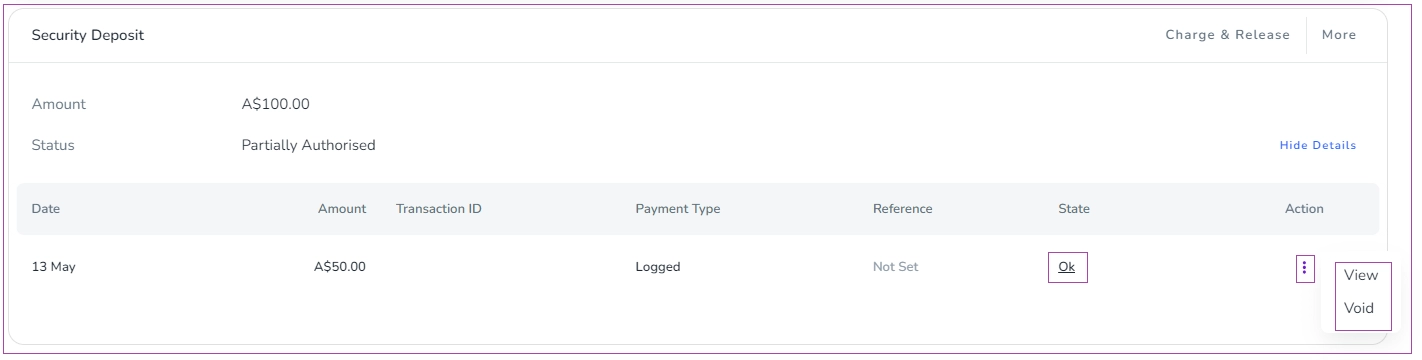
If Confirm is clicked, the payment is confirmed and the status changes to Ok.
Security Deposits
The same process and rules apply for confirming and editing the Security Deposits: