Promotions help you control pricing strategically and encourage more direct reservations. You can create percentage or fixed-amount discounts with specific conditions and usage limits.
Yes - if you want to offer guests a discount based on specific conditions, run a promotional offer, encourage longer stays, or create a voucher code.
No - if you are not offering any discounts at this stage. You can continue to configuring your taxes.
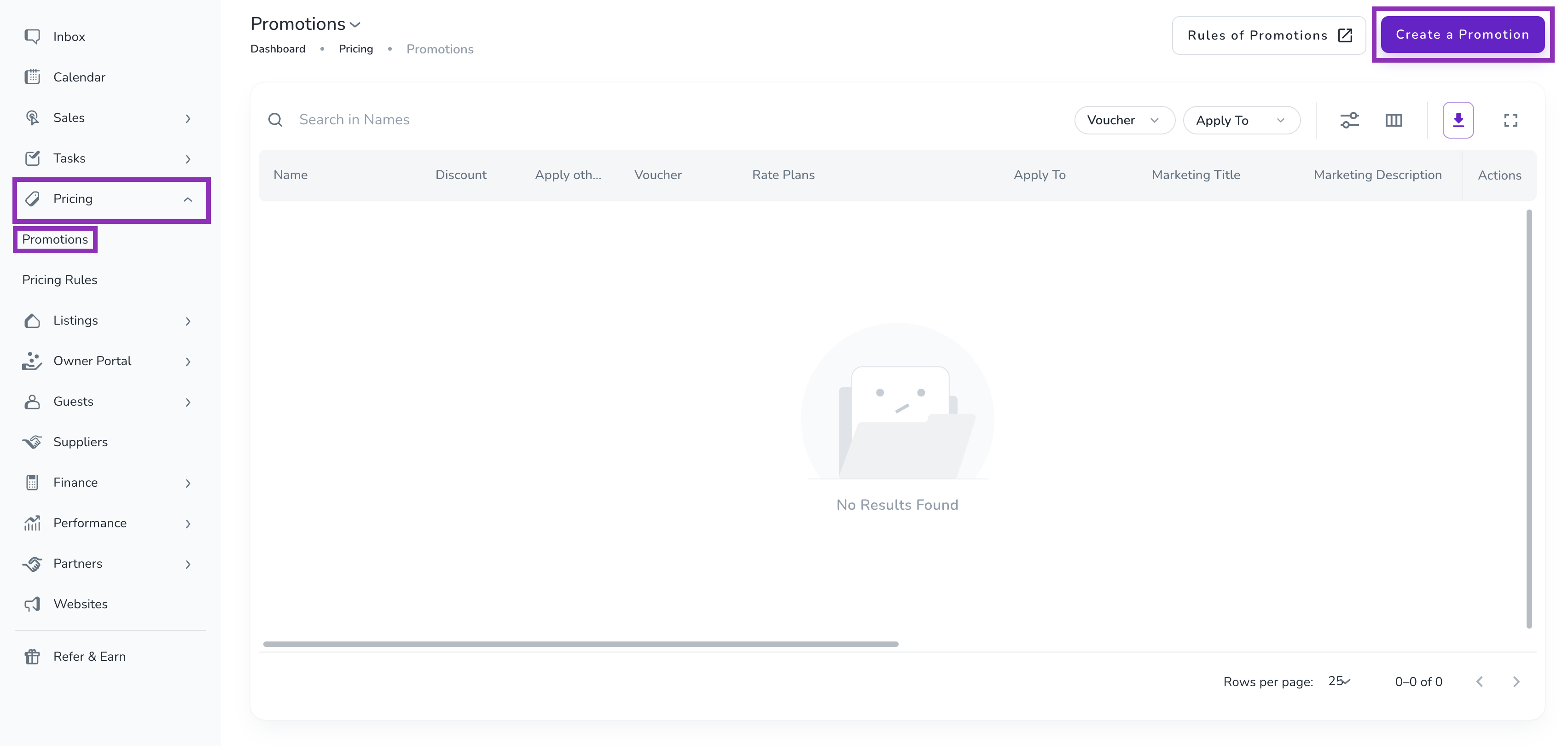
Navigate to Pricing > Promotions
Click Create a Promotion in the top-right corner
Important: For percentage-based promotions, the discount only applies to fees that have "Included in Nightly Price" enabled in your rate plan.
Complete these five sections:
Internal Name: A unique name for your reference
Discount Type: Choose Percentage or Fixed Amount
Discount Amount: Enter the value
Description: Add internal notes (optional, not visible to guests)
Toggle on any conditions you want to apply:
Minimum nights
Minimum guests
Booking date range
Arrival date range
Other restrictions
Make your promotion visible to guests:
Toggle on Display Marketing Information
Add a Marketing Title for your Direct Booking Website (optional)
Add a Marketing Description to explain the discount (optional)
Promotion Limit: Toggle on to set how many times this promotion can be used.
Voucher Code: Create a code guests must enter to receive the discount.
Promotion Stacking: Allow multiple promotions to be combined (optional).
Note: You can only enable Promotion Limit OR Voucher Code, not both.
Managing Voucher Codes:
Click the Delete icon to remove a code
If unused in bookings: click Remove
If used in bookings: click Decrease Limit instead
Choose where your promotion applies:
Sources:
Direct Websites and Manual Bookings - Applies only to bookings through your website or manually created in Zeevou
Channels - Applies to OTA bookings (Connection Type A only)
Note 1: Promotions created in Zeevou are supported in a channel only when that channel has no limitation on accepting promotions. Currently, promotions created in Zeevou for Type A connections can only be applied in Airbnb, VRBO, and HomeToGo.
Note 2: If a promotion created in Zeevou includes any of the conditions below, it cannot be published on OTAs:
Fixed Amount Discount
Accommodation Price
Number of Guests
Booking Date Range
Arrival Date Range
Voucher Code
Rate Plans:
All Possible Rate Plans - Automatically applies to all existing and future rate plans
Specific Rate Plans - Choose which rate plans to include
Note: Selecting "All Possible Rate Plans" means future rate plans will automatically include this promotion.
From the Promotions Dashboard:
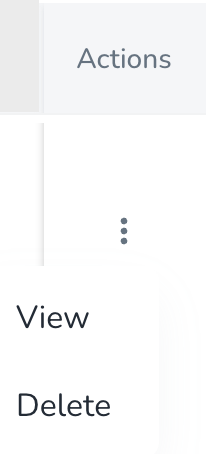
Click the three dots under Actions to View or Delete
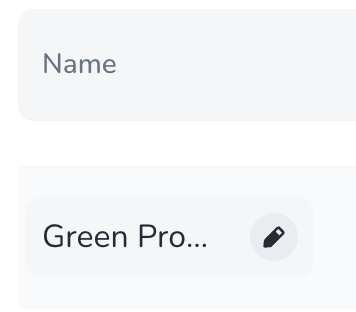
Hover over a promotion and click the pencil icon to edit the Name or Discount
Click the columns icon to customise what information displays in the table
To add long-stay discounts to your website:
Go to Pricing > Promotions in your Zeevou dashboard.
Click New Promotion.
Set a Minimum Nights condition based on your desired long-stay threshold.
Under Apply To, select the rate plans you want the discount to apply to.
Save the promotion.
Once created, the discount will automatically apply to eligible bookings made through your direct website.
To offer a discount for bookings made within a certain number of days before check-in (e.g., within 5 days), follow these steps:
Go to Pricing > Pricing Rules in your dashboard
Click Create a Pricing Rule
Choose the ‘Last Minute Bookings’ rule type
Set the condition — specify the number of days before check-in (e.g., 5 days)
Add your discount — enter the percentage or fixed amount you want to offer
Save the rule.
Once your promotions and discount codes are set up, continue to configuring your taxes.
