Your listing already has a base rate plan. Use this guide if you want to create additional rate plans or change how an existing rate plan is presented and applied.
A rate plan defines the price and booking conditions guests receive when they book your accommodation.
Depending on the rate plan, you can set:
Nightly, weekly, or monthly pricing
Weekday and weekend prices
Minimum and maximum stay
Additional charges for extra guests
Security deposits and cleaning fees
Where the rate plan is available, such as your Direct Booking Website or connected Channels
You can set a Website Display Name for your rate plans to make them clearer and more appealing to guests on your website.
Go to Listings → Unit Types.
Open the Pricing & Availability tab.
In the Rate Plans card, click View/Edit Details for the rate plan you want to update.
In the Website Display Name field, enter your preferred marketing name.
Click Save & Close.
Click the pencil icon next to the Website Display Name.
Update the name as needed.
Click Save & Close to apply the changes.
Go to Listings → Unit Types.
Open the Pricing & Availability tab.
Navigate to the Rate Plans section.
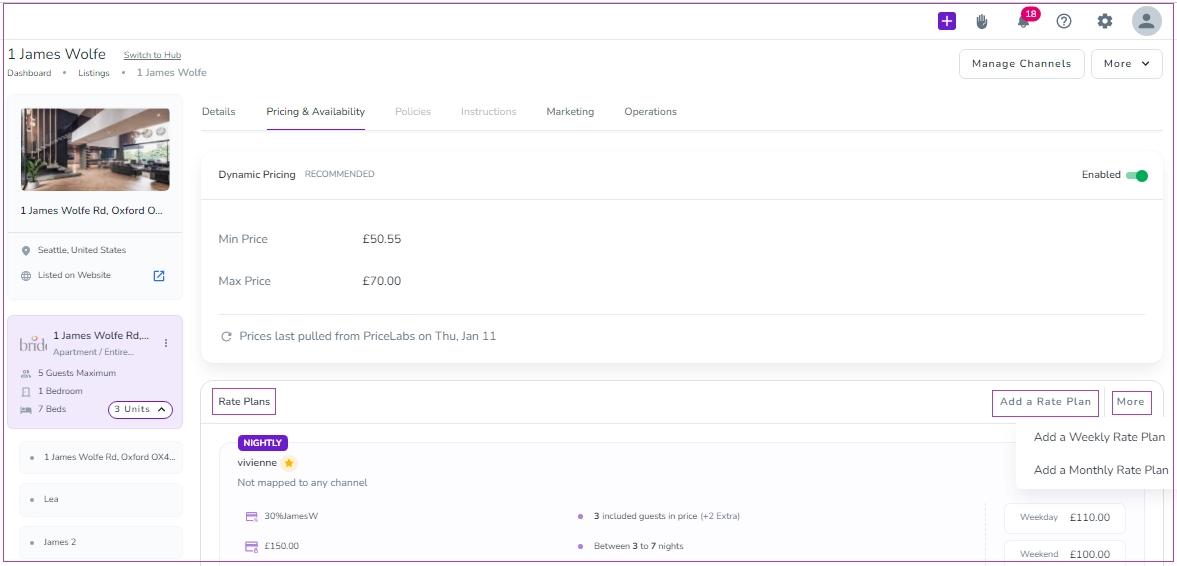
Click Add a Rate Plan under the Nightly Rate Plan
For a weekly or monthly rate plan, click More and select Add a Weekly Rate Plan or Add a Monthly Rate Plan.
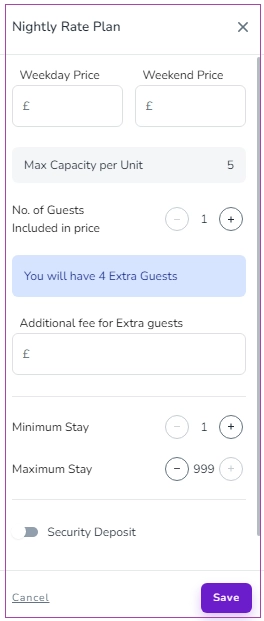
Enter the Weekday Price and Weekend Price.
The Max Capacity per Unit is fixed.
Add an Additional Fee for Extra Guests, if applicable.
Set the Minimum Stay and Maximum Stay.
Turn on the Security Deposit and/or Cleaning Fee toggle if required.
After completing the fields, click Save.
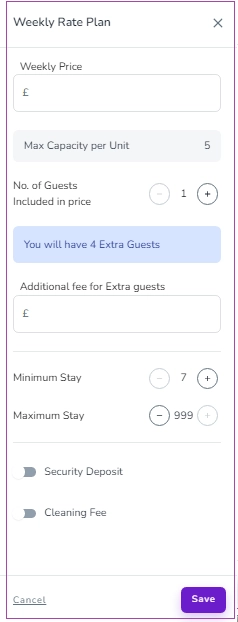
Enter the Weekly or Monthly Price.
The Max Capacity per Unit is fixed.
Add an Additional Fee for Extra Guests, if applicable.
Adjust the Minimum Stay and Maximum Stay as needed.
Enable the Security Deposit and/or Cleaning Fee toggle, if required.
Once you have completed the settings, click Save.
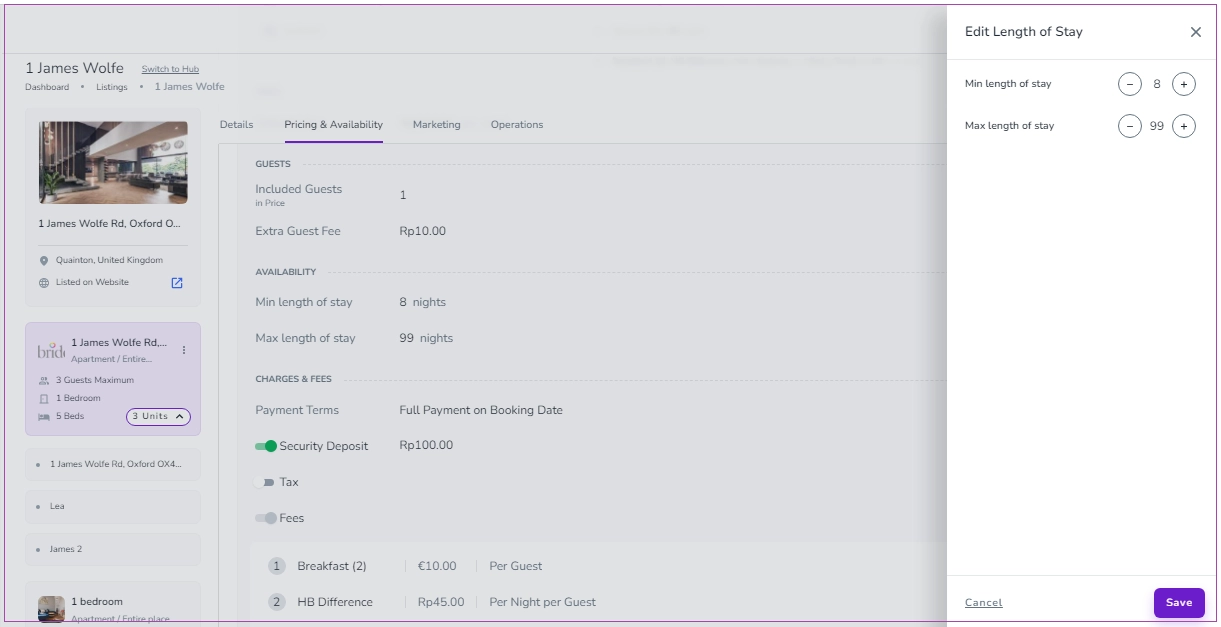
To set the minimum stay for a Property/Unit Type/Unit and get it applied to channels, you need to follow these steps:
Go to Listing-> Pricing & Availability tab -> Rate Plans card, and select your desired one.
Click View/Edit Details.
Under Availability, click Min/Max length of stay.
Then, a window opens and click Proceed.
Then, a drawer opens in which you can set the Min/Max length of stay.
Finally, click Save.
Note: You can set different min stays for different days of the week.
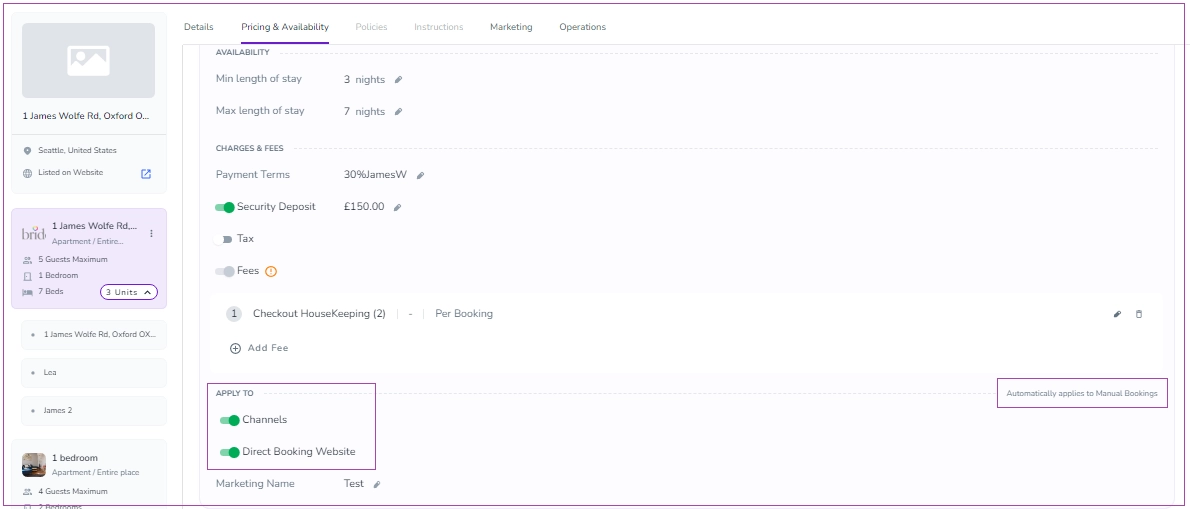
When you create a rate plan, it is available for Manual Bookings by default. You can also control whether the rate plan is available on your:
Direct Booking Website
Channels
When you create a rate plan, the toggles of Direct Booking Website and Channels are on by default. You can disable them by turning off the toggle(s).
Go to Listings < Unit Types.
Navigate to the Pricing & Availability tab.
Open the Rate Plan card.
Click View & Edit Details.
Scroll down to select where the rate plan should be available.
Once you’ve managed your rate plans, you can move on to adding any applicable fees and associated costs based on your business needs.
