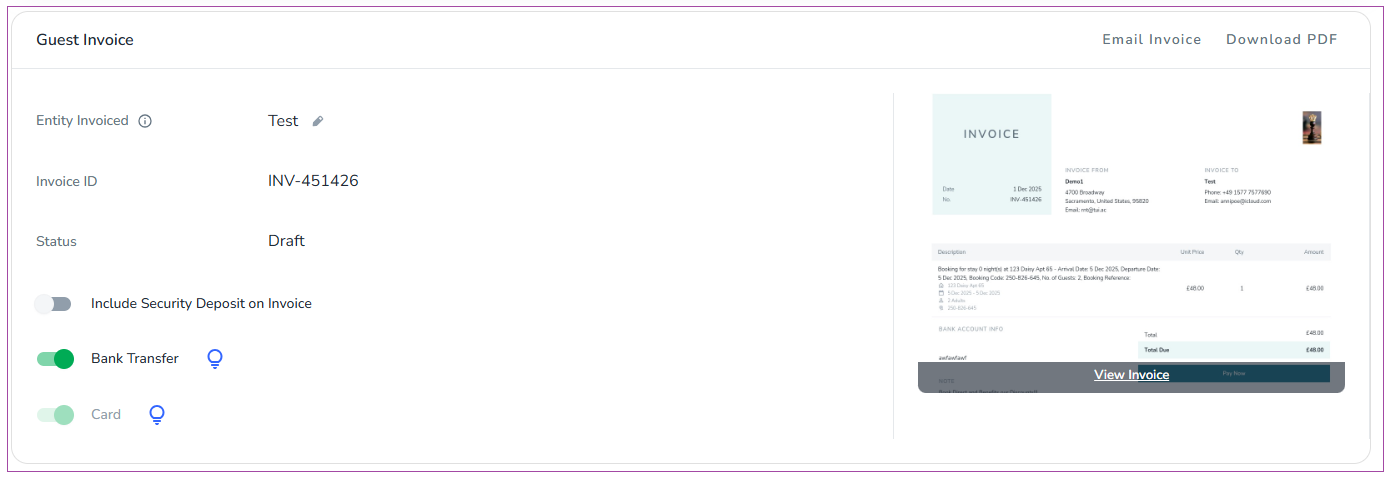
Invoices refer to the documented payments that a Guest should pay. Each Guest Invoice is displayed in their Booking page under the Finance tab.
To view the Invoices grid from the Zeevou menu, go to Finance -> Invoices. You can view the Invoices Table, including Recipient, Doc No & Status, Date Range Covered, Amount, Booking No., Remote No., Xero Status, Description, Created At, and Action.
In the invoice page, you may see different statuses for an invoice: Draft, Completed, Posted and Voided.
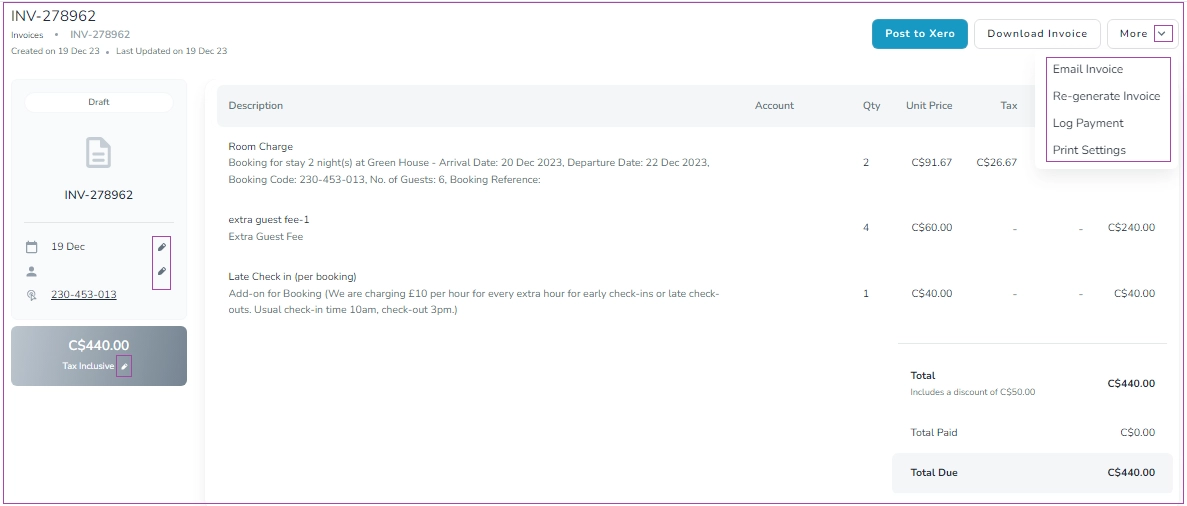
If the Doc Status shows Draft, the invoice is still subject to new changes. You can click the More button and select Re-generate Invoice to generate the latest version of the invoice.
If the Doc Status shows Completed, the guest has checked out and the invoice changes have been finalized. If needed, you can click the Post to Xero button. Please note that Post to Xero button is available only if you have activated your integration with Xero. For the Completed status, you can also click the Change to Draft button and click Re-generate button to apply the latest changes.
If the Doc Status shows Posted, the invoice has already been posted to Xero. In these cases, the Void button will appear to let you void the posted invoice.
If the Doc Status shows Voided, the posted invoice has been voided. You can apply new changes, regenerate the invoice, and post it again.
You can search by Doc or Booking No. through the Search bar or different filters. There are two default filters for Start & End Date. You can apply other filters by clicking on the Filter icon. You can also click the Download icon to have the invoice in XLSX or CSV file format.
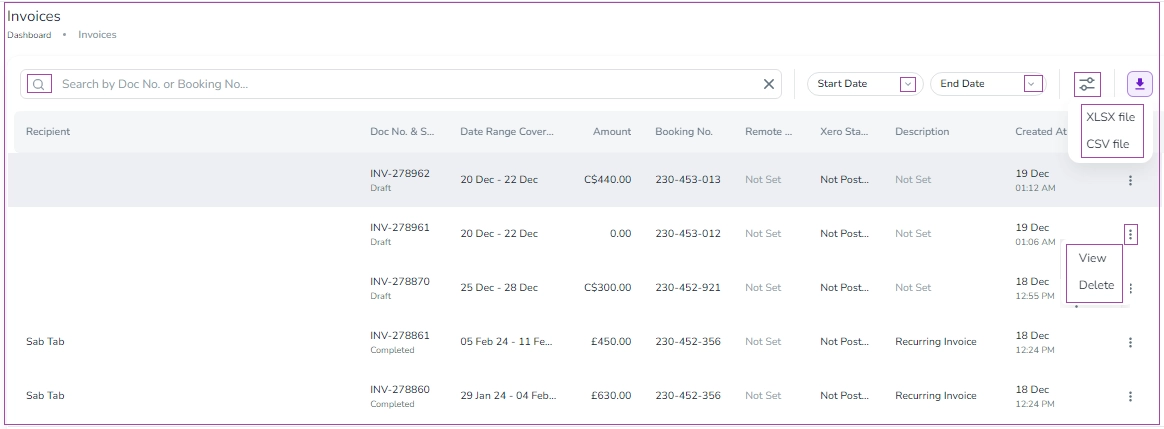
You can click the three dots under Actions to View or Delete each invoice. You can also click each invoice to view it. On the opened page, you can view invoice details including Description, Account, Quantity, Unit Price, Tax, Discount, and Total.
You can also click Post to Xero, Download the invoice or More, to select Email Invoice, Re-generate Invoice, Log Payment, and Print Settings. Moreover, you can edit Doc Date and Entity Invoice by clicking their respective pen icons.