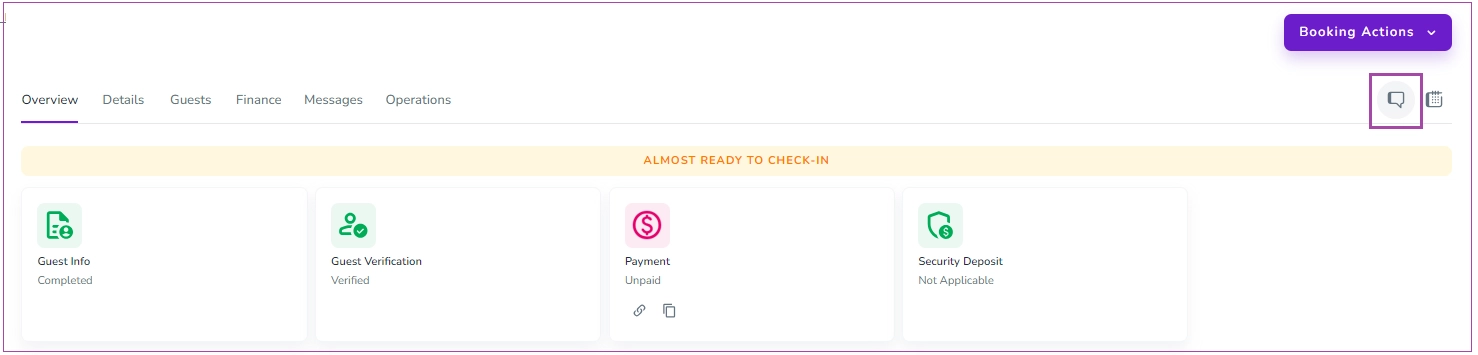
Never miss a message! The Messages Tab on the Booking View Page lets you track all your automated messages and control your notifications.
You can see all Automated Message Notifications for a booking and their status:
Sent (green): Click to Preview or Try Resending under the Scheduled Automated Messages card.
Sending: Click the eye icon to Preview the message.
Pending (not green): Message will send when its condition is met. Click Send Now or Preview if needed.
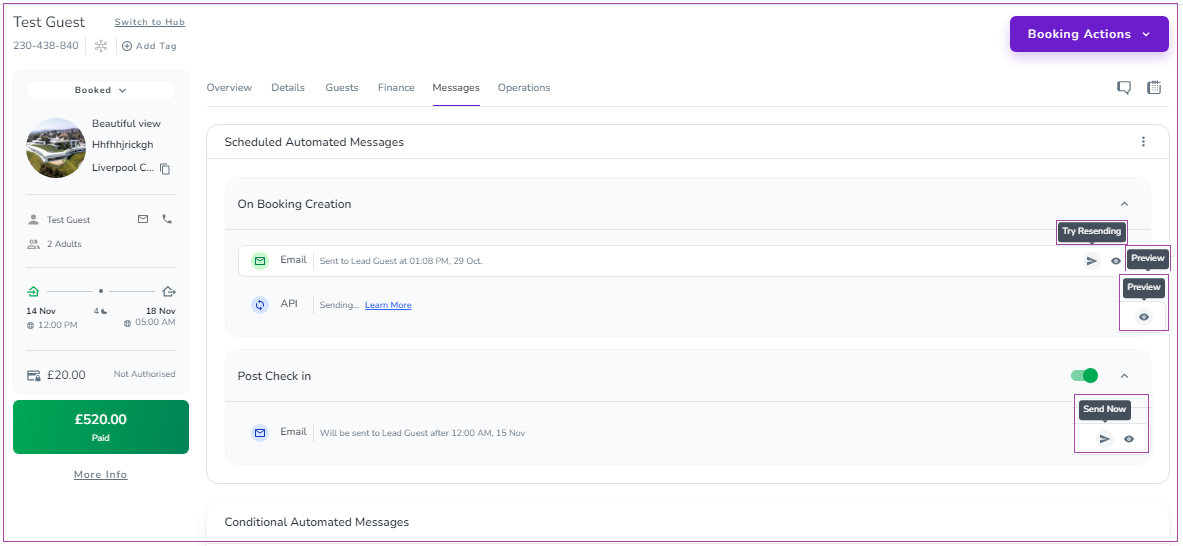
Ensure your messages are always sent. Use the Messages Tab to monitor statuses, send immediately, or retry failed messages.
For other messages not created by automated messages, click the Unified Inbox icon at the top right of the Booking View Page to see all communications (email, SMS, or API notifications) sent to your guest.
Checking Guest Notifications
To see if an email, SMS, or API notification has been sent to a guest:
Go to the Booking View Page.
Click the Unified Inbox icon at the top right.
A window will open showing the details of all notifications sent to the guest.