Get to know your guests better with the Guests Tab of the Booking View! The Guests tab includes Lead Guest and Additional Guests, which can be verified and edited based on the Online Check-In Process Settings.
As you need to vet your guests before sending them the property’s access information, Zeevou needs your manual approval when required. Once payment and security deposits have been collected, and the terms and conditions have been signed, it’s your turn to approve the guest before access instructions are sent out. ID verification is not automatically done in Zeevou. This step is there so that you can make sure all the gathered information (the signature or the ID) is correct.
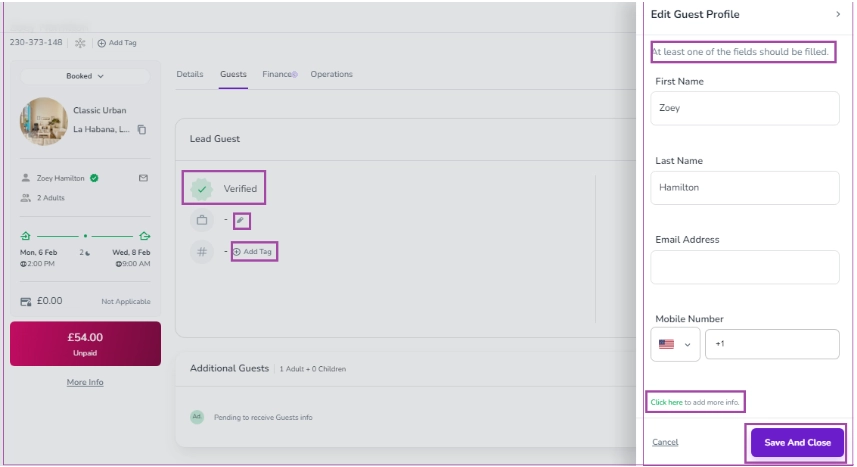
Note that the first and last names of the Lead Guest will be collected by default. You cannot disable them in the Online Check-In Process Settings. The other items that have already been enabled for Lead Guest Info will be shown, and some of them can be edited by clicking on the pen next to each on the Booking View Page.
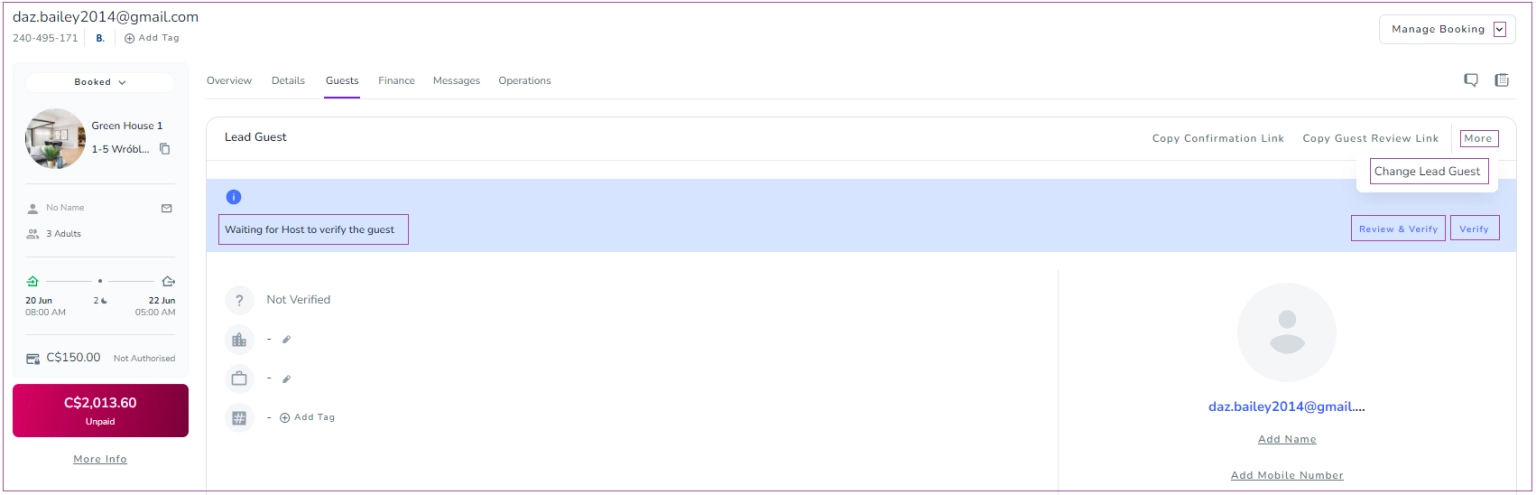
When the guest replies to this required information, its status changes to Waiting for Host to Verify Guest Info. Then, you should go to the Guest Verification section on the Booking View page. You can select either Verify or Review & Verify. By clicking on either of these, the guest is verified, but the latter enables you to check the guest’s profile before verification
You can click on More to Change Lead Guest. You can also copy the Online check-in link or the guest review link.
Note 1: Some info has already been set as default on the Booking View Page.
Note 2: If Date of Birth, City, and Booking Purpose are enabled in the Online Check-In Process Settings, they can be edited.
If your Additional Guests setting in the Online Check-In Process is Disabled, or it is set as Enabled but with no question below it, its corresponding booking view will be shown as No info needed.
If you enable Additional Guests in the Online Check-In Process Settings, you select your desired items and can ask your chosen questions.
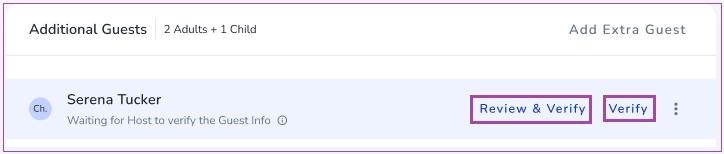
Then, its booking view will be changed to Pending receipt of Guest Info. When the guest replies to it, the status of the booking view changes to Waiting for Host to Verify Guest Info. Afterwards, you can select either Verify or Review & Verify. By clicking on either of these, the guest will be verified, but the latter enables you to check the guest’s profile before verification.

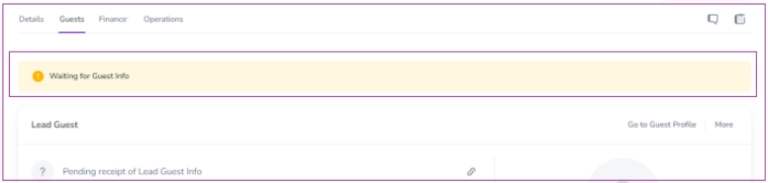
Note 1: If you are waiting for a guest to complete the Online Check-in link and it is one day or less to the arrival date, you will see a warning at the top of the page.
Note 2: The Guest Info will appear as incomplete if additional guest information is marked as Mandatory in the Online Check-in process.
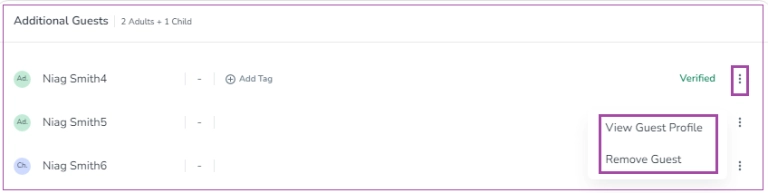
You can click the three dots next to Verified to either View Guest Profile or Remove Guest.
Note: There is a shortcut to the Guest Profile, including the Lead Guest's full name, email address, and phone number. If any of these are incomplete, you can click them, and a window pops up. You can edit any of the Guest Profile fields that have not already been filled out.
Finally, click Save and Close.