Watch this tutorial video on how to create new Task or a Housekeeping Task:
The Task Landing Page is designed to streamline task management, offering clear visibility and control over various stages of tasks. The ability to easily add new tasks with customisable scheduling and priority settings enhances workflow organization. Here’s a simple guide for the Task Landing Page structure:
Log into your Zeevou account.
Navigate to Tasks on the main menu.
On the Tasks Dashboard, there are four tabs:
Housekeeping
Maintenance
Payment Reminders
All Tasks
Housekeeping
Under the Housekeeping tab:
You can view the panel status of tasks in different categories:
Not Started
In Progress
Pending
Completed
Each category shows the number of tasks in that status.
Maintenance
Under the Maintenance tab:
You can view the Maintenance task list and search it by Description.
Click the three dots under Actions to:
View task
Change Priority
Change Assignee
Payment Reminders
Under the Payment Reminders tab:
You can view the Payment Reminders task list and search it by Priority and Status.
You can click three dots under Actions to:
View
Go to Booking
Click View All Housekeeping Tasks to see all tasks.
By default, it shows Upcoming Tasks, but you can switch to other task categories.
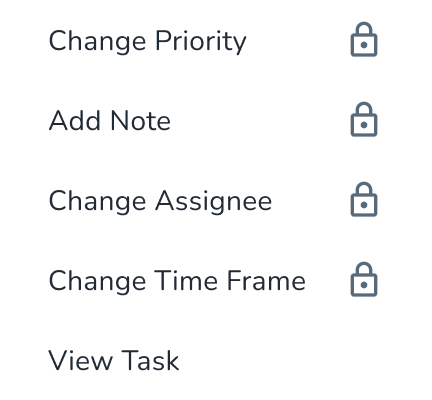
The View Task page lets you view task details, while actions that edit task information are locked without the Operations Management module. The locked actions are:
Change Status
Add Note
Change Assignee
Change Time Frame
Change Priority
Add Description
Change Sleeping Arrangement
To unlock these actions:
Open Tasks and select a task.
Select any locked action to open the upgrade popup.
Select Unlock Operations Management and follow the upgrade flow.
Once the module is enabled, return to the task to use the unlocked actions.
Hover over a locked action to see that it requires the Operations Management module.
On the Tasks Dashboard, click Add New Task at the top right corner and select Housekeeping Task or Maintenance Task.
When you select Housekeeping Task, a drawer opens where you can enter and review the following details:
Location: Property and Unit
Schedule: Date, Can Start From, Must Finish By, and Estimated Time
Housekeeper
Priority
Note: Optionally, add a note for housekeepers.
When you select Maintenance Task, a drawer opens where you can enter and review the following details:
Listing
Type
Description
Assignee
Priority
Advanced Settings
If the Operations Management module is enabled, complete the required fields and click Create to add the task to the relevant task list:
Housekeeping tasks are added to the Upcoming Tasks list.
Maintenance tasks are added to the Maintenance list.
If the Operations Management module is not enabled, you can still open either drawer and enter and review the task details. However, you cannot create a task. Instead, click Unlock Feature at the bottom of the drawer and follow the on-screen instructions to purchase and enable the Operations Management module.
Alternatively, you can click the Unlock Operations Management banner at the top of the Tasks page to purchase the module.
Once the module is enabled, you can create and manage tasks from the Tasks page.
This table includes Upcoming Tasks, Early Check-in, and Unassigned tasks.
By default, the table of Tasks shows the Upcoming Tasks for the Next 7 Days.
You can change the time frame using the drop-down menu.
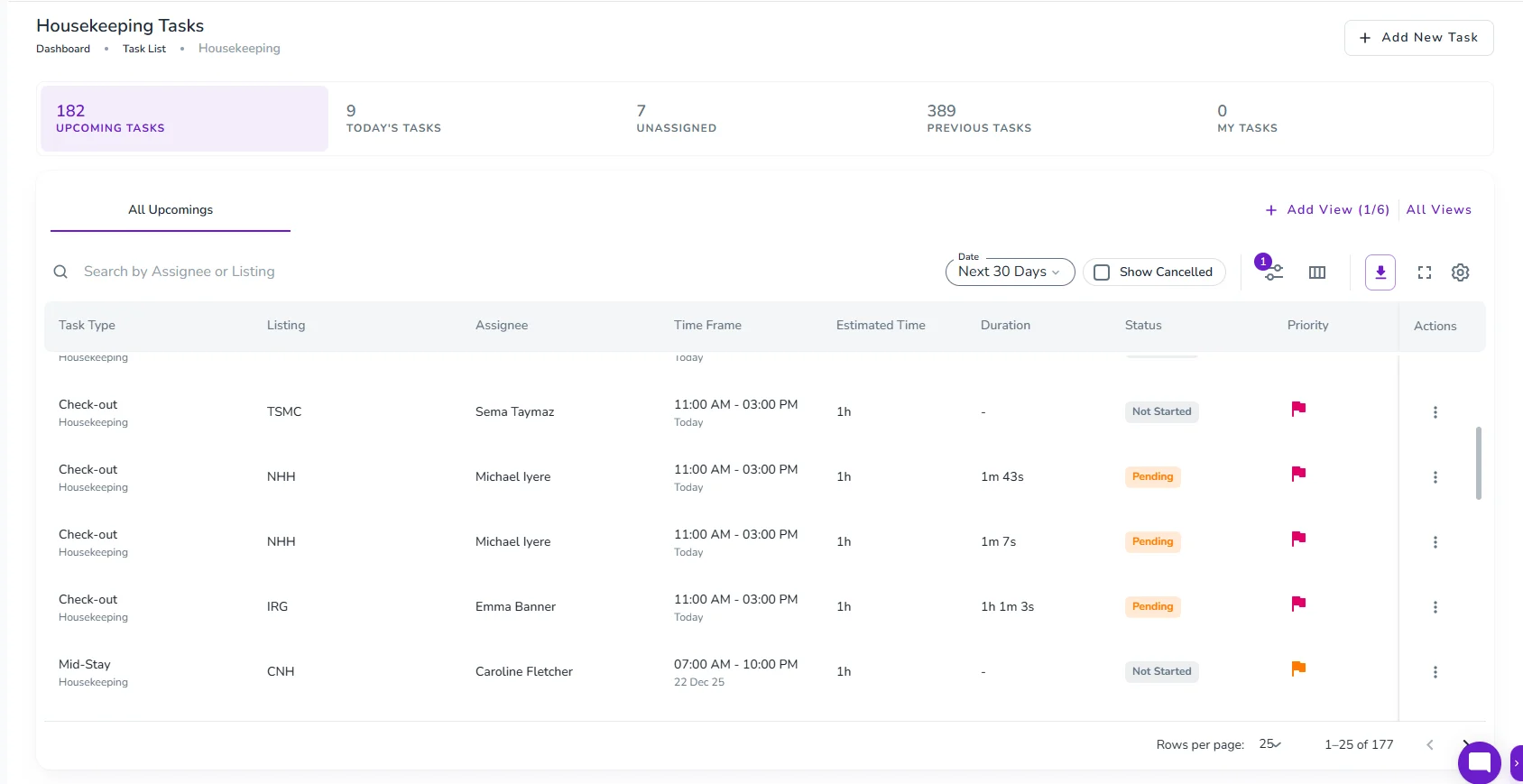
This column in the Housekeeping Tasks list shows the actual cleaning duration submitted by cleaners, making it easier to compare cleaning times without opening individual task details.
It allows you to:
Quickly compare cleaning times for efficiency.
Export data for reporting and analysis.
Track total time spent by each housekeeper.
Actions for Tasks:
Click three dots next to each task under Actions to select:
Change Priority
Add a Note
Change Assignee
Change Time Frame
View Task
Viewing Task Details:
Click View Task to see details like:
Schedule
Notes for Housekeepers
Sleeping Arrangements
You can also Change Status, Assignee, Time Frame, or Add a Note (only if the task is Not Started).
The Operations tab lets you manage tasks, cleaning, and staff for a booking. You can also view the Task List with details such as Task Type, City, Assignee, Time Frame, Estimated Time, Status, and Actions. If Operations Management module is not enabled, you can view the tab and open the Create Task drawer, but all fields and the Save button are locked. Selecting a field or dropdown option opens the upgrade dialog. Some actions in the three-dot menu, such as Add a Note, Assign a Task, and Change Time Frame, are also locked until you purchase the Operations Management module, which you can unlock by selecting Purchase Operations Management in the banner at the top of the Operations tab and following the upgrade steps.