You can access Notification Settings in two ways:
Option 1: Use the notification bell
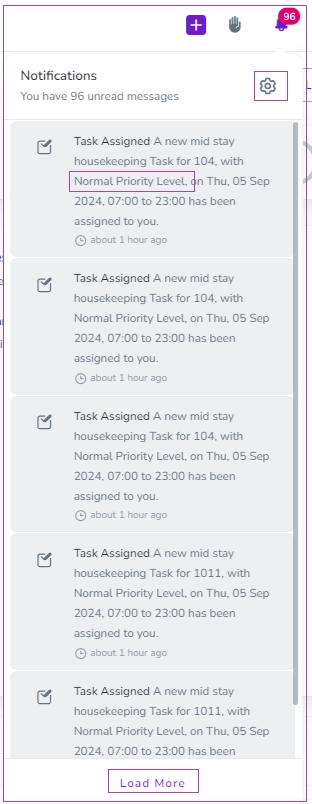
Click the Bell icon in the top bar.
When the window opens, click the Gear icon.
Option 2: Use your profile
Click your Profile icon.
Select Profile.
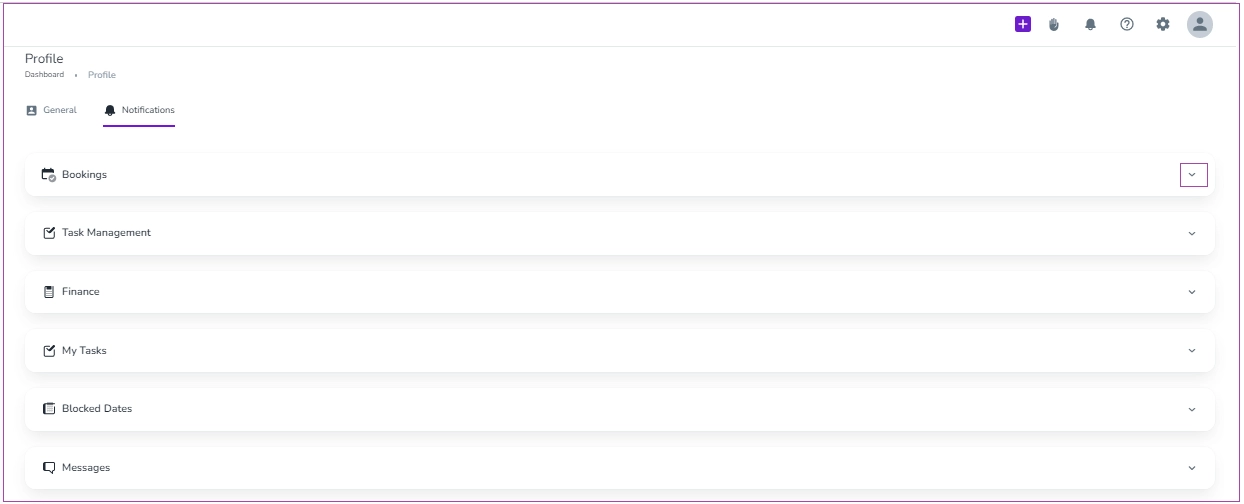
On the Profile dashboard, open the Notifications tab.

Find the notification category you want to manage.
Click the arrow next to the category to open it.
Use the toggles to turn notifications on or off.
Note: Your changes save automatically.
Zeevou has six notification categories. Each category includes several sub-items.
Bookings
Task Management
Finance
My Tasks
Blocked Dates
Messages
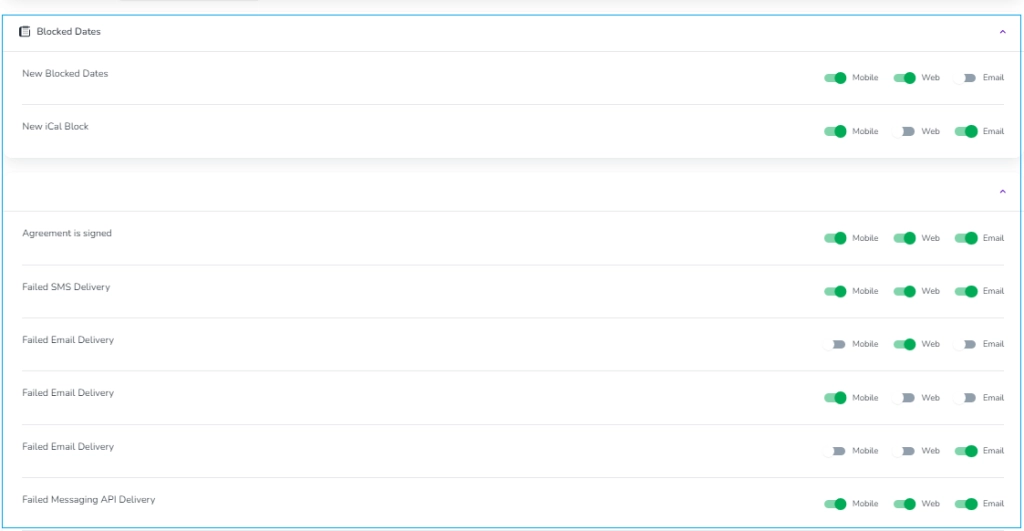
For example, you can click on the arrow in front of Blocked Dates, and the menu opens for you to turn on the toggles for the items you’d like to receive their Notifications. The Notifications will be displayed on Mobile, Website or both, depending on how you set them.
You can receive a Notification that The Agreement is signed and the failed delivery in SMS, Email or an API message.
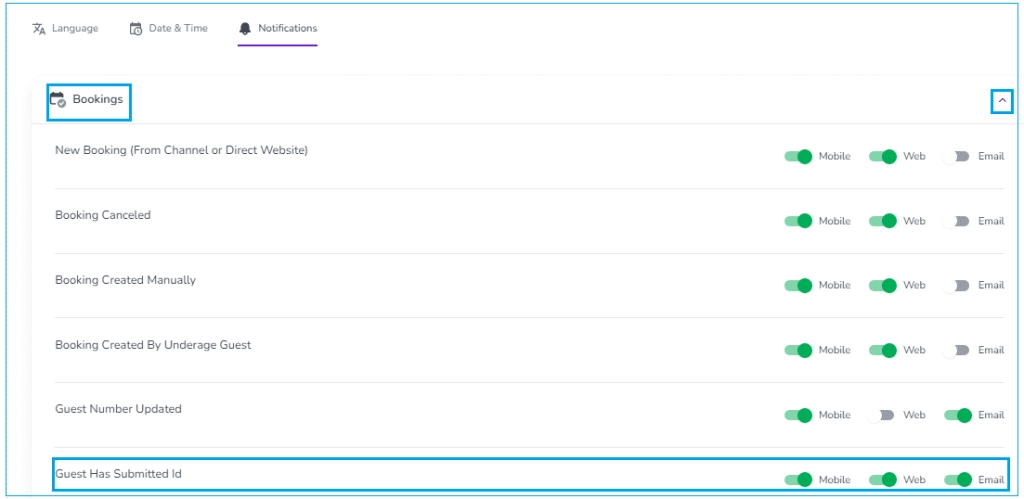
For example, if you would like to get informed by Notifications that the guest submitted ID, you can toggle it under Bookings.
Click the Bell icon.
A list of your notifications opens.
Click Load More to see older notifications.
You can see the priority level of each notification.
Clicking a notification takes you to the related section on Zeevou, where you can view the full details.
