Zeevou provides the functionality to display and collect agreement to your Terms & Conditions. You are responsible for making sure your Terms & Conditions are appropriate for your business and comply with the laws and regulations that apply to your property.
Use this feature to make your booking terms clear, collect guest agreement digitally, and keep a record of the signed Terms & Conditions for each booking.
To enable Terms & Conditions for Online Check-In:
Go to Settings in the top-right corner of Zeevou.
Open Online Check-In Process.
Select the relevant brand.
Open the Terms & Conditions tab.
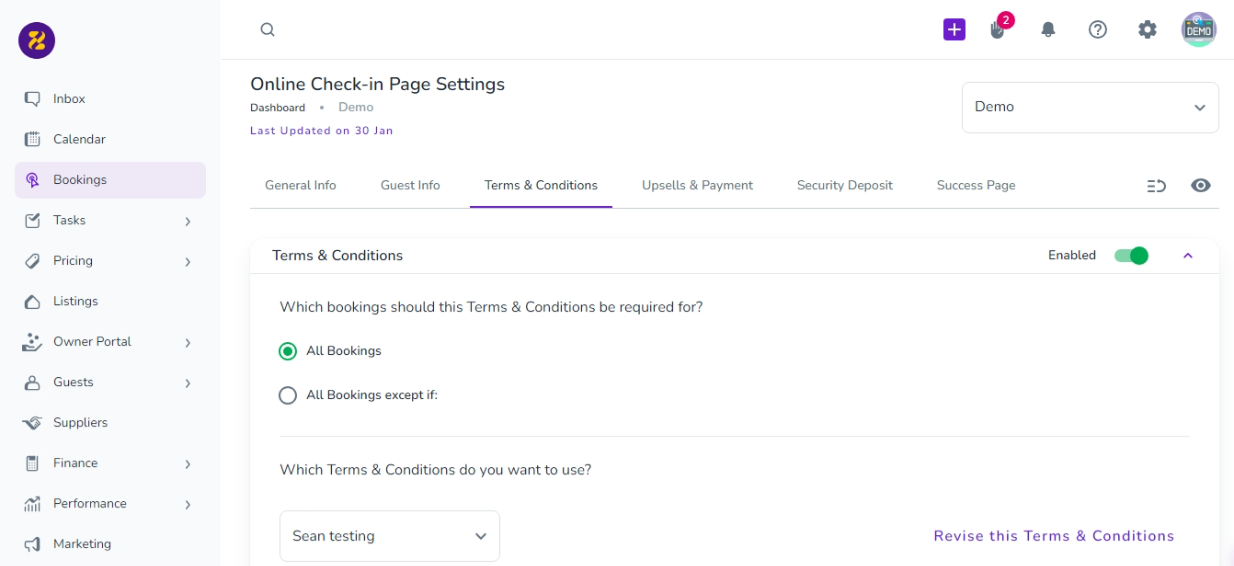
Change the Disabled toggle to Enabled.
Once enabled, Terms & Conditions are required for all bookings by default.

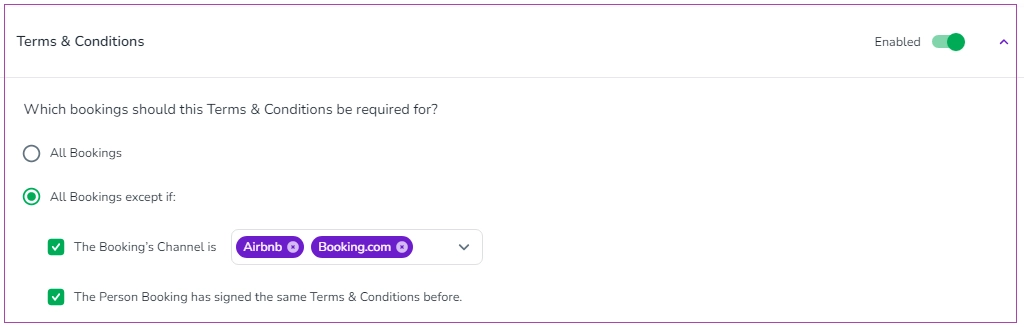
You can exclude specific bookings from this requirement.
Turn on All Bookings except if.
Select the exception(s) you want to apply:
The Booking Channel is — exclude bookings from specific booking channels selected from the drop-down.
The Lead Guest has signed the same Terms & Conditions before — exclude bookings where the lead guest has already signed the same Terms & Conditions.
Think of this setting as an exception rule: Terms & Conditions apply to all bookings unless a booking meets one of the exceptions you specify.
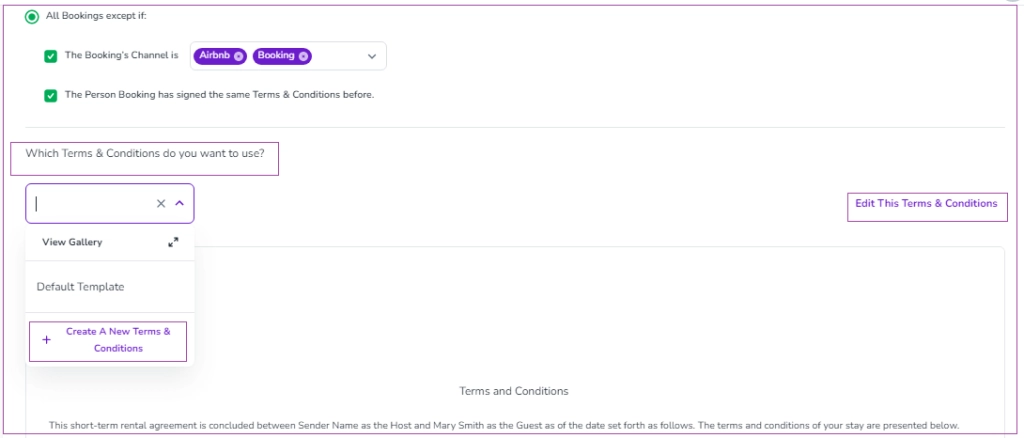
A default Terms & Conditions template is provided. Review the template and update it to make sure it contains the terms you want your guests to accept.
You can either edit the default template or create your own.
To create a new template:
Click + Create A New Terms & Conditions.
Enter a Title for the Terms & Conditions.
Add the Terms & Conditions text.
Save the template.
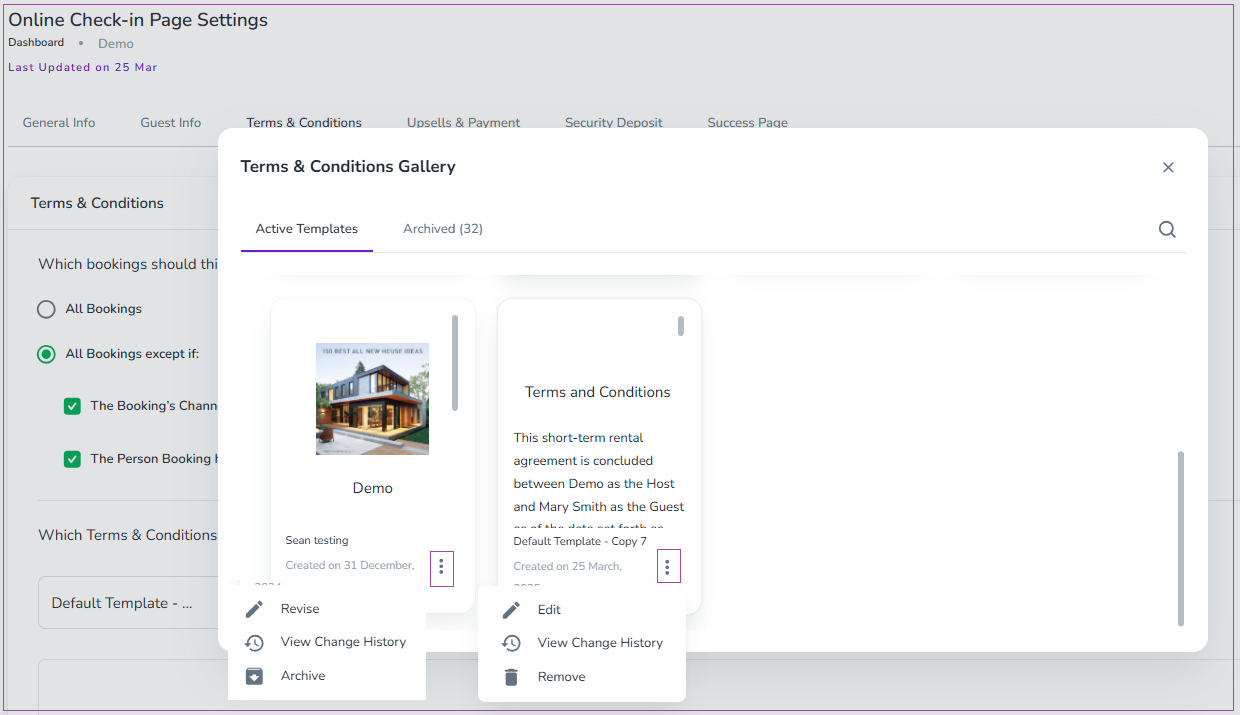
Click the arrows next to View Gallery to switch between Active and Archived Templates.
The actions available depend on whether a template has already been used:
Used templates: You can Revise, View Change History, or Archive them by clicking on the three dots.
Unused or original templates: You can Edit, View Change History, or Remove them.
If you want to make changes to the signed Terms & Conditions, select Revise This Terms & Conditions.
If the Terms & Conditions have not yet been signed, select Edit This Terms & Conditions instead.
Important: Use Revise when you need to make changes to Terms & Conditions that have already been used. This keeps the process of updating your terms separate from editing terms that have not yet been signed.
You can add a Header and/or Footer to your Terms & Conditions when you want to edit or revise it.
Add a header
When creating, editing, or revising a template:
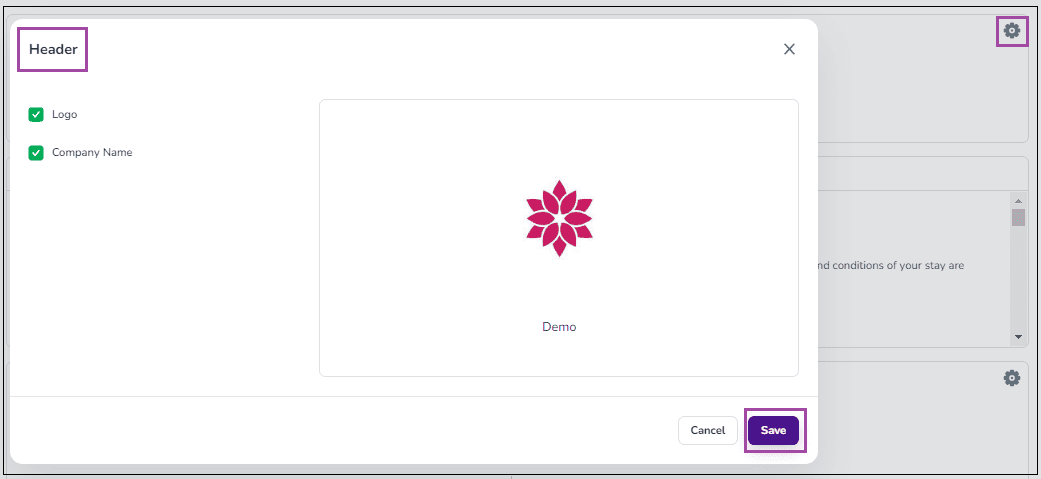
Click the gear icon in the top-right corner.
Select the information you want to display in the header:
Logo
Company Name
Click Save.
Add a footer
To configure the footer:
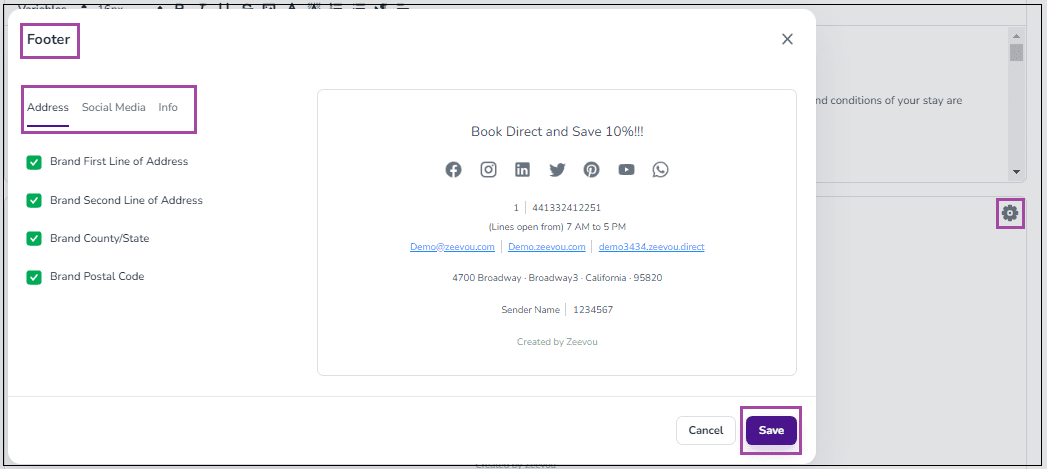
Click the gear icon in the bottom-right corner.
Select the information you want to display:
Address
Social Media
Info
Click Save.
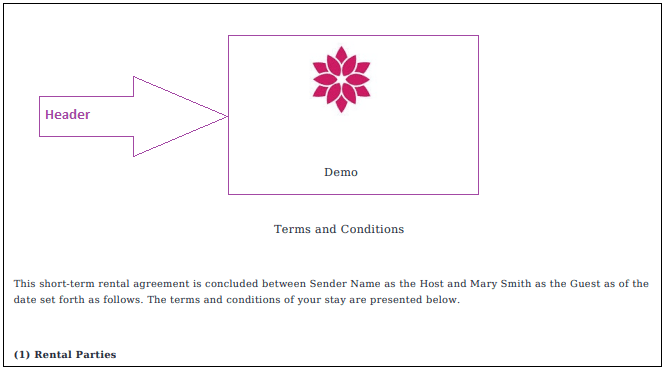
The selected header and footer information will appear in the PDF version of the Terms & Conditions that guests can access during Online Check-In.
As soon as the Terms & Conditions is set on the Online Check-In Page Settings, it will be placed on bookings which are created afterwards, and you can find it under the Terms & Conditions card in the booking of your choice in App.Zeevou.com. The Terms & Conditions toggle will be on as a default if it is set in the Online Check-In Process. By disabling this option, the Guest won’t be required to sign Terms & Conditions prior to checking in. If you turn on the toggle, your currently set Terms & Conditions text will be set for the booking.
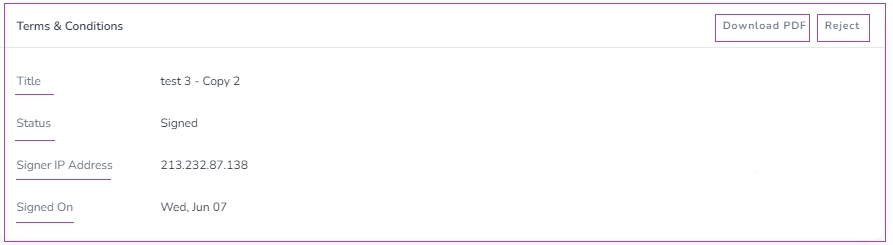
The Terms & Conditions window includes Status (which will be automatically changed to Signed after the guest signs it), the Title, and the Terms & Conditions Link (which can be sent to the guest for signing by Automated Message). The other sectinos such as Terms & Conditions PDF File, Signer IP Address and Created At will be filled out once the Terms & Conditions has been signed.

Note: If you hover on Terms & Conditions, View Terms & Conditions will appear and by clicking that, you will be directed to the page of the Online Check-In, Terms & Conditions Step.
When the Terms & Conditions is signed by users, the Terms & Conditions Status will change to Signed in the corresponding booking under the Details tab, and there will be the Terms & Conditions PDF File to be downloaded. If you reject this Terms & Conditions, the Terms & Conditions link will be available to be signed.
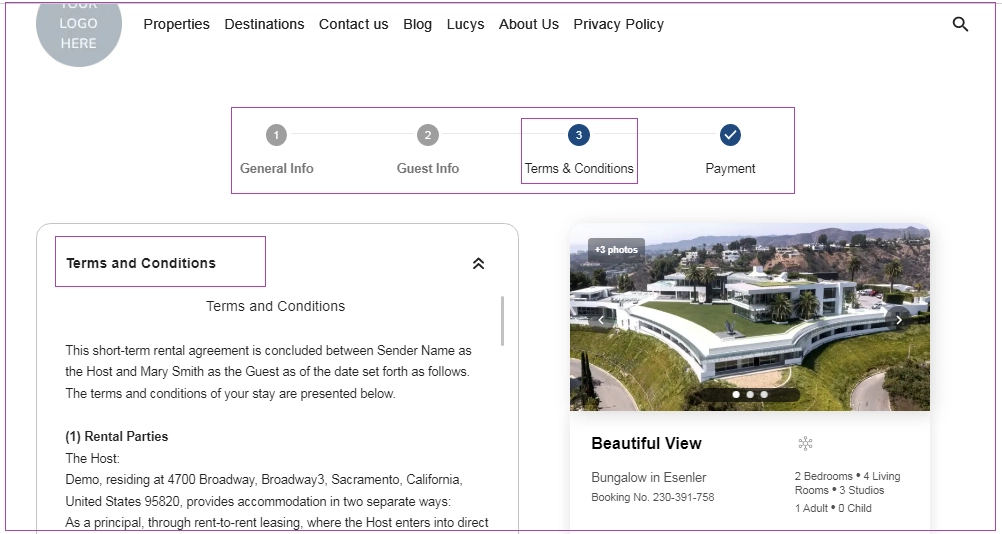
In the Online Check-In, users can see the Terms & Conditions Step and sign the Terms & Conditions. When the Terms & Conditions are signed, a copy of the Terms & Conditions will be automatically sent to the Person Booking’s email address.
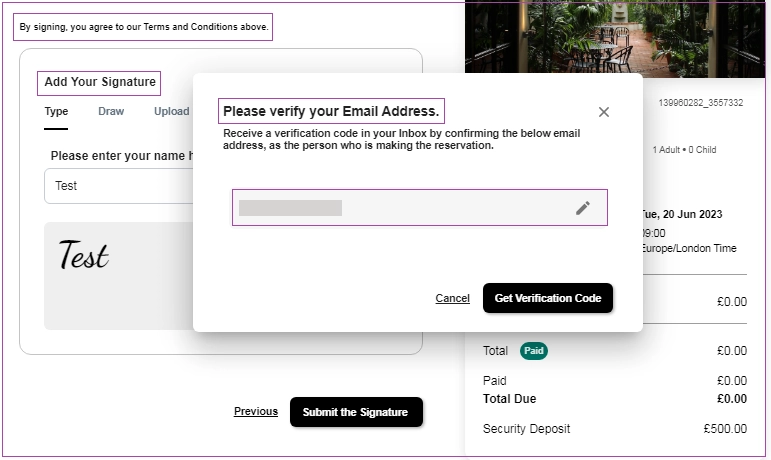
If no email is provided for the Person Booking or their provided email address has not been verified through previous steps, they first need to set and verify their email address to continue signing the Terms & Conditions.
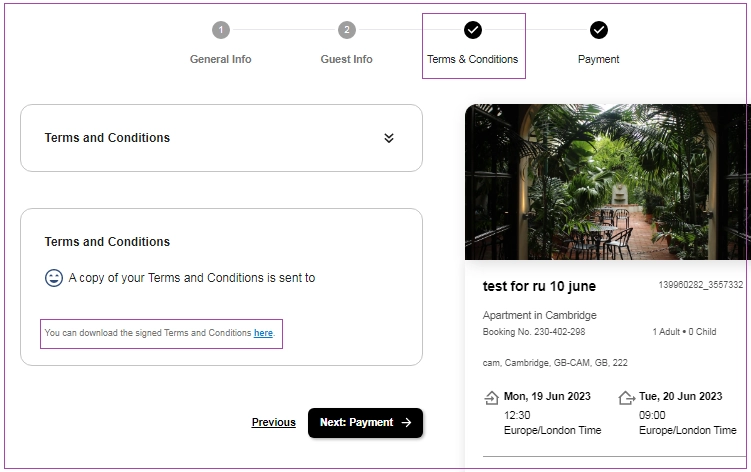
The Person Booking can also download the signed Terms & Conditions from the Terms & Conditions step page by clicking here.
Watch this tutorial video on Terms and Conditions Settings to review what you’ve learned!
NexOnce you have configured your Terms & Conditions, set up how you collect payments and issue invoices for your bookings.
