With Zeevou connected, a single Una agent handles two core functions:
Inbox Replies: Una responds to guest messages directly inside the Zeevou Inbox, covering conversations from Airbnb, Booking.com, and your other connected channels.
Bookings: Una assists prospective guests in making reservations on your website, by phone, on WhatsApp, and across your other direct channels.
Note: Unlike standard self-serve integrations, Una cannot be connected directly from the Integrations section in your Zeevou account. The initial setup is handled as part of the Una onboarding process.
Wait for Onboarding Confirmation: The Polydom team adds Zeevou to your agent and prepares the connection on their end. Please wait until they confirm that your agent is ready—clicking Authorize before this step is completed will not work.
Share Your Property Details: Make sure to share your house manuals, check-in instructions, and parking notes with the Polydom team during onboarding so Una can provide complete, accurate answers from day one.
Once the Polydom team confirms your agent is ready, follow these steps inside your Una dashboard:
Open PMS Settings: Select your agent from the left sidebar and click PMS Settings.
Locate the Zeevou Cards: Open the General tab. You will see two cards: Zeevou Inbox Settings and Zeevou Booking Settings. (Note: If your agent is configured for only one of these jobs, you will only see one card).
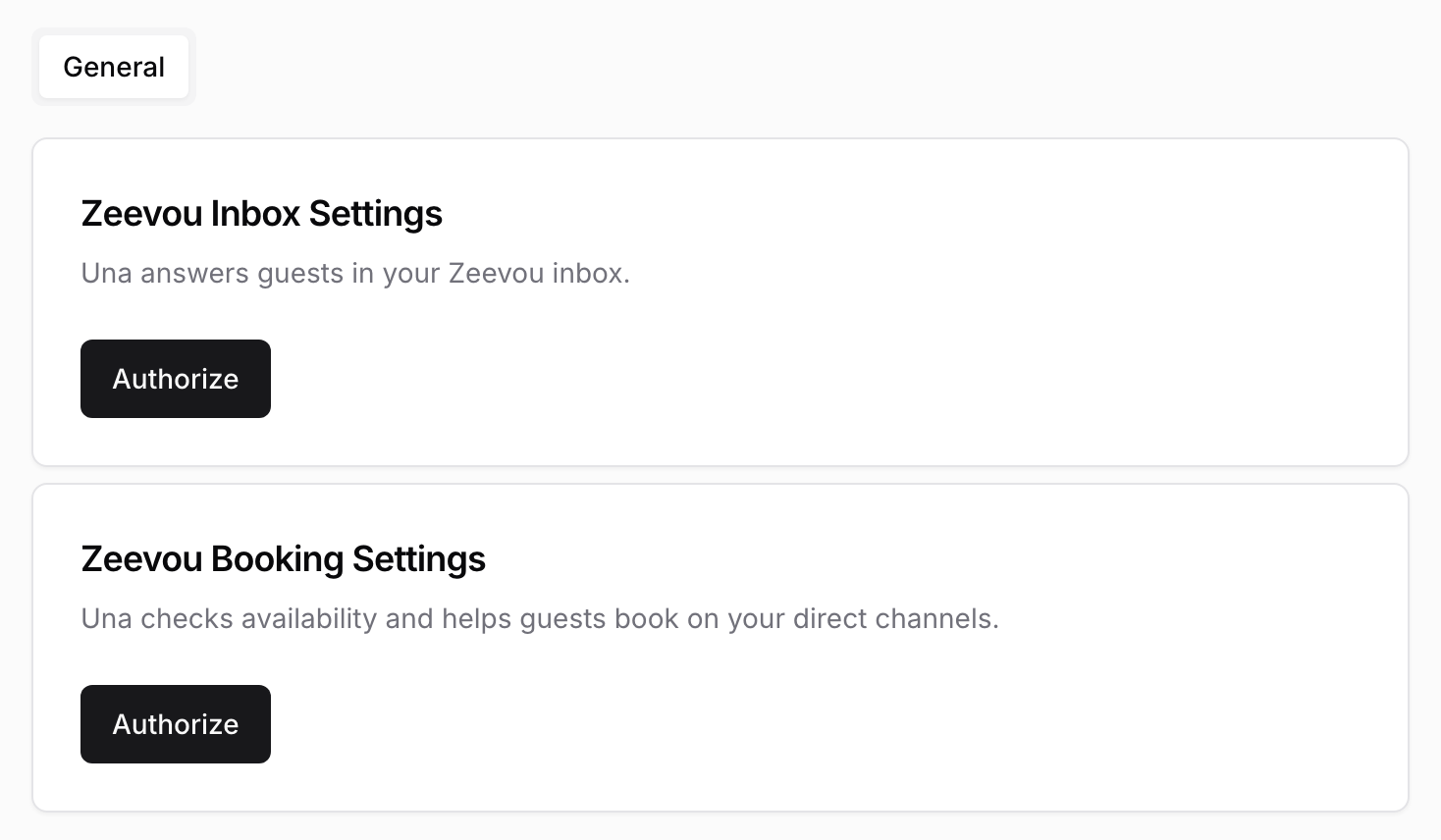
Authorize Zeevou Inbox Settings:
Click Authorize on the Zeevou Inbox Settings card.
Sign in to your Zeevou account and approve access.
You will be redirected back to the PMS Settings page.
Authorize Zeevou Booking Settings:
Click Authorize on the Zeevou Booking Settings card and approve access again. (Each function requires its own authorization, so you will need to complete this step twice if you use both).
Confirm Connection: Once completed, both cards will display a Clear authorization button, confirming that the connection is active.
If you need to pause or disconnect the integration:
Go to PMS Settings > General in your Una dashboard.
Click Clear authorization on the relevant card (Zeevou Inbox Settings or Zeevou Booking Settings).
Una will immediately stop performing that specific job until you click Authorize again.
For more detailed guidance on managing your Una agent, configuring direct booking rules, and exploring advanced settings, please refer to the official Polydom Zeevou Integration Guide.
