A Supplier in Zeevou represents any external business, vendor, or individual service provider you work with to keep your property management operations running efficiently (e.g., cleaners, handymen, utility providers, or laundry services).
By recording suppliers in Zeevou, you can maintain their contact details in one central location and link them directly to expenses for organized cost tracking and clear financial oversight.
To create, edit, and fully manage real suppliers, your account requires the Financial Reporting module.
If Financial Reporting is Not Active:
When you open the Suppliers page, the list will display sample data for preview purposes.
An Unlock Financial Reporting banner will appear at the top of the page and above the sample table.
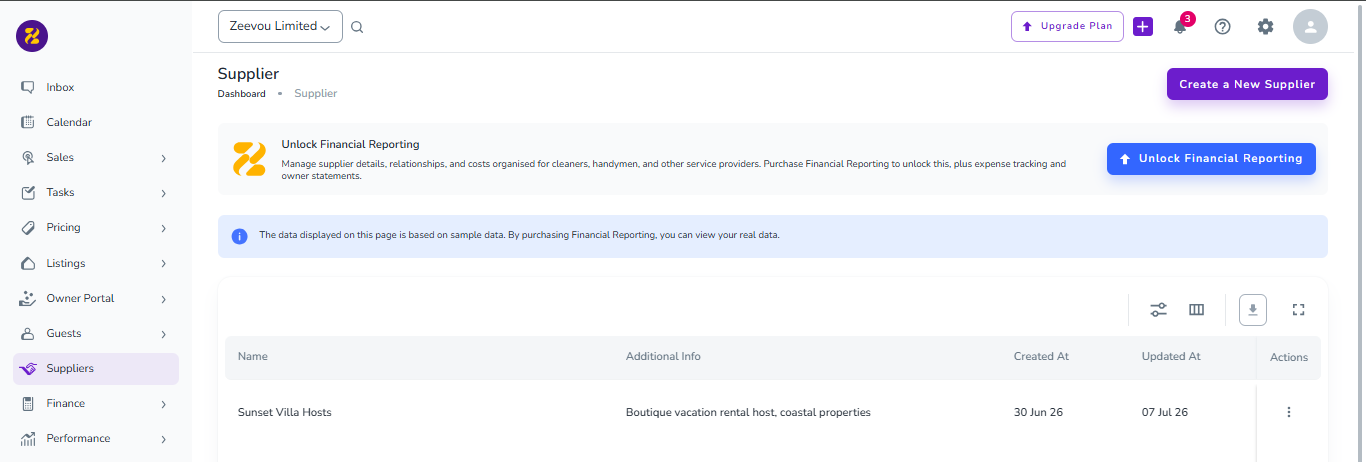
You can click on any sample row to preview the Supplier Details page.
Attempting to click Create a New Supplier or edit existing entries will open a locked preview prompting you to upgrade.
To unlock full functionality, click Unlock Financial Reporting on the banner to upgrade your plan.
Note: Once you purchase the Financial Reporting module, sample data will remain visible in your table until you add your first real supplier record.
Log in to your Zeevou account.
In the main left-hand menu, click Suppliers.
On the Suppliers dashboard, you can:
View all your recorded suppliers with details including Name, Additional Info, Created At, and Updated At.
Use the Search Bar to find a specific supplier by name.
Export your supplier list by clicking the Download/Export icon.
Click the three dots (Actions) on any supplier row to select View or Delete.
You can create a supplier either directly from the Suppliers main page or while recording an expense.
Go to Suppliers in the left menu.
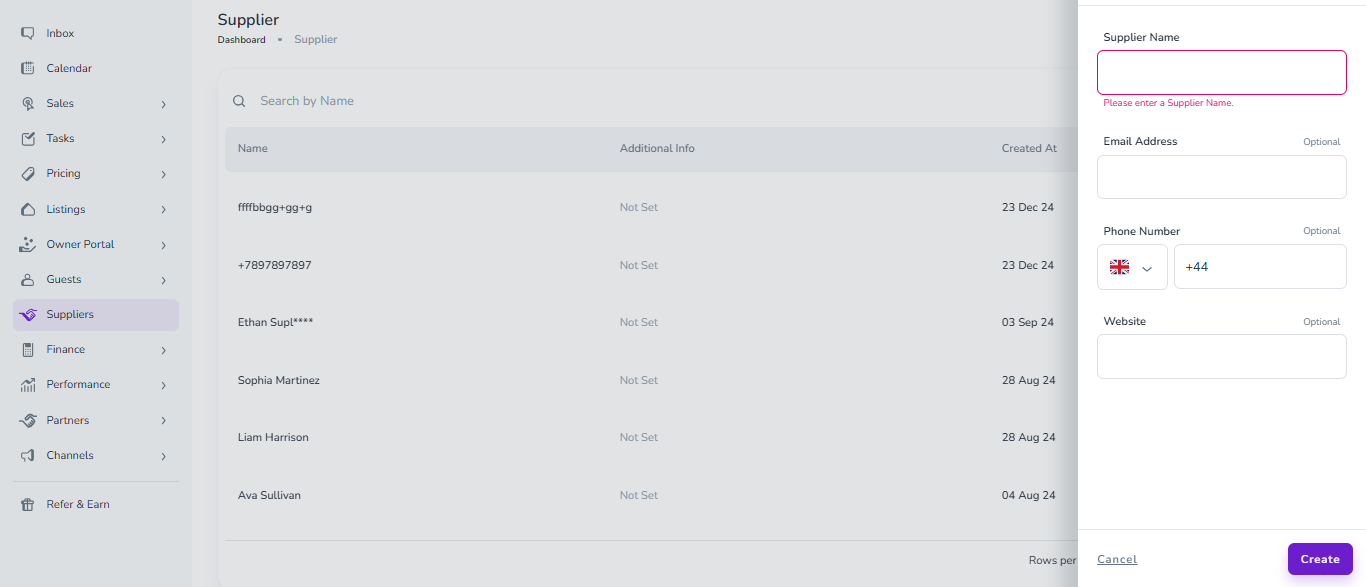
Click Create a New Supplier in the top-right corner.
In the side drawer that opens, enter the following details:
Supplier Name (Required): Enter the business or contact name.
Email Address (Optional): Enter a valid email address not associated with another account.
Phone Number (Optional): Select the country code and enter the contact number.
Website (Optional): Enter their official web URL.
Click Create. You will be directed to the newly created supplier’s page.
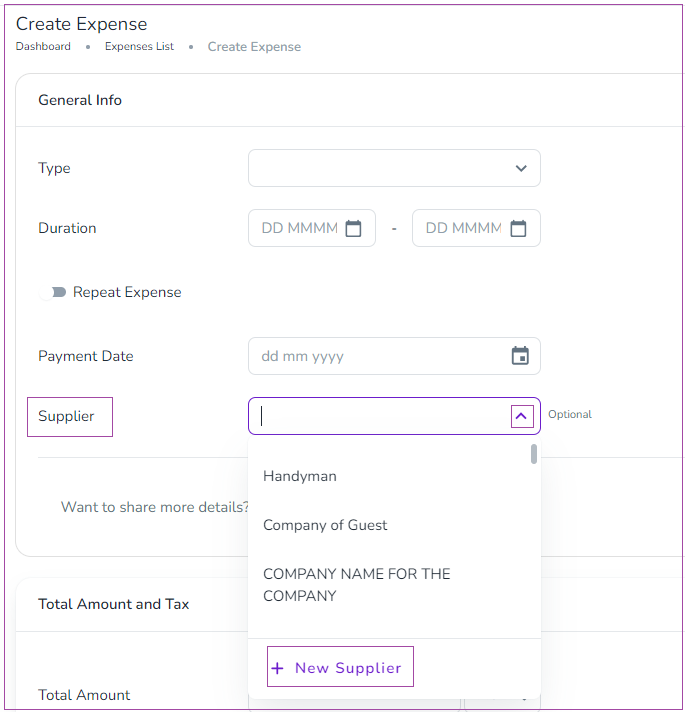
When filling out a new expense form (under Finance → Expenses → Create a New Expense), go to the Supplier dropdown field.
Click + New Supplier.
Fill in the required supplier details in the pop-up drawer and click Create. The new supplier will automatically be selected for that expense.
Once a supplier is created, you can click on their record to open the Supplier Details page to:
Update or edit their contact info (Name, Email, Phone, Website).
Add Additional Info (free-text notes) for internal record-keeping.
Remove or update optional details.
