Note: Please open this page on your mobile phone and then proceed.
You can install the housekeeping mobile app for Android from Google Play.
Note: When you download the mobile app on Android, you are first redirected to the website to authenticate. You are then redirected back to the mobile app.

For iPhone:
Step 1: Please download the app from App Store.

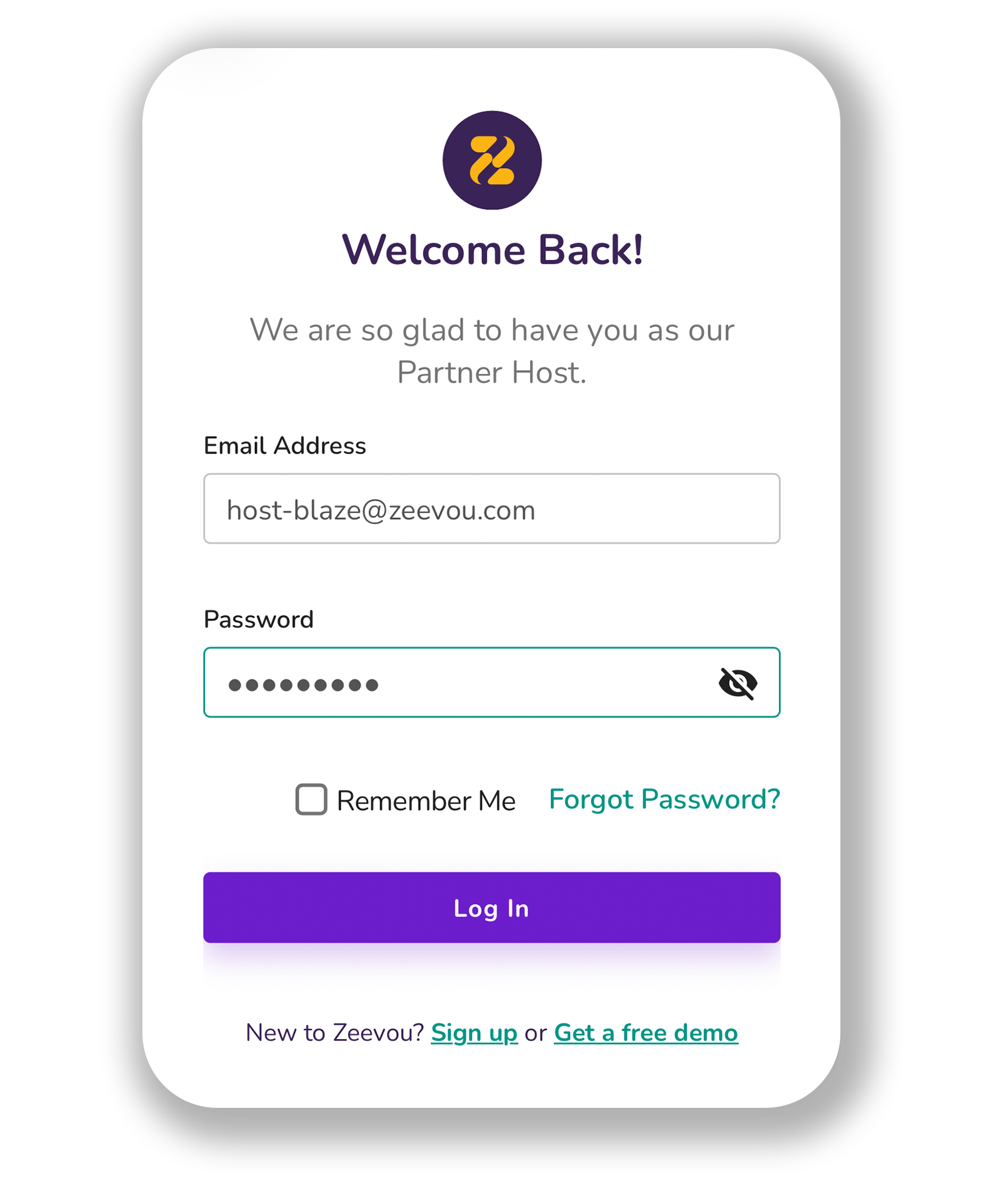
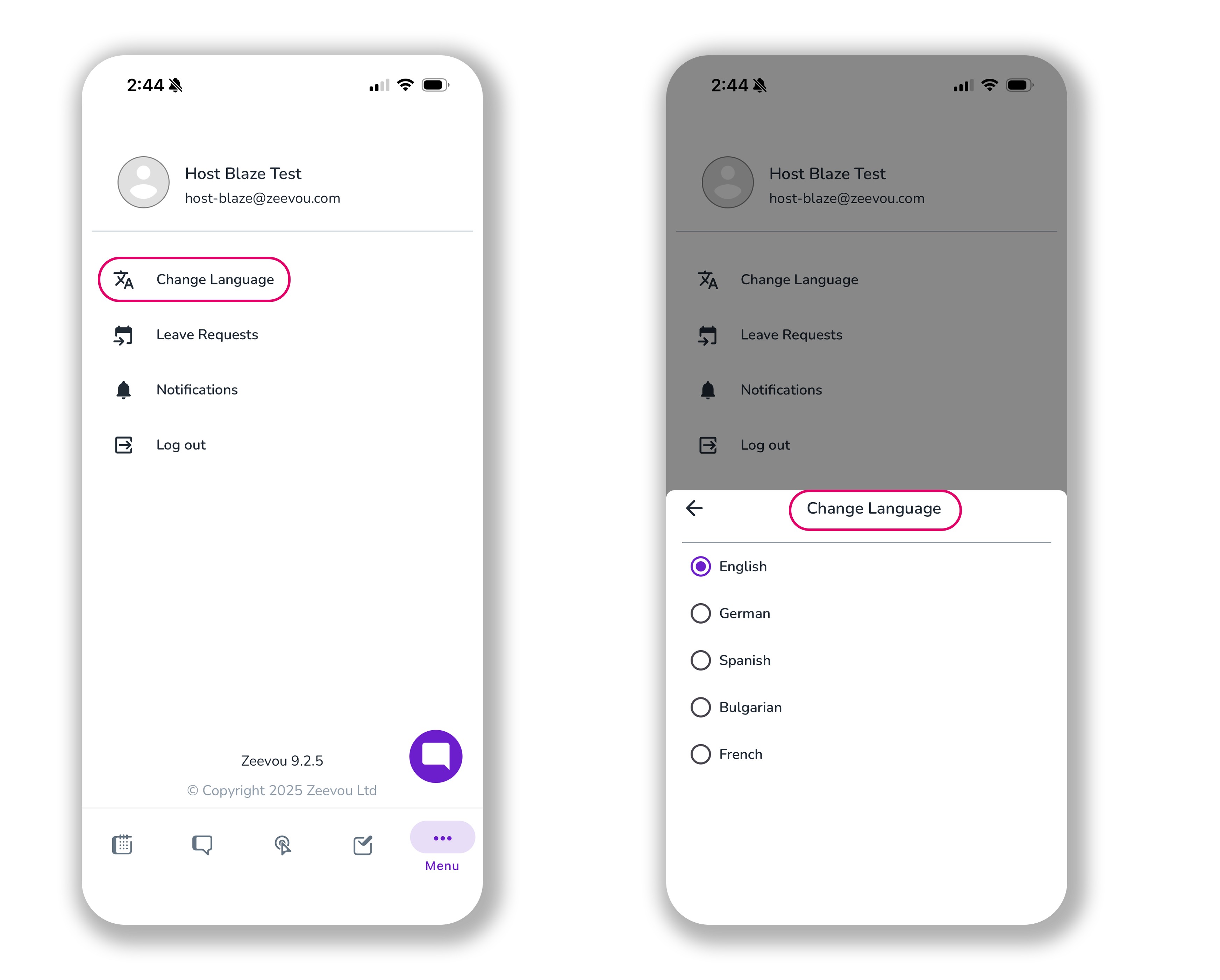
In order to change the language, first log into Zeevou App using your Email and Password.
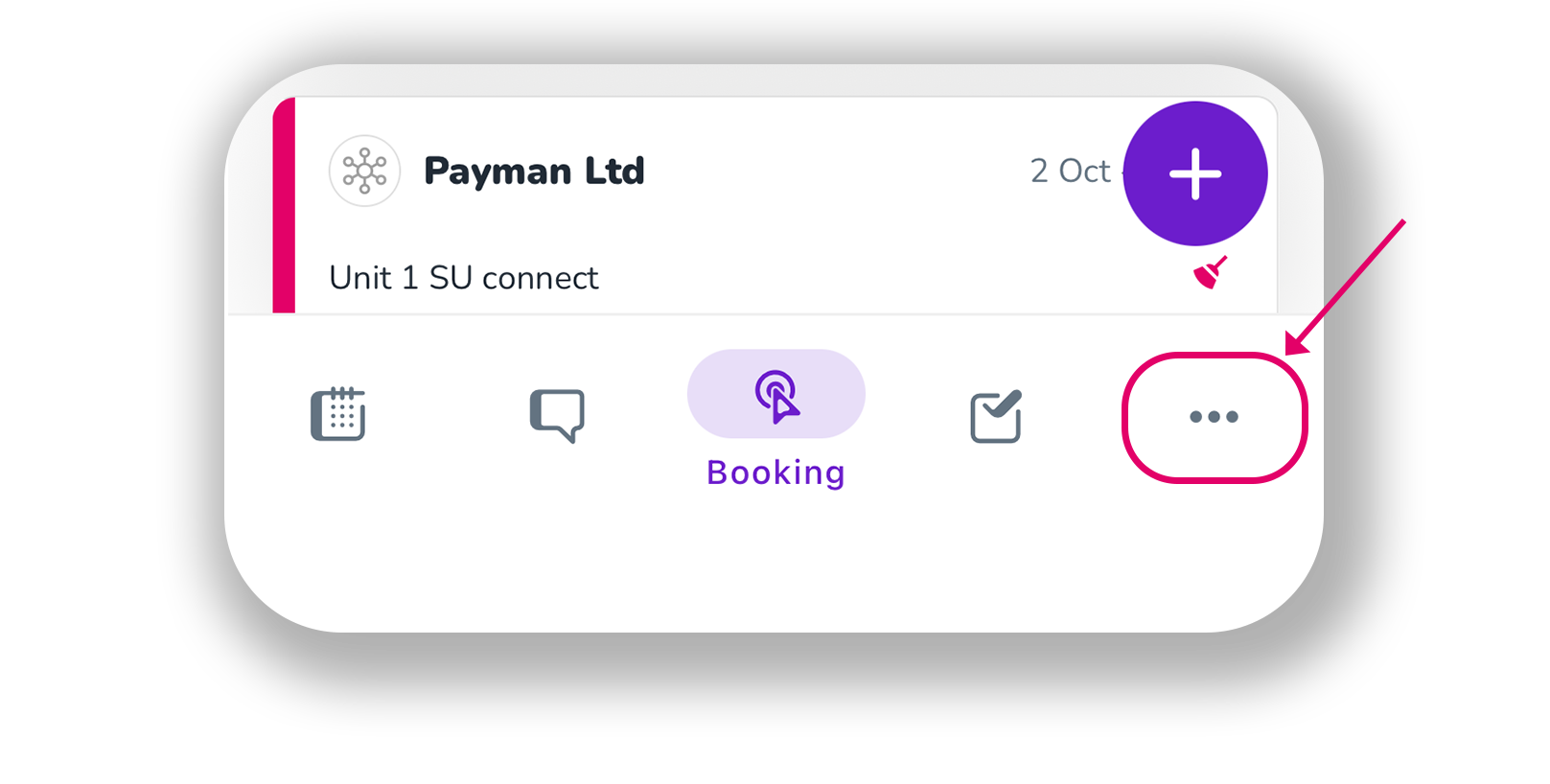
Then, click three dots on the right at bottom and go to Menu.
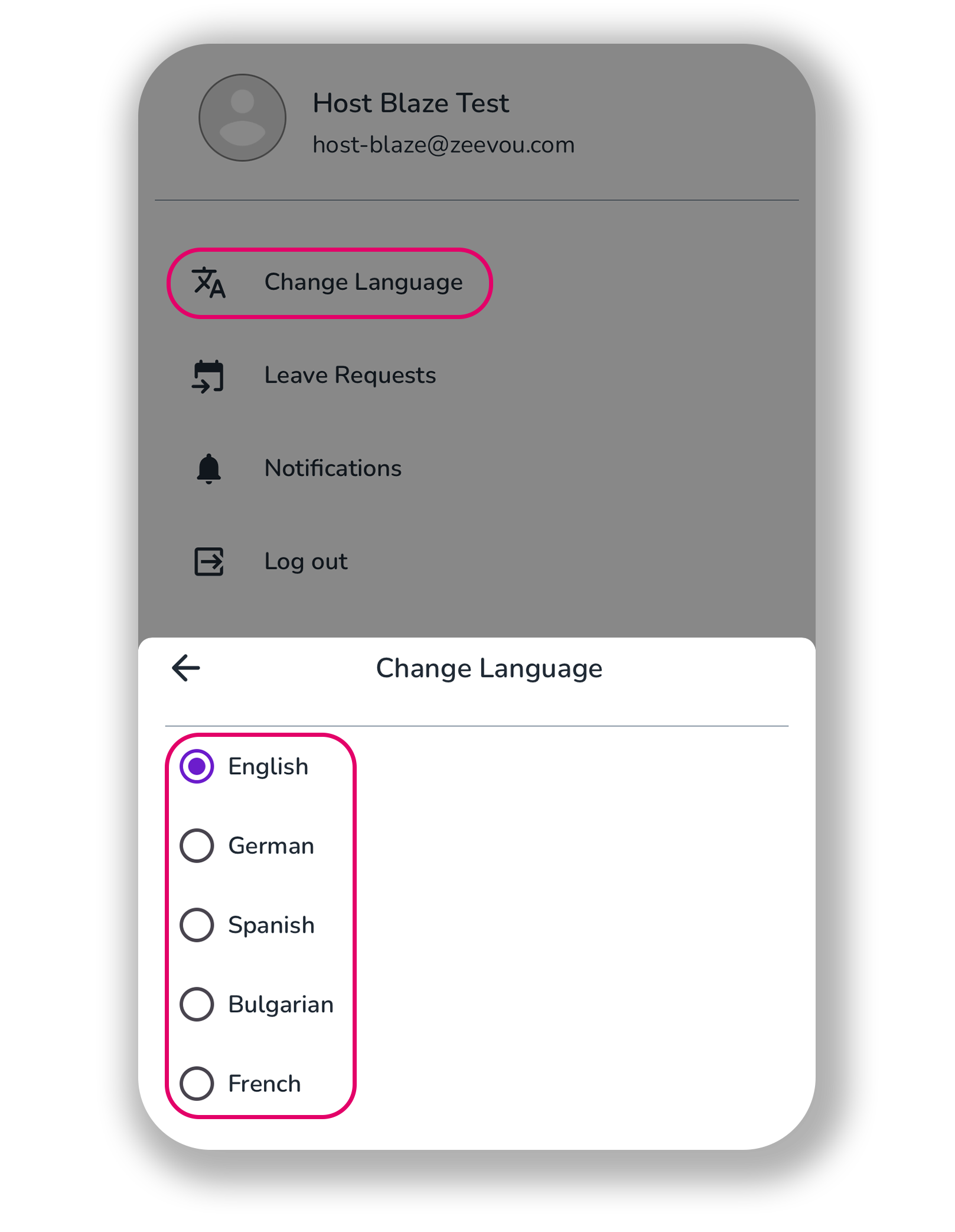
Click Change Language.
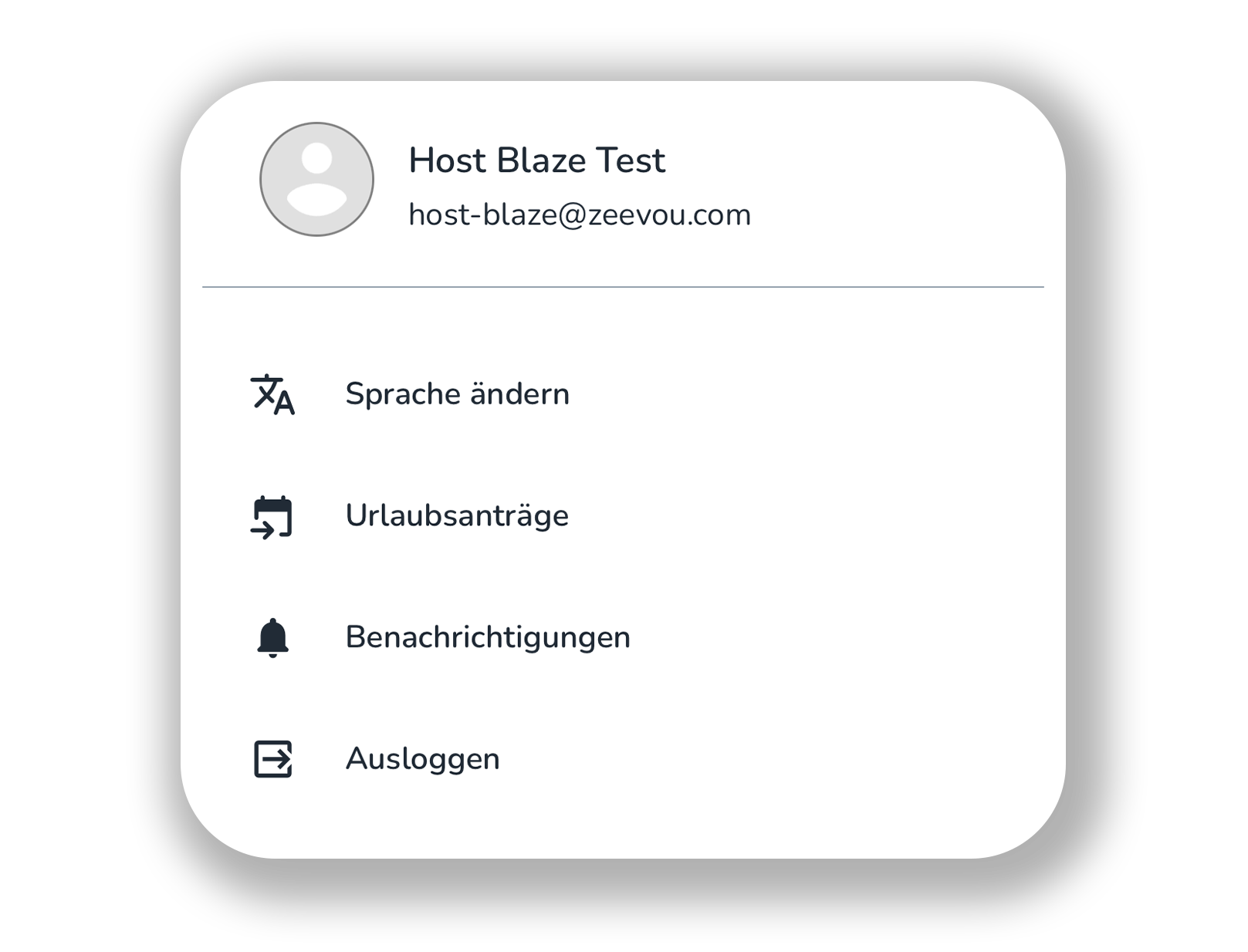
When you click German, the language is switched from English to German.
Ever wondered how to navigate your way through the Zeevou Mobile App? This tutorial is for you!
In this video, you'll learn how to:
Manage Bookings: View upcoming arrivals, pending check-outs, and create new bookings.
Communicate Effectively: Send and receive messages via email, SMS, and API.
Stay Organized: Use the calendar to view bookings and create blockouts.
Customize Notifications: Tailor your notifications to your specific needs.
Let's dive in and make the most of your Zeevou Mobile App!📱
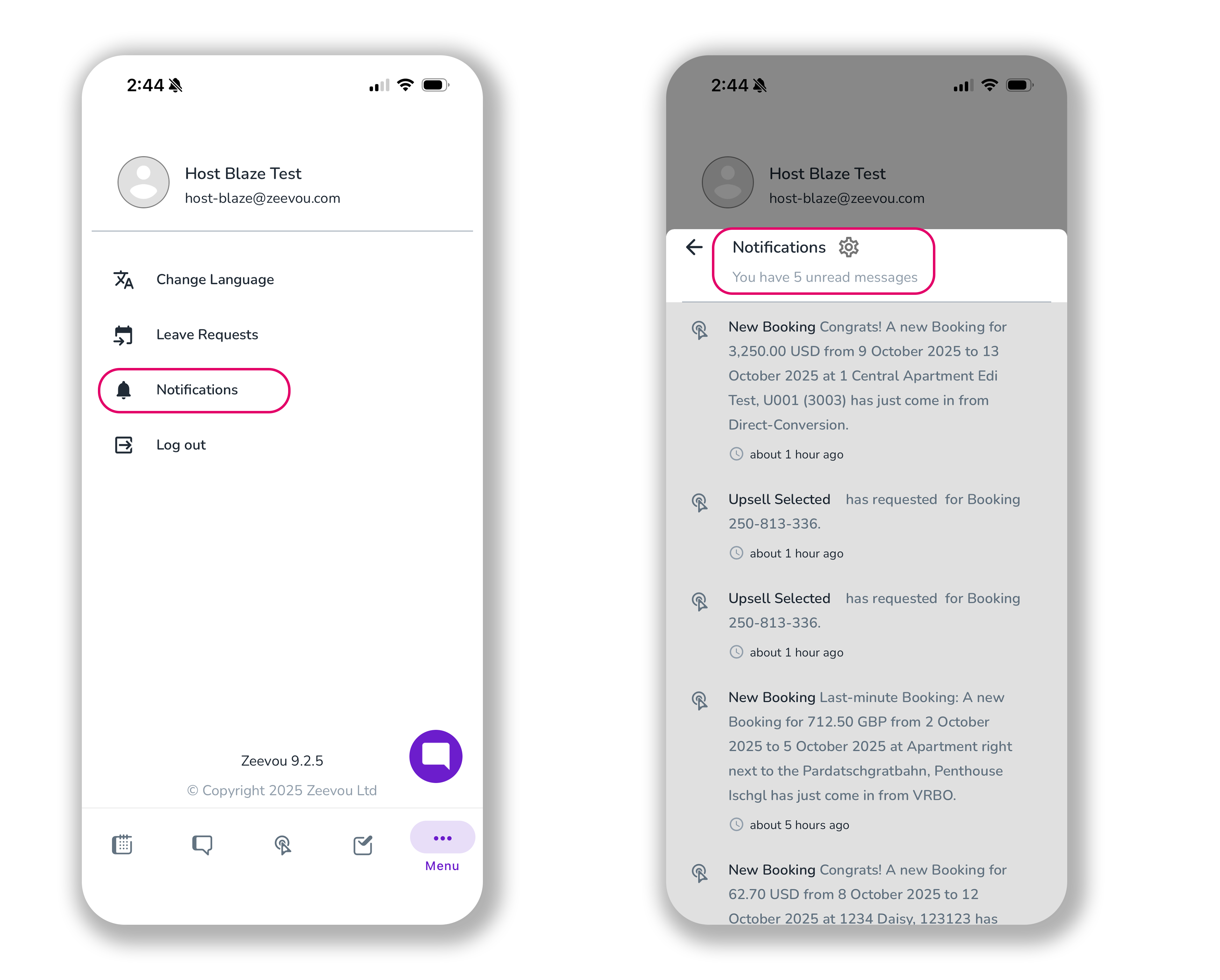
When you’re logged into your Zeevou App, you can click on the three dots to open the Menu bar, which includes four sections:
When you click on Notifications, you can view any updates on your tasks:
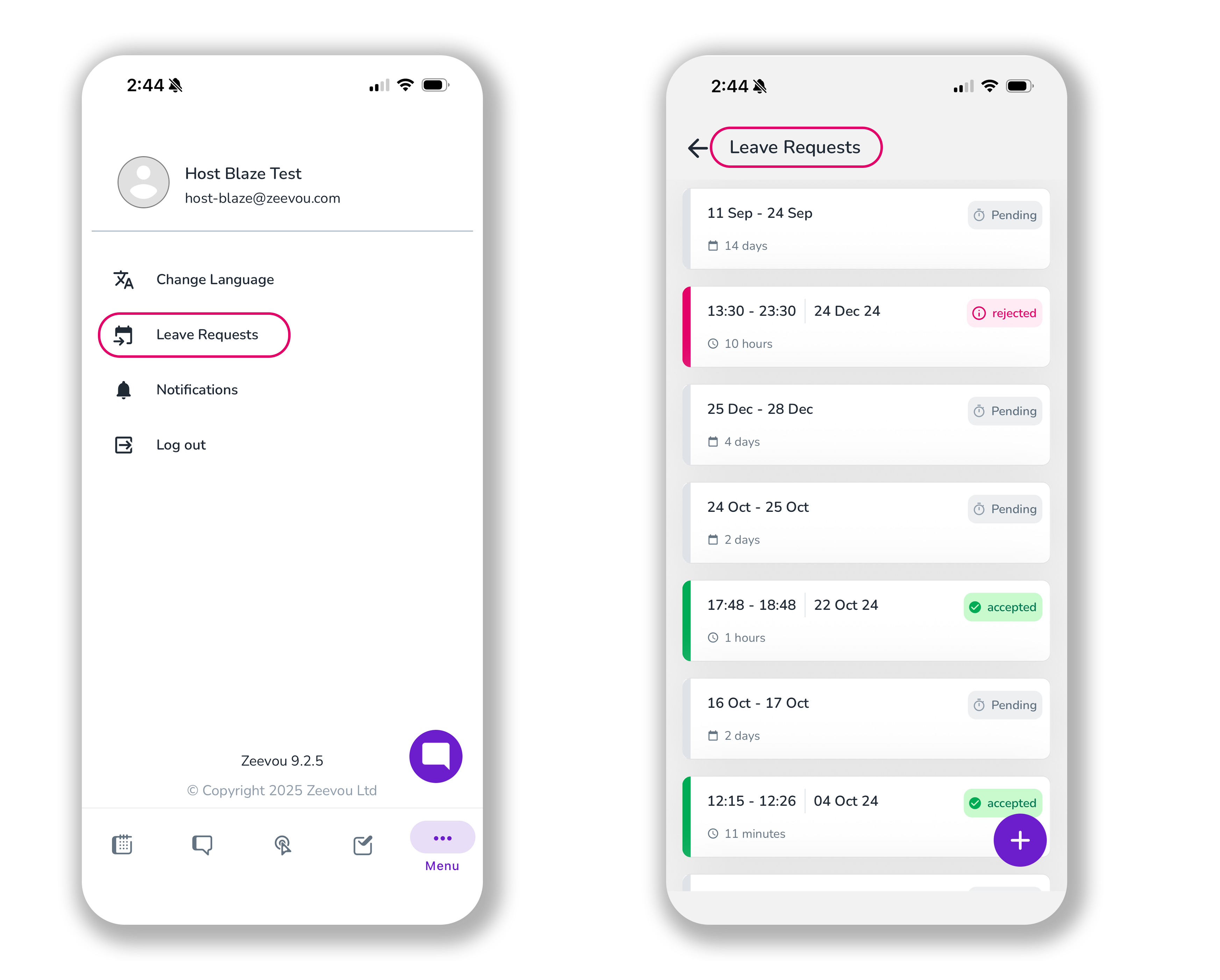
You can request a leave hourly or daily if you click on Leave Request. You also need to specify the date and the reason. Finally, Submit.
Note: The acceptance or rejection of Leave Request by the host will be shown in the Notifications.
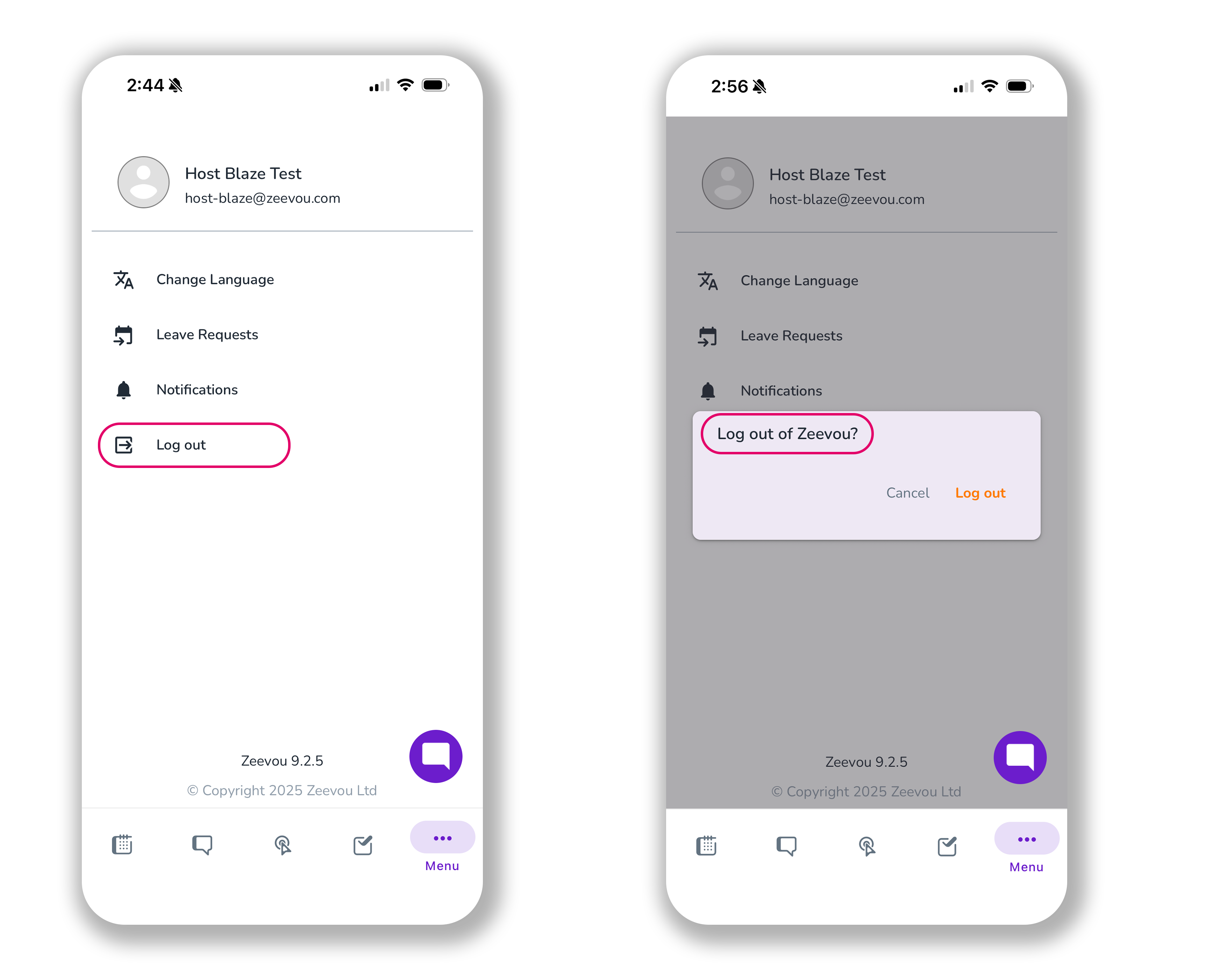
When you want to exit the Zeevou App, click on Log out.
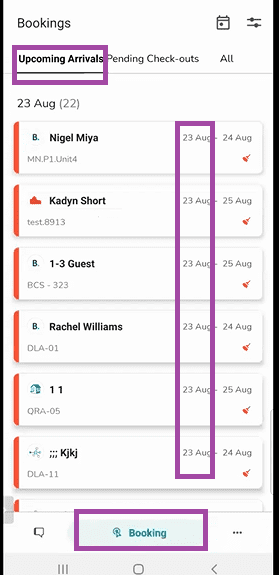
When you log in Zeevou App, you land on the Bookings' menu by default. There are three tabs at top of the Bookings menu:
Upcoming Arrivals
This is the list of bookings whose status is booked and their arrival date is today.
Note: The days before today are not shown here.
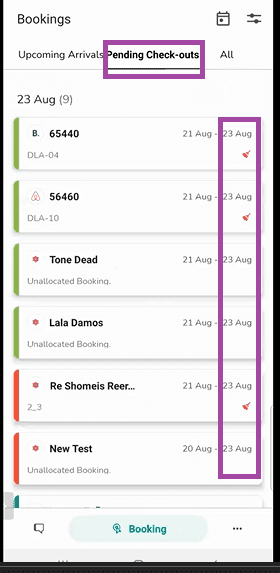
2.Pending Check-outs
This is the list of checked-in bookings whose departure date is today.
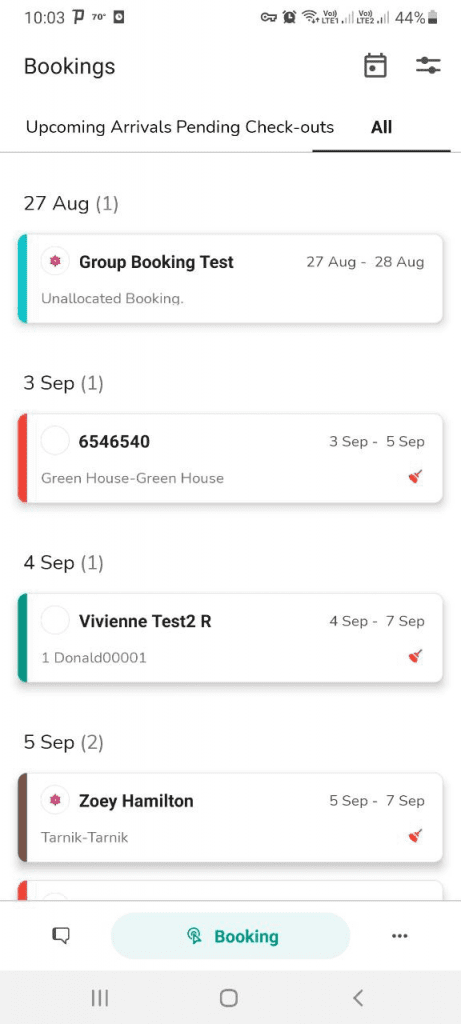
3. All Bookings
This is the list of all bookings with various statuses and dates.
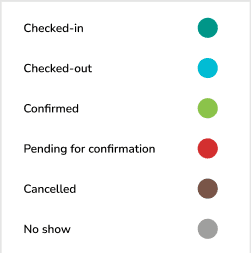
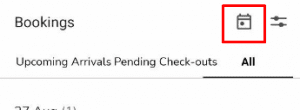
There are two icons:
When you tap the today’s icon (the calendar-like symbol), you are redirected to today’s booking(s).
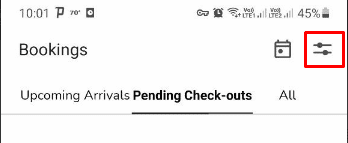
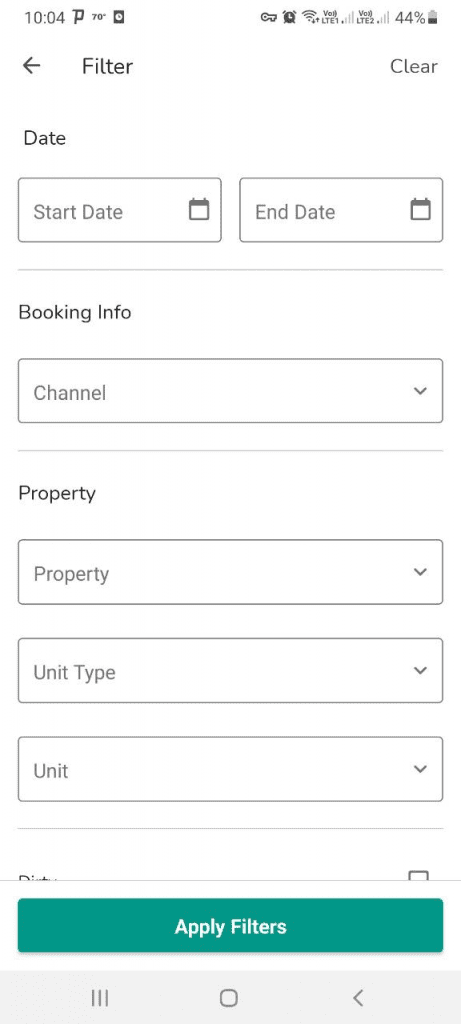
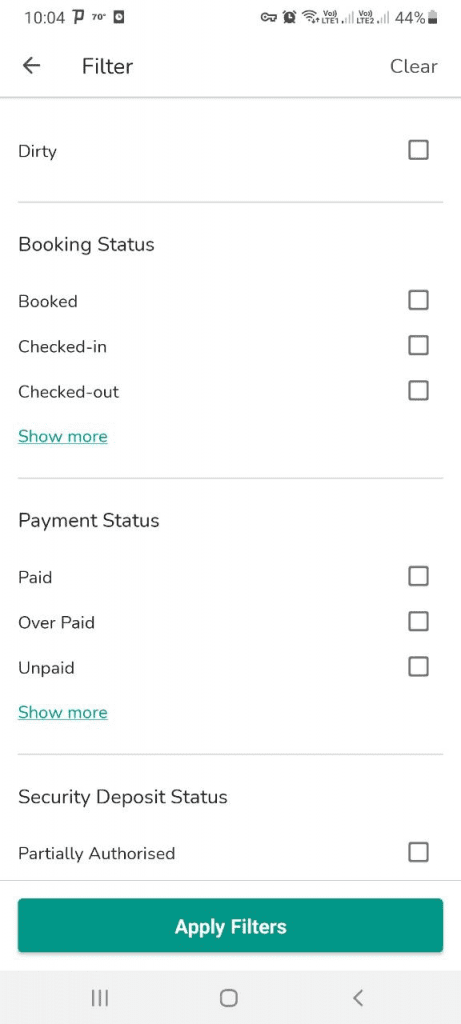
Using the Filter icon, you can filter and view the bookings that match the conditions you set: Date, Booking Info, Property, Dirty, Booking Status, Payment Status, or Security Deposit Status, etc
This includes Lead Guest Name, Booking Number, Channel, Editable Booking Status, Property image with its name on it, Access Code, Address, Guest Info, Guest Numbers, Date range (arrival to departure), Unit Type with its Confirmation Link, Price and its payment link, and Security Deposit status.
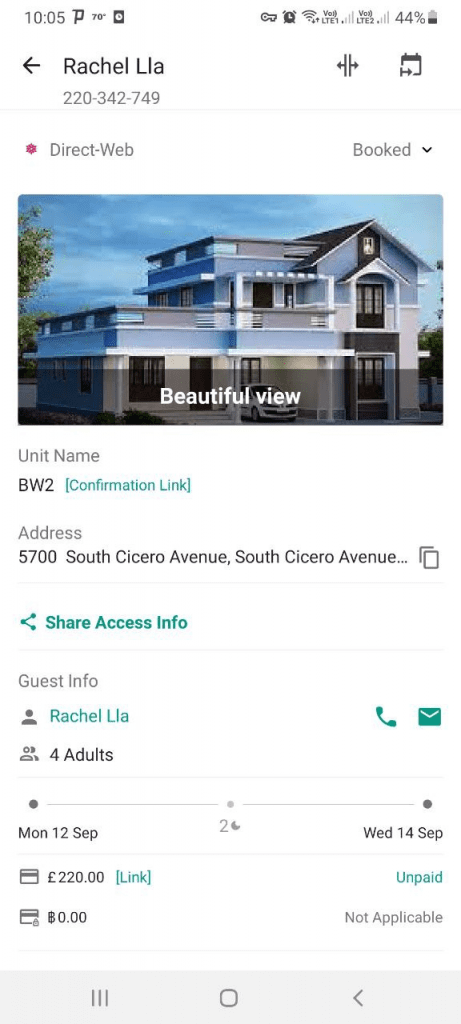
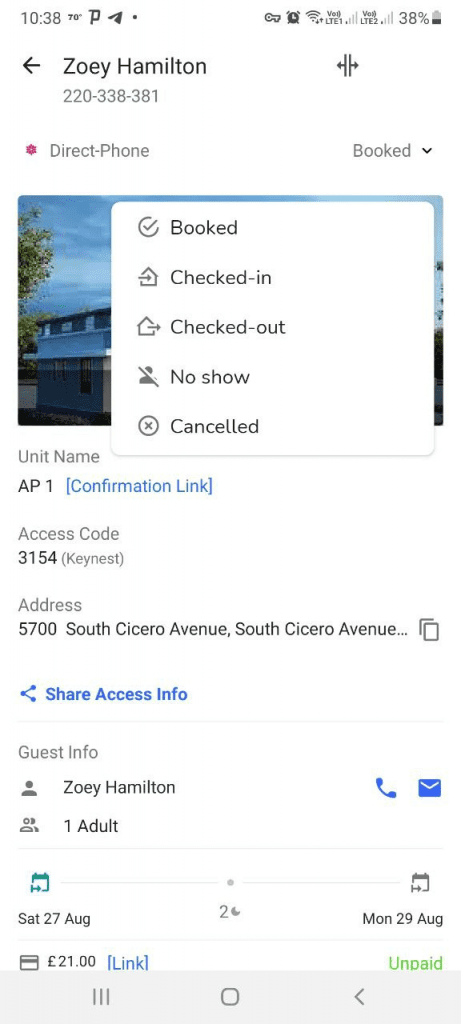
When you tap on the Booking status, a small box (including Booked, Checked-in, Checked-out, No show, Cancelled) pops up for editing.
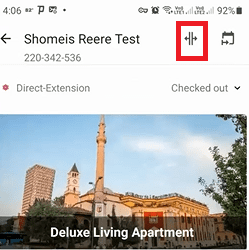
When you split a booking, it is divided into two: the first and second booking. The first can not be split any more, but the second one can if there is enough time (day) for splitting. In order to split, you can tap on the Split icon which is shown for the second booking but not for the first one.
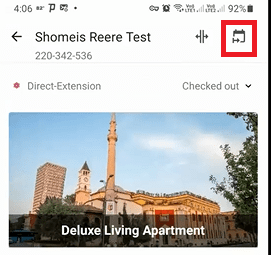
You can extend a booking by tapping on the Extend icon. Tick Price Override for a new payment, and to send a reminder, tick the Send Payment Reminder box. The booking is divided into two, the first and second booking when you extend it. The first can not be splitted any more, but the second one can.
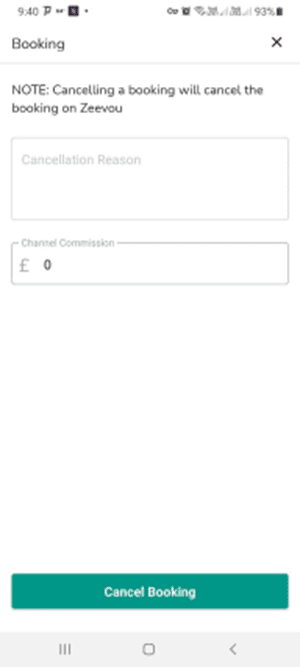
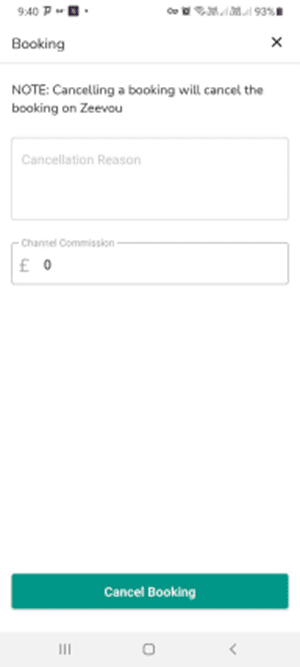
If the booking is direct and not from a channel, you have one option for cancelling:
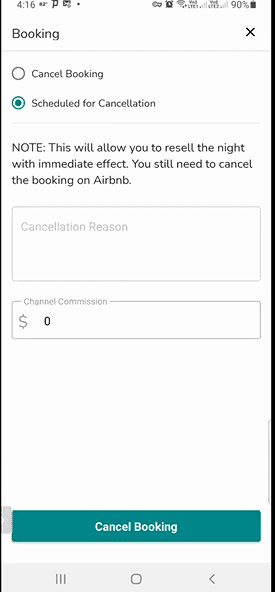
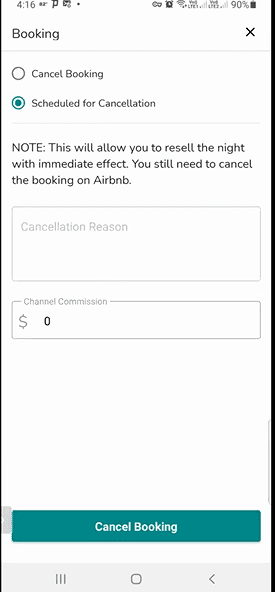
If the booking is from a channel, you have two options for cancelling:
You can install the Zeevou web platform on your iPhone as a Progressive Web App (PWA) and access it directly from your Home Screen.
Open Safari on your iPhone.
Go to app.zeevou.com and log in to your Zeevou account.
Tap the Share button at the bottom of the screen.
Scroll down and tap Add to Home Screen.
Tap Add in the top-right corner.
The Zeevou icon will now appear on your iPhone Home Screen. Tap it to open the Zeevou web platform and access features such as listing details, instructions, and automated messages.
