Dynamic pricing automatically adjusts your rates based on market demand, helping you maximise revenue while maintaining competitive pricing. Zeevou offers two options: a free built-in tool for basic automation, or integration with advanced paid platforms for comprehensive pricing strategies.
Zeevou offers free dynamic pricing for a rolling 30-day period through an integrated PriceLabs connection. This feature provides automated rate recommendations within your preferred price boundaries without requiring a paid PriceLabs subscription.
The free dynamic pricing feature:
Provides rate predictions for the next 30 days
Pulls nightly rates only (no minimum stays or other restrictions)
Automatically updates your calendar within set price limits
Resets to your standard Zeevou rates after 30 days
Important: If you subscribe to PriceLabs and connect it directly to Zeevou, the free integration will be disconnected automatically once PriceLabs begins sending rates via API.
Navigate to Listings > Unit Types
Select the Pricing & Availability tab
Find the Dynamic Pricing card
Toggle on Enable Dynamic Pricing

Set your Min Rate (lowest acceptable rate)
Set your Max Rate (highest acceptable rate)
Click Save
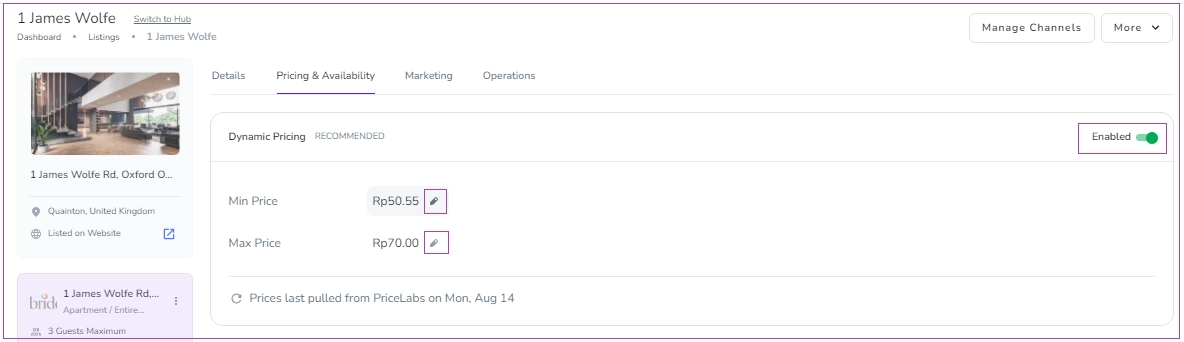
Check your dynamic pricing recommendations on the Rates & Availability Calendar. The system will display predicted rates within your set minimum and maximum boundaries for the coming 30 days.
To unlock the full power of dynamic pricing with custom rules and advanced strategies, upgrade to a full PriceLabs subscription. You can also choose from other dynamic pricing tools like Beyond Pricing, Wheelhouse, or Rategenie.
Free 30-Day Dynamic Pricing includes:
Currency
Location
Calendar rate
Min/Max dynamic pricing boundaries
Unit and bedroom count
Paid Dynamic Pricing adds:
Custom rules and advanced strategies
Portfolio occupancy adjustments
Last-minute pricing optimisation
Occupancy-based adjustments
Full control over customisations and overrides
Zeevou integrates with leading dynamic pricing platforms to automatically update your rates based on market demand, seasonality, local events, and competitor pricing. Choose from PriceLabs, Beyond Pricing, Wheelhouse, or Rategenie.
Paid dynamic pricing tools offer advanced features beyond Zeevou's free option:
Key factors that influence pricing:
Base Price: Your calendar price serves as the foundation (must match between Zeevou and the pricing tool)
Min/Max Prices: Boundary limits for rate adjustments
Location Data: Latitude, longitude, and local market conditions
Property Details: Bedroom count, amenities, unit type
Advanced Rules: Portfolio occupancy, last-minute pricing, occupancy-based adjustments
Custom Strategies: User-defined pricing rules and overrides
Important: Ensure your Zeevou calendar price matches the base price in your pricing tool to avoid discrepancies.
PriceLabs provides industry-leading AI-powered dynamic pricing with customisable rules, portfolio management, and seamless integration with Zeevou. As our featured pricing partner, PriceLabs offers the smoothest setup experience and most comprehensive features.
New users: Sign up at PriceLabs and use code TMkEWR to receive $10 in credits
Existing users: Log in to your PriceLabs account
Click Add your listings in your PriceLabs dashboard
A pop-up will appear with different channels and channel managers
Scroll to the bottom and select Zeevou
Click Connect
You'll be redirected to Zeevou to grant PriceLabs access
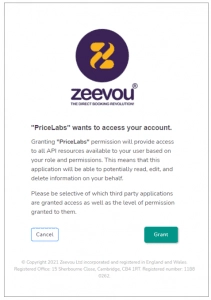
Authorise the connection
Your Zeevou listings will appear on your PriceLabs dashboard
Adjust your rates and customisations in PriceLabs
Turn on the Sync toggle in PriceLabs
Click Sync Now to sync immediately
View Your Rates Navigate to the Rates & Availability Calendar in Zeevou to see your PriceLabs rates and minimum stays.
Beyond Pricing offers automated pricing optimisation with simple setup.
Sign up at Beyond Pricing. Do not link Airbnb or HomeAway when prompted after sign-up.
Click this link to begin the connection
You'll be asked for your Zeevou username and password (skip this if already logged in)
Click Authorise access
You'll be returned to Beyond Pricing with your integration complete
Your Beyond Pricing rates will automatically sync to Zeevou.
Your Beyond Pricing rates will automatically sync to Zeevou and appear on your Rates & Availability Calendar.
Wheelhouse provides data-driven pricing recommendations with automated daily updates.
Log into your Zeevou account
Click the gear icon in the top-right corner
Select Integrations
Click Wheelhouse under the Dynamic Pricing tab
Click Connect to Wheelhouse in the top-right corner
Choose either:
Connect to an Existing Account
Create a New Account
If creating a new account, enter:
First Name
Last Name
Email Address
Phone Number
Password
Click Create Account to complete the connection.
On the Wheelhouse dashboard, you can:
Search by Rate Plan, Unit Type, or Listing Name
Filter by Status
Select inactive rate plans and click the three dots to:
Sync Now
Activate
Switch Plan
View Change History
Rategenie offers flexible pricing strategies with granular control over rate adjustments.
New users: Sign up at Rategenie
Existing users: Log in to your Rategenie account
Navigate to the Integrations Page (bottom left of Rategenie dashboard).
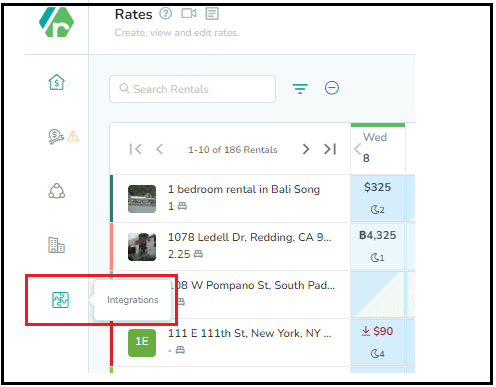
Click the Connect button in the Zeevou section
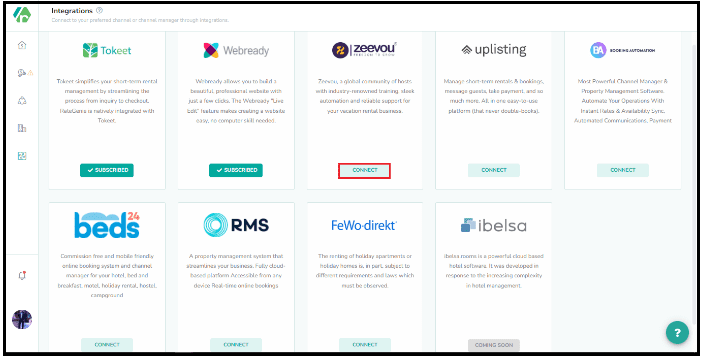
Click Grant to authorise the connection

Make sure you're already logged in to Zeevou in a separate tab
Click the Listings button to view your Zeevou properties
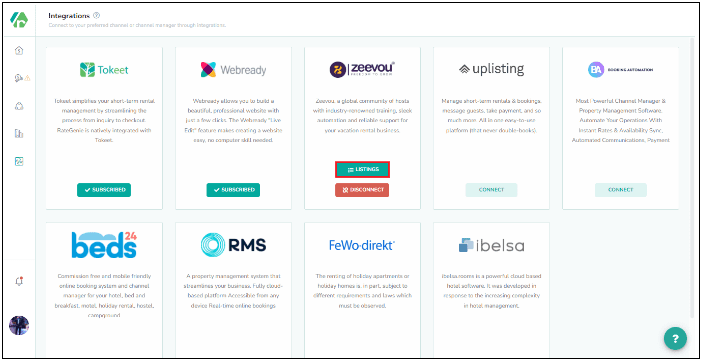
All listings are inactive by default
Toggle Status to ON for each listing you want to use with Rategenie
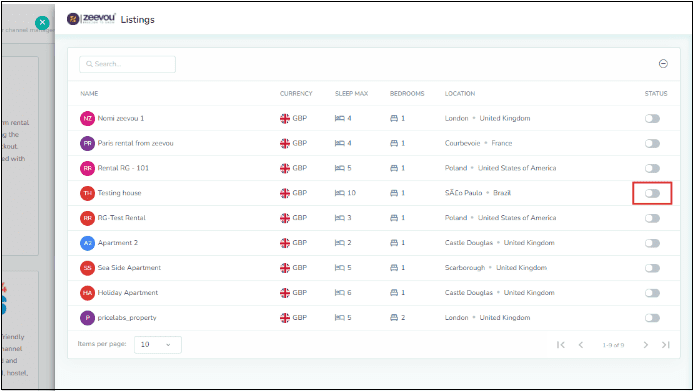
Note: Listings won't appear in Rategenie or use dynamic rates until you enable them.
To allow Rategenie to push rates to Zeevou:
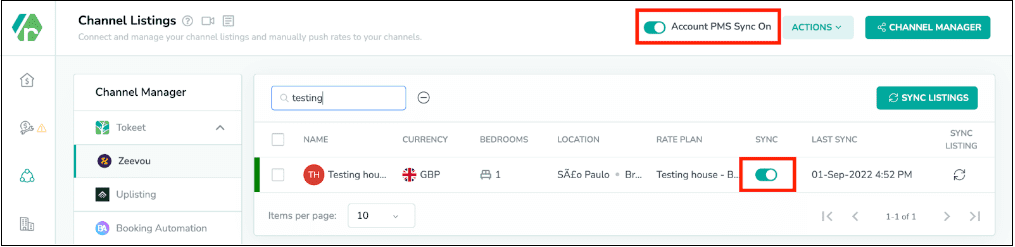
Account Level: Turn on Account level sync
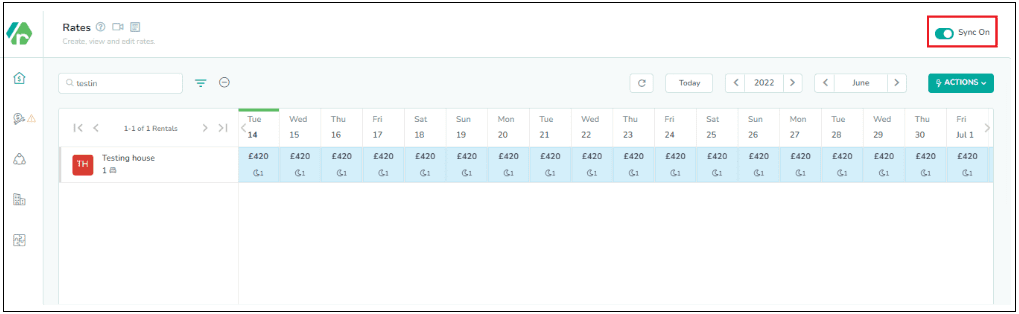
Select Rate Plan: Choose one rate plan per listing for Rategenie rates
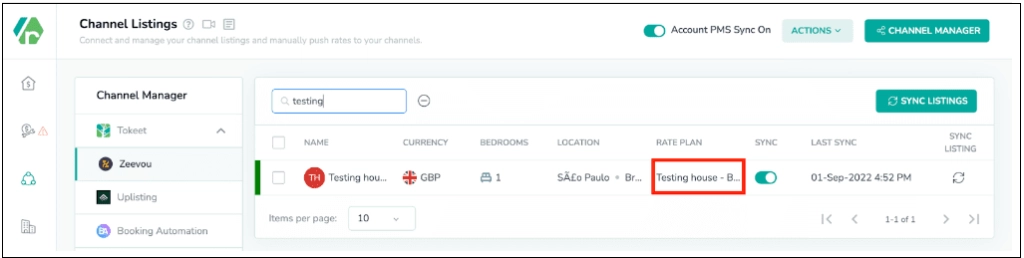
Channel Manager Sync: Turn on channel manager sync in the Listings module

Zeevou Sync: Select Zeevou from the left menu and enable:
Listings sync
Account PMS sync
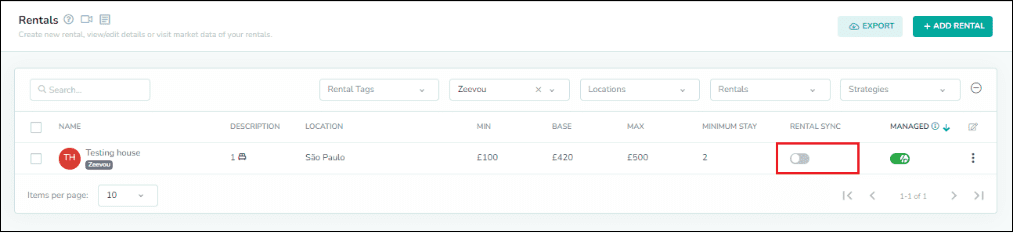
Rental Sync: Turn on the toggle for rental sync in the rentals list view
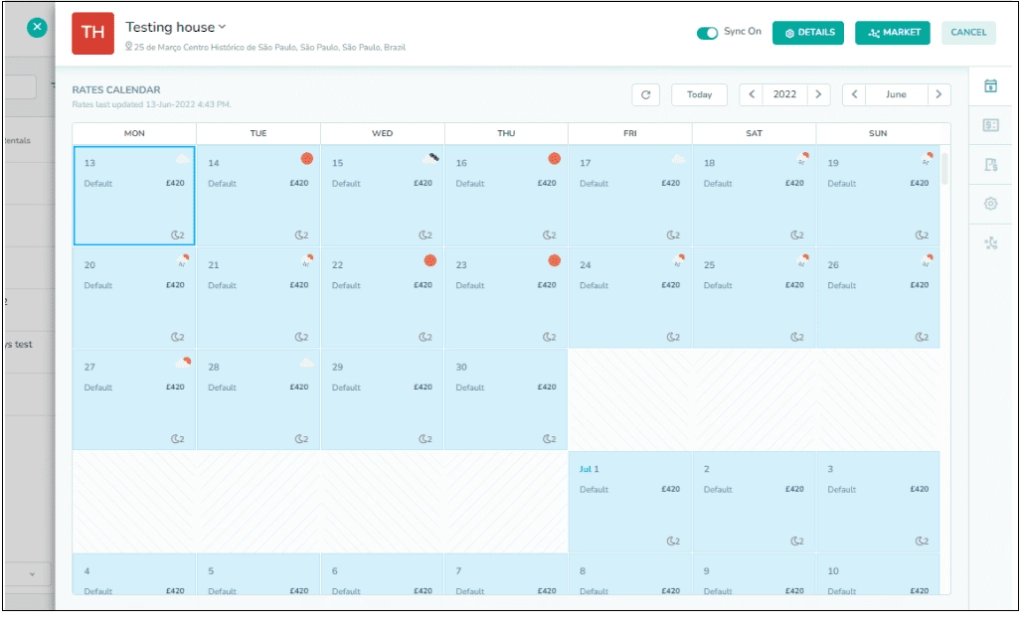
Go to the Rates Calendar in Rategenie
Save your rate settings
Link a strategy to generate rates (learn more about strategies)
View generated rates in Rategenie's calendar
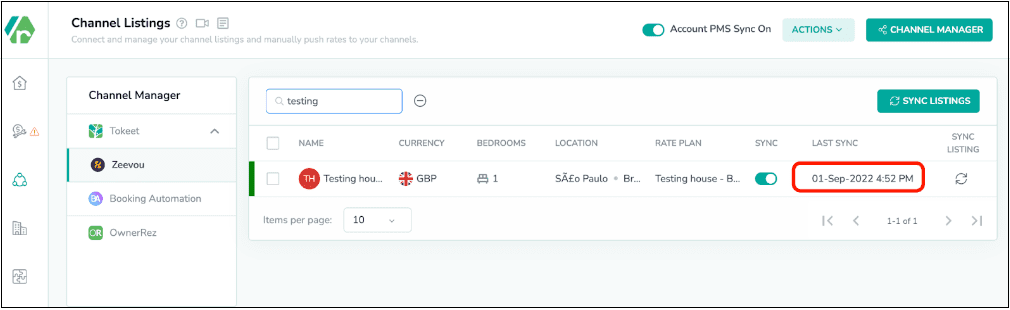
Check the Last Sync column in the Listings module has updated
Navigate to the Rates & Availability Calendar in Zeevou
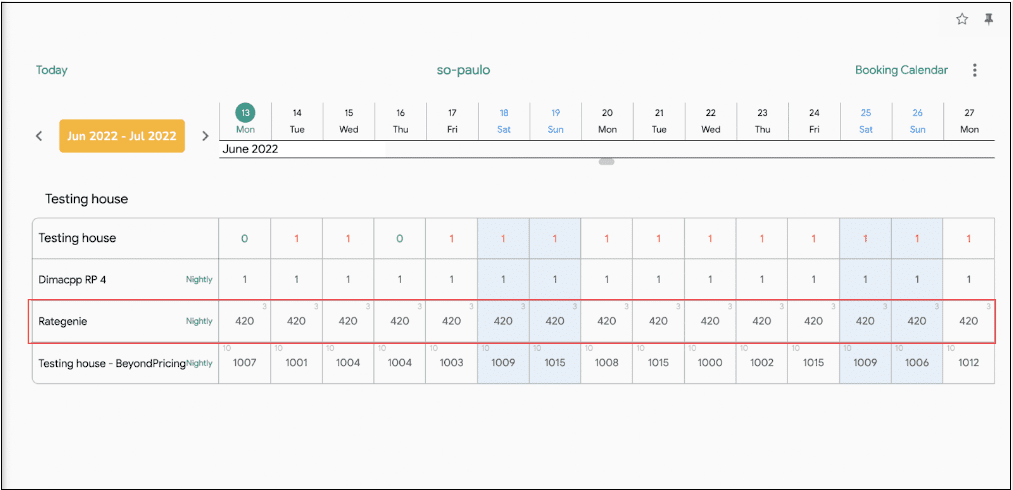
Confirm Rategenie rates are displaying correctly
