Email syncing depends on the permission level where you generate or connect the forwarding address.
Log into app.zeevou.com and navigate to the Staff Management dashboard and open the Staff tab.
Click the three dots beside the staff member you want to edit.
Select View to open the staff member’s dashboard.
Click Manage Staff Account and select Generate Forwarding Email.
A confirmation window will pop up stating “Email Forwarding Generated”.
Copy the Generated Email Forwarding.
Then, navigate to your email client and set up a forwarding rule to send all your messages to this address.
Log into app.zeevou.com and navigate to the Staff Management dashboard and open the Teams tab.
Click the three dots beside the team you want to adjust and select Edit.
Enable the toggle Connect Your Team to Zeevou Unified Inbox to allow team members to receive and reply to emails sent to the team’s email address directly from their Zeevou accounts.
Enter the Team Email Address in the provided field.
Enter the Email Forwarding Address in the provided field.
Click on Save.
A confirmation window will pop up stating “Email Forwarding Generated”.
Copy the Generated Email Forwarding.
Then, navigate to your email client and set up a forwarding rule to send all your messages to this address.
Log into app.zeevou.com and click on the Gear icon.
Select Settings.
Then, select a Brand from the left menu.
Navigate to the Messaging tab, Inbox Integration card and click on Generate Forwarding Address.
Once configured, emails sent to the brand’s forwarding address will be visible to authorised staff across the brand as applicable.
Copy the Generated Email Forwarding.
Then, navigate to your email client and set up a forwarding rule to send all your messages to this address.
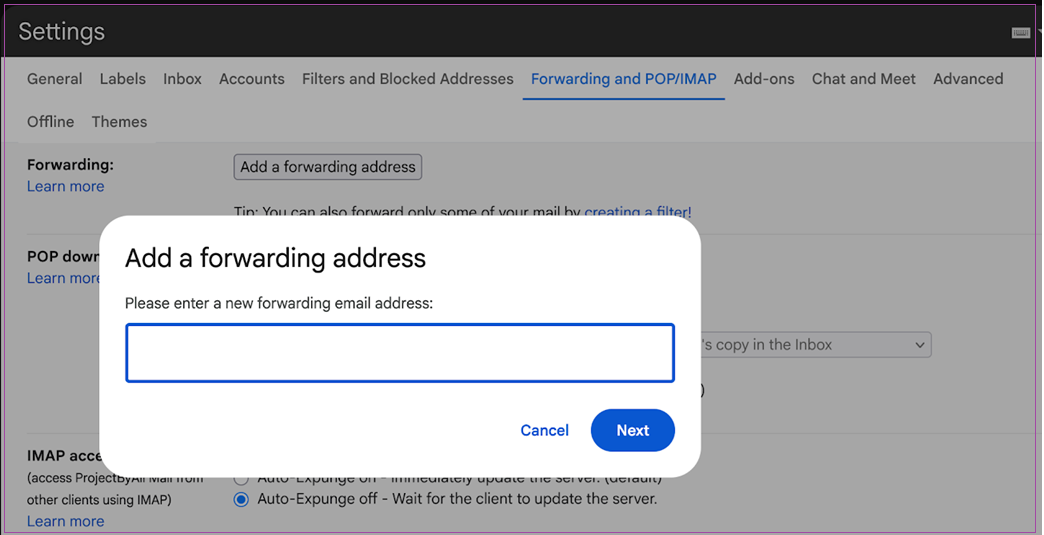
Here, the Gmail account is displayed as an example: