
Integrating with RemoteLock
Step 1: Sign in to your Zeevou account
Step 2: Click the gear icon and select Integrations.
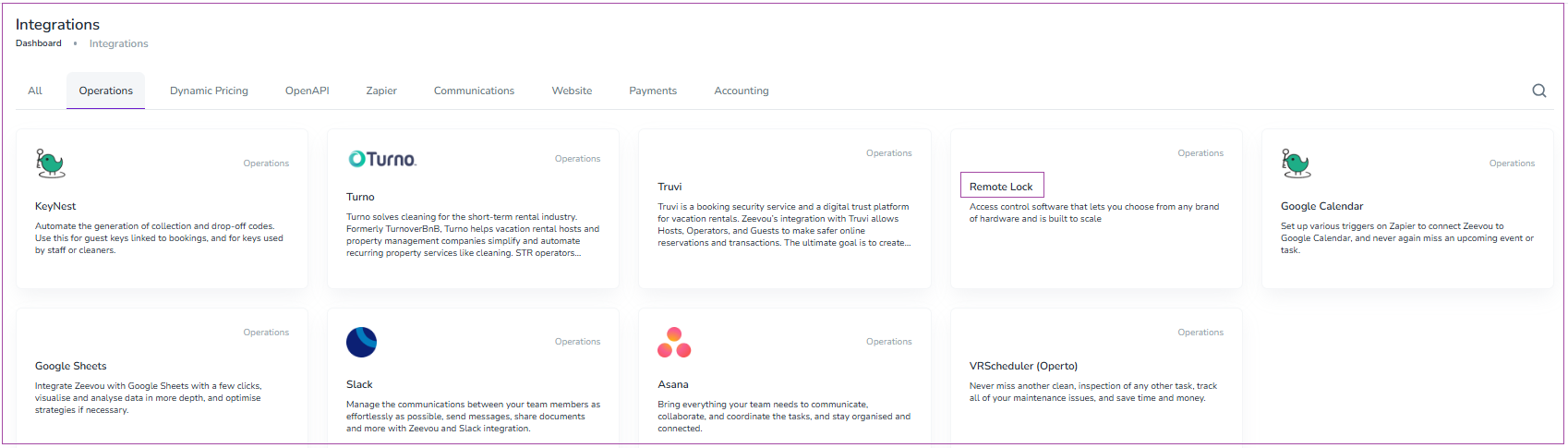
Step 3: Under the Operations tab, click RemoteLock.
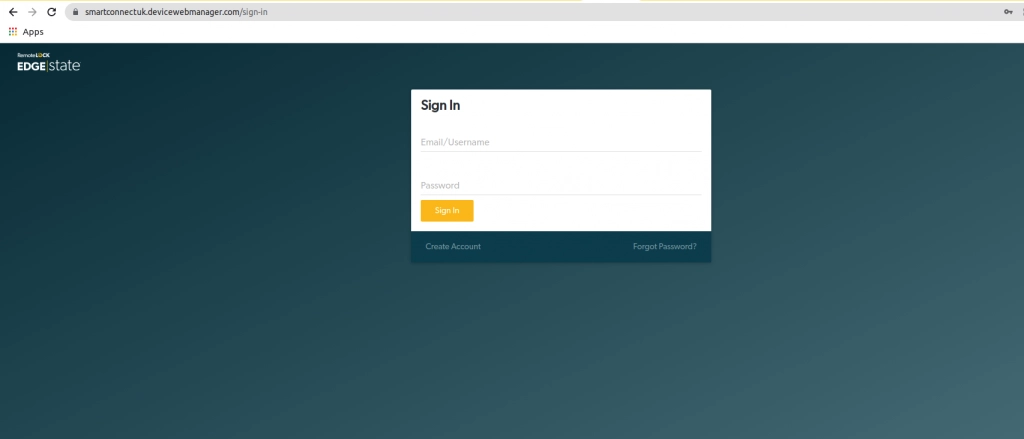
Step 4: Your RemoteLock page will pop up in a new window. Please, login to your account and click Authorize.

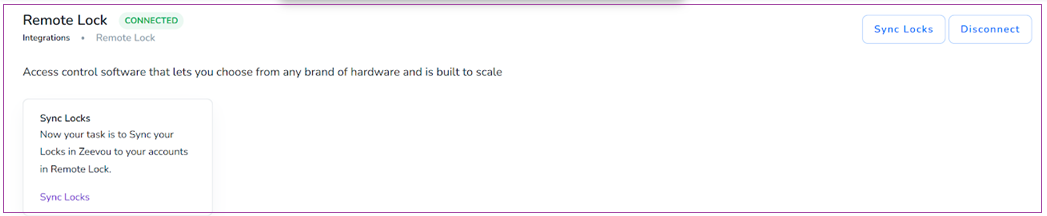
Step 5: Then, return to the Zeevou Remote Lock Integration Page and refresh. The status should change to “Connected”.
Step 6: You can see the Sync Locks button at the bottom of the page. If you have already registered your lock in the RemoteLock account, you can sync your locks.
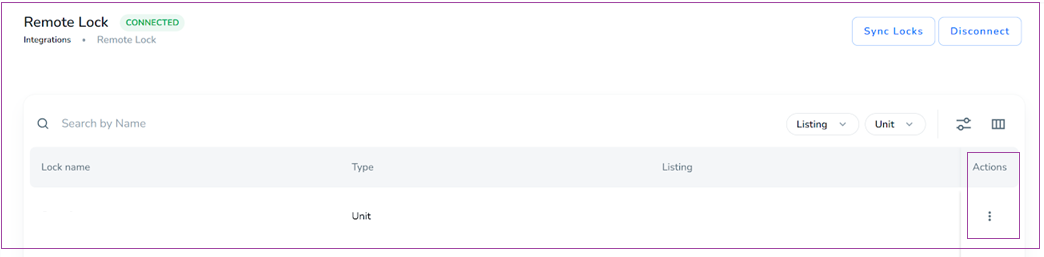
Step 7: Now, you can add which unit(s) the lock is related to. You can also click three dots under Actions to edit Integration in a popup window.
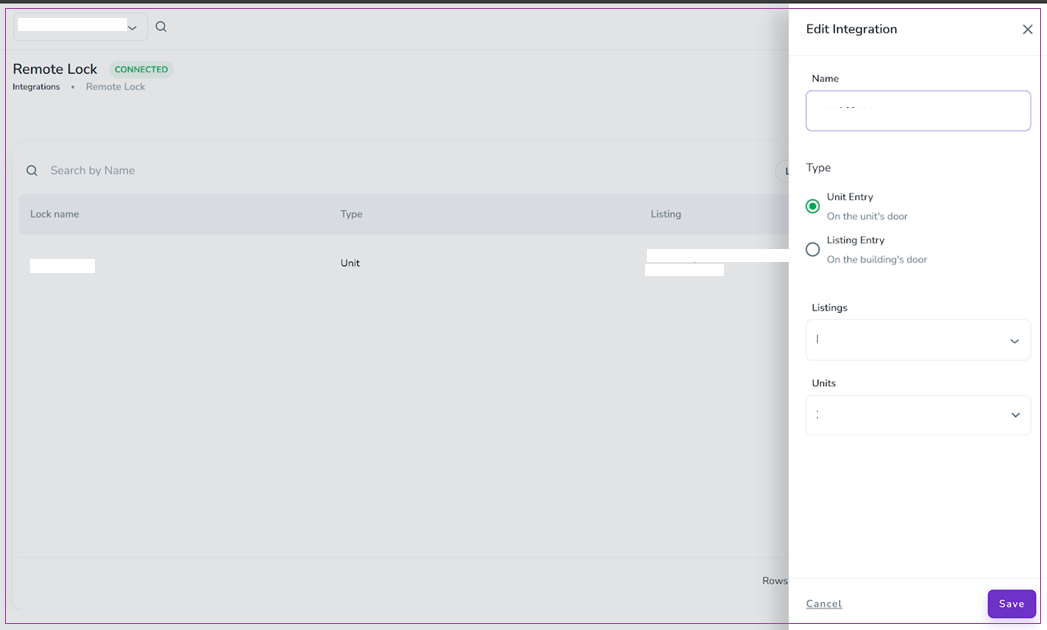
Step 8: When your lock is added, you can click the lock and it will take you to the lock view page.
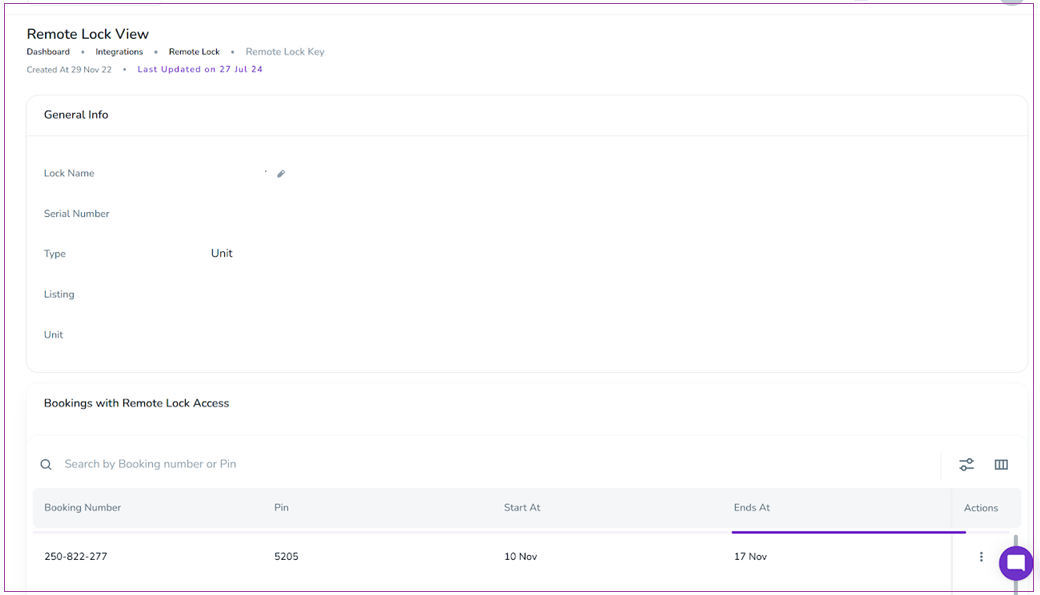
Step 9: You are Done! Every time a booking is created, the system automatically creates a pin for that unit, and the key is valid for that guest for the booking time. You can see the created pin under the Booking page -> Details tab -> Location card -> Access Code.