The Monthly Profit Report (MPR) system provides a detailed, structured overview of financial performance in property management. It tracks and summarizes all key financial activities — bookings, fees, expenses, taxes, refunds, and penalties — and supports different contract types. This article will guide you through how MPRs work, how to use them effectively, and the key actions you can take.
MPRs Are Generated Monthly
Each report corresponds to one calendar month.
MPRs Are Generated Per Contract
If Owned contract exists, the host is also the owner, and the report is generated for the host's units.
If a rental contract or management commission contract exists, the MPR is tied to that contract.
Updates Automatically Affect MPRs
Changes in booking details, expenses, contract details, fees/upsell prices, and penalty prices will automatically update the relevant MPR and the associated bookings.
MPRs Are Only Generated When There’s Activity
If no transactions (e.g., bookings or expenses) occur during a month for a given contract, no MPR will be generated for that period.
The MPR interface contains several components that break down financial performance in detail:
This summary card gives a snapshot of the profit or loss, tailored based on the contract type:
Owned Contract: Full ownership by the host.
Rental Contract: Host rents unit(s) from an owner.
Management Commission Contract: Host earns a commission for managing the owner’s units.
Displays all bookings during the report month.
Clicking the Booking Number redirects to the booking's detail page.
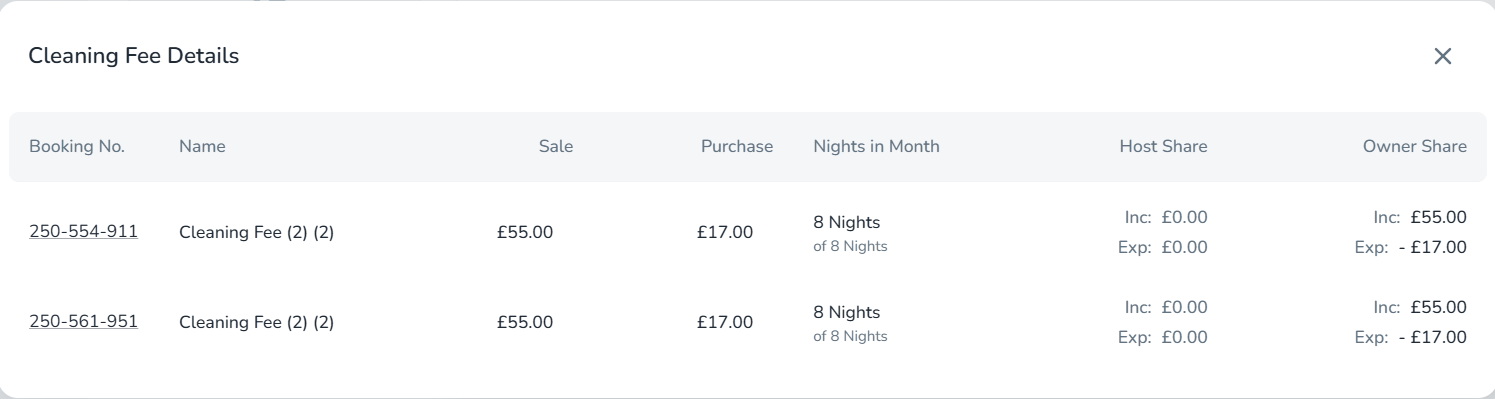
Visible only if any fees or upsells occurred that month.
Shows a breakdown of sold categories.
Each row includes a "View Details" action, opening a popup with:
Details by booking
Editable sales and purchase prices
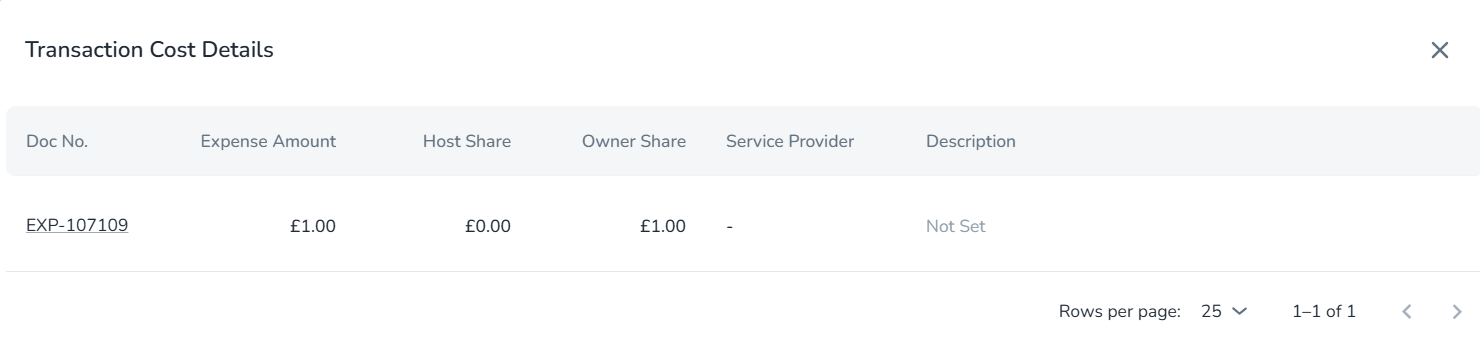
Displays Manual and Systemic Expenses (Channel commission, Payment fee and Payment charge)
Appears only if expenses were recorded that month.
Each row includes a "Show More Details" option to view the related expense document.
Shows applicable taxes for the month.
Appears only if taxes were recorded.
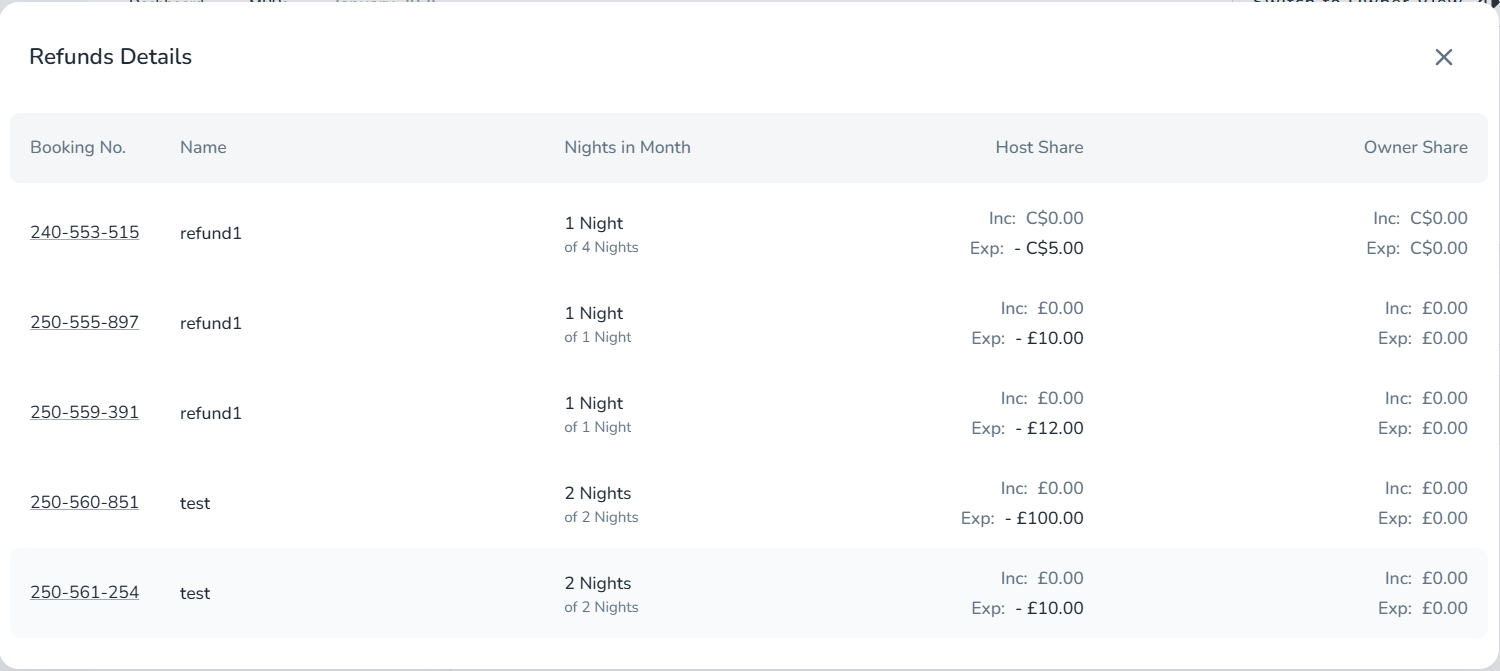
Displays any refunds issued during the month.
Appears only if there are refunds.
Each row includes a "View Details" action for per-booking breakdowns.
Lists all penalties applied during the month.
Appears only if penalties exist.
Each row includes a "View Details" popup, where you can update:
Sales price
Purchase price

When an extra service such as a cleaning fee is added to a booking, the revenue (sale) and cost (purchase) are split based on how many nights of that booking fall within the selected month.
The sale amount reflects what was charged to the guest, while the purchase amount reflects the actual cost of delivering the service. Both amounts are distributed proportionally across the months the booking spans. Only the portion that falls within the current month is included in the report.
Zeevou then allocates these prorated amounts between the host and the owner. In many cases, the income and expense are fully assigned to the owner. If the cost of the service is higher than the amount charged to the guest, the owner may show a negative net share for that service.
Switch to Owner View/Switch to Host View
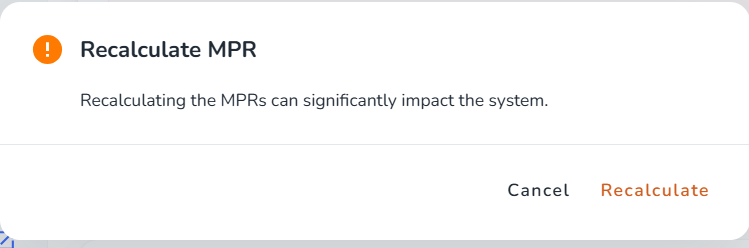
Recalculate MPR
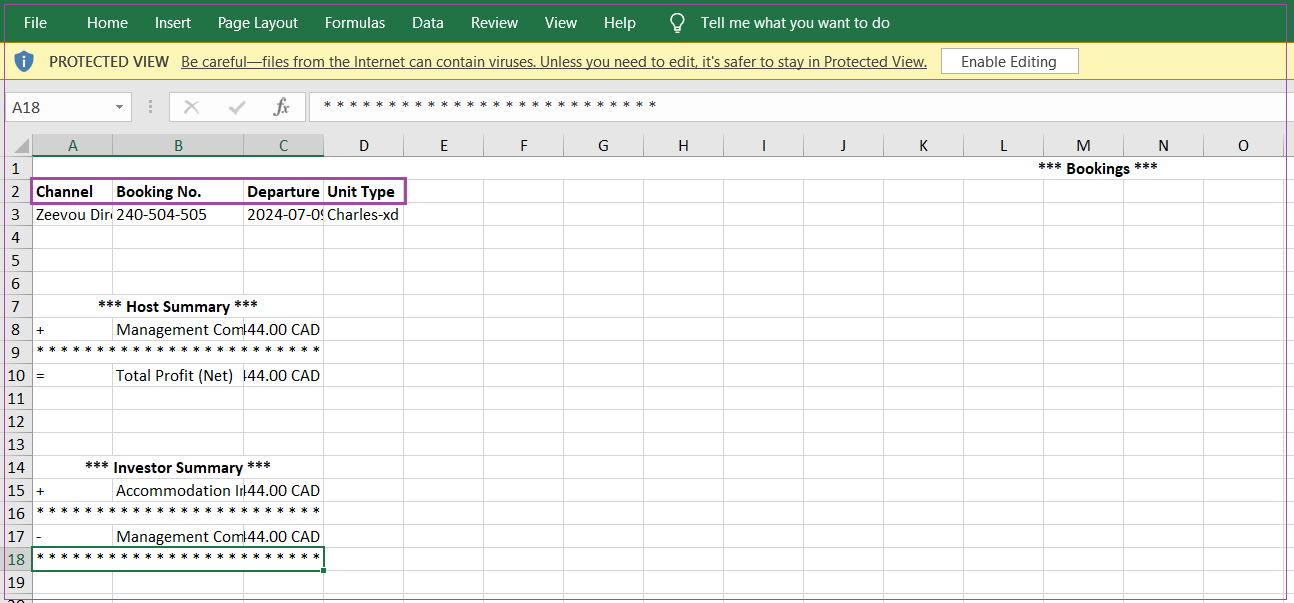
Export MPR to PDF, Excel, and CSV

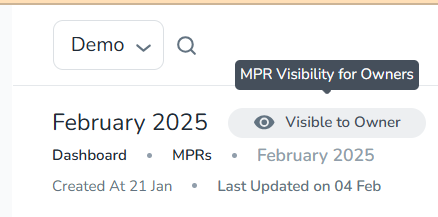
Visible to Owner/Invisible to Owner
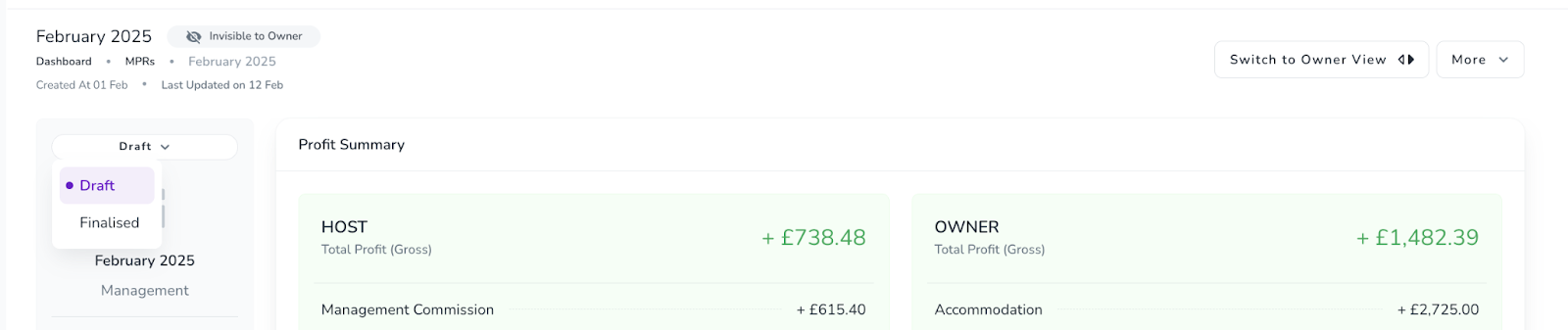
MPR Status: There are three possible statuses for MPRs: Draft, Finalised, Not set
The MPR status will be "Not Set" under either of these conditions:
There is no contract associated with the MPR
There is a contract, but the contract owner does not have a Zeevou account.
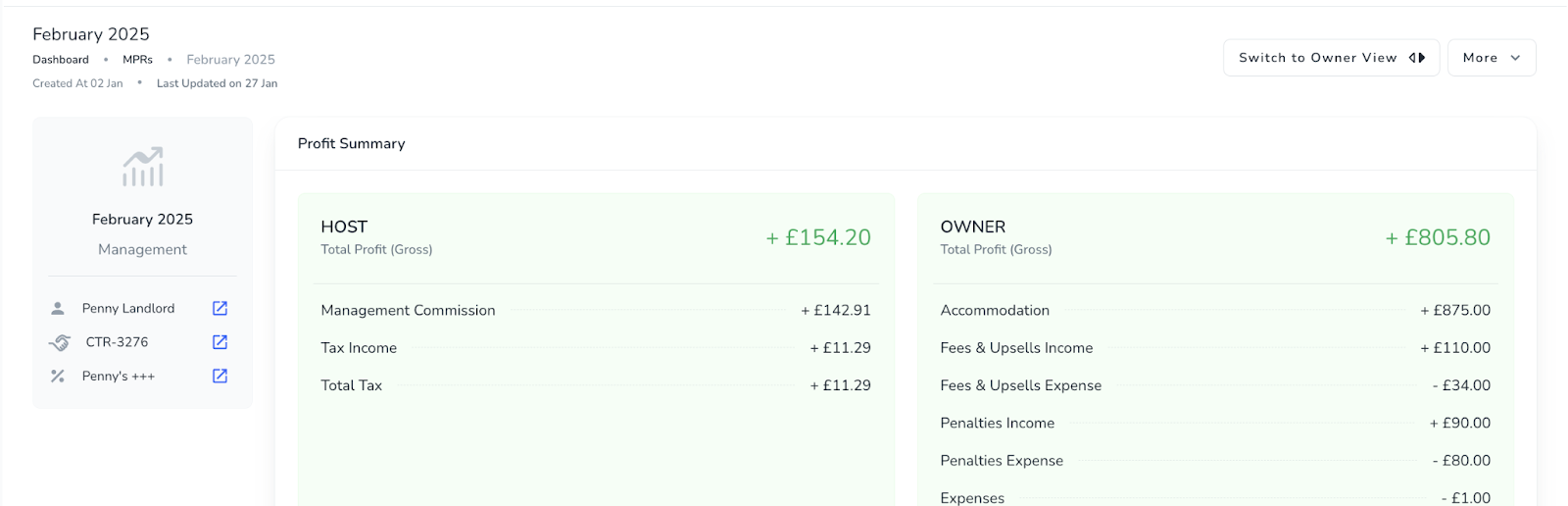
Note that the user doesn’t see any status on MPR page when the status is “Not Set” and cannot change the status of MPR to any other status
When there is a contract associated with the MPR, and the contract owner has a Zeevou account:
The MPR status defaults to "draft"
Users can freely switch the status between "draft" and "finalised"
MPRs
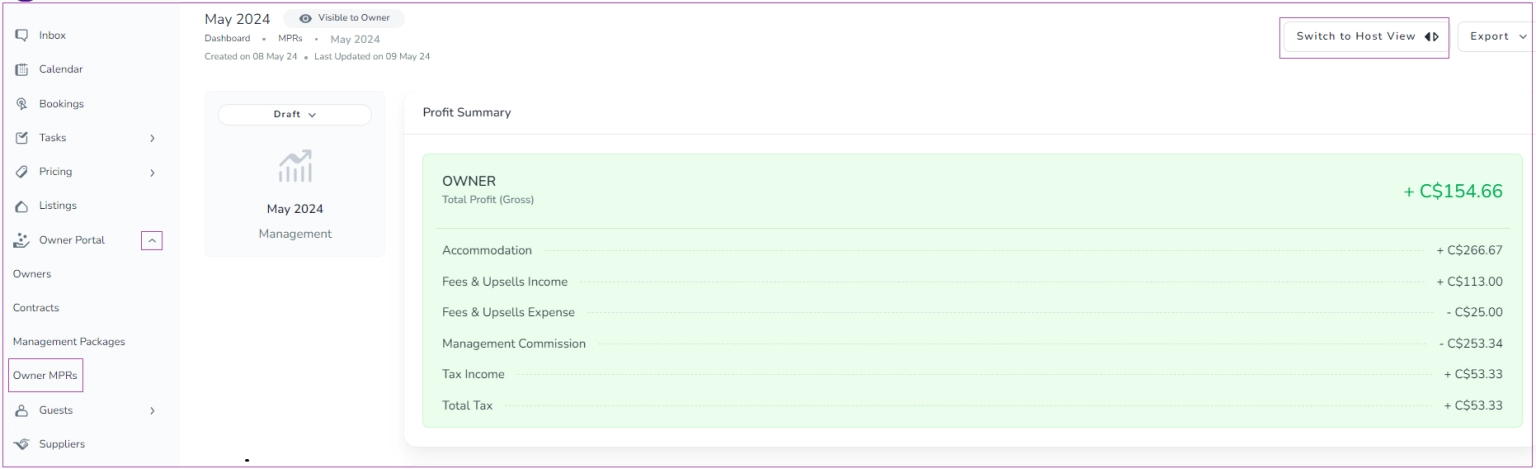
On MPR Dashboard, you can click the three dots in front of each MPR to View it as a Host. You can also click the arrows to Switch to Owner View to view Owner MPRS. Note that you can view Owner MPRs from the general Menu on the left.
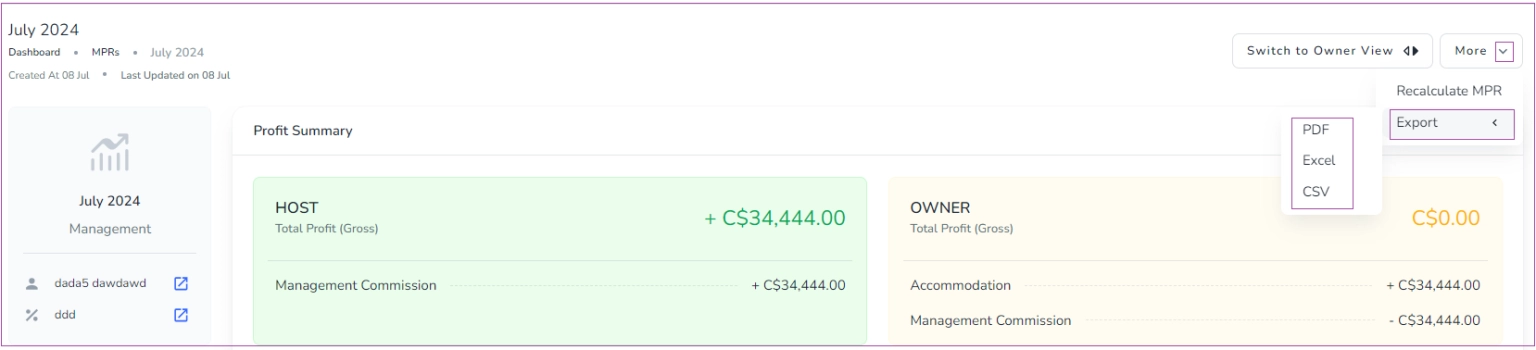
If you click the More drop-down arrow, you can select Recalculate MPR or Export it as PDF, Excel, or CSV.
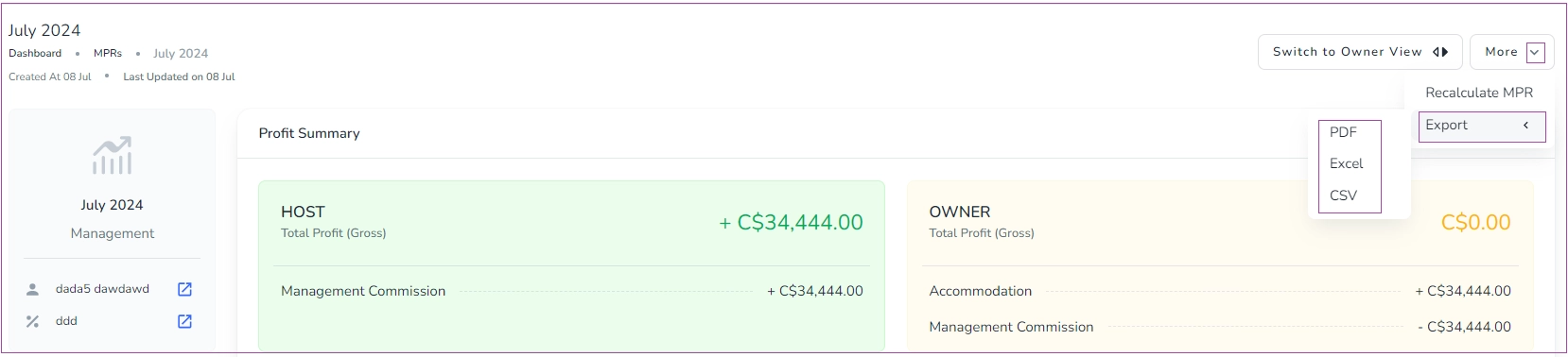
If you want to select new columns (entities) from your MPR (Monthly Profit Report) before exporting, go to Performance -> MPRs and click the three dots to View. On the open page, click More-> Export-> Excel.
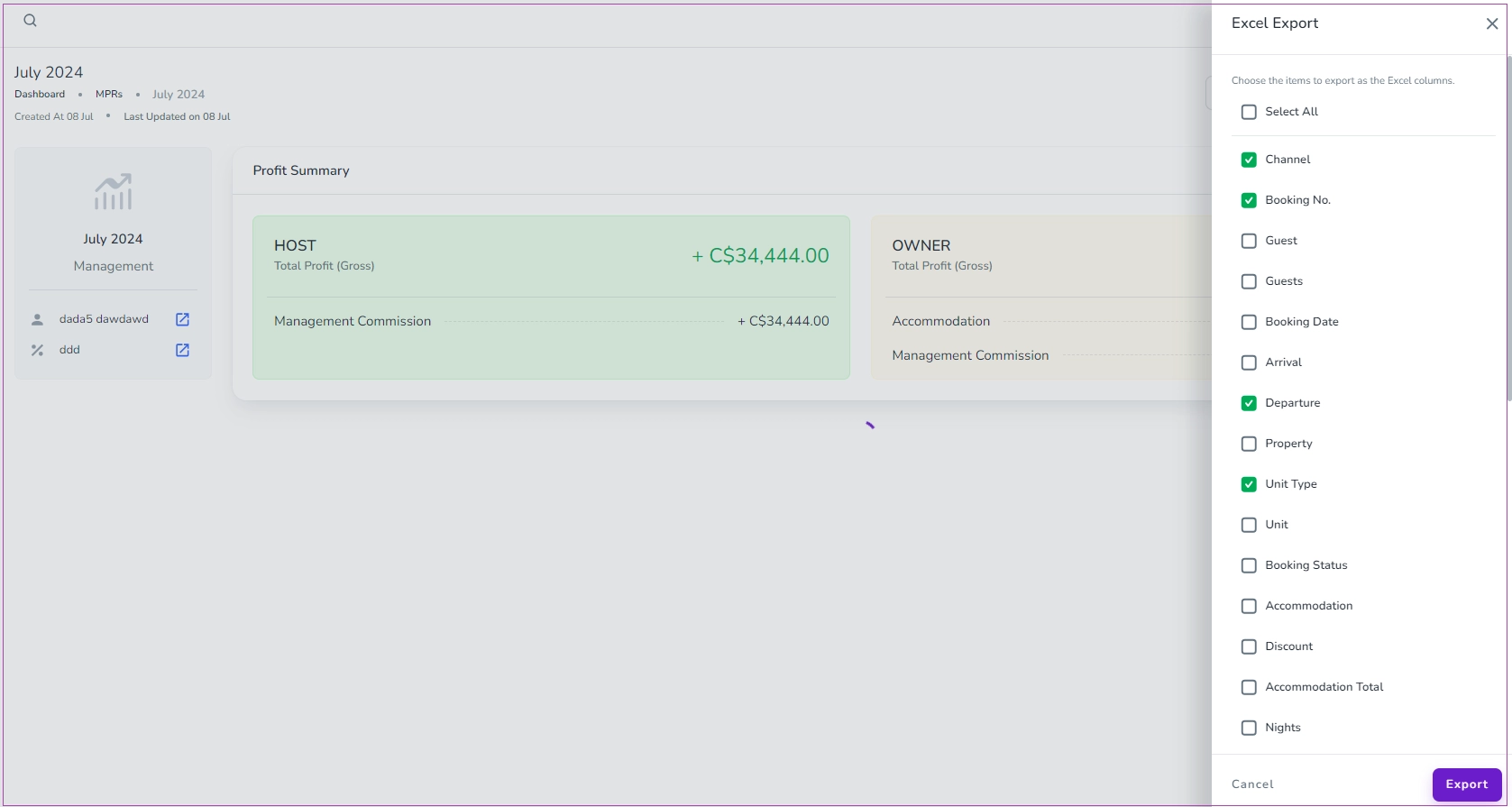
When you click Export As Excel, a window pops up in which you can select the desired entities by ticking them. Finally, click Export.
Note that when you try to download MPRs in XLSX format, some cells for income and expense may be empty. These should be considered as zero. However, in CSV format, everything appears correctly.
The Excel file will consist of the ones you have selected in the MPR.