You need to have integrated a payment gateway to allow guests to instant book and force payment collection. If no gateway has been integrated, guests will be able to book without paying, and you will then need to follow up manually to collect payments.
When using an integrated payment gateway, Zeevou ensures that the calendar is only blocked after the guest completes payment.
Booking Request Stage:
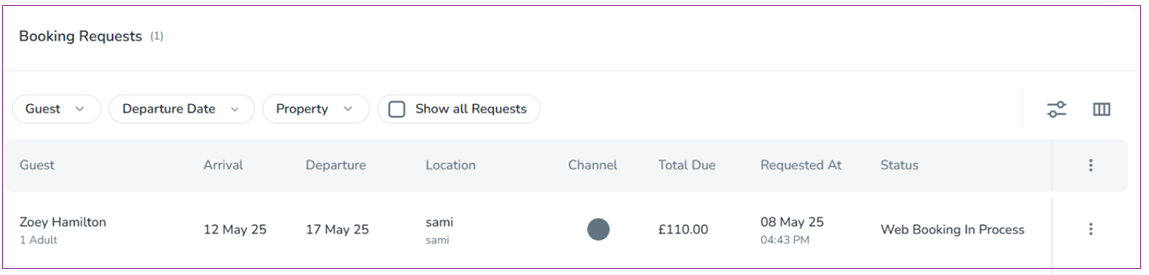
When a guest submits a reservation request, it appears under Booking Requests with the status Web Booking in Process.
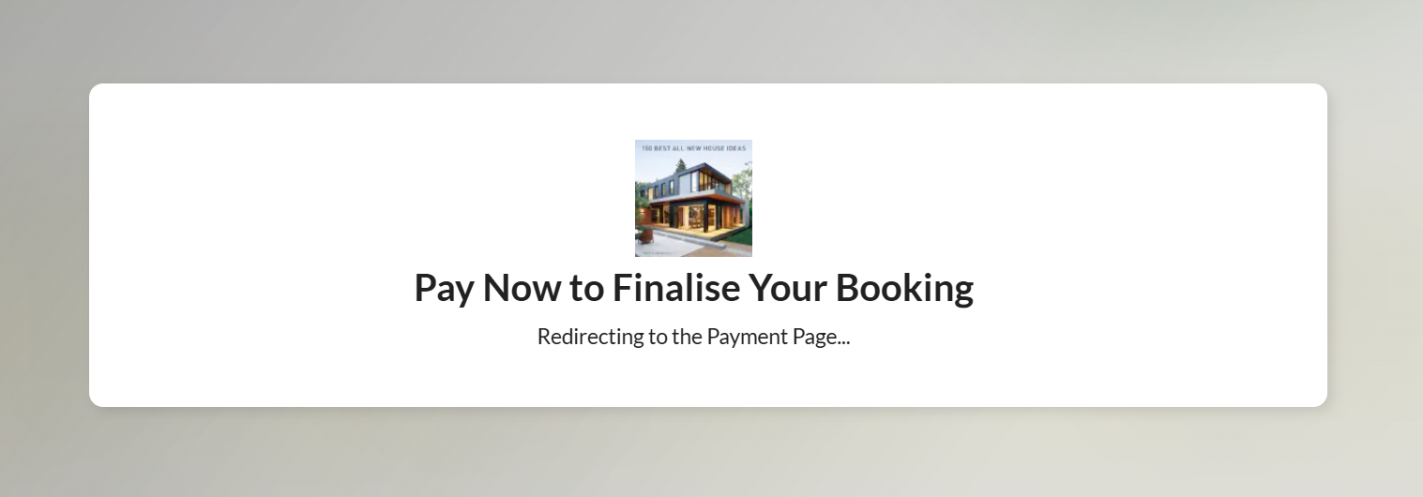
The guest is redirected to make payment immediately and has 1 hour to complete the payment.
Note 1: You can enable the 'Card' payment method in the settings. This ensures that guests can only request a booking, and the booking will be confirmed only after the payment is completed.
Note 2: You don’t need to manually accept direct bookings in the Booking Request section. If the guest completes the payment, the booking will be automatically accepted. However, if the payment is not made and a payment gateway is connected, the unpaid booking will not appear on the calendar or block availability.
Multiple Payment Gateways:
If you have more than one payment gateway set up for different units of the same unit type, payment will default to your Brand Gateway (the gateway you have chosen in the Finance settings of the brand).
Payment-First Flow Outcome:
If the guest completes payment:
The booking is confirmed and the calendar is blocked.
If the guest doesn’t complete payment within 1 hour:
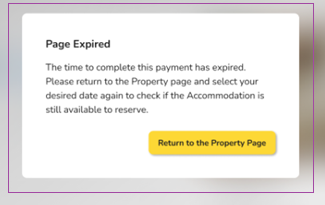
The booking request status changes to Expired.
Note that Expired in the booking request section means the guest left without paying and you should follow up manually.
What if someone else books the same dates first?
Since the calendar remains open until payment is completed, it’s possible that someone else books the same dates.
If that happens, the original guest sees an "Accommodation Unavailable" message and is invited to view other available options.
The expired request still appears in your system so you can follow up or offer alternatives.
This section allows you to control what happens when guests finalize their reservations. The key settings include:
Redirect Guests To: Determines where guests are sent after booking.
Display Mobile Number Field: Toggles the mobile number field on the booking form.
Email Address Verification: Ensures a verification code is sent to the guest’s email.
You can choose where guests are redirected after making a reservation:
The first page of the Online Check-in Process (Selected in the image)
Guests are redirected to the beginning of the check-in process.
The Payment Page of the Online Check-in Process
Guests are redirected to the payment step during check-in.
None (Further instructions will be sent to Person Booking via email)
No redirection; guests receive instructions via email.
To do so, navigate to Wedsites→ General Settings→ Site Management→ Direct Booking Process Settings card. Below the redirection options, you can customize additional booking form settings:
 Display Mobile Number Field on the Form
Toggle ON (Green): Guests will see a mobile number field on the booking form.
Toggle OFF (Gray): The field will not be displayed.
Email Address Verification
Toggle ON (Green): A verification code is sent to the guest’s email.
Toggle OFF (Gray): No verification email is sent.
Click on the "Optional" or "Mandatory" button next to the mobile number field.
Optional: Guests can choose whether to enter their mobile number.
Mandatory: Guests must provide a mobile number before completing the booking. A verification code will be sent to the Person Booking via email.
