To purchase additional licences in Zeevou, follow the steps below:
Log in to app.zeevou.com.
Click your Profile icon in the top-right corner.
Select Account from the drop-down menu.
On the Account page, click Buy More Licences.
Select the required licence type(s) and choose the quantity.
Click Apply and Pay.
Complete the payment using either:
A Saved Card, or
A New Card.
Once the payment is completed, the additional licences will be available on your account.
If you no longer need a licence assigned to a particular unit, you can release it and make it available for use on another unit in your account.
Before releasing a licence, you must ensure that the unit meets the following requirements:
Unmap the listing from all channels. Ensure that the listing is disconnected from all connected booking channels.
Turn off Apply to Channels. On the Rate Plans card, disable the Apply to Channels option.
Check the bookings. Ensure that all bookings associated with the unit have either been cancelled or checked out.
Once all the requirements have been met, follow these steps:
Go to Listings.
Find and select the relevant listing.
Click Manage Listing (or More).
Select Release Licence.
The licence will then be released from the unit.
Important: Releasing a Licence Does Not Reduce Your Subscription
Releasing a licence from a unit does not automatically remove it from your contract or reduce your subscription charges.
Once released, the licence remains unassigned on your Zeevou account and can be allocated to another unit whenever needed.
If you wish to reduce the number of licences on your subscription, you must submit a separate request to our team.
If you no longer need all the licences included in your subscription and wish to reduce the number of licences you are paying for, you can request a deduction.
To do so:
Ensure that the licences you wish to remove from your subscription have been released from their respective units.
Contact our team by emailing [email protected] or submitting a request through the Zee bot.
Specify how many licences you would like to deduct from your contract.
Our team will review and process your request and update your subscription accordingly.
Once the adjustment has been processed, the reduced licence quantity will be reflected in your next invoice.
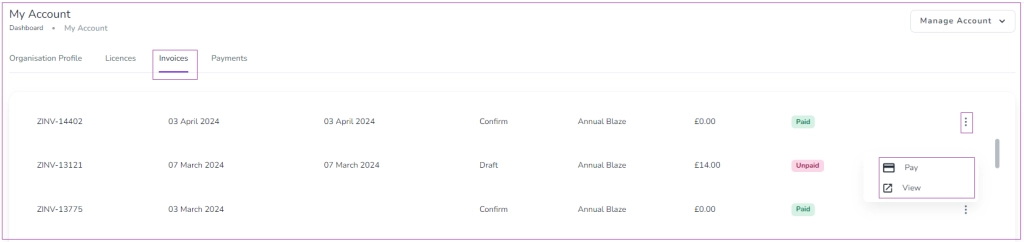
You can manage your invoices directly from the Account page.
Go to the Invoices tab.
Click the three dots next to an invoice to:
Pay (for unpaid invoices), or
View Invoice.
If you click View on a paid invoice, you will be redirected to the invoice page where you can:
Export to Excel
Download Invoice
Show Details
This allows you to keep a record of your payments and download copies for your accounting purposes.
