Opayo (formerly called Sagepay) is a payment gateway that connects Zeevou to your existing merchant account. It works as a bridge:
Your merchant account (Elavon, WorldPay, or FirstData)
↓
Opayo gateway (handles the technical connection)
↓
Zeevou (your booking system)
↓
Your guests (make payments)
You need both an Opayo account AND a merchant account with Elavon, WorldPay, or FirstData.
30-45 minutes
An Opayo account (sign up if you don't have one)
An active merchant account with:
Elavon, OR
WorldPay, OR
FirstData
Your merchant account number(s)
If you don't have an Opayo account yet:
Call the Opayo Sales Team on 0191 313 0298
During signup, provide your merchant account numbers from Elavon, WorldPay, FirstData, Barclaycard, etc.
Opayo will email you with a list of requirements
They will complete an onboarding form and send it to you for e-signature
Once signed, it goes to their onboarding team, which takes 3-4 working days usually.
Get the Live Account Credentials from them (they may tell you to test, but there’s no need to do so as testing has been done by us).
Once that’s done, you can continue with the steps below.
Call the Opayo support team 0191 313 0299 and request they activate these features:
Activate tokens - Required for security deposits and pre-authorizations
Without this, you'll get error: "Failed transaction type not supported"
Activate "Defer" option - Required for pre-authorizing payments
Activate "Release" option - Required for refunding payments
This usually takes 1-2 business days to complete. In the meantime, you can continue with the steps below (up to Step 7).
3D Secure adds extra security to card payments (where guests verify with their bank):
Log into your Opayo account
Go to Settings → 3D Secure
Follow these steps to create a 3D Secure rule
Enable the rule for all transactions
Save
Note: The 3D Secure option might not appear for 2-3 days after account creation. If you don't see it yet, wait a few days and check again.
Opayo should have emailed your Integration Key and Password. If you can't find the email:
Log into MySagePay (use the LIVE environment, not Test)
Log in as Administrator
Go to the Administrator tab
Find the Password details section
Look for "Create API credentials"
Check the box: "I understand that this will create new credentials and may break any existing Sage Pay API implementations"
Click Create API credentials
You'll see four items appear - save all of them:
Environment: LIVE (confirms you're in the live environment)
Vendor Name: Your account vendor name
Integration Key: Your username for the API
Integration Password: Your password for the API
Keep these credentials safe - you'll need them in the next step.
In Zeevou, go to Integrations → Payments
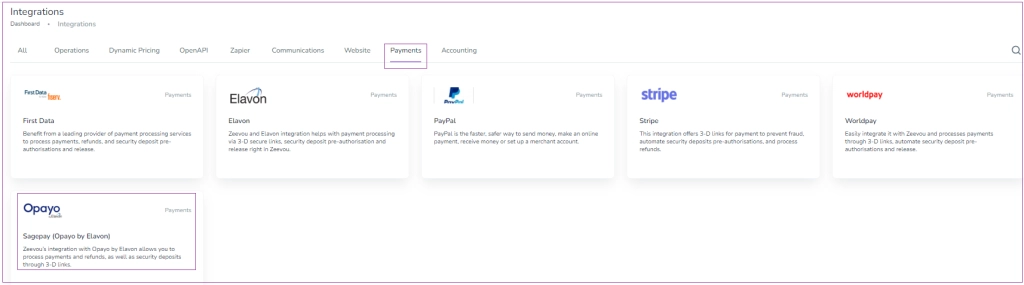
Click on Opayo

Click Connect to Sagepay (Opayo by Elavon)
A drawer opens - fill in all four fields:
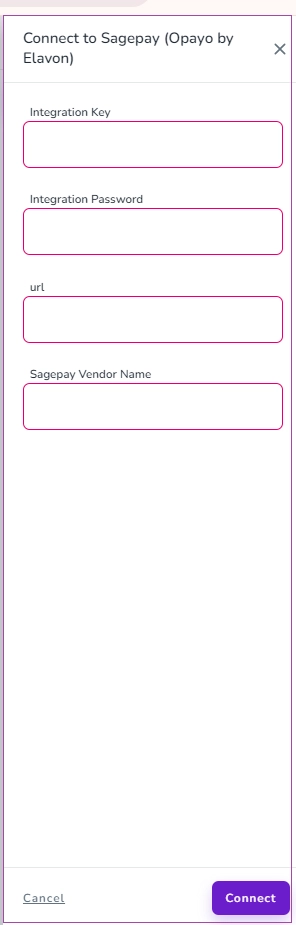
Integration Key (from Step 5)
Integration Password (from Step 5)
Sagepay Vendor Name (from Step 5)
URL: Enter exactly: https://pi-live.sagepay.com/api/v1
Click Connect
Zeevou confirms the connection is successful.
Once you have had confirmation that the settings requested in Step 2 have been completed by Opayo’s support team, you can finalise the integration:
Click gear icon (top right) → Settings → Finance
Find the Payment Methods card
Turn on the Card toggle
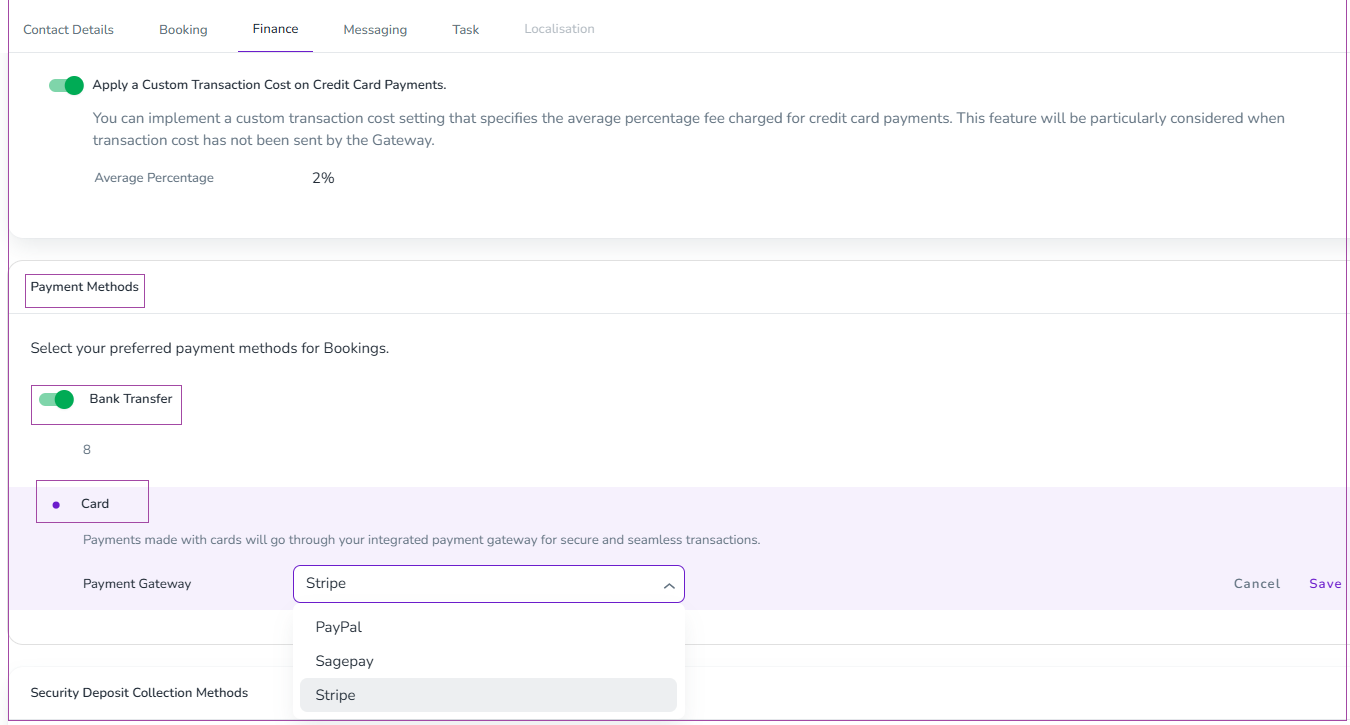
From the dropdown, select Opayo (the gateway you just connected)
Click Save
If you want to collect refundable security deposits from guests:
In Settings → Finance, find Security Deposit Collection Methods card
Turn on the Card toggle
From the dropdown, select Opayo
Click Save
Your default Opayo admin login cannot see transaction details. To view fraud warnings and full payment information:
Log into your Opayo account
Go to Settings → Users
Click Create User
Enter a different email address
Grant this user "View Transactions" permission
Save
Now you can log in with this new user to see full transaction details and fraud alerts in Opayo.
Visit your booking website
Make a test booking with Opayo's test card:
Card number: 4929 0000 0000 6
Expiry: Any future date
CVV: Any 3 digits
Complete the test booking
Check your Opayo dashboard - the test transaction should appear
Check your merchant account portal (Elavon/WorldPay/FirstData) - the settlement should be scheduled
Guests can now book and pay on your website. Payments flow through:
Guest pays → Card details sent to Opayo
Opayo processes → Forwards to your merchant account (Elavon/WorldPay/FirstData)
Merchant account settles → Funds transfer to your bank (usually 2-3 business days)
View your payments:
Opayo Dashboard - See all transactions and gateway activity
Merchant Portal (Elavon/WorldPay/FirstData) - See settlements and payouts to your bank
Once you have added your payment gateway, you can continue with inviting your owners.
