This guide explains how to disconnect your channel connections in Zeevou for both Connection Type A and Connection Type B.
Please note that it can take a few hours for a disconnection to be fully processed before you can deactivate a listing in Zeevou.
When activating a channel, users will receive a confirmation message indicating that Inventory, Rates, and Restrictions will be pushed across the configured availability window. When deactivating a channel, users will receive a confirmation message explaining that zero inventory will be pushed across the availability window, which will close availability for the selected channel.
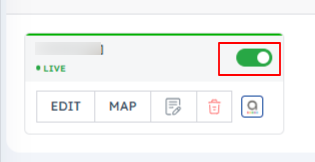
For Connection Type A, you need to remove the connection from Airbnb and then remove the property from Zeevou.
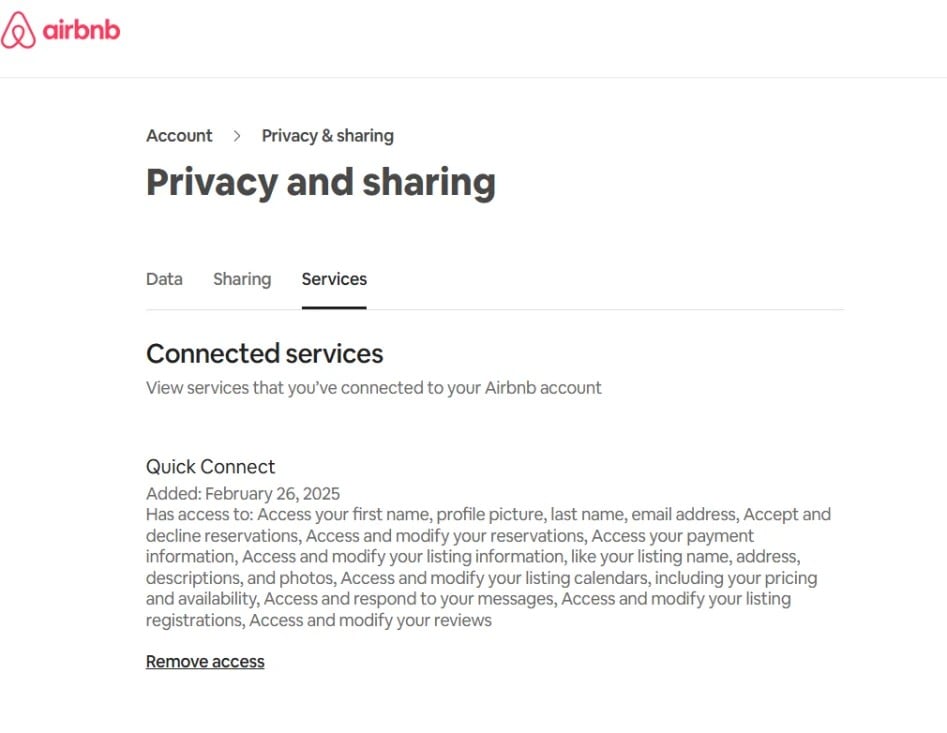
Log in to your Airbnb host account.
Navigate to your Menu profile.
Go to Account Settings.
Open Privacy.
Under Connected Services, find Quick Connect (or click https://www.airbnb.com/account-settings/privacy-and-sharing).
Click Remove Access.
Log in to Zeevou.
Go to Listings.
Click Manage Channels in the top-right corner.
Select Airbnb.
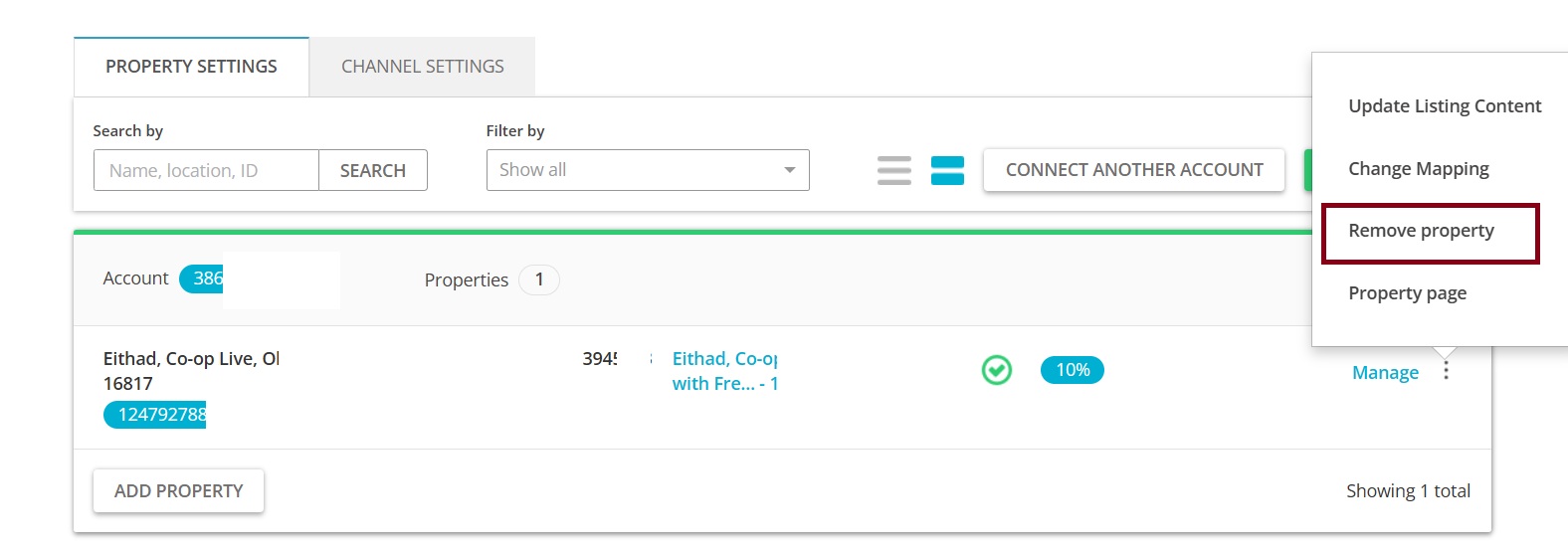
Find the relevant property.
Click the three-dot menu next to the property.
Select Remove Property.
Click Confirm Removal.
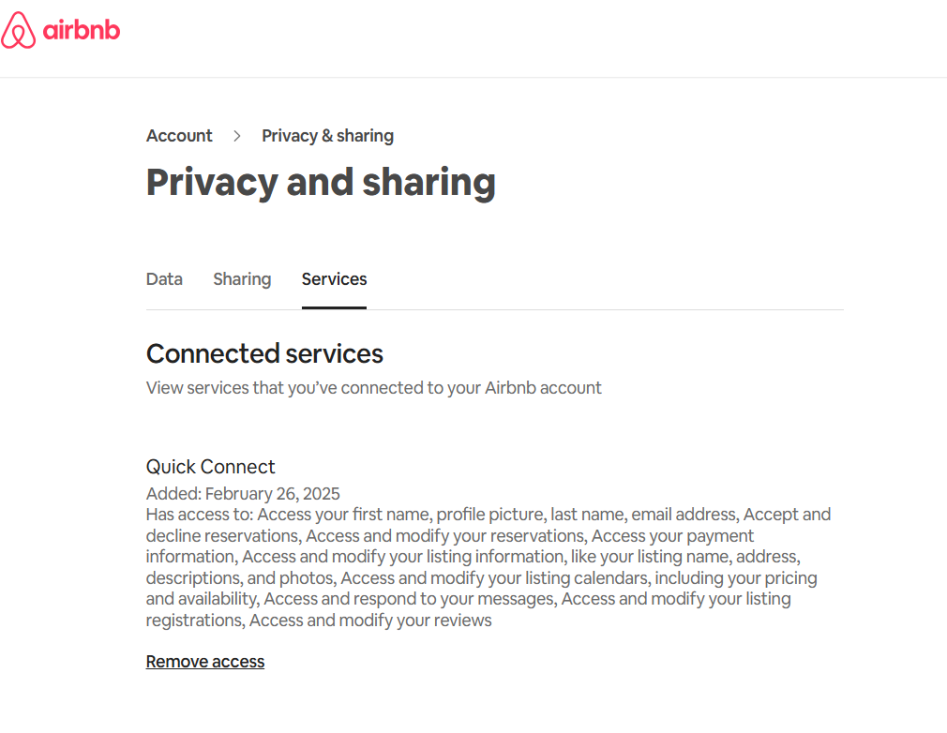
Note: If your Airbnb account contains multiple listings and you only want to disconnect one listing, you need to raise a service request. f the account has only one listing, you can remove QuickConnect directly from within Airbnb.
For Connection Type B, you can remove the connection directly from Zeevou.
Go to Listings.
Open the relevant property.
Click Manage Channels.
Select Airbnb.
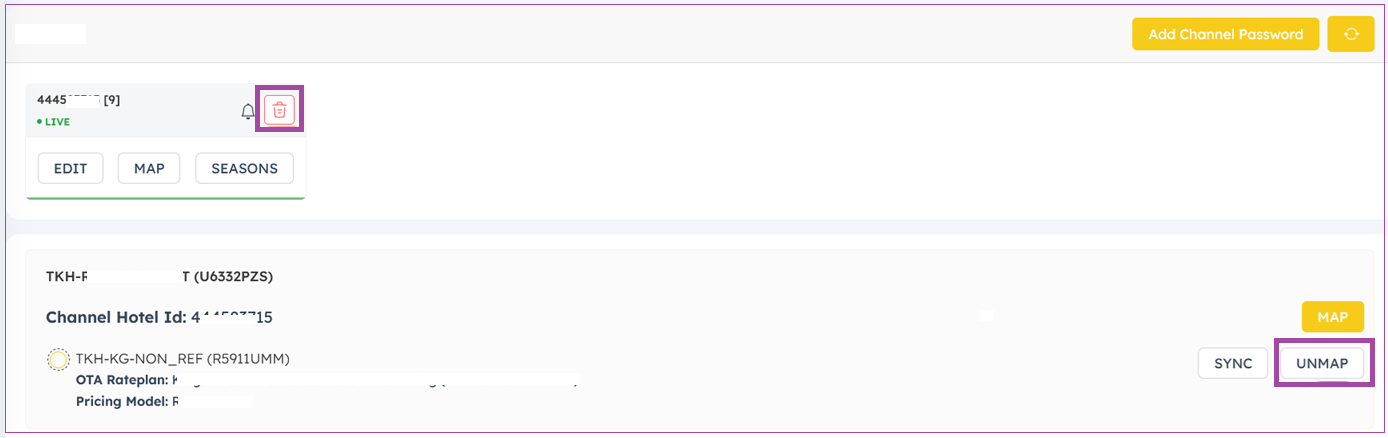
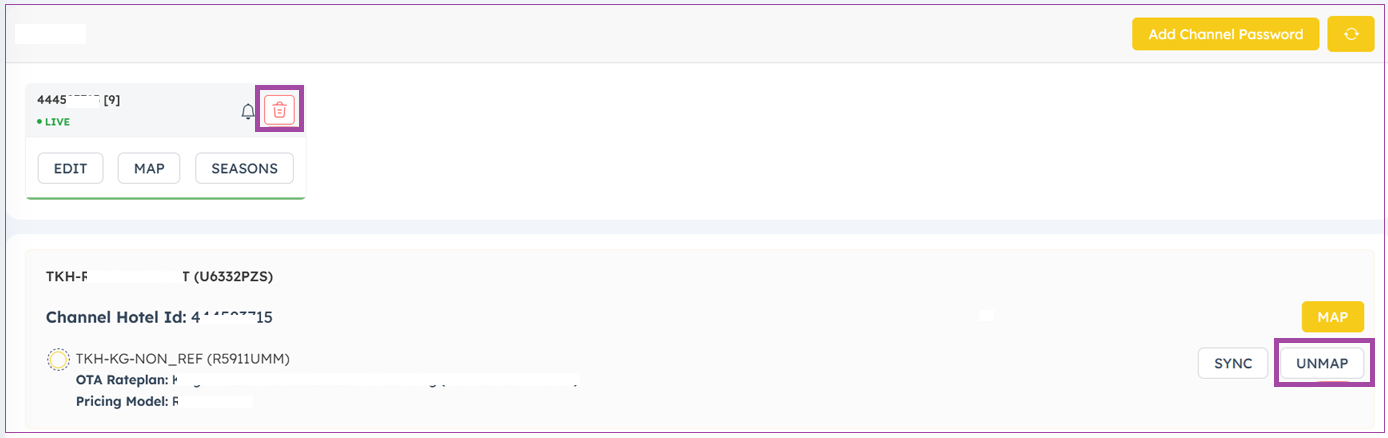
To remove the connection for all mapped listings, click the Delete icon.
To remove the connection for one specific listing, click Unmap.
Click Yes to confirm.
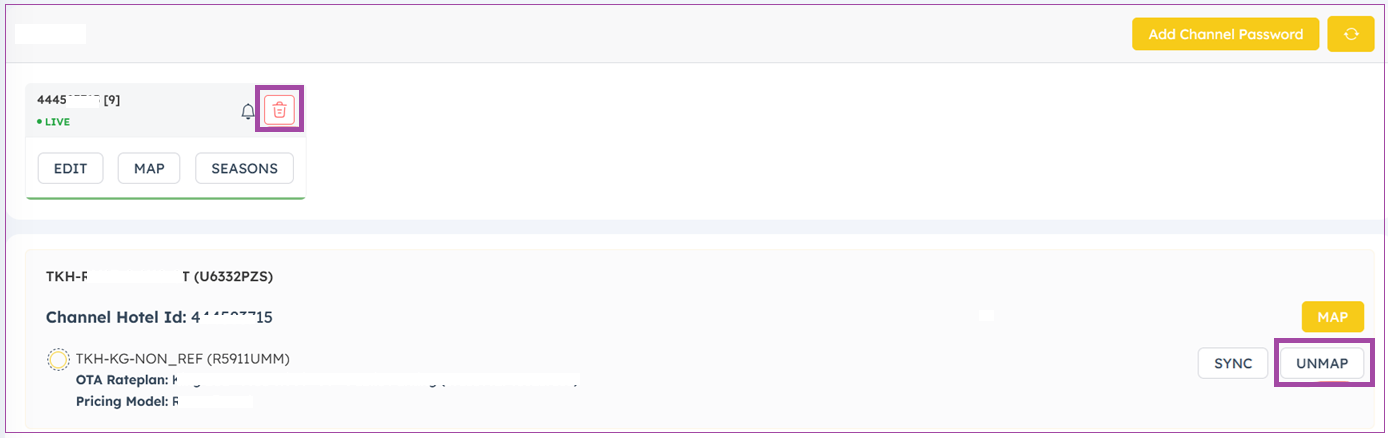
For Connection Type A, first disconnect Zeevou from the Booking.com Extranet, then remove the property from Zeevou.
Log in to the Booking.com Extranet.
Open the relevant property.
Click the Profile icon in the top-right corner.
Select Connectivity Provider.
Click Disconnect.
Select a reason for disconnecting.
Click Disconnect again.
Log in to Zeevou.
Go to Listings.
Click Manage Channels in the top-right corner.
Select Booking.com.
Go to Property Settings.
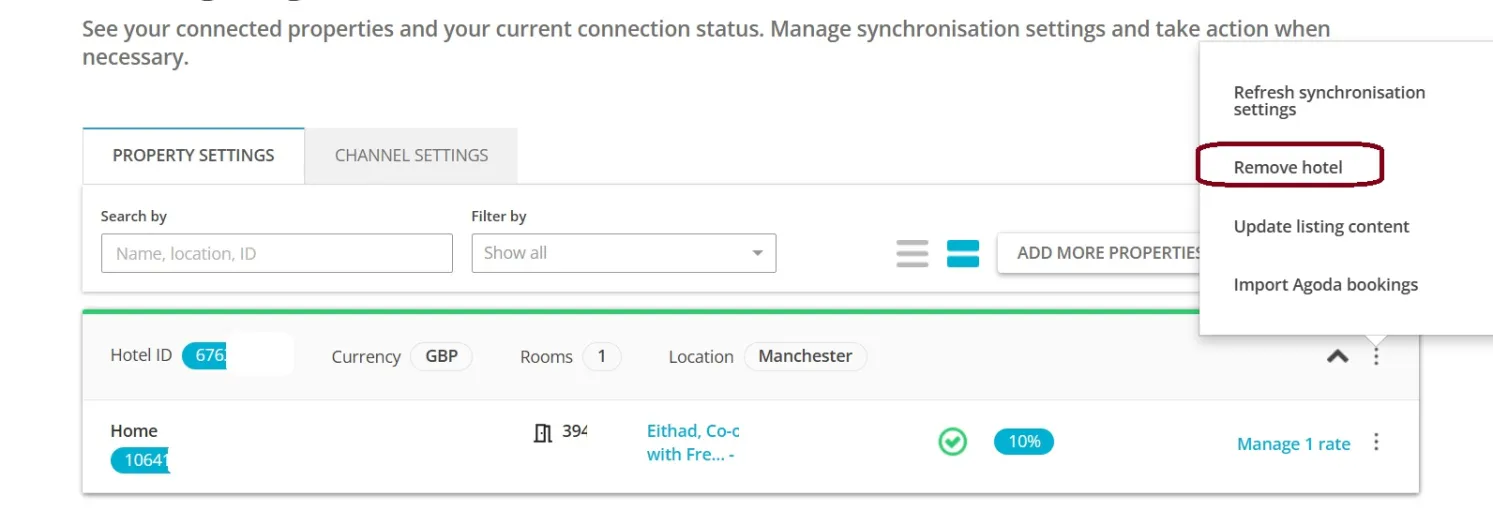
Click the three-dot menu next to the relevant property.
Select Remove Hotel.
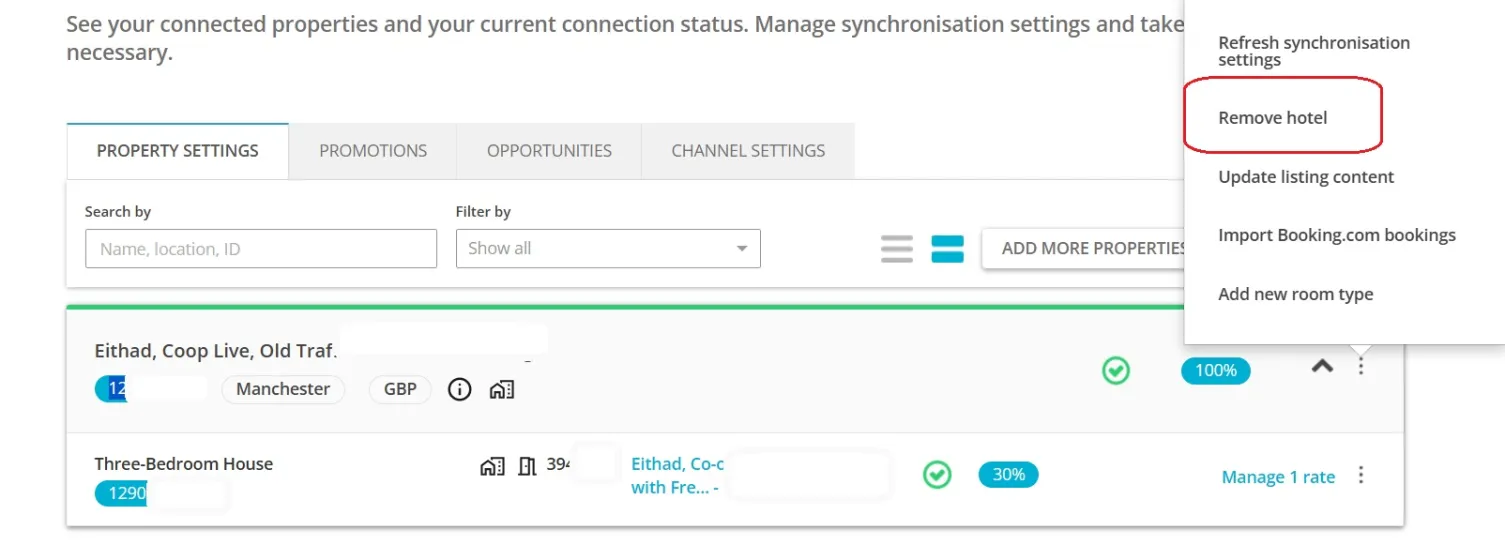
In the confirmation window, click Refresh Synchronisation Settings.
Click Proceed.
Click Confirm Removal.
Go to Listings.
Open the relevant property.
Click Manage Channels.
Select Booking.com.
To remove the connection for all mapped listings, click the Delete icon.
To remove the connection for one specific listing, click Unmap.
Click Yes to confirm.
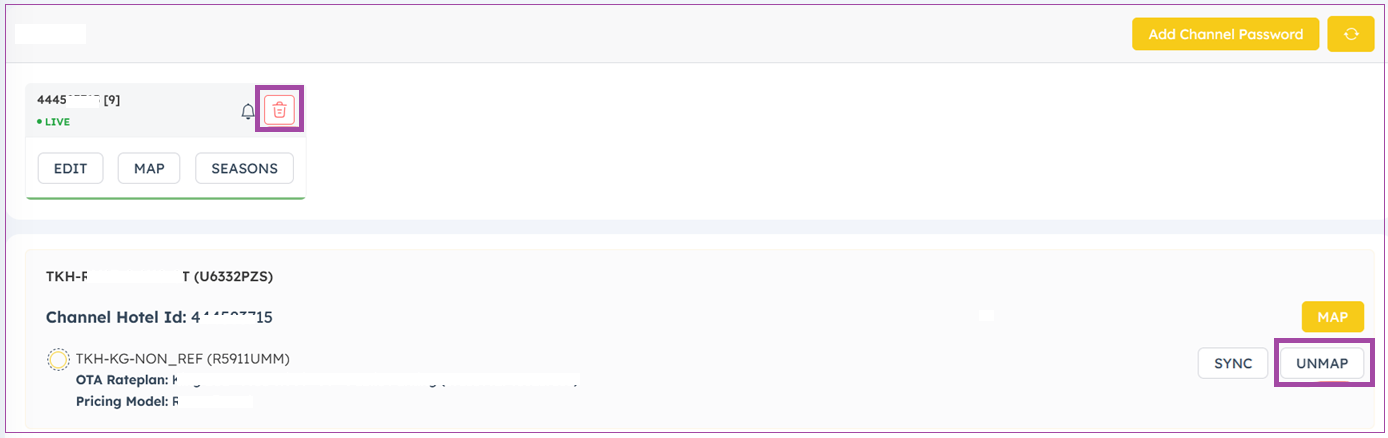
For Connection Type A, first disconnect Zeevou from the Expedia Extranet, then remove the property from Zeevou.
Log in to the Expedia Extranet.
Open the relevant property.
From the left-hand menu, go to Rooms & Rate.
Select Connectivity Settings.
Enter the requested verification code.
Click Manage Services.
Click Disconnect.
Click Next.
Click Confirm to complete the disconnection.
Log in to Zeevou.
Go to Listings.
Click Manage Channels in the top-right corner.
Select Expedia.
Go to Property Settings.
Click the three-dot menu next to the relevant property.
Select Remove Hotel.
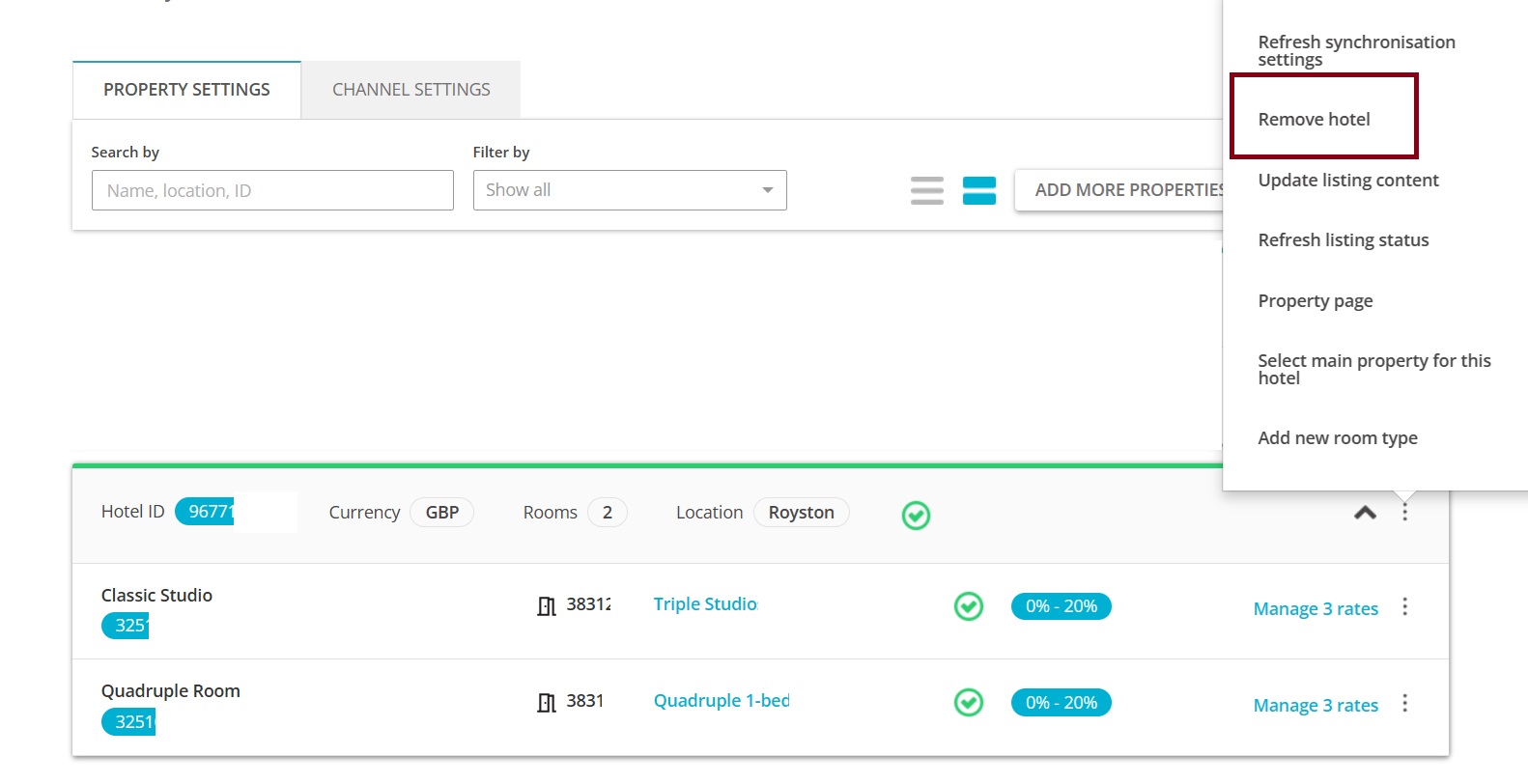
Go to Listings.
Open the relevant property.
Click Manage Channels.
Select Expedia.
To remove the connection for all mapped listings, click the Delete icon.
To remove the connection for one specific listing, click Unmap.
Click Yes to confirm.
For Connection Type A, contact Agoda Support and ask them to remove the channel manager from the relevant property.
Once Agoda confirms that the connection has been removed:
Log in to Zeevou.
Go to Listings.
Click Manage Channels in the top-right corner.
Select Agoda.
Go to Property Settings.
Click the three-dot menu next to the relevant property.
Select Remove Hotel.
Go to Listings.
Open the relevant property.
Click Manage Channels.
Select Agoda.
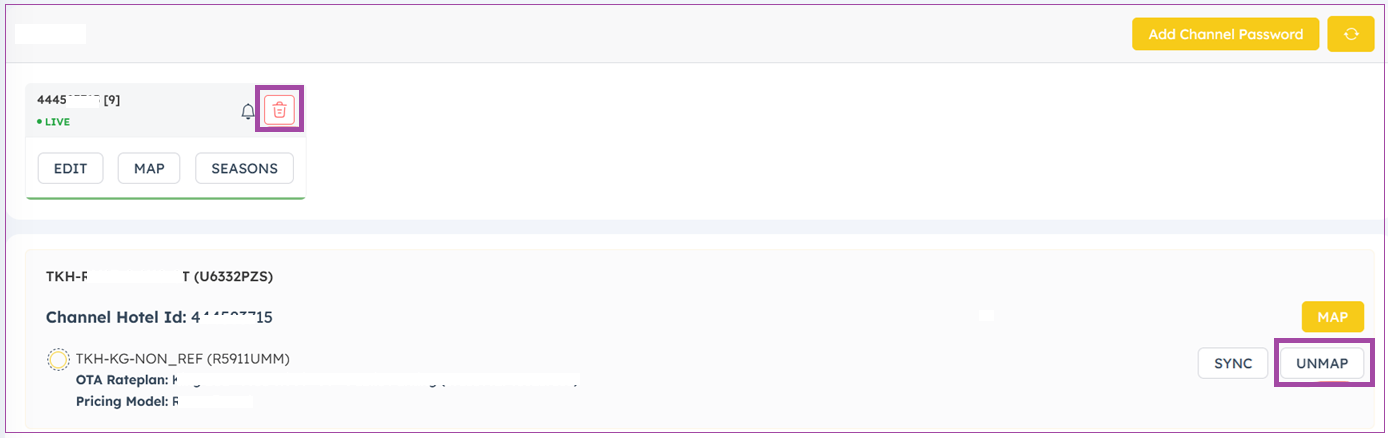
To remove the connection for all mapped listings, click the Delete icon.
To remove the connection for one specific listing, click Unmap.
Click Yes to confirm
For Connection Type A, contact Vrbo Support and ask them to unmap the relevant listing.
Once Vrbo confirms that the listing has been unmapped, check the connection status in Zeevou.
Go to Listings.
Open the relevant property.
Click Manage Channels.
Select Vrbo.
To remove the connection for all mapped listings, click the Delete icon.
To remove the connection for one specific listing, click Unmap.
Click Yes to confirm.
For Connection Type A, contact Trip.com Support and ask them to unmap the relevant listing.
Once Trip.com confirms that the listing has been unmapped, check the connection status in Zeevou.
Go to Listings.
Open the relevant property.
Click Manage Channels.
Select Trip.com.
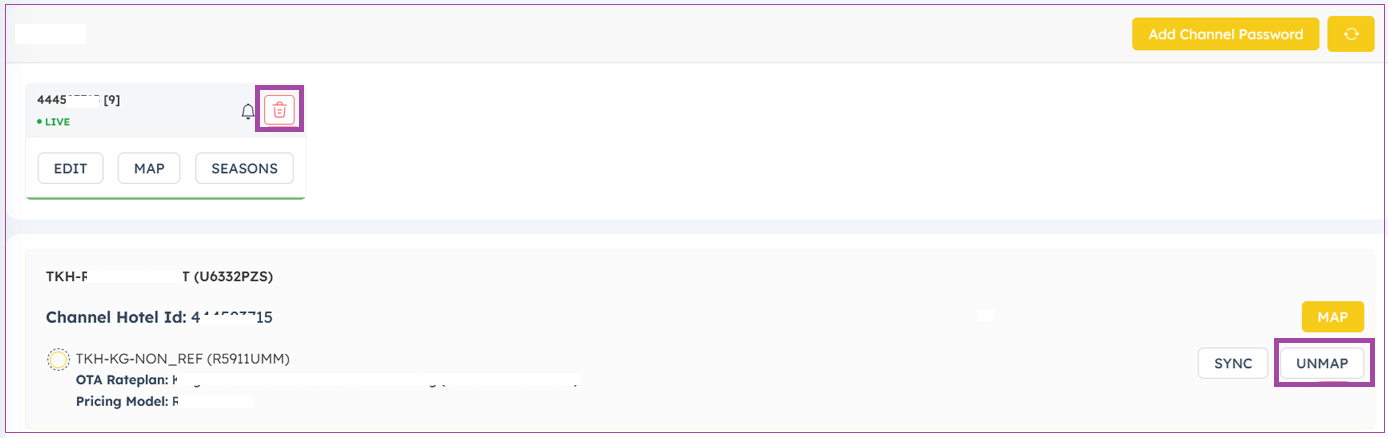
To remove the connection for all mapped listings, click the Delete icon.
To remove the connection for one specific listing, click Unmap.
Click Yes to confirm.
Your preferred listings are now live and bookable through your direct booking website and connected channels.
Now, join a community of like-minded hosts, share experiences, exchange ideas, and help each other thrive through the power of collaboration.
