Zeevou automates your entire online check-in journey — from booking confirmation to security deposit handling — ensuring a smooth guest experience and reducing manual follow-up.
After a booking is confirmed, the guest receives an Online Check-in email requesting them to:
Confirm their personal details
Provide their arrival time
Complete any outstanding payment
Enter card details for security deposit pre-authorisation (if not already done)
Sign your Terms & Conditions
Upload/provide ID details
If the Signable integration is activated, the T&Cs signature request is sent automatically via Signable.
To ensure that guests get a confirmation email with next steps once they book, follow these steps:
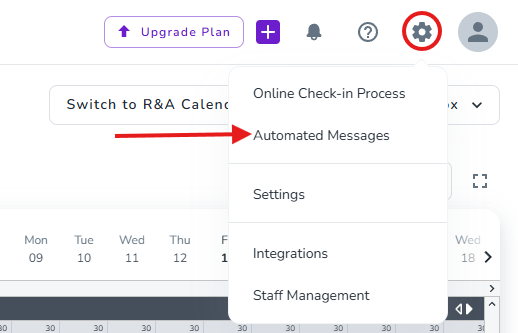
Click the Gear symbol on the top right
Click Automated Messages
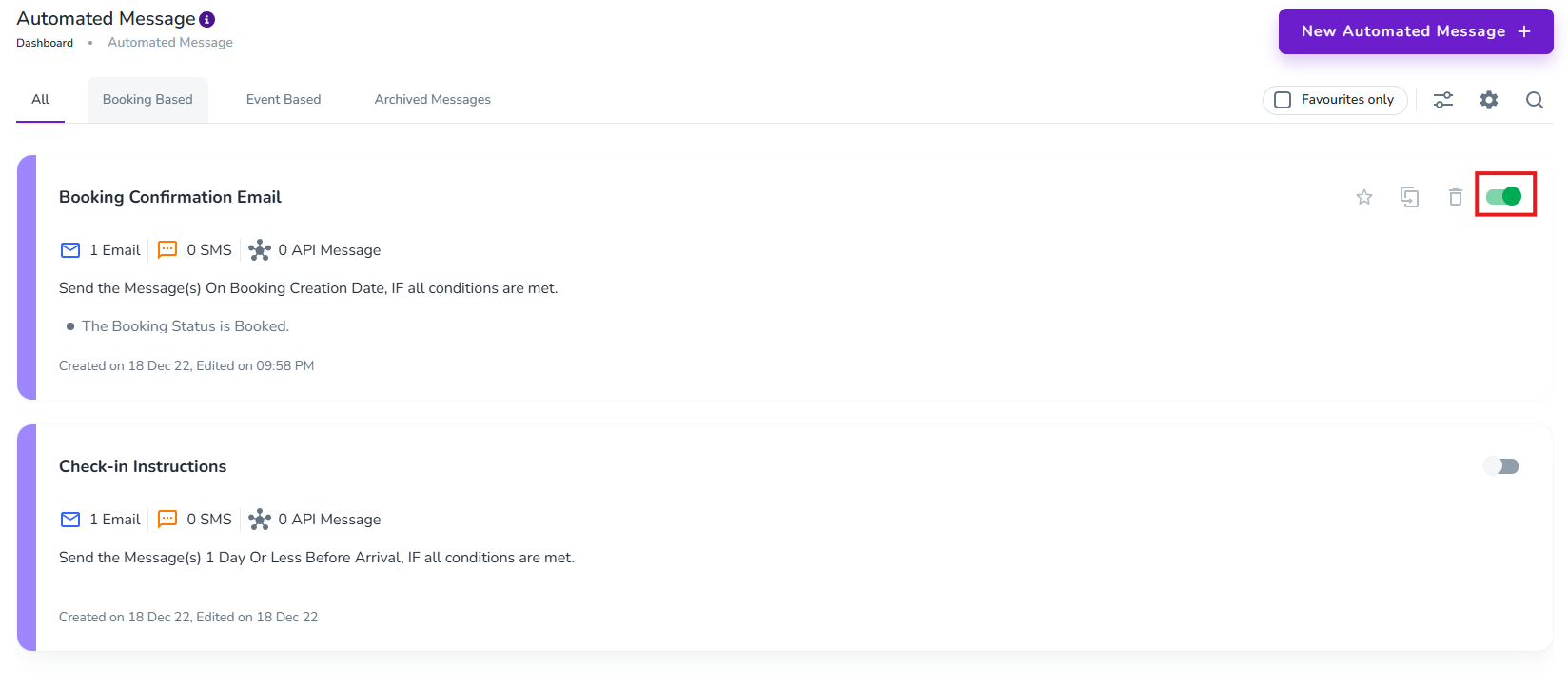
Activate the Booking Confirmation Email
Note: If you wish to review and modify the content of the email first, click on the card for the message and scroll down.
Note: Please note that activating the email at this stage, means that any channel bookings that may be imported when you connect to channels will also receive this email. You may wish to add a condition to the email to restrict it to only send to direct bookings for now, hold off with activating it until after you have connect to other channels like Airbnb & Booking.com, or temporarily turn it off while connecting and reactivate it again once done.
Once all required steps are completed, the guest receives a confirmation email acknowledging their completed online check-in for their stay.
One day prior to arrival, the guest automatically receives a reminder email that:
Shares the property address and/or directions
Displays their submitted arrival time (with the option to amend it)
Provides a secure link to enter card details if the security deposit has not yet been successfully pre-authorised
Check-in instructions are sent automatically only if all required online check-in steps are completed.
Timing condition:
Instructions are sent if the guest confirms (via the reminder email) that they are on time, and it is within one hour of their indicated arrival time.
To send check-in instructions manually:
Open the relevant Booking in the app.
Click the Message icon to open the Unified Inbox.
Select Type Your Message.
Click Insert Template.
Choose the desired template and Send.
Note: Ensure your check-in template is created in advance so it appears in the dropdown menu.
If you capture a security deposit in Zeevou, the guest automatically receives an email notification confirming:
The amount charged
The reason for the charge (as logged during capture)
This keeps communication transparent and fully documented.
