Google Analytics is a powerful tool allowing for the automatic transfer of data without the need for manual input.
Setting up Google Analytics 4 (GA4) for your Zeevou-managed site involves creating a GA4 property, adding a data stream, and integrating the GA4 code into your Zeevou site management. Follow these steps to get started:
Step 1: Create a Google Analytics 4 Property
Sign into Google Analytics:
Go to Google Analytics.
Sign in with your Google account. If you don’t have one, you’ll need to create it.
Create a New Property:
Click the Admin gear icon in the lower-left corner of the page.
In the Property column, click Create Property.
Enter a name for your property (e.g., Zeevou Site Analytics).
Select your reporting time zone and currency.
Click Next.
Set Up a Data Stream:
Choose the platform for your data stream. For a website, select Web.
Enter your website URL and a name for the stream (e.g., Zeevou Website Stream).
Click Create Stream.
Step 2: Obtain Your Google Analytics 4 Measurement ID
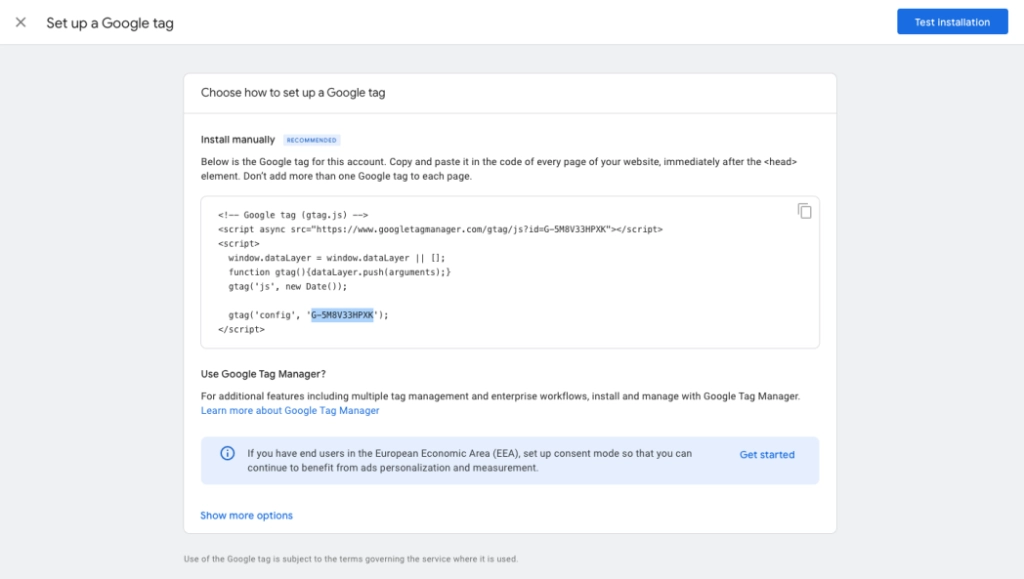
Copy the Measurement ID:
After creating the data stream, you will see a page with your stream details.
Locate and copy the Measurement ID (formatted as G-XXXXXXXXXX).
Step 3: Add Google Analytics Code to Your Zeevou Site Management
Access Zeevou Site Management:
Log into your Zeevou account.
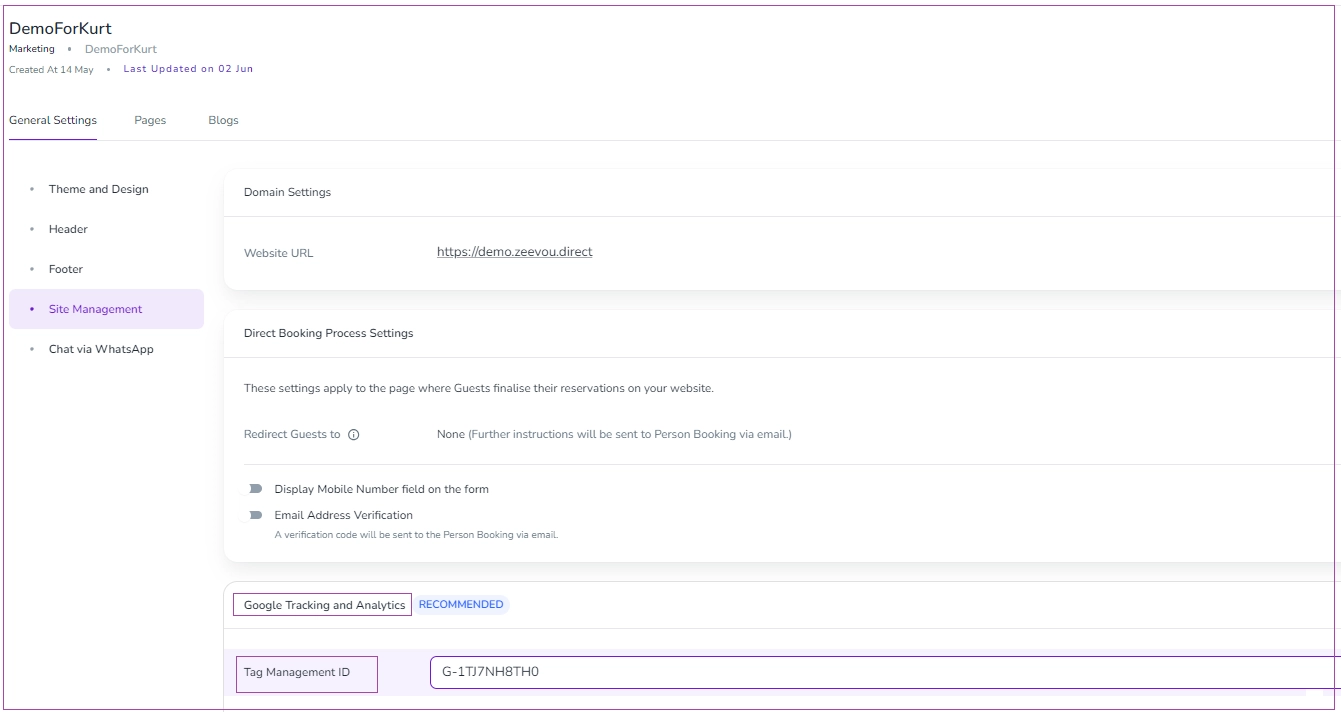
Navigate to the Marketing -> General Settings tab -> Site Management -> Google Tracking and Analytics card -> Tag Management ID.
Paste the Measurement ID (formatted as G-XXXXXXXXXX).
By following these steps, you’ll have successfully set up Google Analytics 4 on your Zeevou-managed website. This integration will enable you to track and analyse your website traffic, helping you make data-driven decisions to optimise your site and enhance user experience.
