This guide provides a straightforward process to create a listing in Zeevou. By following the steps outlined, you can efficiently set up and activate your property, ensuring all essential details are recorded accurately.
Log into app.zeevou.com.
Navigate to Listings on the main menu.
Click on the dropdown menu next to Add a Listing at the top right.
Select Create a Listing.
Note:If your listing is a complex (includes more than one type of units), create the first unit type now. You can add other unit types later on the listing page.
Step 1: Enter Location Details
Fill in your listing address: َAddress, City, Postcode, and Country.
Confirm the pin location on the map.
Click Next.
Step 2: Add Listing Information
Insert the basic information:
Listing Type (Optional)
Unit Type
Internal Name
Check-in & Check-out Method
Number of Units
Unit Names
Click Next.
Step 3: Listing Information
Insert the Listing Headline and Description (Optional) for your direct booking website.
Click Next.
Step 4: Upload Listing Images
Upload images for your listing.
Adjust the settings for each image as needed.
Click Next.
Step 5: List Amenities
Add the amenities available in all units of this listing.
Click Next.
Step 6: Set Pricing
Fill out the pricing details:
Currency
Weekday Price
Weekend Price
Maximum Capacity per Unit
No of Guests included in price
Optional toggles:
Minimum Stay
Maximum Stay
Security Deposit
Cleaning Fee
Click on Next.
Step 7: Manage Brands
Pick one or more Brands to publish the Listing on their websites.
Select a Default Brand to be used for Bookings that come from Channels.
In order to create a Unit Type, open the Listing and click on More and select Add a Unit Type.
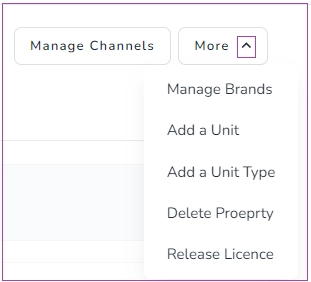
Then, you are directed to a two-step wizard.
Step 1: General Info
You should insert General Info including Unit Category, Marketing Headline and Unit Name. Then, click on Next.
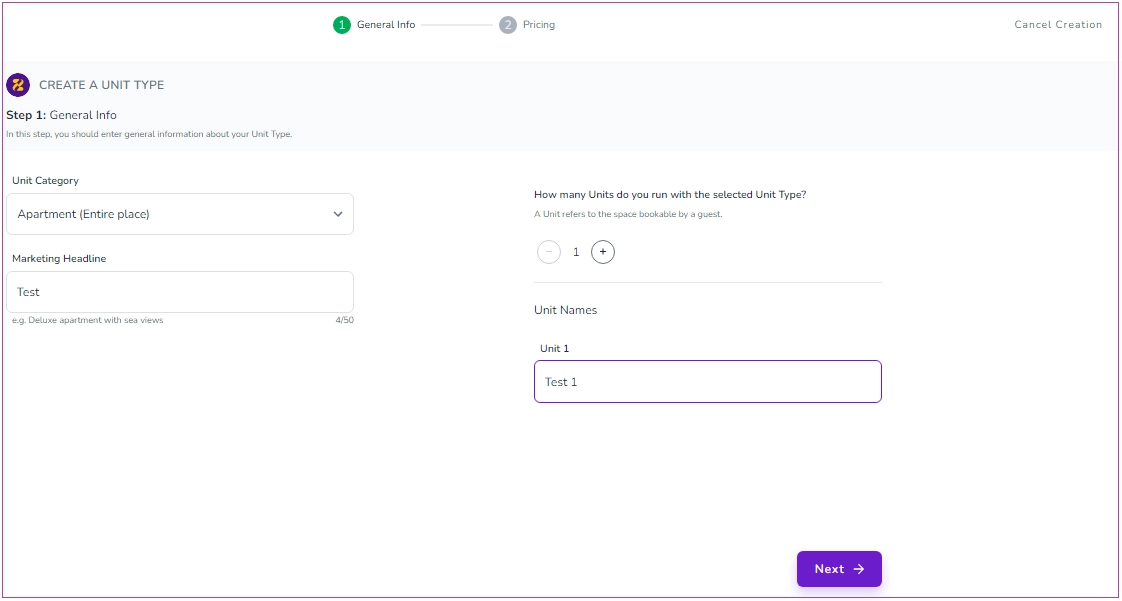
Step 2: Pricing
You should insert Prices for Weekday and Weekend. You can also enable other toggles if you wish. Finally, click on Create a Unit Type.
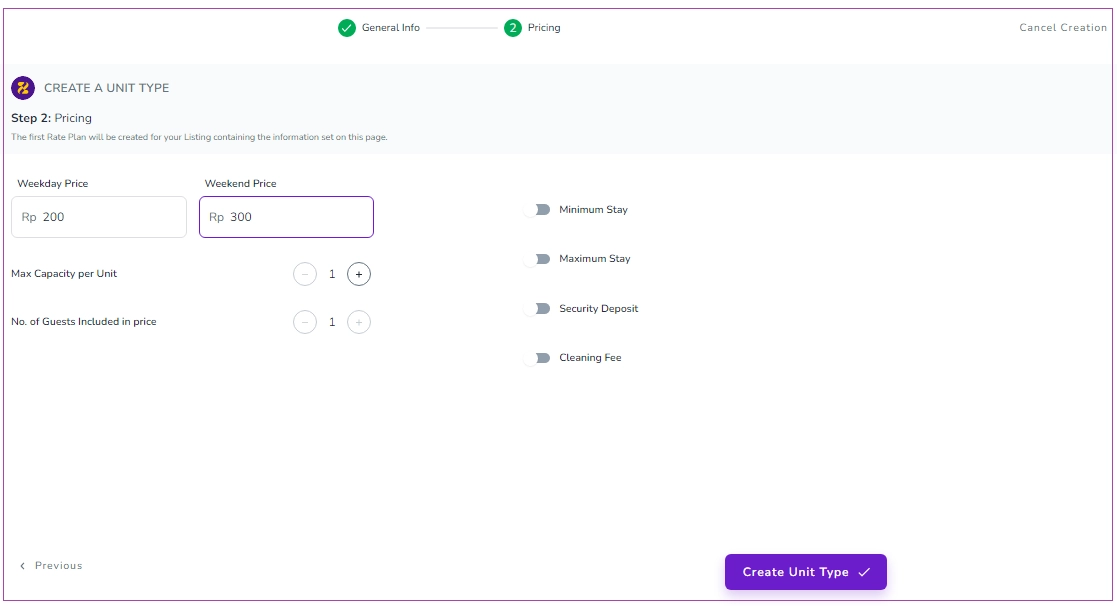
Your created Unit Type will be added on the Listings page.
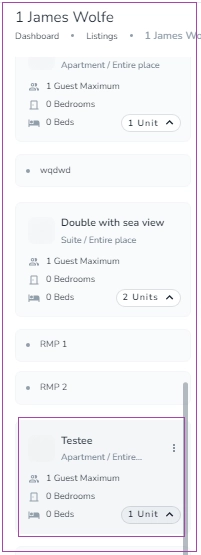
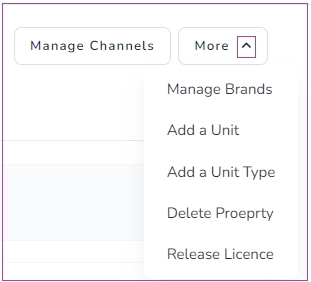
In order to create a Unit, go to Listings and if your listing is a Single Unit (A Property with one Unit Type and one Unit), click on More and select Add a Unit.
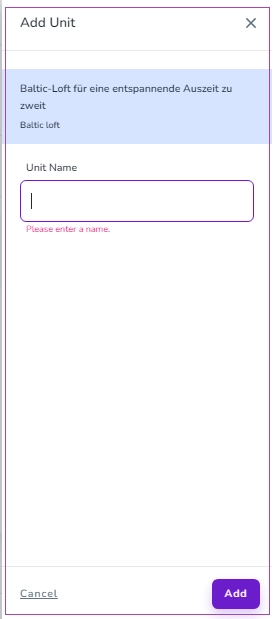
Then, a drawer opens in which you can enter the Unit name and click on Add.
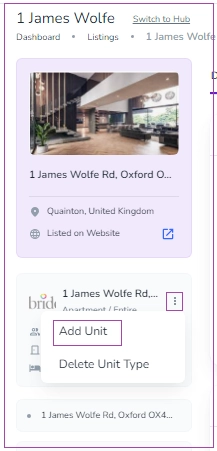
If your listing is a complex, click on the three dots of Unit Type and select Add a Unit and continue as explained above.
Click on Finalise Activation, and the listing appears under the Active section on the landing page.
If you want to save the listing in drafts, click on Save draft and activate later. To edit the drafted listings:
Click on Drafts on the Listings .
Select your listing and click on Complete.
By following these simple steps, you will have your listing created and ready to attract bookings on Zeevou.
Once you are done with listing all your properties, proceed with Setting Your Rates.
