In Zeevou, an Expense is the actual cost you record under Finance → Expenses. Each expense includes an amount, tax, and allocation (property, unit, or booking).
An Expense Type is the category or label you create (for example, “Cleaning Fee – HK”) to organise those costs. Using Expense Types helps you:
Keep your financial records structured
Maintain cleaner reports
Improve visibility of owner profitability in Monthly Profit Reports
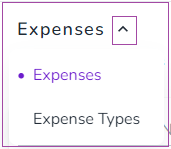
Go to Finance → Expenses.
Click the arrow next to Expenses.
Select Expense Types.
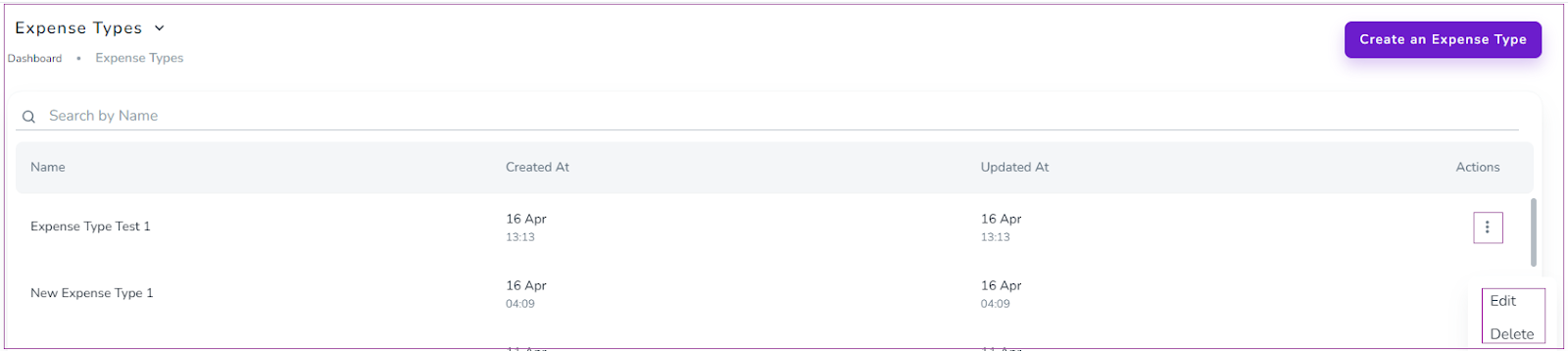
On the Expense Types dashboard, you can:
Click the three dots next to an item to View or Delete it
Click Create an Expense Type to add a new one
Go to Finance → Expenses → Expense Types.
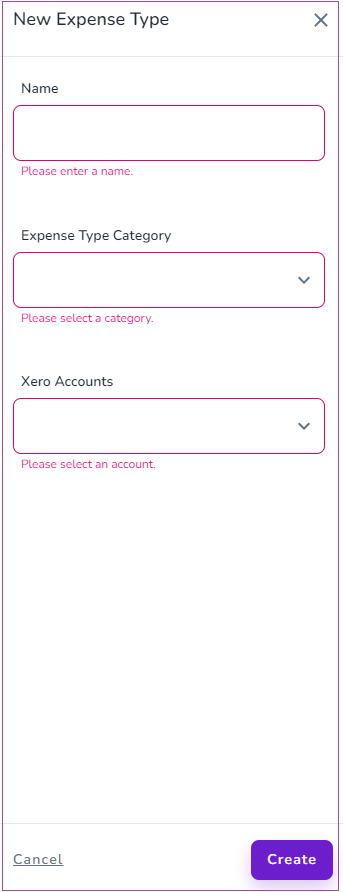
Click Create an Expense Type.
In the drawer that opens, complete the following fields:
Name
Expense Type Category
Xero Accounts (if applicable)
Click Create to save.
To change the Expense Type assigned to an expense:
Go to Finance → Expenses.
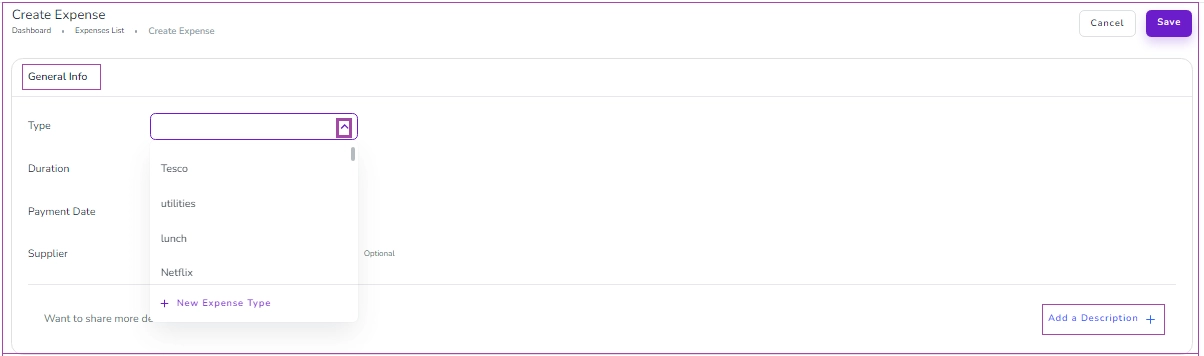
Click on the expense you want to edit.
Under General Info, click the Type dropdown.
Select your desired Expense Type.
Any changes will automatically update across:
Related bookings
The Expenses page
Profit reports
✅ Manually entered expenses can be edited.
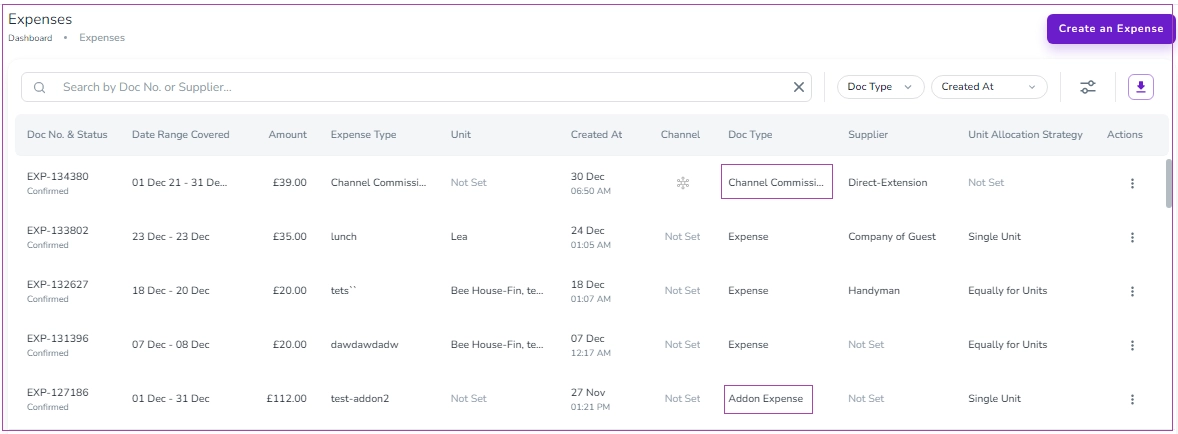
❌ Automatically generated expenses (such as Channel Commission or Addon Expense) cannot be changed.
You can create a new category while creating an Expense Type:
Go to Finance → Expenses → Expense Types.
Click Create an Expense Type.
Open the Expense Type Category dropdown.
Start typing your desired category name.
When the system detects it as new, select the option to create it as a New Category.
Complete the remaining fields and click Create.
This allows you to keep your expense structure organised and aligned with your reporting needs.
